
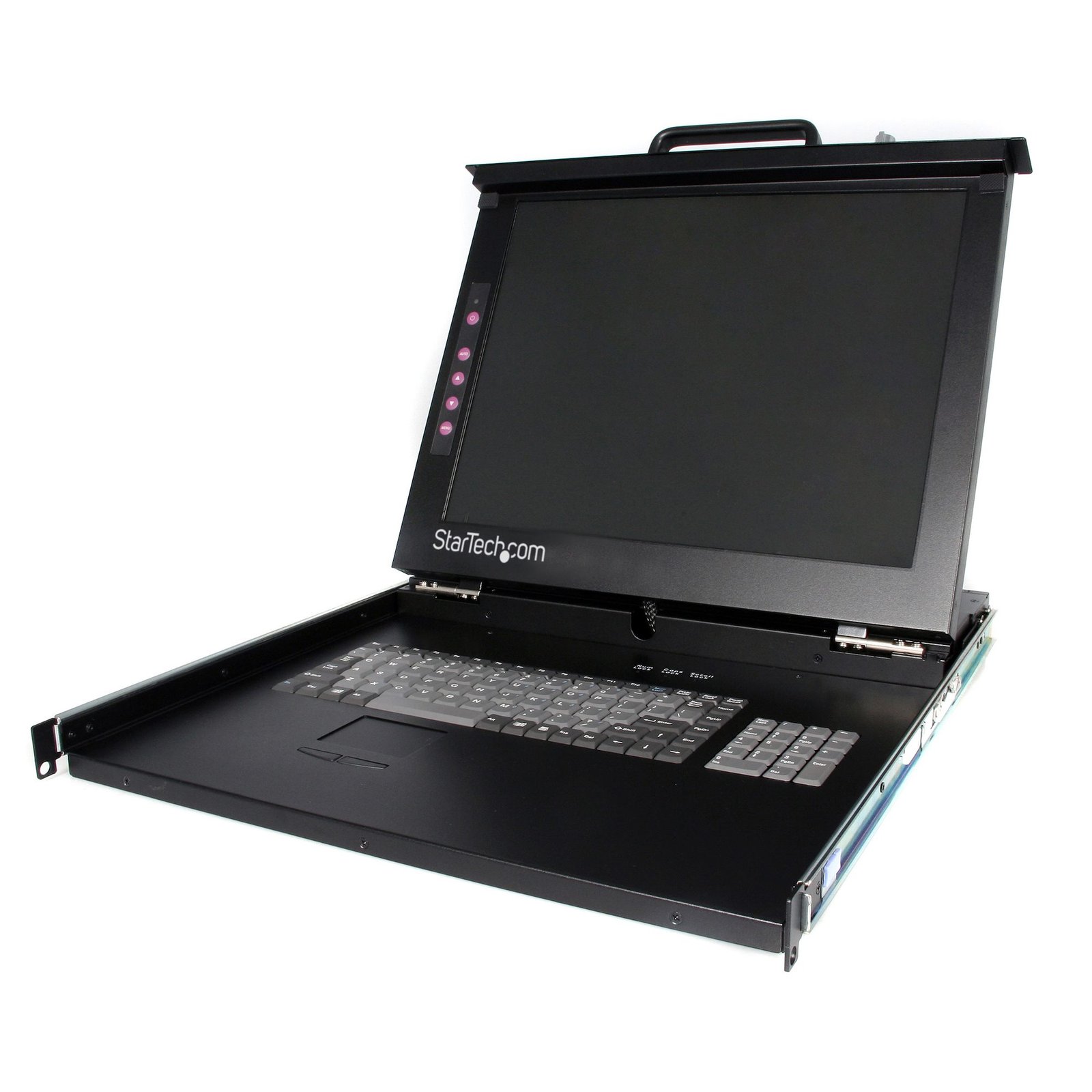
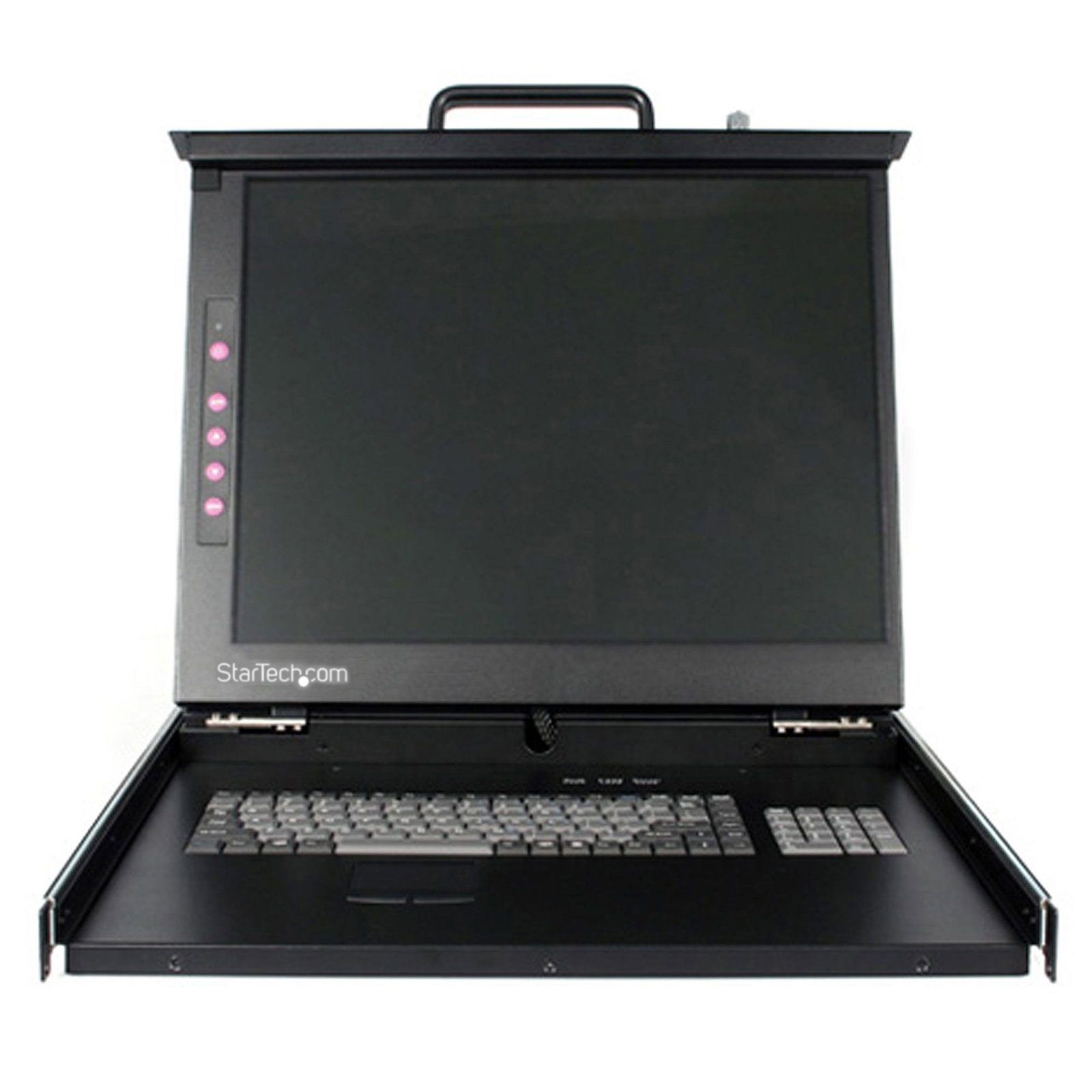
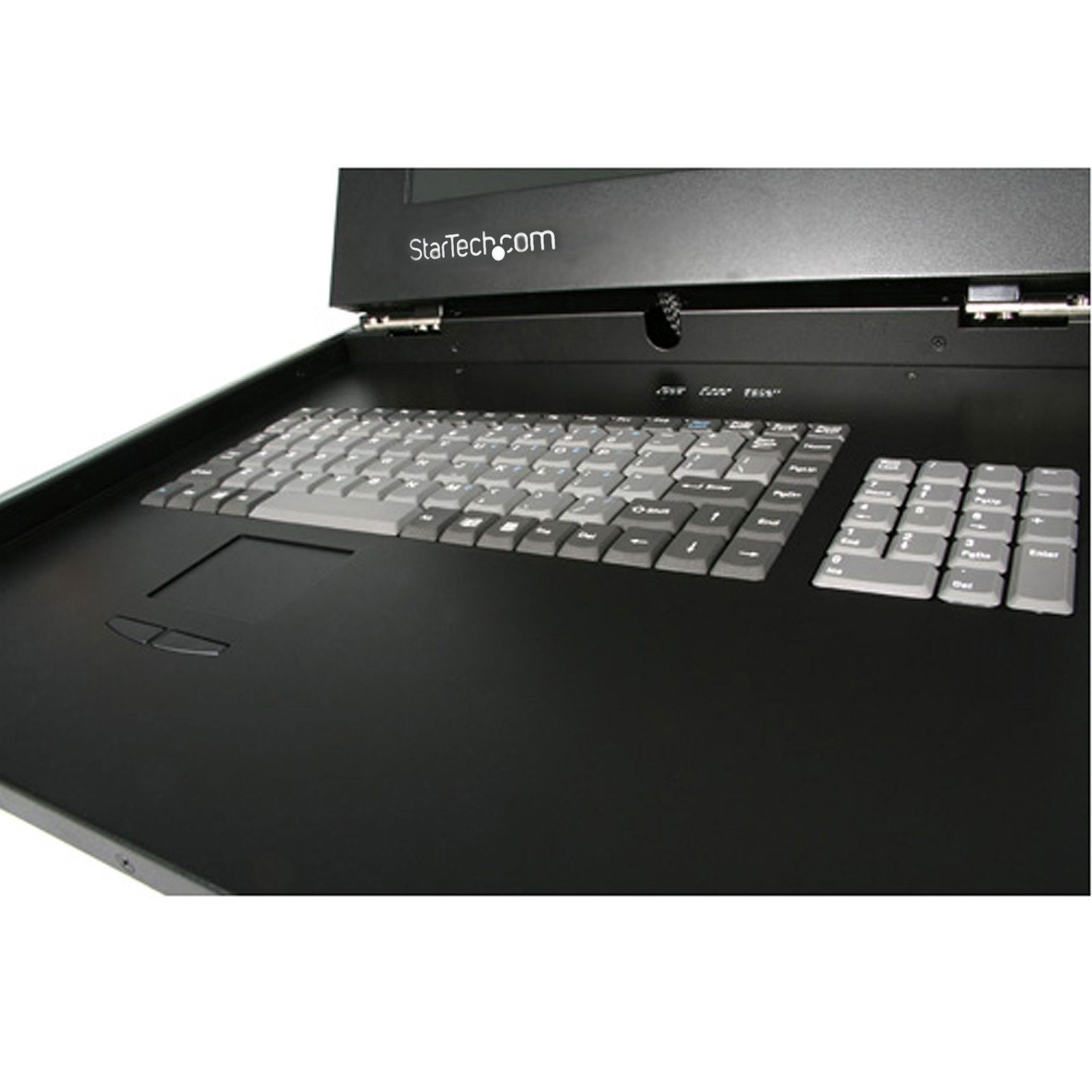
1U 19" Rackmount LCD Console - USB + PS/2
$1,013.99
Centralized control of a server or KVM switch with this 1U USB PS/2 rack-mountable LCD console
Specifications & Compliance
- UPC
- 065030822800
- Brand
- StarTech.com
- Included in Package
- 1 - 1U LCD Rack Console Drawer, 1 - Mounting Rails - Set, 1 - Console Cable Kit, 1 - Power Cord, 1 - Set of Keys, 1 - Set of Mounting Screws, 1 - User Manual, 1 - Manual on CD
- Shipping (Package) Weight
- 41.8 lb [18.9 kg]
- Weight of Product
- 30.2 lb [13.7 kg]
- Product Length
- 22.6 in [57.5 cm]
- Product Width
- 18.9 in [48.1 cm]
- Product Height
- 1.8 in [45 mm]
- Package Depth
- 28.1 in [71.4 cm]
- Package Width
- 22.4 in [56.8 cm]
- Package Height
- 8.3 in [21 cm]
- Color
- Black
- Warranty
- 2 Years
- Package Quantity
- 1
- Operating Temperature
- 0°C to 50°C (32°F to 122°F)
- Storage Temperature
- -20°C to 60°C (-4°F to 140°F)
- Material
- Heavy Duty Steel
- Power Source
- Standard 120V Power Cords
- Input Voltage
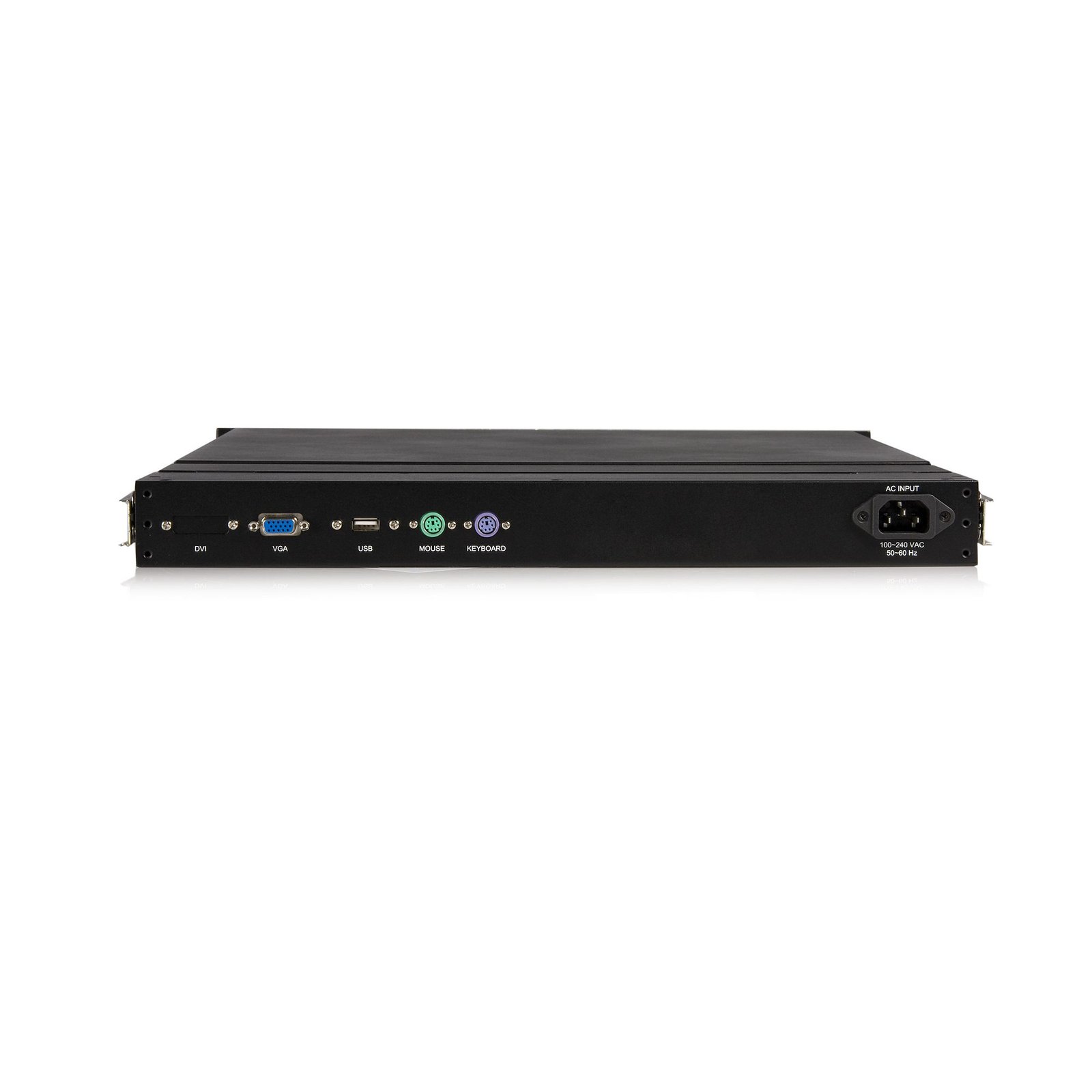
- 100 - 240 AC
- Output Voltage
- 12V DC
- Power Consumption
- 39.6
- MTBF
- 60,000 Hours
- Output Current
- 3.3
- Host Connector 1
- VGA
- Host Connector 1 (Quantity)
- 1
- Audio
- No
- Host Connector 2
- PS/2
- Host Connector 2 (Quantity)
- 2
- Maximum Analog Resolutions
- 1280x1024(SXGA)@60Hz
- Rack-Mountable
- Yes
- Number of KVM Ports
- 1
- IP Control
- No
- Supported Platforms
- USB and PS/2
- PC Video Type
- VGA
- Number of Monitors Supported
- 1
- On-Screen Display
- Yes
- Port Selection Support
- Hotkeys and OSD (On Screen Display)
- Maximum Mounting Depth
- 31.5 in [80 cm]
- Host Connector 3
- USB-A (480Mbps, 2.5W)
- Host Connector 3 (Quantity)
- 1
- Maximum Number of Users
- 1
- Aspect Ratio
- 4:3
- Minimum Mounting Depth
- 21.9 in [55.5 cm]
- Front Door Key Lock
- Yes
- Display Size
- 19"
Questions & Answers
Everything is hooked up but nothing is working. What should I do?
When you troubleshoot issues with a rack console, there are some quick tests that you can complete to rule out potential problems. You can test to make sure that the following components are working correctly and are not the source of the issue: Video cables Video source Monitor USB/PS2 cables Before you test the components, make sure that the rack console is properly mounted to a rack. For more information, see the documentation that came with the rack console. To test your setup components, try the following: Use the video cables, video source, monitor, and USB/PS2 cable(s) in another setup to see if the problem is with the components or the setup. Use a different video cable, video source, monitor, and USB/PS2 cable(s) in your setup to see if the problem persists. Ideally, you should test a component that you know works in another setup. Note: When testing with a different keyboard, mouse, and monitor, connect the devices directly to your computer. When you test your cables, it is recommended that you do the following: Test each cable individually. Use short cables, with the least amount of adapters. When you test the video cables, video source, and monitor, it is recommended that you do the following: Use a resolution that is compatible with the monitor and any KVM switches that you may use. When a KVM switch is used with the rack console, make sure that you selected the correct source. If some of the sources are working but not others, you may be experiencing issues with the KVM switch in your setup. For more information, see the KVM Troubleshooting FAQ.
Related products
-
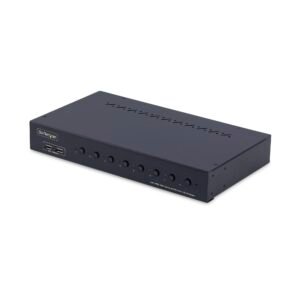
8-Port HDMI KVM Switch with 1U Rack Mount Kit, 4K 60Hz HDMI 2.0, Push-Button & Hotkey Switching, 4-Port USB Hub, OS Independent, TAA Compliant
$795.99 Add to cart -
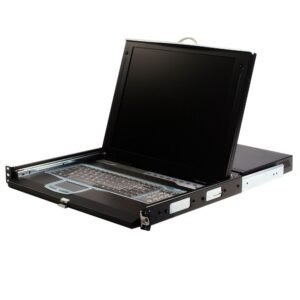
1U 17" Rackmount LCD Console with Integrated 16 Port IP KVM Switch
$3,067.99 Add to cart -
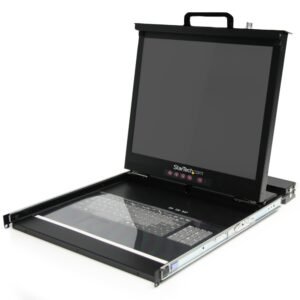
1U 19" Rackmount LCD Console with 16 Port Multi-Platform KVM
$1,984.99 Add to cart -
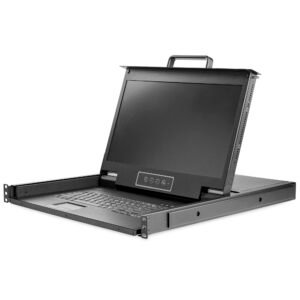
Rackmount KVM Console HD 1080p - Single Port VGA KVM with 17" LCD Monitor for Server Rack - Fully Featured 1U LCD KVM Drawer w/Cables & Hardware - USB Support - 50,000 MTBF
$1,536.99 Add to cart