
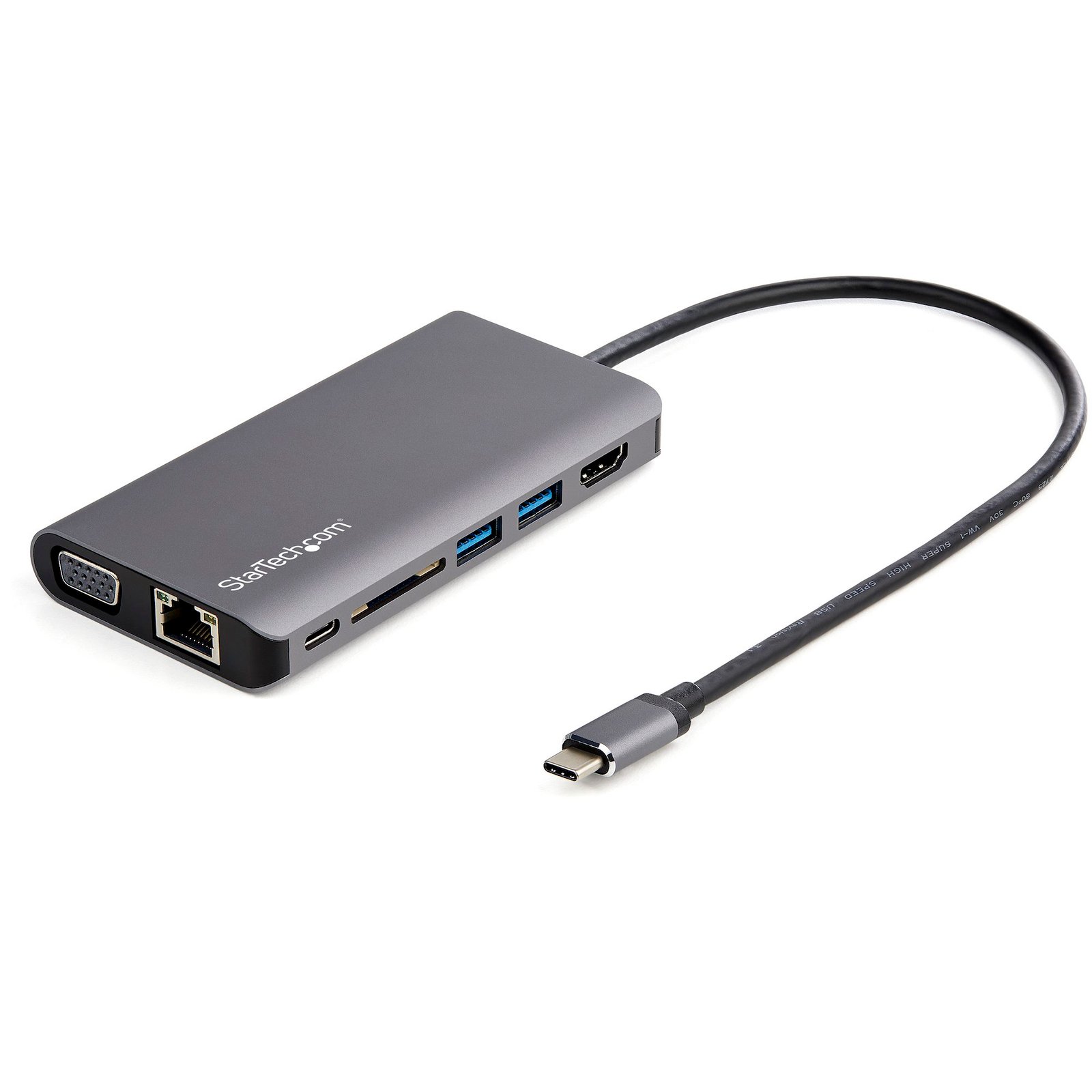
USB C Multiport Adapter - USB-C Mini Travel Dock w/ 4K HDMI or 1080p VGA - 3x USB 3.0 Hub, SD, GbE, Audio, 100W PD Pass-Through - Portable Docking Station for Laptop/Tablet
$53.99
USB-C Mini Dock | 100W PD Passthrough | USB-C & A Ports | SD Card Reader | Mac, Windows® & ChromeOS | Android OS | GbE
Specifications & Compliance
- UPC
- 065030880244
- Brand
- StarTech.com
- Included in Package
- 1 - USB-C Docking Station, 1 - Quick-Start Guide
- Shipping (Package) Weight
- 6.6 oz [186 g]
- Weight of Product
- 4.4 oz [125.0 g]
- Product Length
- 4.6 in [11.7 cm]
- Product Width
- 2.4 in [60.8 mm]
- Product Height
- 0.6 in [16.0 mm]
- Package Depth
- 6.8 in [17.2 cm]
- Package Width
- 5.7 in [14.6 cm]
- Package Height
- 1.3 in [33 mm]
- Color
- Black & Space Gray
- Cable Length
- 11.8 in [30 cm]
- Warranty
- 3 Years
- Connector 1
- HDMI
- Connector 1 (Quantity)
- 1
- Package Quantity
- 1
- Connector 2
- VGA
- Connector 2 (Quantity)
- 1
- Operating Temperature
- 0 to 45°C
- Storage Temperature
- -10 to 82°C
- Humidity
- 5%~90%
- Material
- Aluminum and Plastic
- Power Source
- Not Included (not required for standard applications)
- Chipset ID
- VIA Labs - VL102, VIA Labs - VL163, VIA Labs - VL817, Genesys Logic - GL823K, ITE Tech - IT6564, Realtek - RTL8153B, Cmedia - HS100-B
- Power Delivery
- 100W
- Output Voltage
- 5 DC
- Connector 3
- RJ-45
- Connector 3 (Quantity)
- 1
- MTBF
- 372518 hours
- Number of Ports
- 7
- Bus Type
- USB 3.2 Gen 1
- Type and Rate
- USB 5Gbps
- Maximum Digital Resolutions
- 3840 x 2160 @30Hz, 4096 x 2160 @24hz, 3440 x 1440 @60Hz (HDMI)
- Host Connector 1
- USB-C (5Gbps, 4.5W)
- Host Connector 1 (Quantity)
- 1
- Audio
- Yes
- Compatible Networks
- 10/100/1000 Mbps
- Connector 4
- USB-A (5Gbps, 4.5W)
- Connector 4 (Quantity)
- 2
- General Specifications
- Power Reservation: 15W
- Number of Displays
- 1
- Maximum Analog Resolutions
- 1920 x 1200 @ 60Hz (VGA)
- Connector 5
- SD Card Slot
- Connector 5 (Quantity)
- 1
- Port Style
- Cable Adapters
- Fast-Charge Port(s)
- No
- Connector 6
- 3.5mm (3 Conductors, TRS)
- Connector 6 (Quantity)
- 1
- Displays Supported
- 1
- 4K Support
- Yes
- Connector 7
- USB-C Dual-Role (5Gbps, 4.5W / 100W PD Input)
- Connector 7 (Quantity)
- 1
Questions & Answers
How do I install my network card in Windows Vista, Windows 7, Windows 8, Windows 10, or Windows 11? (.exe method)
To install your network card in Windows, download the latest driver package from StarTech.com, extract the files, run Setup.exe as an administrator, and restart the computer if prompted. Explanation: Before installing the network card, ensure that Windows is fully updated with the latest service packs, security updates, and feature updates available for your operating system. To install the driver: Download the latest driver package from the StarTech.com Drivers & Downloads page. Extract the contents of the downloaded ZIP file. Open the folder for your version of Windows, if applicable. Right-click Setup.exe and select Run as administrator . Follow the on-screen instructions to install the driver. Restart the computer if prompted. After Windows restarts, the operating system will complete the driver installation and the network card will be ready to use. Note: If Run as administrator is not available, ensure that you are running Setup.exe from the extracted folder rather than directly from the ZIP file.
Everything is hooked up but nothing is working. What should I do?
When you troubleshoot issues with a laptop docking station, there are some quick tests that you can complete to rule out potential problems. You can test to make sure that the following components are working correctly and are not the source of the issue: Video cables Video source Video destination Laptop docking station USB peripherals Ethernet connection To test your setup components, try the following: Use the video cables, video source, video destination, laptop docking station, USB peripherals, and Ethernet connection in another setup to see if the problem is with the components or the setup. Use a different video cable, video source, video destination, laptop docking station, USB peripherals, and Ethernet connection setup to see if the problem persists. Ideally, you should test a component that you know works in another setup. When you test your cables, it is recommended that you do the following: Test each cable individually. Use short cables when you are testing. When you test the video cables, video source, video destination, and laptop docking station it is recommended that you do the following: Press the Windows key + R , type devmgmt.msc , and press Enter to open Device Manager. If you do not see the USB video adapter in Device Manager, refer to the following FAQ: https://www.startech.com/en-us/faq/usb-cannot-detect-windows . If the device is listed with an error, reinstall the drivers following the instructions on the website. Check to see if your video card drivers are current. You can check what video card you have in Device Manager under Display adapters . It is recommended that you go directly to the video card manufacturer's website to check for the latest drivers. Check to see if the monitor is being detected by Windows. For more information about testing the USB peripherals and the laptop docking station, visit www.startech.com/faq/usb_hubs_general_troubleshooting . When you test Ethernet and the laptop docking station, refer to the following FAQ: http://www.startech.com/faq/network_adapters_general_troubleshooting . When you test sound and the laptop docking station, refer to the following FAQ: http://www.startech.com/faq/sound_cards_general_troubleshooting .
What is USB-C?
USB-C is a reversible USB connector type that can support data transfer, video output, and power delivery, depending on the capabilities of the connected devices, cables, and host ports. Explanation: USB-C is a physical connector standard used by multiple USB and Thunderbolt technologies. Depending on the supported protocol and hardware, USB-C connections can support: USB data transfer speeds ranging from USB 2.0 up to USB4 performance levels USB 10Gbps, 20Gbps, 40Gbps, and higher data transfer rates, depending on the USB or Thunderbolt specification USB Power Delivery (USB PD) for bidirectional power delivery, including charging support up to 240W with supported devices and cables Alternate Modes, such as DisplayPort Alternate Mode (DP Alt Mode), for video output over USB-C Thunderbolt 3, Thunderbolt 4, and USB4 functionality on compatible systems Not all USB-C ports, cables, or devices support the same features or performance levels. For example, some USB-C connections may only support charging or basic USB data transfer, while others support video output, high-speed data transfer, or Thunderbolt functionality. To use a specific USB-C feature, such as DisplayPort video output, USB 40Gbps data transfer, or USB Power Delivery, the USB host port, cable, and connected device must all support that feature. Refer to the technical specifications provided by the manufacturer to verify compatibility. For more information about Thunderbolt capabilities over USB-C, refer to the following FAQ: https://www.startech.com/faq/thunderbolt-3-port-capabilities
Why are my USB peripherals disconnecting on high power draw?
This product features Overcurrent Protection on the downstream USB ports and the device may cut power to peripherals connected to the ports if they exceed the maximum allotted current. The USB ports support the respective rated current in Table A below, however the overall device power output is limited by the host or (if included) power connection. Table A. USB port voltage and current ratings. Specification Connector Output Voltage (VDC) Rated Current (mA) USB 1.1 USB-A 4.40 - 5.25 500 USB 2.0 USB-A 4.40 - 5.25 500 USB 3.2 (1 lane) USB-A; USB-C* 4.75 - 5.50 900 USB 3.2 (2 lanes) USB-A; USB-C* 4.75 - 5.50 1500 BC 1.2 USB-A; USB-C* 4.75 - 5.50 1500 USB-C (1.5A) USB-C* 4.75 - 5.50 1500 USB-C (3A) USB-C* 4.75 - 5.50 3000 *USB-C spec supersedes the USB 3.2 spec for current limitations. If Overcurrent Protection is activated but then the current draw on the downstream device drops back below an acceptable level, the USB device will reconnect. This may result in a continuous connection/disconnection cycle. To stop the cycle, disconnect the device from the product for 15-20 seconds and then reconnect it to a different USB port. If the connection/disconnection cycle occurs again, even when device is connected to a different or higher powered USB port on the product, then the USB device is not compatible with this product.
Related products
-
USB-C VGA Multiport Adapter - USB 3.0 Port - 60W PD
$27.99 Add to cart -
USB-C Multiport Adapter with Wireless Presenter Remote
$128.99 Add to cart -
USB-C Multiport Adapter with HDMI - USB 3.0 Port - 60W PD - Black
$78.91 Add to cart -

USB C Multiport Adapter 4K 60Hz HDMI Video, 3 Port 5Gbps USB-A Hub, 100W USB Power Delivery Pass-Through/GbE/SD/MicroSD, 12"/30cm Cable, Travel Laptop Docking Station
$56.36 Add to cart