
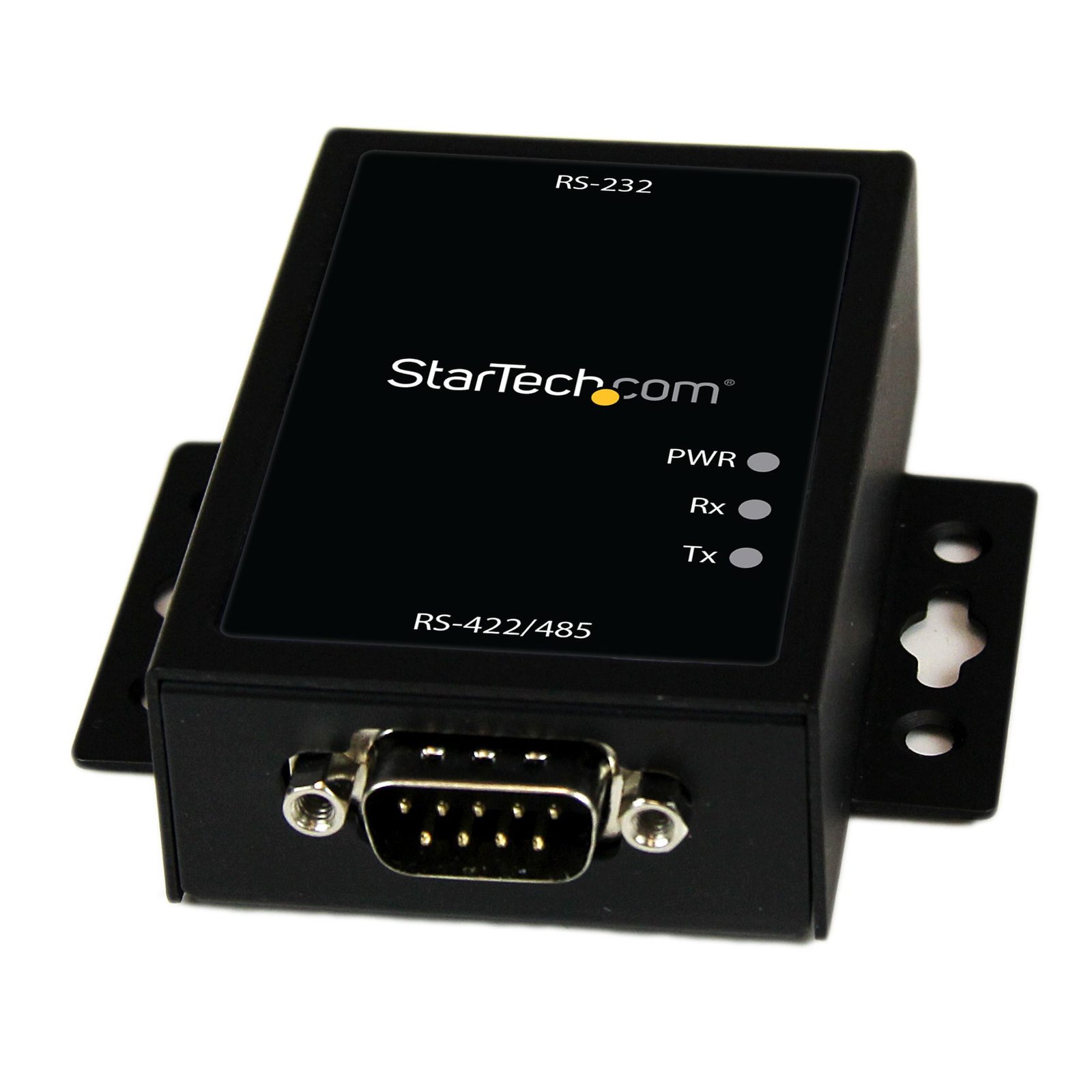
Industrial RS232 to RS422/485 Serial Port Converter with 15KV ESD Protection
$95.31
Convert an RS232 data signal to either RS485 or RS422 with this wall-mountable, ESD-protected adapter
Specifications & Compliance
- UPC
- 065030852555
- Brand
- StarTech.com
- Included in Package
- 1 - RS-232 to RS-422/485 Converter, 1 - Universal Power Adapter (NA/EU/UK), 1 - Instruction Manual
- Shipping (Package) Weight
- 12.2 oz [346 g]
- Weight of Product
- 5.0 oz [143 g]
- Product Length
- 3.3 in [84 mm]
- Product Width
- 2.9 in [73 mm]
- Product Height
- 0.9 in [22 mm]
- Package Depth
- 7.4 in [18.9 cm]
- Package Width
- 4.7 in [11.9 cm]
- Package Height
- 2.8 in [71 mm]
- Color
- Black
- Warranty
- 2 Years
- Connector 1
- DB-9 Serial
- Connector 1 (Quantity)
- 1
- Package Quantity
- 1
- Connector 2 (Quantity)
- 1
- Operating Temperature
- 0°C to 50°C (32°F to 122°F)
- Storage Temperature
- -20°C to 60°C (-4°F to 140°F)
- Humidity
- 5~85% RH
- Material
- Steel
- Power Source
- AC Adapter Included
- Input Voltage
- 100 - 240 AC
- Output Voltage
- 5 DC
- Power Consumption
- 5
- LED Indicators
- 1 - Power (Green), 1 - Rx (Yellow), 1 - Tx (Yellow)
- Number of Ports
- 1
- Interface
- Serial
- Input Current
- 0.5 A
- Output Current
- 1
- Plug Type
- M
- Center Tip Polarity
- Positive
- Maximum Cable Length
- 3937.0 ft [1200 m]
- Port Style
- External Hub
- Serial Protocol
- RS-232/422/485
- Max Baud Rate
- 921.6 Kbps
Questions & Answers
Serial communication is not working. Is the problem caused by the adapter or my serial software application?
Older applications that use serial communication often use legacy hardware addresses that do not work with PCI, PCIe, or USB to Serial products. We recommend contacting the software provider/support team to check if this is the case.
Everything is hooked up but nothing is working. What should I do?
When you troubleshoot issues with a serial device, there are some quick tests that you can complete to rule out potential problems. You can test to make sure that the following components are working correctly and are not the source of the issue: Serial cables Serial ports Serial devices To test your setup components, try the following: Use the serial cable, serial port, and serial device in another setup to see if the problem is with the components or the setup. Use a different serial cable, serial port, and serial device in your setup to see if the problem persists. Ideally, you should test a component that you know works in another setup. When you test your cables, it is recommended that you do the following: Test each cable individually. Use short cables when you are testing. When you test the serial ports and serial device, it is recommended that you do the following: Press the Windows key + R , type devmgmt.msc , and press Enter to open Device Manager . Check to see if your device is listed under Ports (COM & LPT) . Make sure that the COM port number is the correct number for the serial device and that the software being used to connect the computer to the serial device uses the correct COM port number. If the device is listed with an error, follow the instructions on the website to reinstall the drivers. Note: Some serial devices work only if the COM port number is between a certain range. For example, COM1 to COM4. Perform a serial loopback test. See this FAQ on how to perform a RS-232 serial loopback test: http://www.startech.com/faq/serial_loopback_test_rs232_windows
How can I make sure my serial port is working in Windows?
To check whether or not an RS-232 serial port is working, perform an RS-232 loopback test by doing the following: If your serial port is not female, convert it by taking a female/female cable or gender changer and plugging it into the serial port. Take a metal paperclip or wire and cross pins 2 and 3. If you look closely at the female end, the pins should be numbered. Open a telnet session on the COM port number of the device that you are testing. To find out the COM port number, refer to the following FAQ: https://www.startech.com/faq/com-port-listing-windows . Note: To open a telnet session on the COM port, you need a telnet client like PuTTY or Hyper Terminal. Windows XP comes with Hyper Terminal. When the session is open, anything you type into it you should see. The loopback test fails when you cannot see what you are typing. If the loopback test fails, make sure that the serial cable or gender changer that you are using works and that the adapter is in the correct port. You can check multiple ports at the same time by opening multiple sessions, putting the loopback adapter on one port, and trying to type into each session. When you can see what you are typing, you know that the COM port is working and you can see which port number the physical serial port is. Close the window for the port that you just tested to speed up the testing of the remaining serial ports. For products related to this article, click here .
What DC barrel connector power plug types do StarTech.com products use, and what are their dimensions?
StarTech.com DC barrel connector plug types are defined in the “Plug Type” field of the technical specifications, using a letter code that specifies the connector’s outer diameter (OD) and inner diameter (ID) in millimeters for power adapter compatibility. Explanation: In StarTech.com technical specifications, the “Plug Type” field is a standardized identifier for the exact DC barrel connector size required to power a product. Each plug type is assigned a letter code that corresponds to a specific combination of outer diameter (OD) and inner diameter (ID), measured in millimeters. Common DC barrel plug type dimensions Plug Type OD ID A 2.35 mm 0.7 mm B 4.0 mm 1.7 mm C 4.75 mm 1.7 mm H 3.4 mm 1.3 mm L 5.0 mm 2.5 mm M 5.5 mm 2.1 mm N 5.5 mm 2.5 mm The DC barrel connector plug type must match both the outer diameter and inner diameter exactly. A mismatch between the StarTech.com product requirement and the power adapter connector can prevent proper fit or stable power delivery, which may result in device startup failure or intermittent operation. The plug type defines only the physical connector size. The plug type does not define electrical power requirements such as voltage, current, or polarity. The power adapter used with a StarTech.com product must match the product’s specified electrical requirements. Using an incompatible power adapter can cause device malfunction or permanent damage. This standardized DC barrel connector plug type system enables IT professionals and procurement teams to verify connector dimensions, ensure power adapter compatibility, standardize hardware deployments, and identify the correct replacement power supply for StarTech.com products.
Related products
-

1-Port PCI Express Serial Card, PCIe to RS232 (DB9) Serial Interface Card, PC Serial Card, 16C1050 UART, Standard/Low Profile Brackets, COM Retention, Windows/Linux - TAA
$63.54 Add to cart -

2ft (60cm) 2-Port USB to Serial Adapter Cable, Interchangeable DB9 Screws/Nuts, COM Retention, USB-A to DB9 RS232, FTDI, Level-4 ESD Protection, Windows/macOS/ChromeOS/Linux - Rugged TPE Construction
$66.61 Add to cart -

Product
$0.00 Add to cart -
4 Port CardBus RS232 Serial Laptop PC Adapter Card - 16950
$155.99 Add to cart