

4 Port PCI SATA RAID Controller Adapter Card
$66.99
Add 4 SATA ports to your PC through a PCI expansion slot, with support for high-performance RAID array installation
Specifications & Compliance
- UPC
- 065030805162
- Brand
- StarTech.com
- Included in Package
- 1 - PCI SATA card, 1 - Low Profile Bracket, 1 - Installation CD, 1 - Instruction Manual
- Shipping (Package) Weight
- 7.1 oz [200 g]
- Weight of Product
- 1.6 oz [46 g]
- Product Length
- 4.7 in [12 cm]
- Product Width
- 1.8 in [45 mm]
- Product Height
- 0.9 in [22 mm]
- Package Depth
- 1.9 in [48 mm]
- Package Width
- 8.5 in [21.7 cm]
- Package Height
- 6.3 in [16 cm]
- Warranty
- Lifetime
- Connector 1
- PCI / PCI-X
- Connector 1 (Quantity)
- 1
- Package Quantity
- 1
- Connector 2
- SATA (7-Pin)
- Connector 2 (Quantity)
- 4
- Operating Temperature
- 5°C to 50°C (41°F to 122°F)
- Storage Temperature
- -25°C to 70°C (-14°F to 158°F)
- Humidity
- 15% ~ 90% RH
- Maximum Data Transfer Rate
- 1.5Gbps
- Chipset ID
- Silicon Image - SiI3114R
- Special Notes
- While the PCISATA4R1 card supports any size hard drive in JBOD mode, the max supported drive size when in RAID mode is 2 TB (per port)
- Number of Ports
- 4
- Interface
- SATA
- Bus Type
- PCI / PCI-X (5 / 3.3V)
- Card Type
- Standard Profile (LP bracket incl.)
- SATA Type and Rate
- SATA I (1.5 Gbps)
- RAID
- Yes
- FIFO
- 256 Bytes per channel
- Port Multiplier
- No
Questions & Answers
Why are my drives not detected during Windows installation, and how do I make them available?
If the storage drives are not visible during Windows installation, you may need to load the RAID or storage controller driver before the installer can detect the drives. Explanation: During Windows Setup, storage drives connected to certain RAID or storage controllers may not appear automatically because the required controller driver is not included with the Windows installation media. If you reach the "Where do you want to install Windows?" screen and no drives are listed: Select Load Driver. Connect a USB flash drive or insert media containing the storage controller or RAID driver. Browse to the driver location and load the driver that matches the operating system being installed. Once the driver is loaded, Windows Setup should detect the connected storage drives and make them available for installation. Without the appropriate controller driver, Windows Setup may not be able to detect drives connected through RAID or specialized storage controllers.
Everything is hooked up but nothing is working. What should I do? (Windows)
When you troubleshoot issues with a hard drive controller card, there are some quick tests that you can complete to rule out potential problems. You can test to make sure that the following components are working correctly and are not the source of the issue: IDE, SATA, and eSATA cables Hard drives Hard drive controller card To test your setup components, try the following: Use the IDE, SATA, or eSATA cable, hard drive, and hard drive controller card in another setup to see if the problem is with the components or the setup. Use a different IDE, SATA, or eSATA cable, hard drive, and hard drive controller card in your setup to see if the problem persists. Ideally, you should test a component that you know works in another setup. When you test your cables, it is recommended that you do the following: Test each cable individually. Use short cables when you are testing. When you test the hard drive and hard drive controller card, it is recommended that you do the following: To open the Device Manager, press the Windows key + R , type devmgmt.msc , and press Enter . Check the IDE ATA/ATAPI controllers (for IDE) section, or the Storage controllers (for SATA) section. Do one of the following: If you do not see the hard drive controller card in Device Manager, refer to the following FAQ: https://www.startech.com/en-us/faq/pci-pcie-cannot-boot-os-or-detect-windows . If the device is listed with an error, reinstall the drivers by completing the instructions on the website. If the hard drive is listed with unallocated space, the hard drive needs to be formatted. Right-click unallocated and click New Simple Volume . Follow the on-screen instructions to complete the reformatting. Note: Formatting a hard drive erases all of the data on it. Make sure that you back up all of your data before you reformat the hard drive. To check Disk Management , press the Windows key + R , type diskmgmt.msc , and press Enter . Check to see if your hard drive is listed. If the hard drive is listed as healthy but does not have a drive letter, for example, C:, right-click healthy and click Change Drive Letter and Paths . Click Add , assign a drive letter, and click OK . Note: A formatted hard drive does not show up in Computer or My Computer until it has a drive letter assigned to it.
How do I rebuild my RAID array?
In order to rebuild a RAID array, you need to replace a physical drive with an identical drive on the same RAID controller. Although standard RAID levels are generally agreed upon throughout the industry, the implementation varies between manufacturers. RAID arrays are typically not accessible when they are moved to another controller, and data may be unrecoverable if the drives are out of order or have been formatted or accessed by another RAID controller. If a RAID controller has failed, you should get the exact same model of RAID controller. Note: If a drive or drives were damaged, it is possible that the RAID array may be permanently unrecoverable. RAID should not be considered a replacement for backing up your data. If critical data is going onto a RAID array, you should back up the data on another physical drive or logical set of drives. Rebuild a RAID array With the following RAID modes, recovery is possible using the same StarTech.com product. Refer to the following table for the appropriate method to use to recover your RAID array. RAID mode Max # of failed drives Procedure RAID 1 Only one drive is needed for recovery. Determine which drive is operational by using the RAID management utility (if available) or test each drive individually on a different hard drive controller (for example, a hard drive docking station or SATA controller). Replace the failed drive with an identical hard drive. The array will rebuild and is accessible during the rebuilding process. RAID 3 Single drive failure will rebuild. Determine which drive is defective by using the RAID management utility (if available) or with diagnosis LEDs on the controller or enclosure. Replace with an identical hard drive. Note: Do not change the order of the drives. The array may be accessible during the rebuild, but you should let the controller rebuild without interruption so that performance is not compromised. RAID 5 Single drive failure will rebuild. Determine which drive is defective by using the RAID management utility (if available) or with diagnosis LEDs on the controller or enclosure. Replace with an identical hard drive. Note: Do not change the order of the drives. The array may be accessible during the rebuild, but you should let the controller rebuild without interruption so that performance is not compromised. RAID 10 Only one drive in a mirrored set can fail. Determine which drive is defective by using the RAID management utility (if available) or with diagnosis LEDs on the controller or enclosure. Replace with an identical hard drive. Note: Do not change the order of the drives. The array may be accessible during the rebuild, but you should let the controller rebuild without interruption so that performance is not compromised.
How do I confirm that Windows detects my expansion card?
To confirm that Windows detects your expansion card, complete the following: Press the Windows key+ R , type devmgmt.msc , and press Enter . In Device Manager , under the appropriate heading, confirm that your expansion card is listed and that there isn't an exclamation mark next to it. For example, a USB controller card would be under Universal Serial Bus controllers . Your expansion card is listed according to the name of the chipset. To determine the name of the chipset of your expansion card, navigate to www.StarTech.com and look on the Technical Specifications tab for your product.
I want to move the hard drive with my operating system installed to my StarTech.com hard drive controller. What do I do?
In order to use a hard drive plugged into a hard drive controller card as your operating system, you need to install the operating system onto the hard drive while it is plugged into the expansion card. To do this, complete the following: Note: Not all hard drive controller cards have drivers that allow you to install the operating system onto the hard drive. All of the hard drive controllers that display this FAQ include this capability. Before you begin, consult the documentation that came with the motherboard to make sure that the motherboard or BIOS supports booting from an expansion card. Back up any data on the hard drive. Make a copy of the drivers from the website onto a floppy disc, CD, DVD, or USB flash drive. The drivers that you download depends on the operating system that you want to install. Install the hard drive controller card onto your motherboard. Plug the hard drive into the controller card. Turn on your computer and open the operating system install wizard. Before you select the hard drive that you want to install the operating system onto, select the option to install third-party drivers. Point the driver installer to the floppy disc, CD, DVD, or USB flash drive. Install the drivers. Select the hard drive on the hard drive controller card as the location where you want to install the operating system. Complete the on-screen instructions to finish installing the operating system.
Is this SATA controller card compatible with Serial Attached SCSI (SAS) drives?
No, this SATA controller card is not compatible with SAS drives. Explanation: Serial Attached SCSI (SAS) drives require a controller that supports the SAS command set. SATA controllers only support the SATA command set and cannot process SAS commands. Although a SAS drive may be physically connected to a SATA controller using an adapter, the SATA controller cannot communicate with the SAS drive. As a result, SAS drive compatibility is not supported on this SATA controller card.
Is this device compatible with optical drives such as CD-ROM, DVD-ROM, or Blu-ray drives?
No, this device is not compatible with optical drives. Explanation: Optical drive compatibility requires support for the ATA Packet Interface (ATAPI) protocol. CD-ROM, DVD-ROM, and Blu-ray drives all rely on ATAPI for communication. This device does not support the ATAPI protocol and therefore cannot communicate with optical drives. As a result, optical drives are not supported over IDE, SATA, or eSATA connections on this device. For a list of products that support ATAPI and optical drive compatibility, refer to: https://www.startech.com/en-us/faq/hard-drive-controllers-atapi-support .
What is RAID and What Are the Different RAID Modes?
RAID (Redundant Array of Independent Disks) is a storage technology that combines multiple physical drives into a single logical storage volume. Different RAID modes are designed to improve performance, provide data redundancy, or achieve both depending on the RAID level used. Explanation: RAID combines two or more physical storage drives into a single virtual disk or storage array. Depending on the RAID mode selected, RAID can: Increase storage performance Provide protection against drive failure Combine both performance and redundancy benefits RAID is commonly used in external storage enclosures, servers, workstations, and network storage systems. Not all StarTech.com storage devices support every RAID mode. Refer to the product manual or product page for the RAID modes supported by a specific device. Common RAID terminology includes: Striping: Data is divided and written across multiple drives to improve read and write performance. Mirroring: Identical copies of data are written to multiple drives to provide redundancy. Parity: Calculated data used to rebuild information if a drive fails. RAID does not replace regular data backups. Critical data stored on a RAID array should also be backed up to a separate storage device or backup system. RAID can help protect against hardware failure, but it does not protect against accidental deletion, file corruption, malware, or catastrophic system failure. Refer to the following table for the list of various RAID modes: RAID mode Description Operation Advantages Disadvantages Recovery RAID 0 Striped disks Data is split evenly between two or more disks. Large size and the fastest speed. No redundancy. If one or more drives fails, this results in array failure. RAID 1 Mirrored disks Two or more drives have identical data on them. A single drive failure will not result in data loss. Speed and size is limited by the slowest and smallest disk. Only one drive is needed for recovery. RAID 3 Striped set with dedicated parity Data is split evenly between two or more disks, plus a dedicated drive for parity storage. High speeds for sequential read/write operations. Poor performance for multiple simultaneous instructions. A single drive failure will rebuild. RAID 5 Striped disks with distributed parity Data is split evenly between three or more disks. Parity is split between disks. Large size, fast speed, and redundancy. The total array size is reduced by parity. A single drive failure will rebuild. RAID 10 1+0; Striped set of Mirrored Subset Four or more drives are made into two mirrors that are striped. Larger size and higher speed than RAID-1, and more redundancy than RAID-0. No parity. Only one drive in a mirrored set can fail. JBOD Just a Bunch Of Disks Any number of drives are accessed independently by the operating system. Software RAID modes can be used. Hardware RAID may have better performance. N/A Big Spanning or Concatenation Data is written on one drive until it is full, and then the next drive(s) until it or they are full. Creates a very large and simple array. No redundancy. N/A Clone RAID 1 + Spare Two drives have identical data, plus one drive is used for rebuilding in case of a primary array failure. Seamless operation when one drive fails in a RAID-1 array. Spare drive is not accessible to the user. Only one drive is needed for recovery.
Will this PCI card work in a PCI-X slot?
Yes. This PCI card uses a universal PCI connector that is compatible with both 3.3V and 5V PCI and PCI-X slots. Explanation: This PCI card features a universal PCI connector that supports both 3.3V and 5V slot keying. As a result, it can be installed in compatible PCI and PCI-X slots that use either voltage standard. A universal PCI connector is easily identified by the presence of two keying notches on the edge connector. Standard PCI cards designed for only one voltage typically have a single notch. Because this card uses a universal PCI connector, slot voltage keying is not a compatibility concern.
Related products
-
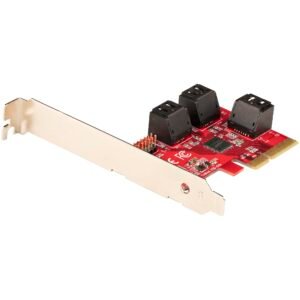
SATA PCIe Card - 6 Port PCIe SATA Expansion Card - 6Gbps - Low/Full Profile - Stacked SATA Connectors - ASM1166 Non-Raid - PCI Express to SATA Converter - TAA
$77.89 Add to cart -
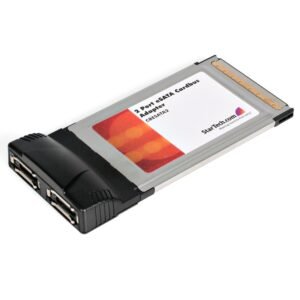
2 Port CardBus eSATA Laptop Adapter Card
$31.25 Add to cart -
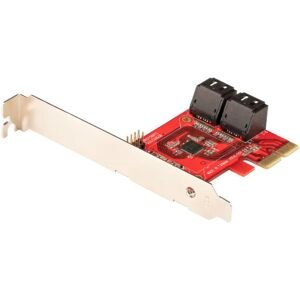
SATA PCIe Card - 4 Port PCIe SATA Expansion Card - 6Gbps - Low/Full Profile - Stacked SATA Connectors - ASM1164 Non-Raid - PCI Express to SATA Converter - TAA
$63.54 Add to cart -
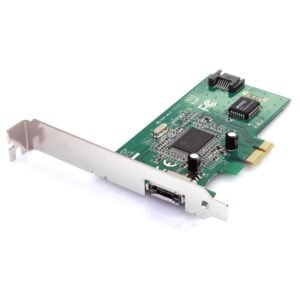
1 Port eSATA + 1 Port SATA II PCI Express SATA Controller Card
$28.99 Add to cart