
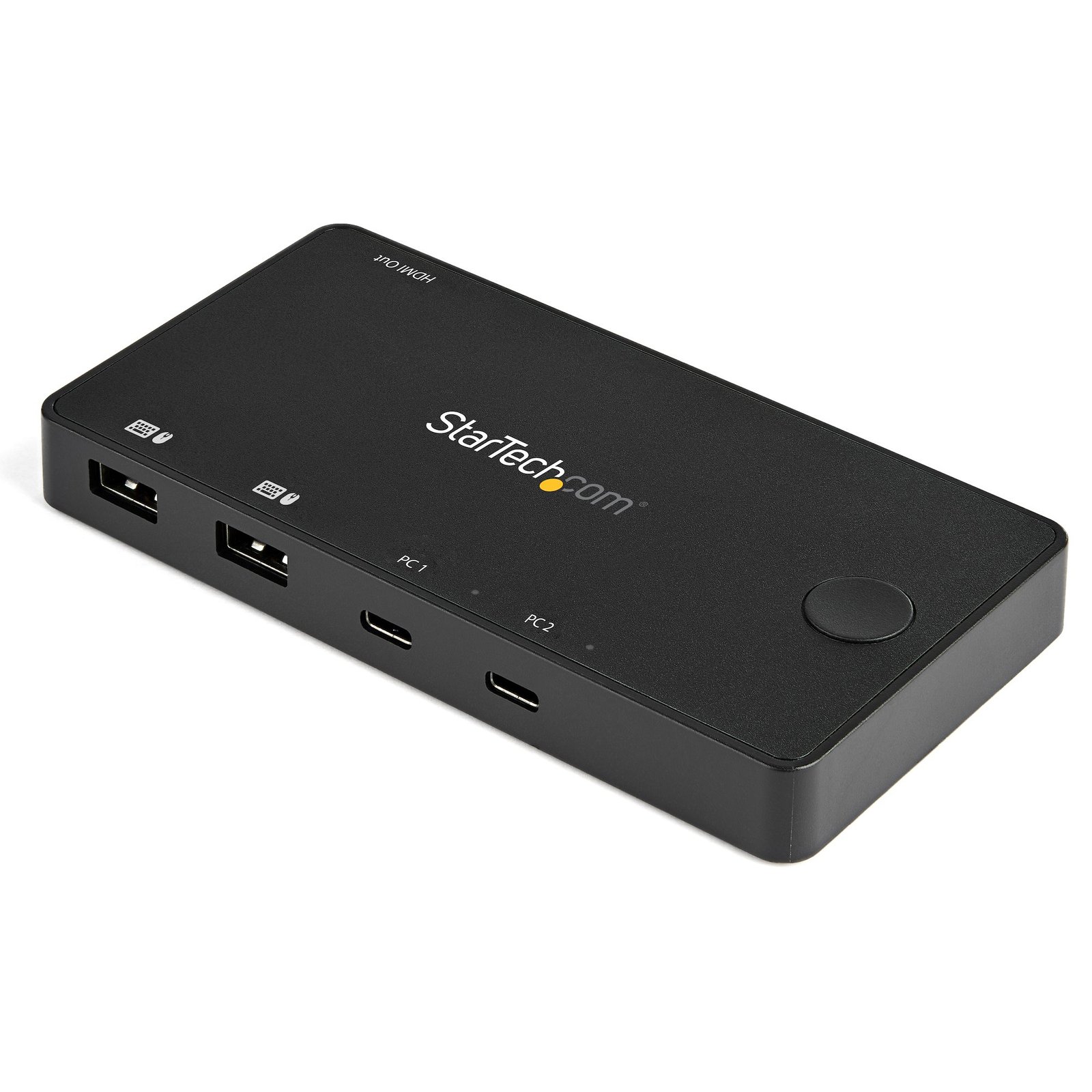
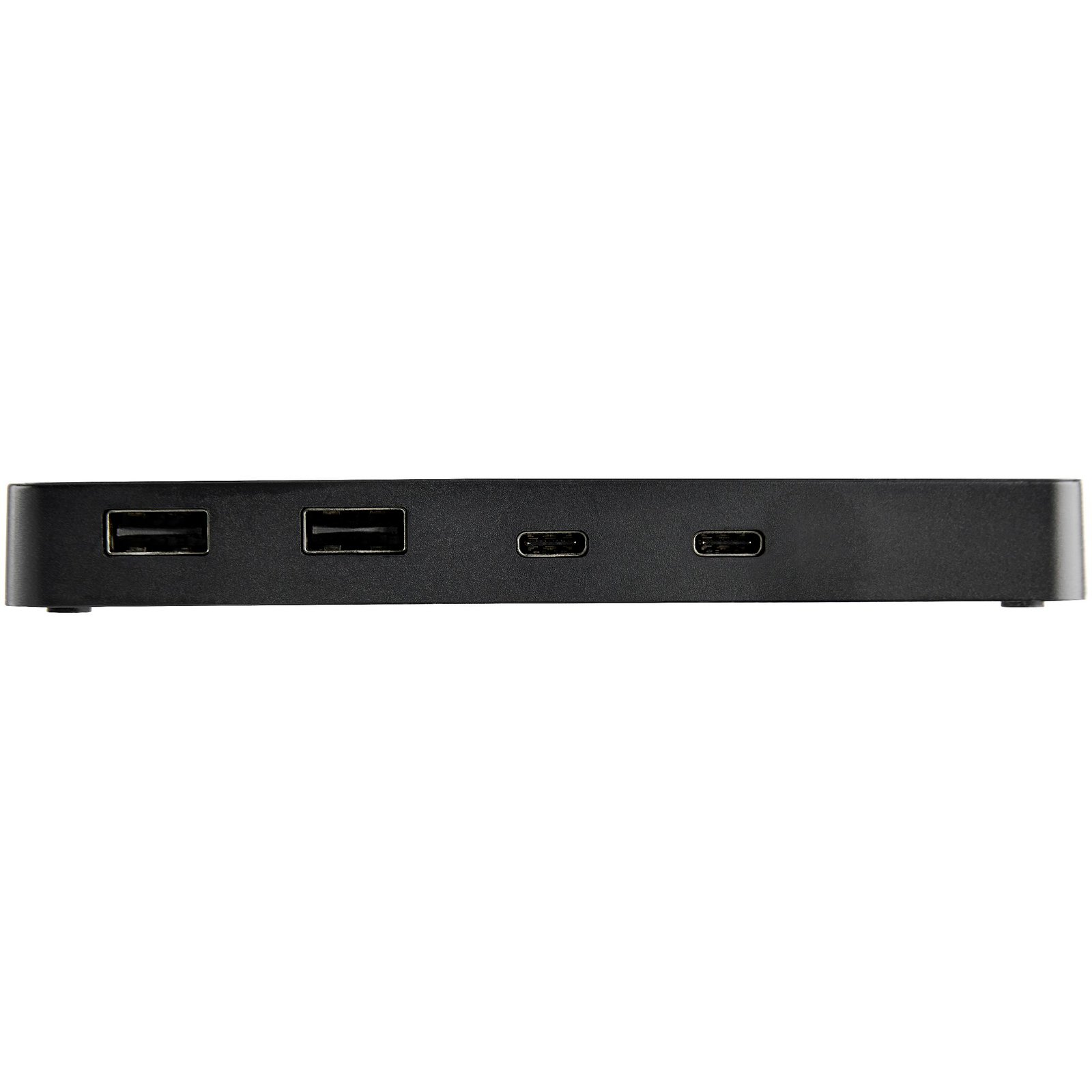
2 Port USB C KVM Switch - 4K 60Hz HDMI - Compact Dual Port UHD USB Type C Desktop Mini KVM Switch with USB C Cables - Bus Powered - MacBook iPad Pro ThinkPad IdeaPad EliteBook - TAA
$136.99
USB-C™ with DP Alt Mode | HDMI® 2.0 | 4K 60Hz | Host Cables Included
Specifications & Compliance
- UPC
- 065030882170
- Brand
- StarTech.com
- Included in Package
- 1 - KVM Switch, 2 - 3.3 ft. [1 m] USB-C Cables, 1 - Quick-Start Guide
- Shipping (Package) Weight
- 15.5 oz [438 g]
- Weight of Product
- 11.2 oz [318.0 g]
- Product Length
- 5.5 in [14.0 cm]
- Product Width
- 2.8 in [72.0 mm]
- Product Height
- 0.6 in [15.7 mm]
- Package Depth
- 5.0 in [12.7 cm]
- Package Width
- 7.0 in [17.7 cm]
- Package Height
- 3.4 in [86 mm]
- Color
- Black
- Warranty
- 2 Years
- Connector 1
- USB-A (480Mbps, 2.5W)
- Connector 1 (Quantity)
- 2
- Package Quantity
- 1
- Connector 2
- HDMI
- Connector 2 (Quantity)
- 1
- Operating Temperature
- 5°C ~ 35°C
- Storage Temperature
- -20°C ~ 50°C
- Humidity
- 20%RH ~ 80%RH
- Material
- Plastic
- Maximum Data Transfer Rate
- 480Mbps
- Power Source
- Bus Powered
- Chipset ID
- Parade - PS176, VLI - VL170, Terminus - FE1.1S
- MTBF
- 50,000 hours
- LED Indicators
- 1 - Functional Display, 2 - Port selection or active host
- System and Cable Requirements
- Your USB-C ports must support DisplayPort over USB-C (DP Alt mode) in order to work with this KVM switch
- Host Connector 1
- USB-C (480Mbps, 2.5W)
- Host Connector 1 (Quantity)
- 2
- Audio
- Yes
- Wide Screen Supported
- Yes
- Audio Specifications
- HDMI - 7.1 Channel Audio
- Cascadable
- No
- Rack-Mountable
- No
- Number of KVM Ports
- 2
- IP Control
- No
- Supported Platforms
- USB-C
- PC Video Type
- USB-C (DP Alt-Mode)
- Number of Monitors Supported
- 1
- Video Revision
- DisplayPort 1.2, HDMI 2.0
- On-Screen Display
- No
- Cables Included
- Yes
- Port Selection Support
- Push Button
- Hot-Key Selection
- No
- CAC Support
- No
Questions & Answers
My Monitors are flickering when connected through the KVM Switch. What do I do?
Monitors may begin flickering when they receive a signal of insufficient quality. There are a few potential fixes available that will help to improve the signal quality in order to eliminate flickering: Replace Video Cables with high-quality Video Cables (e.g. upgrade DisplayPort 1.2 Cables to DisplayPort 1.4 Cables ). Use shorter Video Cables to reduce signal attenuation. When possible, remove Video Adapters to use native Video Connection Types (e.g. go from VGA to VGA , or DisplayPort to DisplayPort ) For DisplayPort Monitors , try changing the DisplayPort Version on the Monitor . For information on how to change your Monitor Settings refer to the Manual from the Monitor Manufacturer . Update the Drivers for the Computer’s GPU to the latest available from the Monitor Manufacturer .
Related products
-

1U Rack Mount Brackets for the SV841DUSBI KVM Switch
$41.99 Add to cart -
KVM Console to USB 2.0 Portable Laptop Crash Cart Adapter - TAA
$628.99 Add to cart -

Laptop-to-Server KVM Console with Rugged Housing - TAA
$766.99 Add to cart -
2-Port USB-C Cable KVM Switch, 4K 60Hz DisplayPort Output, Compact KVM with 4ft/1.2m USB Type-C/Audio Integrated Cables, Bus Powered - Remote Push-Button/Hotkey Switching
$152.99 Add to cart