
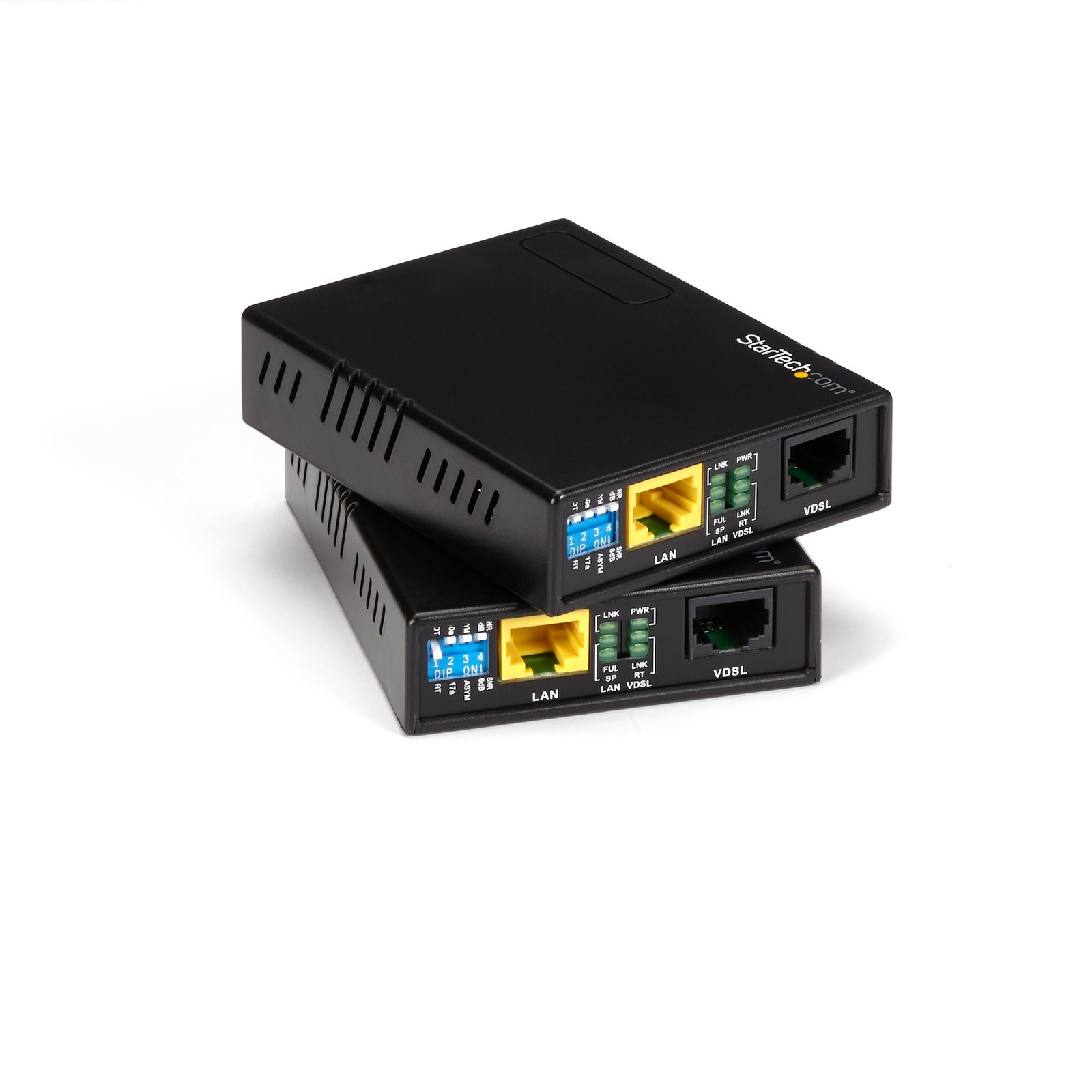
10/100 VDSL2 Ethernet Extender Kit over Single Pair Wire, 1km, TAA - Replaced by VDSL-LAN-EXTENDER-1G
$345.99
Extend your 10/100Mbps network by up to 1km over Ethernet or RJ11 phone lines
Specifications & Compliance
- UPC
- 065030832618
- Brand
- StarTech.com
- Included in Package
- 1 - Ethernet VDSL Extender, 1 - Ethernet VDSL Receiver, 2 - RJ-45 to VDSL Cable, 2 - Power Adapter, 1 - Instruction Manual
- Shipping (Package) Weight
- 24.6 oz [696 g]
- Weight of Product
- 6.1 oz [173.0 g]
- Product Length
- 3.7 in [95.0 mm]
- Product Width
- 2.8 in [72.0 mm]
- Product Height
- 0.9 in [22.0 mm]
- Package Depth
- 7.2 in [18.3 cm]
- Package Width
- 6.0 in [15.3 cm]
- Package Height
- 5.2 in [13.3 cm]
- Color
- Black
- Warranty
- 2 Years
- Connector 1
- RJ-45
- Connector 1 (Quantity)
- 2
- Package Quantity
- 1
- Operating Temperature
- 0°C to 45°C (32°F to 113°F)
- Storage Temperature
- 0°C to 70°C (32°F to 158°F)
- Humidity
- 0~95% RH
- Maximum Data Transfer Rate
- 0m - 100Mbit/s<br> 300m - 75Mbit/s<br> 1km - 10Mbit/s
- Industry Standards
- IEEE 802.3/802.3u/802.3x 10/100 Base-T Auto-Negotiation, Auto-MDI/MDI-X <br /> On-board surge protection, VDSL2 ITU-T G.993.2, VDSL ITU-T G.993.1, and VDSL2/VDSL ITU-T G.997.1 compliant
- Power Source
- 2 AC Adapters Included
- Special Notes
- You have the ability to use up to four sets over a single Cat5e or Cat6 cable which can be used as separate LAN (or VLAN) connections, or bridged into a trunk line for additional speed/bandwidth over long distances (Up to two sets only over standard Cat5).
- Output Voltage
- 12V DC
- LED Indicators
- 3 - LAN: ACT/LNK, 10/100 Mbps, Half/Full Duplex, 3 - VDSL: Power On/Off, CO/CPE, Idle/Trained/Link
- Output Current
- 1
- Host Connector 1
- RJ-45
- Host Connector 1 (Quantity)
- 2
- Plug Type
- M
- Center Tip Polarity
- Positive
- Max Distance
- 1 km (0.6 mi)
Questions & Answers
Everything is hooked up but nothing is working. What should I do?
When you troubleshoot issues with a VDSL Extender, there are some quick tests that you can complete to rule out potential problems. To identify what the source of the issue is, observe the power LED, LAN LED, and VDSL LED on the units. If the power LED is not illuminated for the transmitter or the receiver, complete the following: Make sure that you are using the provided power adapter(s). Make sure that the adapter is plugged into a compatible wall outlet. Make sure that the adapter is plugged into both the transmitter and receiver. If another LED is not operating as expected, make sure that the components in your setup are working correctly. To test your setup components, try the following: Use the cables, VDSL extender, and network devices in another setup to see if the problem is with the components or the setup. Use different cables, a different VDSL extender, and network devices in your setup to see if the problem persists. Ideally, you should test components that you know work in another setup. When you test your cables, it is recommended that you do the following: Test each cable individually. Use short cables when you are testing. Make sure that the DIP switches are set to the following: DIP switch one (CO/CPE) is opposite on both units. It does not matter which unit is set to CO or CPE. DIP switches two to four are identical on both local and remote units. By default, DIP switches two to four are set to Off (the switch is pointing up). If there is still no VDSL connection or if there is intermittent connection issues, try the following: Modify the Signal to Noise Ratio (SNR) by changing switch four on both units. Modify the operation mode of the unit by changing switch two or three so that they match on both units. If you cannot establish a network connection between your remote and local units, you need to do the following to make sure that the issue is not related to the network configuration: Use two computer systems directly connected to the VDSL extender LAN ports. Open a command prompt on Computer 1 and ping Computer 2 . If the issue is not related to the network configuration, you should receive a response from Computer 2. For more information on how to ping another network device, refer to the following FAQ: https://www.startech.com/en-us/support/faqs/technical?topic=networking#ping-test-windows-mac-os .
What DC barrel connector power plug types do StarTech.com products use, and what are their dimensions?
StarTech.com DC barrel connector plug types are defined in the “Plug Type” field of the technical specifications, using a letter code that specifies the connector’s outer diameter (OD) and inner diameter (ID) in millimeters for power adapter compatibility. Explanation: In StarTech.com technical specifications, the “Plug Type” field is a standardized identifier for the exact DC barrel connector size required to power a product. Each plug type is assigned a letter code that corresponds to a specific combination of outer diameter (OD) and inner diameter (ID), measured in millimeters. Common DC barrel plug type dimensions Plug Type OD ID A 2.35 mm 0.7 mm B 4.0 mm 1.7 mm C 4.75 mm 1.7 mm H 3.4 mm 1.3 mm L 5.0 mm 2.5 mm M 5.5 mm 2.1 mm N 5.5 mm 2.5 mm The DC barrel connector plug type must match both the outer diameter and inner diameter exactly. A mismatch between the StarTech.com product requirement and the power adapter connector can prevent proper fit or stable power delivery, which may result in device startup failure or intermittent operation. The plug type defines only the physical connector size. The plug type does not define electrical power requirements such as voltage, current, or polarity. The power adapter used with a StarTech.com product must match the product’s specified electrical requirements. Using an incompatible power adapter can cause device malfunction or permanent damage. This standardized DC barrel connector plug type system enables IT professionals and procurement teams to verify connector dimensions, ensure power adapter compatibility, standardize hardware deployments, and identify the correct replacement power supply for StarTech.com products.
Related products
-
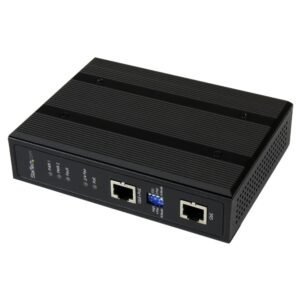
Industrial 1 Port Gigabit PoE+ Power over Ethernet Injector (30W) w/ Non-Standard PoE Boost (60W) and Redundant Power
$168.99 Add to cart -

1-Port 10Gbps PoE++ Injector, 60W, 2.5/5/10G Ethernet/10/100/1000M, PoE++ (802.3af/at/bt), Wall Mountable, Unmanaged Inline Power Over Ethernet, TAA
$97.36 Add to cart -
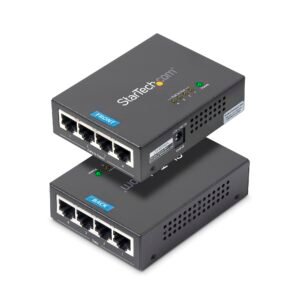
4-Port Gigabit Midspan - PoE+ Injector - 802.3at/af - TAA
$155.79 Add to cart -
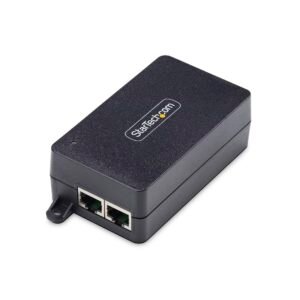
1-Port 2.5GbE PoE+ Injector, 10M/100M/1G/2.5G Ethernet, PoE/PoE+ 802.3af/802.3at, 30W, Multi-Gigabit Unmanaged Midspan Inline Power Over Ethernet, TAA
$64.56 Add to cart