
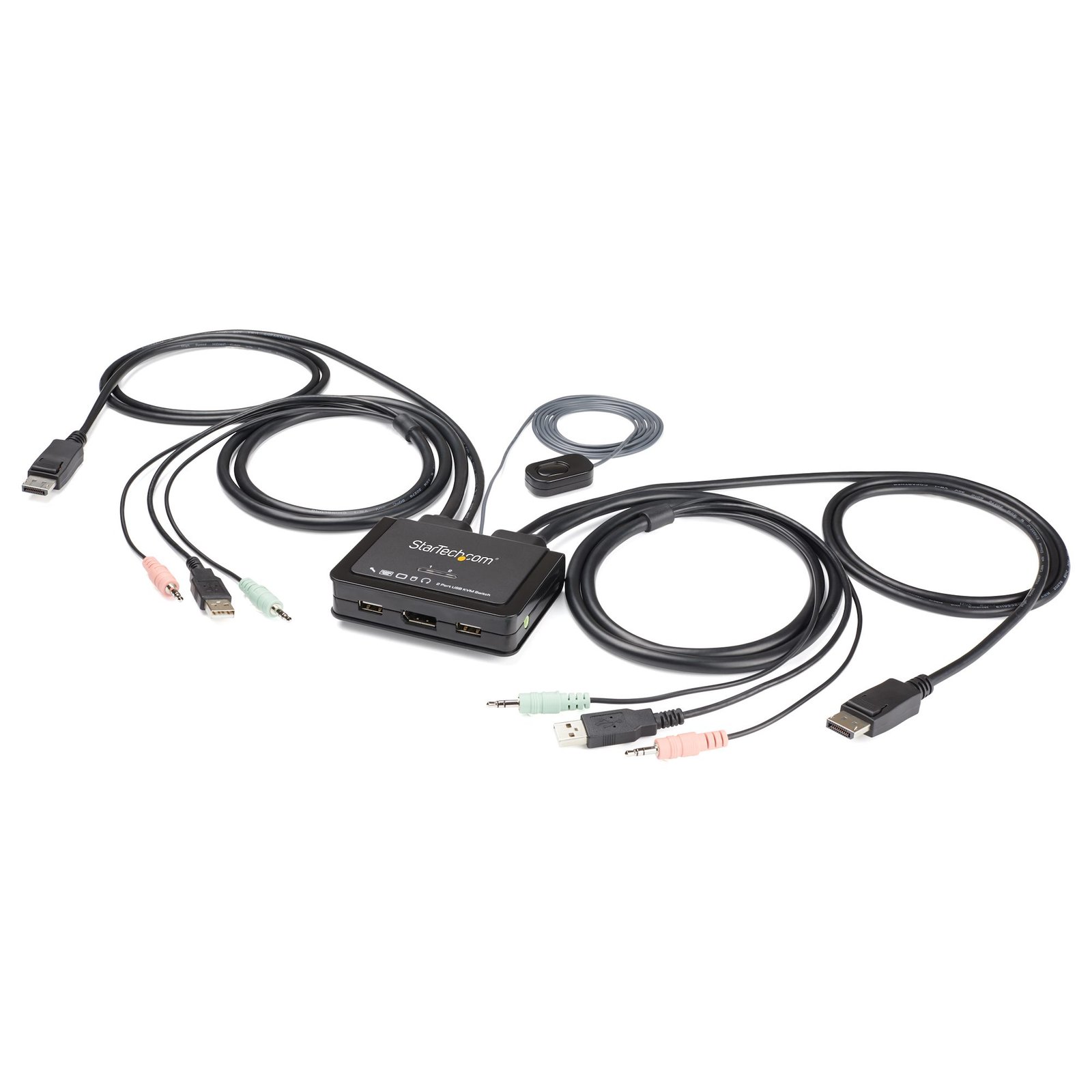
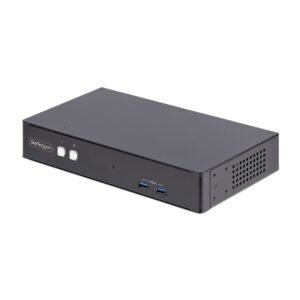
2 Port DisplayPort KVM Switch - 4K 60Hz - Compact Dual Port UHD DP 1.2 USB Desktop KVM Switch with 4ft Cables & Audio - Bus Powered & Remote Switching - MacBook ThinkPad
$142.46
KVM Switch with Audio | 3.5mm Audio Input & Output | DisplayPort 1.2 | USB-Powered
Specifications & Compliance
- UPC
- 065030882156
- Brand
- StarTech.com
- Included in Package
- 1 - KVM Switch, 1 - Quick-Start Guide
- Shipping (Package) Weight
- 18.7 oz [530 g]
- Weight of Product
- 15.5 oz [438.0 g]
- Product Length
- 3.8 in [97.0 mm]
- Product Width
- 3.2 in [82.2 mm]
- Product Height
- 0.4 in [9.1 mm]
- Package Depth
- 6.3 in [16.1 cm]
- Package Width
- 9.8 in [25 cm]
- Package Height
- 2.6 in [65 mm]
- Color
- Black
- Cable Length
- 4.0 ft [1.2 m]
- Warranty
- 2 Years
- Connector 1
- USB-A (480Mbps, 2.5W)
- Connector 1 (Quantity)
- 2
- Package Quantity
- 1
- Connector 2
- DisplayPort
- Connector 2 (Quantity)
- 1
- Operating Temperature
- 0 ~ 40C
- Storage Temperature
- -20 ~ 60C
- Humidity
- 0 ~ 90% RH, Non-Condensing
- Material
- Plastic
- Power Source
- Bus Powered
- Special Notes
- In order to access the software and hotkeys of the KVMs, a compatible OS must be installed on the connected host, however the KVM and push button switching functions are OS independent.
- Input Voltage
- 5V DC
- Output Voltage
- 5 DC
- Connector 3
- 3.5mm (3 Conductors, TRS)
- Connector 3 (Quantity)
- 2
- MTBF
- 1,012,884 hours
- LED Indicators
- 2 - Orange
- Maximum Digital Resolutions
- 3840 x 2160 (Ultra HD 4K) @ 60hz
- Host Connector 1 (Quantity)
- 2
- Audio
- Yes
- Wide Screen Supported
- Yes
- Host Connector 2
- DisplayPort
- Host Connector 2 (Quantity)
- 2
- Cascadable
- No
- Rack-Mountable
- No
- Number of KVM Ports
- 2
- IP Control
- No
- Supported Platforms
- USB
- PC Video Type
- DisplayPort
- Number of Monitors Supported
- 1
- Video Revision
- DisplayPort 1.2
- On-Screen Display
- No
- Cables Included
- Yes
- Port Selection Support
- Push Button, Hotkeys, and Software
- Hot-Key Selection
- Yes
- Host Connector 3 (Quantity)
- 4
- CAC Support
- No
- Auto Scan
- 10, 20, 30, 40, 50, and 60 seconds
Questions & Answers
My Monitors are flickering when connected through the KVM Switch. What do I do?
Monitors may begin flickering when they receive a signal of insufficient quality. There are a few potential fixes available that will help to improve the signal quality in order to eliminate flickering: Replace Video Cables with high-quality Video Cables (e.g. upgrade DisplayPort 1.2 Cables to DisplayPort 1.4 Cables ). Use shorter Video Cables to reduce signal attenuation. When possible, remove Video Adapters to use native Video Connection Types (e.g. go from VGA to VGA , or DisplayPort to DisplayPort ) For DisplayPort Monitors , try changing the DisplayPort Version on the Monitor . For information on how to change your Monitor Settings refer to the Manual from the Monitor Manufacturer . Update the Drivers for the Computer’s GPU to the latest available from the Monitor Manufacturer .
Video and/or USB control works on one connected PC but not another. What do I do?
Ensure the video & USB cables are connected between each computer and the KVM switch Safely power off all computers. Unplug everything from the KVM switch and connect one computer at a time, swapping the inputs previously used (e.g., the computer connected to PC2 now connects to PC1). Power on each computer and confirm functionality before connecting the next one to the KVM switch. If using a KVM switch that supports multiple displays, ensure all video connections from the computer are from either the video card or motherboard, both cannot be used simultaneously on most systems.
Related products
-
4-Port KM Switch with Mouse Switching, USB Switch for Keyboard/Mouse, 3.5mm/USB Audio, Peripheral Sharing for 4 Computers, TAA Compliant
$312.61 Add to cart -
2-Port DisplayPort KVM Switch, 4K 60Hz, DP 1.2, EDID Management, 2-Port USB 3.0 Hub, 4x USB HID Ports, TAA Compliant
$435.61 Add to cart -
2-Port Hybrid USB-C DisplayPort Cable KVM Switch, 4K 60Hz, Compact KVM with 6ft/1.8m USB-A/DisplayPort/Audio & 4ft/1.2m USB-C Integrated Host Cables, Bus Powered - Remote Push Button/Hotkey Switching
$82.99 Add to cart -
2-Port Dual-Monitor DisplayPort KVM Switch, RS232 Serial Control, 4K 60Hz, 2x USB 5Gbps Hub Ports, 2x USB 2.0 HID Ports, Hotkey/Pushbutton Switching, TAA Compliant
$671.36 Add to cart