
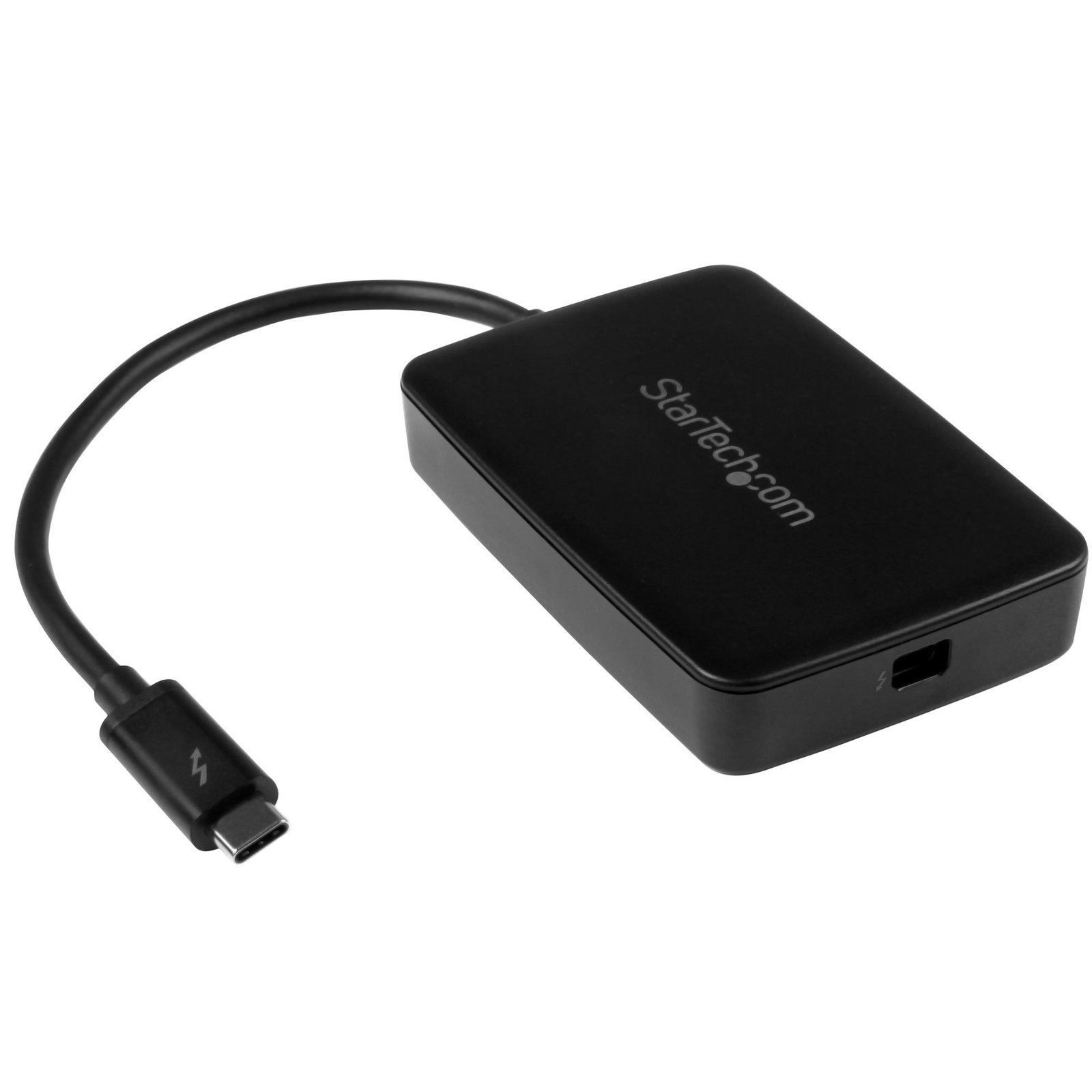
Thunderbolt 3 to Thunderbolt 2 Adapter - TB3 Laptop to TB2 Displays & Devices - Thunderbolt 2 20Gbps or Thunderbolt 1 10Gbps Converter - Thunderbolt 3 Certified- Windows/Mac
$35.99
Use first-generation Thunderbolt and Thunderbolt 2 devices with your new Thunderbolt 3 computer
Specifications & Compliance
- UPC
- 065030864138
- Brand
- StarTech.com
- Included in Package
- 1 - Thunderbolt™ 3 to Thunderbolt Adapter
- Shipping (Package) Weight
- 3.2 oz [90 g]
- Weight of Product
- 2.0 oz [58.0 g]
- Product Length
- 11.0 in [28.0 cm]
- Product Width
- 2.3 in [59.0 mm]
- Product Height
- 0.6 in [16.0 mm]
- Package Depth
- 3.2 in [81 mm]
- Package Width
- 7.0 in [17.8 cm]
- Package Height
- 1.0 in [25 mm]
- Color
- Black
- Cable Length
- 7.9 in [20 cm]
- Warranty
- 2 Years
- Connector 1
- USB-C (Thunderbolt 40Gbps)
- Connector 1 (Quantity)
- 1
- Package Quantity
- 1
- Connector 2
- USB-C (Thunderbolt 20Gbps)
- Connector 2 (Quantity)
- 1
- Cable Jacket Material
- PVC - Polyvinyl Chloride
- Maximum Data Transfer Rate
- 10 Gbps (Thunderbolt 1)<br /> 20 Gbps (Thunderbolt 2)
- Connector Plating
- Nickel
- Special Notes
- Not compatible with Thunderbolt 4 computers, Not compatible with the Apple Thunderbolt Display when used with a Mac with an M1 processor, This adapter is compatible with Thunderbolt™ displays only. It will not work with Mini DisplayPort (mDP) or DisplayPort (DP) monitors., This is an 'Active' adapter cable. Any host system that doesn’t provide the full 15W of bus power won’t work with this device. Consult the manufacturer of your host system to determine how much bus power your host system provides., TBT3TBTADAP can pass 12W of power through the Thunderbolt 2 port
- Input Voltage
- 5V DC
- Output Voltage
- 5 DC
- Cable Shield Material
- Aluminum-Mylar Foil with Braid
Questions & Answers
My computer is not properly detecting my Thunderbolt 3 device. What do I do?
If your computer is not detecting your Thunderbolt™ 3 device, try the following: Update the Thunderbolt software on your Thunderbolt 3 host device. Update the Thunderbolt controller NVM firmware on your Thunderbolt 3 host device. Update the Thunderbolt controller drivers. Update your motherboard BIOS or UEFI. For more information about how to update the software, firmware, drivers, and BIOS or UEFI, refer to the website of the manufacturer of the Thunderbolt 3 host device. The following website includes links to some of the manufacturers of Thunderbolt 3 host devices: https://thunderbolttechnology.net/updates . If the manufacturer of your host device is not listed, you should contact the manufacturer or refer to their website for more information. For more information about how to check which version of the Thunderbolt software and firmware you are currently using, see the following FAQ: https://www.startech.com/faq/thunderbolt-3-check-software-firmware . For more information about Thunderbolt 3 host system and motherboard compatibility, refer to the Thunderbolt 3 Compatibility and Troubleshooting guide .
What do I do if I can only get a single display to work with my Thunderbolt 3 device?
If you are only getting a single display to work with your Thunderbolt™3 device, make sure that your Thunderbolt 3 host device can support two separate DisplayPort lines over Thunderbolt 3. While Thunderbolt 3 supports dual monitors over a single connection, not all Thunderbolt 3 host devices are designed to meet this requirement . If your Thunderbolt 3 host device does not meet this requirement, you cannot troubleshoot this issue with software, firmware, or driver updates, and you cannot use this device to achieve dual displays over Thunderbolt 3. If you are not sure whether your Thunderbolt 3 host device supports dual monitors, contact your Thunderbolt 3 host device manufacturer. If you confirmed that your Thunderbolt 3 host device does support dual monitors and you are only seeing a single display, see the following FAQ: https://www.startech.com/faq/thunderbolt-3-update-software-firmware . For more information about Thunderbolt 3 host system and motherboard compatibility, refer to the Thunderbolt 3 Compatibility and Troubleshooting guide .
I received an error message stating that the Thunderbolt device I’m using is not certified for PC use. How do I resolve this issue?
If you receive an error message that your Thunderbolt device is not certified for PC use, try the following to resolve the issue: Click Start . Type Thunderbolt and click the search result. In the system tray, right-click the Thunderbolt icon. Click Settings . Clear the Only allow Thunderbolt Devices that have been certified for PC check box.
How do I check which version of Thunderbolt 3 software, firmware, and drivers I am running in Windows?
To check which version of the Thunderbolt™ software, NVM firmware, and drivers you are running, do the following: Click Start . Type Thunderbolt and click on the search result. In the system tray, right-click the Thunderbolt icon. Click Settings > Details . Review the versions of the software package, NVM firmware, PD firmware, and drivers. If you are not running the latest versions, navigate to the manufacturer’s website and download the latest versions.
When I connect my Thunderbolt 3 device to my Windows computer, I get pop-up messages. What do I do?
When you connect a Thunderbolt™ device to any Windows operating system that can support Thunderbolt 3, a pop-up message appears. To use your device, complete the following: In the New Thunderbolt devices have been attached pop-up message, click OK . In the User Account Control pop-up message, click Yes . In the Approve Thunderbolt Devices pop-up message, do one of the following: If you want to authorize your Thunderbolt devices every time that you connect them, select Connect Only Once in the drop-down list. If you want to authorize your Thunderbolt devices only once, select Always Connect in the drop-down list. Click OK . If you accidentally set your Thunderbolt device to Do Not Connect in step three above, refer to the following FAQ: https://www.startech.com/faq/thunderbolt-3-denied-authentication .
What do I do if I accidentally set my Thunderbolt 3 device to Do Not Connect and it stops working?
If you accidentally set a Thunderbolt™3 device to not connect to your computer when prompted by the system, you can force the software to prompt you again for authentication. To do so, complete the following: Right-click the Thunderbolt icon. Click Approve Attached Devices . Select the Thunderbolt 3 port that you want to authenticate.
How do I manage my authenticated Thunderbolt 3 devices in Windows?
You can use the Thunderbolt™ software to manage your Thunderbolt 3 devices on a computer running a version of Windows. To manage your Thunderbolt 3 devices, complete the following: Click Start . Type Thunderbolt and click on the search result. Right-click the Thunderbolt icon. Click Manage Approved Devices .
Can I use a Thunderbolt 3, Thunderbolt 4, or Thunderbolt 5 device on a USB-C or USB4 port?
No, a Thunderbolt 3, Thunderbolt 4, or Thunderbolt 5 device requires a Thunderbolt-enabled port and will not work on a USB-C port that does not support Thunderbolt. Explanation: Thunderbolt 3, Thunderbolt 4, and Thunderbolt 5 use the USB-C connector, but they require Thunderbolt protocol support from the host port, cable, and device. Compatibility rules are as follows: A Thunderbolt device (Thunderbolt 3, 4, or 5) only works when connected to a Thunderbolt-enabled USB-C port. A standard USB-C port without Thunderbolt support does not support Thunderbolt devices and will result in no functionality. USB-C devices are compatible with Thunderbolt 3, Thunderbolt 4, and Thunderbolt 5 ports because Thunderbolt includes USB support. USB4 ports may support Thunderbolt 3 devices, but this support is optional and not guaranteed. USB4 does not ensure compatibility with Thunderbolt 4 or Thunderbolt 5 devices. To confirm compatibility, look for the Thunderbolt symbol on the host port, cable, and device. If the Thunderbolt symbol is not present, the connection supports USB-C only and does not support Thunderbolt devices. All components in the connection must support the required Thunderbolt standard to ensure proper operation and full performance.
What is Thunderbolt, and how do Thunderbolt 3, Thunderbolt 4, and Thunderbolt 5 differ?
Thunderbolt is a high-performance connectivity standard that combines data, video, networking, and power delivery over a single connection. Thunderbolt 3, Thunderbolt 4, and Thunderbolt 5 all use the USB-C connector, but each generation offers different performance capabilities, certification requirements, and feature sets. Explanation: Thunderbolt is an Intel-developed connectivity technology that enables high-speed communication between computers, displays, storage devices, docking stations, and other peripherals through a single cable connection. Thunderbolt combines multiple technologies, including: PCI Express (PCIe) data transfer DisplayPort video USB data connectivity Power delivery The following table compares the capabilities of Thunderbolt 3, Thunderbolt 4, and Thunderbolt 5: Feature Thunderbolt 3 Thunderbolt 4 Thunderbolt 5 Maximum Bandwidth Up to 40Gbps Up to 40Gbps Up to 80Gbps (120Gbps with Bandwidth Boost) USB Compatibility Up to USB4 Up to USB4 Up to USB4 Version 2.0 Display Support Up to two 4K displays or one 5K display Up to two 4K displays or one 8K display Up to three 4K displays, multiple 8K displays, or higher resolutions depending on device support PCIe Bandwidth Up to 32Gbps Minimum 32Gbps required Up to 64Gbps Power Delivery Up to 100W (device dependent) Up to 100W (device dependent) Up to 240W supported with USB Power Delivery 3.1 Extended Power Range on supported devices Daisy Chaining Up to six devices Up to six devices Up to six devices Thunderbolt 4 maintains the same maximum bandwidth as Thunderbolt 3 but introduces stricter certification requirements, including: Support for dual 4K displays or one 8K display PCIe bandwidth requirements for storage devices Wake-from-sleep support through Thunderbolt peripherals Mandatory support for docks with multiple Thunderbolt ports Enhanced security protections against direct memory access (DMA) attacks Thunderbolt 5 significantly increases available bandwidth and is designed for high-performance applications such as: Professional content creation High-resolution multi-display environments AI and workstation workloads External GPU and high-speed storage connectivity USB-C and Thunderbolt Compatibility Thunderbolt 3, Thunderbolt 4, and Thunderbolt 5 all use the USB-C connector. However, a USB-C connector alone does not indicate Thunderbolt support. A device may include a USB-C port that supports: USB 2.0 USB 3.2 USB4 Thunderbolt 3 Thunderbolt 4 Thunderbolt 5 The capabilities of a USB-C port depend on the hardware implementation of the host device. In general: USB devices can typically connect to Thunderbolt ports. Thunderbolt devices require a Thunderbolt-compatible host to access Thunderbolt functionality. A USB-C host that does not support Thunderbolt cannot provide Thunderbolt features to a Thunderbolt peripheral. Thunderbolt-certified ports and devices are typically identified by the Thunderbolt logo next to the USB-C connector. Backward Compatibility Thunderbolt maintains broad backward compatibility across generations: Thunderbolt 5 is compatible with Thunderbolt 4, Thunderbolt 3, USB4, and USB-C devices when supported by the host and device. Thunderbolt 4 is compatible with Thunderbolt 3 devices. Thunderbolt 3 can connect to Thunderbolt 1 and Thunderbolt 2 devices using an appropriate adapter. Thunderbolt 1 and Thunderbolt 2 hosts cannot fully support Thunderbolt 3, Thunderbolt 4, or Thunderbolt 5 devices without compatible hardware and adapters. Actual performance depends on the capabilities of the host computer, peripheral device, cable, and software environment.
What do I need to know about Thunderbolt cables and their performance capabilities?
Not all Thunderbolt cables support the same data transfer speeds, display capabilities, or power delivery levels. Thunderbolt 3, Thunderbolt 4, and Thunderbolt 5 cables may look similar because they use USB-C connectors, but their performance depends on the cable type, length, certification, and supported Thunderbolt generation. Explanation: Thunderbolt cables use the USB-C connector and can carry data, video, networking, and power over a single connection. However, a Thunderbolt cable's capabilities are determined by its design and certification, not just by the connector type. The following table summarizes common Thunderbolt cable capabilities: Thunderbolt Generation Maximum Bandwidth Thunderbolt 3 Up to 40Gbps Thunderbolt 4 Up to 40Gbps Thunderbolt 5 Up to 80Gbps bidirectional, with bandwidth boost up to 120Gbps for display-intensive applications Not all Thunderbolt cables support the maximum bandwidth available for the Thunderbolt standard they are connected to. Factors that affect cable performance include: Cable length Active or passive cable design Copper or optical construction Thunderbolt certification level USB4 and Thunderbolt generation support For example: Some Thunderbolt 3 cables support only 20Gbps data transfer speeds. Certified Thunderbolt 3 and Thunderbolt 4 cables can support up to 40Gbps. Certified Thunderbolt 5 cables are designed to support up to 80Gbps bandwidth and higher display bandwidth modes on compatible devices. To verify cable capabilities, review the specifications provided by the manufacturer. StarTech.com lists supported bandwidth, power delivery, display support, and compatibility information on individual product pages. Thunderbolt Cable Identification Thunderbolt-certified cables typically display a Thunderbolt logo on the connector housing. Newer cables may also include a bandwidth designation to indicate supported performance. Compatibility Considerations Thunderbolt cables are generally backward compatible across Thunderbolt generations, but performance is limited by the lowest-capability component in the connection path. Actual performance depends on: The host computer The Thunderbolt cable The connected device The supported Thunderbolt or USB4 version For example, a Thunderbolt 5 cable connected to a Thunderbolt 3 device will operate at Thunderbolt 3 performance levels. Power Delivery Support Many Thunderbolt cables support USB Power Delivery (USB PD), but supported wattage varies by cable and certification. Optical Thunderbolt cables do not support power delivery. Always verify the specifications of the cable, host device, and connected peripheral when evaluating data transfer, display, and charging capabilities.
Thunderbolt 3 vs. USB-C Ports: What's the Difference?
USB-C and Thunderbolt are not the same technology. USB-C is a connector type, while Thunderbolt is a connectivity standard that uses the USB-C connector. Not all USB-C ports support Thunderbolt, but Thunderbolt 3, Thunderbolt 4, and Thunderbolt 5 ports all use the USB-C connector and support USB devices. Explanation: A common source of confusion is that USB-C and Thunderbolt ports look identical because they use the same physical connector. However, the connector shape does not determine the capabilities of the port. USB-C is a connector standard that can support a variety of technologies, including: USB 2.0 USB 3.2 USB4 DisplayPort Alternate Mode (DP Alt Mode) USB Power Delivery (USB PD) Thunderbolt 3 Thunderbolt 4 Thunderbolt 5 The actual features available depend on the hardware implementation of the computer, cable, and connected device. Compatibility In most cases: USB devices can connect to Thunderbolt 3, Thunderbolt 4, and Thunderbolt 5 ports. Thunderbolt ports support USB functionality in addition to Thunderbolt functionality. Thunderbolt devices require a Thunderbolt-compatible host to access Thunderbolt features. A USB-C port that does not support Thunderbolt cannot provide Thunderbolt functionality to a Thunderbolt device. As a result, a USB-C device will generally work when connected to a Thunderbolt port, but a Thunderbolt device may not function correctly when connected to a USB-C port that does not support Thunderbolt. How to Identify a Thunderbolt Port Thunderbolt-certified ports typically display a Thunderbolt logo next to the USB-C connector. To determine whether a computer, cable, or device supports Thunderbolt: Look for the Thunderbolt symbol on the port or cable. Check the product specifications provided by the manufacturer. Review the technical documentation for the computer or device. Because USB-C ports can support a wide range of capabilities, checking the product specifications is the most reliable way to confirm support for Thunderbolt, USB4, display output, charging, or other advanced features. Thunderbolt symbol:
Are there any known compatibility requirements or limitations for this device?
Yes. This device requires a Thunderbolt host system that can provide 15W of bus power through its Thunderbolt port. Systems that do not provide the required 15W of bus power may not function correctly with this device. Explanation: This device is powered through the Thunderbolt connection and relies on the host computer to supply sufficient bus power. To operate properly, the Thunderbolt host system must provide: A compatible Thunderbolt port A minimum of 15W of bus power through that port Thunderbolt power capabilities vary by computer manufacturer, model, and Thunderbolt implementation. The Thunderbolt version (Thunderbolt 3, Thunderbolt 4, or Thunderbolt 5) alone does not guarantee a specific bus power output. Before deployment, verify the Thunderbolt port specifications provided by the computer manufacturer to confirm that the required 15W of bus power is supported.
Can this video adapter or converter be used in the opposite direction?
No, this video adapter or converter is designed to convert a signal in one direction only and does not support conversion in the opposite direction. Explanation: This video adapter or converter has a specific source device and destination device configuration. The device only supports signal conversion in the direction for which it was designed. Reverse signal conversion is not supported. To identify the supported conversion direction, refer to the product title and specifications on the product page.
Will this Thunderbolt 3 adapter pass through the full bus power available from the host Thunderbolt 3 port?
No, this Thunderbolt 3 adapter does not pass through the full bus power available from the host Thunderbolt 3 port. The adapter consumes up to 4.5W of power, reducing the amount of power available to connected devices. Explanation: This Thunderbolt 3 adapter uses up to 4.5W of bus power for its own operation. As a result, the adapter cannot pass through the full power provided by the host Thunderbolt 3 port. Devices that require the full available bus power from the host port may not function correctly when connected through this adapter.
Does this device work with DisplayPort displays, Mini DisplayPort displays, or DisplayPort MST hubs?
No, this device is not designed to connect directly to DisplayPort displays, Mini DisplayPort displays, or DisplayPort Multi-Stream Transport (MST) hubs. Explanation: This device does not support direct connectivity to: DisplayPort displays Mini DisplayPort displays DisplayPort MST hubs Attempting to connect the device directly to any of these display types or expansion devices may result in no video output or unexpected display behavior. If you need to connect multiple displays to a Thunderbolt system, use a compatible Thunderbolt display adapter or docking solution that is specifically designed to support multiple monitors. Examples include: Thunderbolt to Dual HDMI adapters Thunderbolt to Dual DisplayPort adapters Thunderbolt docking stations with multiple video outputs When using dual-display Thunderbolt adapters, the host system must support multiple external displays. Display support depends on: The Thunderbolt controller in the host computer The graphics hardware (GPU) Operating system support Manufacturer implementation If the host system supports only a single external display over Thunderbolt, a dual-display adapter may only activate one monitor. Before deploying a multi-monitor solution, verify the display capabilities of the host computer and confirm compatibility with the selected Thunderbolt adapter or docking station.
My 27in Apple Thunderbolt display is not working with this product. Is the problem caused by my computer?
We've identified some compatibility issues with the 27in Apple Thunderbolt display (model: A1407) and our TBT3TBTADAP when used with certain Thunderbolt 3-enabled computers. As a result, the display will not be detected and no video signal can be seen. We've started to compile a list of compatible and incompatible computers. The lists below are a work in progress and aren't comprehensive. If you'd like to report an incompatible computer, please contact our technical support team to confirm the problem and we'll log the computer model afterward. Note: TBT3TBTADAP is not compatible with Thunderbolt 4 computers so those systems will be omitted from the list of incompatible computers. Compatible computers: Dell Latitude 7285 - tested by StarTech.com HP x360 1030 G2 - tested by StarTech.com Lenovo X1 Carbon Gen 5 - tested by StarTech.com iMac (Retina 5K, 27-inch, 2020) iMac (Retina 5K, 27-inch, 2019) iMac (Retina 4K, 21.5-inch, 2019) iMac (Retina 5K, 27-inch, 2017) iMac (Retina 4K, 21.5-inch, 2017) iMac (21.5-inch, 2017) iMac Pro Mac Pro (2019) Mac Pro (Rack, 2019) Mac mini (2018) MacBook Air (Retina, 13-inch, 2020) MacBook Air (Retina, 13-inch, 2019) MacBook Air (Retina, 13-inch, 2018) MacBook Pro (13-inch, 2020, Two Thunderbolt 3 ports) MacBook Pro (13-inch, 2020, Four Thunderbolt 3 ports) MacBook Pro (16-inch, 2019) - tested by StarTech.com MacBook Pro (13-inch, 2019, Two Thunderbolt 3 ports) MacBook Pro (15-inch, 2019) MacBook Pro (13-inch, 2019, Four Thunderbolt 3 ports) MacBook Pro (15-inch, 2018) MacBook Pro (13-inch, 2018, Four Thunderbolt 3 ports) MacBook Pro (15-inch, 2017) MacBook Pro (13-inch, 2017, Four Thunderbolt 3 ports) MacBook Pro (13-inch, 2017, Two Thunderbolt 3 ports) MacBook Pro (15-inch, 2016) MacBook Pro (13-inch, 2016, Four Thunderbolt 3 ports) MacBook Pro (13-inch, 2016, Two Thunderbolt 3 ports) Incompatible computers: HP Elite x2 1013 G3 Dell Latitude 7520 Dell Latitude 7310 Dell Precision 3551 Dell Precision 5530 Dell Precision 5540 Dell XPS 13 9300 Dell XPS 15 9570 Dell XPS 17 8700 Dell XPS 17 9700 HP EliteBook 830 G7 HP EliteBook 840 G7 HP Zbook 15 Fury G7 HP Zbook Firefly G7 Huawei MateBook X Pro (2020) LG 17Z90N-VAA7J Fujitsu Lifebook U7510 MSI Prestige 15 A10SC
My 27in Apple Thunderbolt display is not working on my Dell computer. How can I fix this?
The Apple A1407 Thunderbolt display may not work right away on some Dell computers. If your Dell computer's BIOS (or UEFI) has the following setting, please make the following change: Use the appropriate key during bootup to enter the computer's BIOS. Locate the setting "Thunderbolt Auto Switch" and uncheck "Auto Switch." Select "BIOS Assist Enumeration." Click Apply. Save changes before exiting the BIOS. Note: This setting may not be available on all Dell systems.
Related products
-
Thunderbolt 3 to eSATA Adapter + USB 3.1 (10Gbps) Port - Mac / Windows
$79.99 Add to cart -
Thunderbolt to eSATA plus USB 3.0 Adapter - Thunderbolt Adapter
$107.99 Add to cart -
External Thunderbolt 3 to USB Controller - 3 Dedicated USB Host Chips - 1 Each for 5Gbps USB-A Ports, 1 Shared Between 10Gbps USB-C & USB-A Ports - TB3 Daisy Chain - Self Power
$169.99 Add to cart -
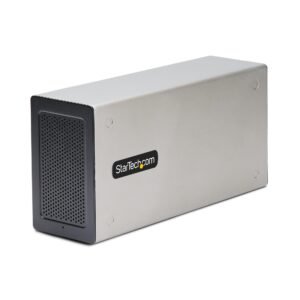
Thunderbolt 3 PCIe Expansion Chassis, External Enclosure W/Dual PCI Express Slots, PCIe Box for Laptops/Desktops, 8K/4K Output Via TB3/DP 1.4 Ports, For Video Capture/Fiber/Ethernet Cards - TAA
$562.71 Add to cart