
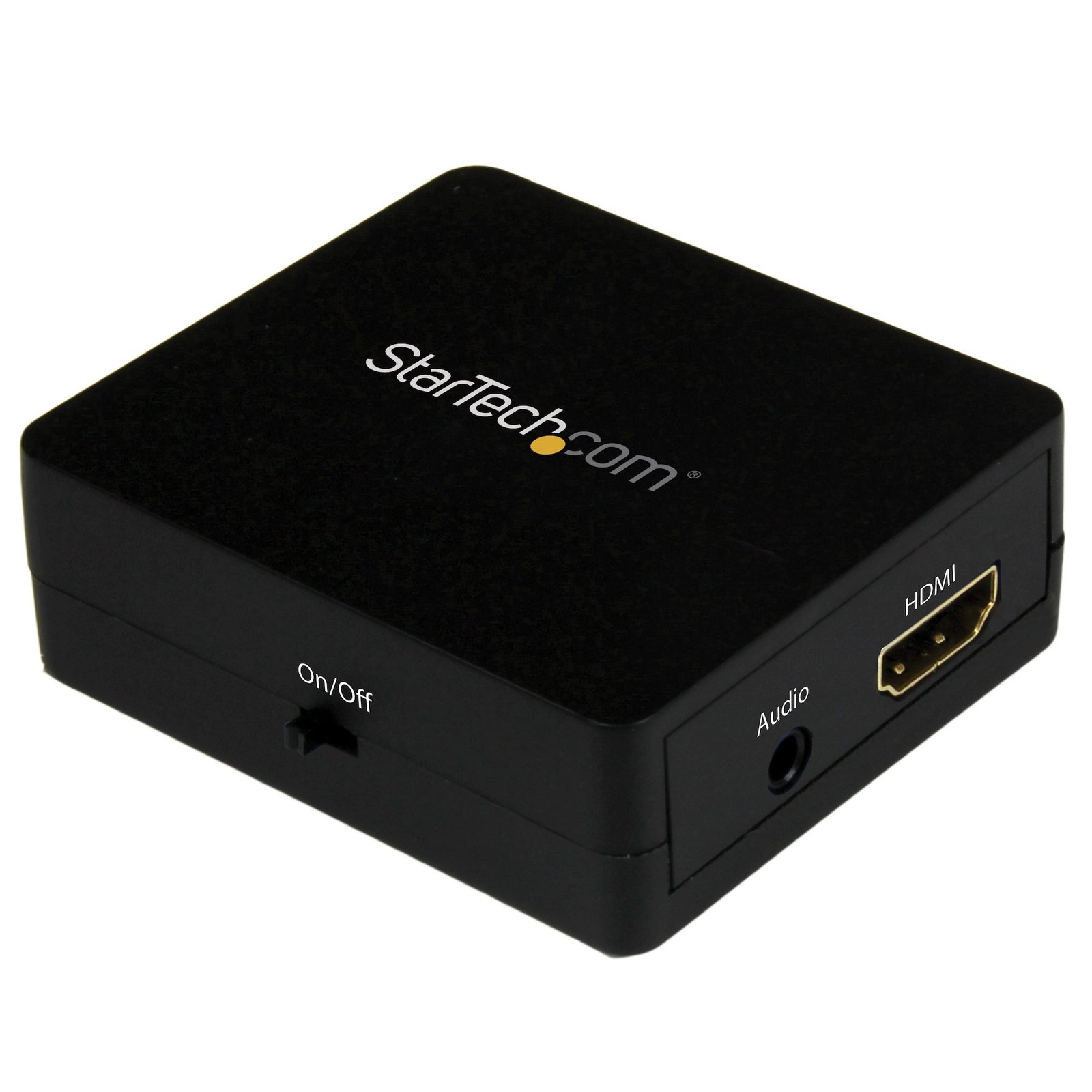


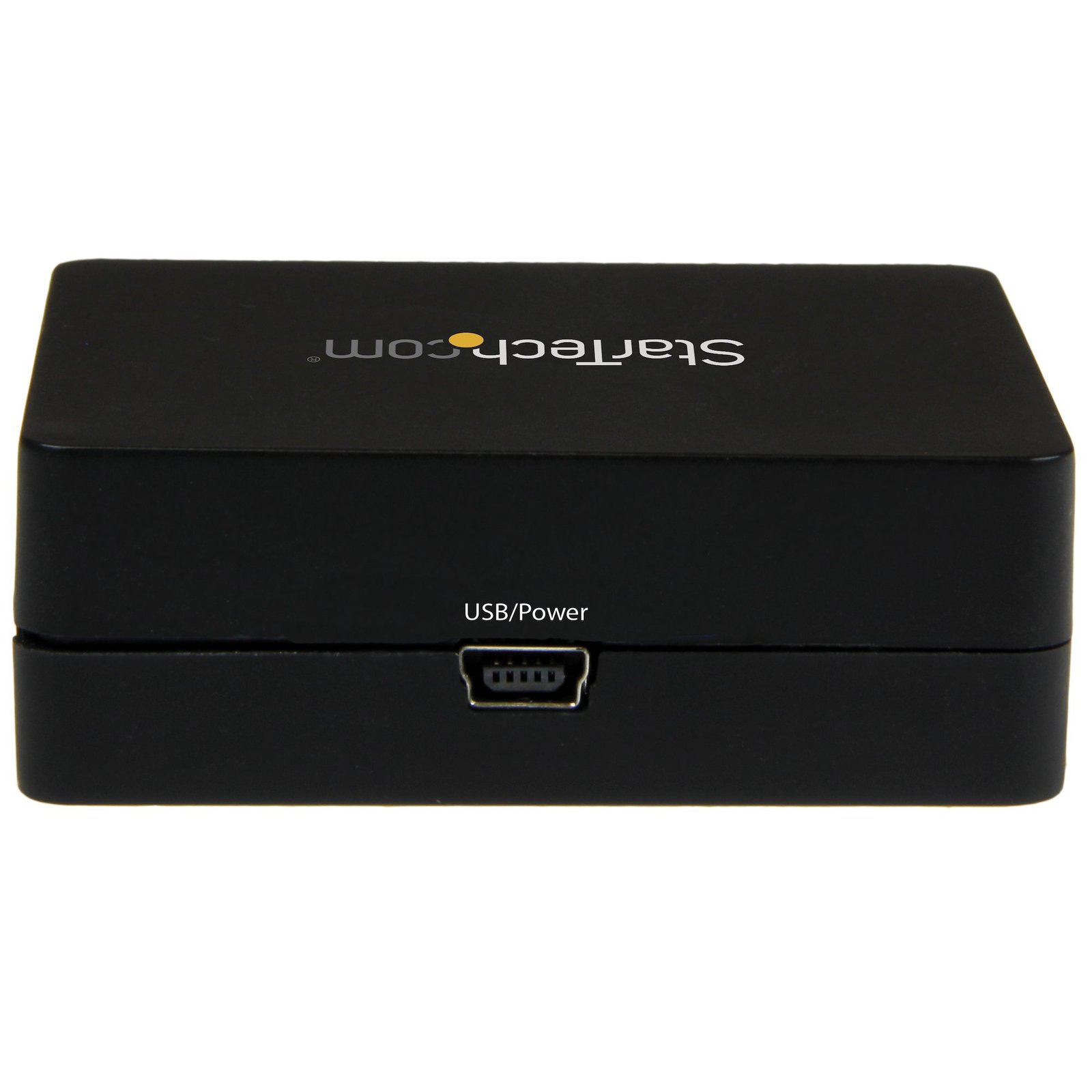
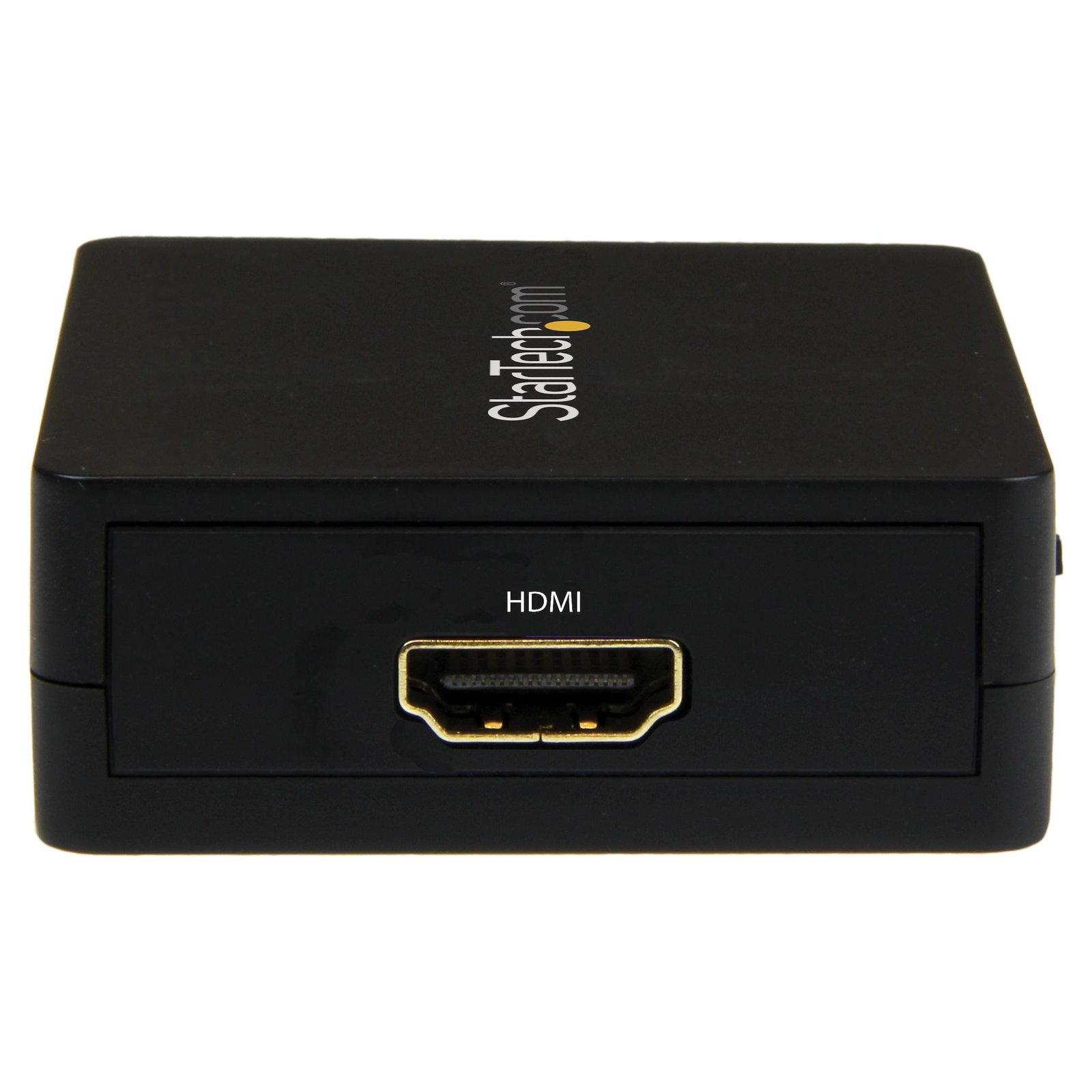
HDMI Audio Extractor - 1080p
$33.99
Extract and convert the audio from your HDMI signal to 3.5mm audio in 2.1 stereo sound
Specifications & Compliance
- Manufacturer #
- HD2A
- UPC
- 065030863308
- Brand
- StarTech.com
- Included in Package
- 1 - HDMI audio extractor, 1 - 2.5 ft. [780 mm] USB power cable, 1 - Toslink adapter
- Shipping (Package) Weight
- 4.5 oz [128 g]
- Weight of Product
- 1.4 oz [39.0 g]
- Product Length
- 2.4 in [60.0 mm]
- Product Width
- 2.2 in [55.0 mm]
- Product Height
- 0.8 in [20.0 mm]
- Package Depth
- 5.6 in [14.3 cm]
- Package Width
- 6.8 in [17.3 cm]
- Package Height
- 1.3 in [33 mm]
- Color
- Black
- Warranty
- 2 Years
- Connector 1
- USB Mini-B (480Mbps, 2.5W)
- Connector 1 (Quantity)
- 1
- Package Quantity
- 1
- Connector 2
- HDMI
- Connector 2 (Quantity)
- 1
- Operating Temperature
- 0°C to 70°C (32°F to 158°F)
- Storage Temperature
- -10°C to 80°C (14°F to 176°F)
- Humidity
- 5% to 95% non-condensing
- Power Source
- USB-Powered
- Chipset ID
- Explore - EP93Z3E
- Input Voltage
- 5V DC
- Output Voltage
- 5 DC
- Connector 3
- 3.5mm (3 Conductors, TRS)
- Connector 3 (Quantity)
- 1
- Maximum Digital Resolutions
- 1080p (1920 x 1080)
- Audio
- Yes
- Connector 4
- HDMI
- Connector 4 (Quantity)
- 1
- AV Input
- HDMI
- AV Output
- 3.5 mm Audio
- Wide Screen Supported
- Yes
- Supported Resolutions
- Up to 1080p (1920 x 1080)
Questions & Answers
Does this device require drivers or additional setup?
No. This device is plug and play and does not require drivers or additional software. Simply connect the source device and the destination device to begin using it. Explanation: This device is designed for plug-and-play operation and is automatically recognized by the connected system. To use the device: Connect the source device (such as a computer). Connect the destination device (such as a monitor, projector, or other compatible peripheral). Power on the connected devices, if required. No driver installation, software configuration, or additional setup is necessary. If the device is not detected, verify that: All cables are securely connected. The source and destination devices are compatible with the product. The correct input and output ports are being used.
Everything is hooked up but nothing is working. What should I do?
When you troubleshoot issues with a video adapter, there are some quick tests that you can complete to rule out potential problems. You can test to make sure that the following components are working correctly and are not the source of the issue: Video cables Video adapter Video source (such as a DVD player or computer) Video destination (such as a monitor or projector) To test your setup components, try the following: Use the cable, video adapter, video source, and video destination in another setup to see if the problem is with the components or the setup. Use a different cable, video adapter, video source, and video destination in your setup to see if the problem persists. Ideally, you should test a component that you know works in another setup. When you test your cables, it is recommended that you do the following: Test each cable individually. Use short cables when you are testing. When you test the video source and video destination, it is recommended that you do the following: Remove the video adapter from your setup and test to make sure that the video source and video destination work together without the video adapter. Test to make sure that the video source and video destination work together at the resolution that you want to use. Note: In order for your setup to work properly, the video source, adapter, and destination all need to support the resolution that you are using.
Related products
-
10ft VGA to HDMI Converter Cable with USB Audio Support & Power - Analog to Digital Video Adapter Cable to connect a VGA PC to HDMI Display - 1080p Male to Male Monitor Cable
$74.99 Add to cart -

Stereo RCA to SPDIF Digital Coaxial and Toslink Optical Audio Converter
$91.99 Add to cart -
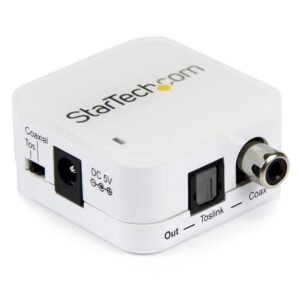
Two Way Digital Coax to Toslink Optical Audio Converter Repeater
$93.99 Add to cart -

Bluetooth Audio Receiver with NFC - Wireless Audio
$101.99 Add to cart