
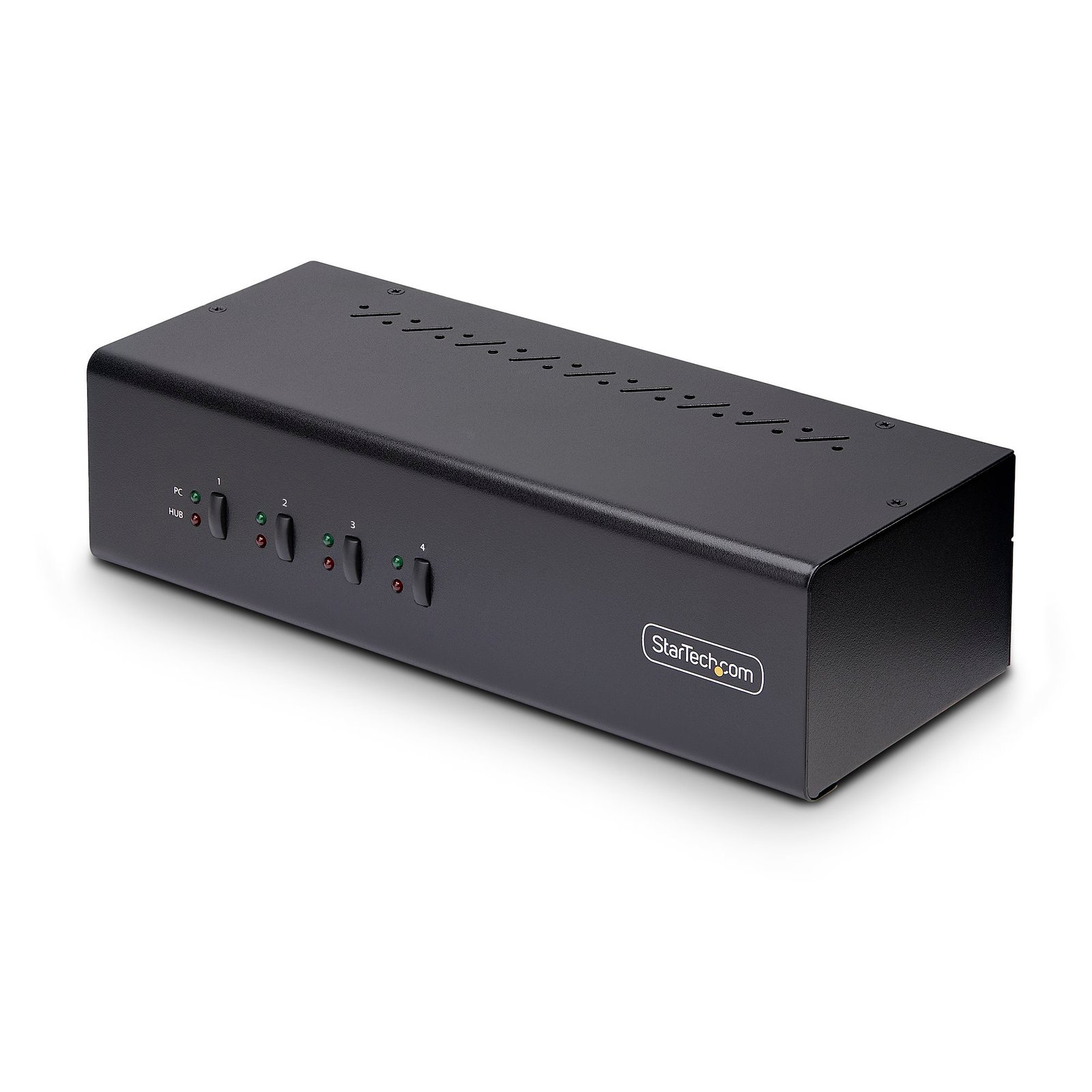
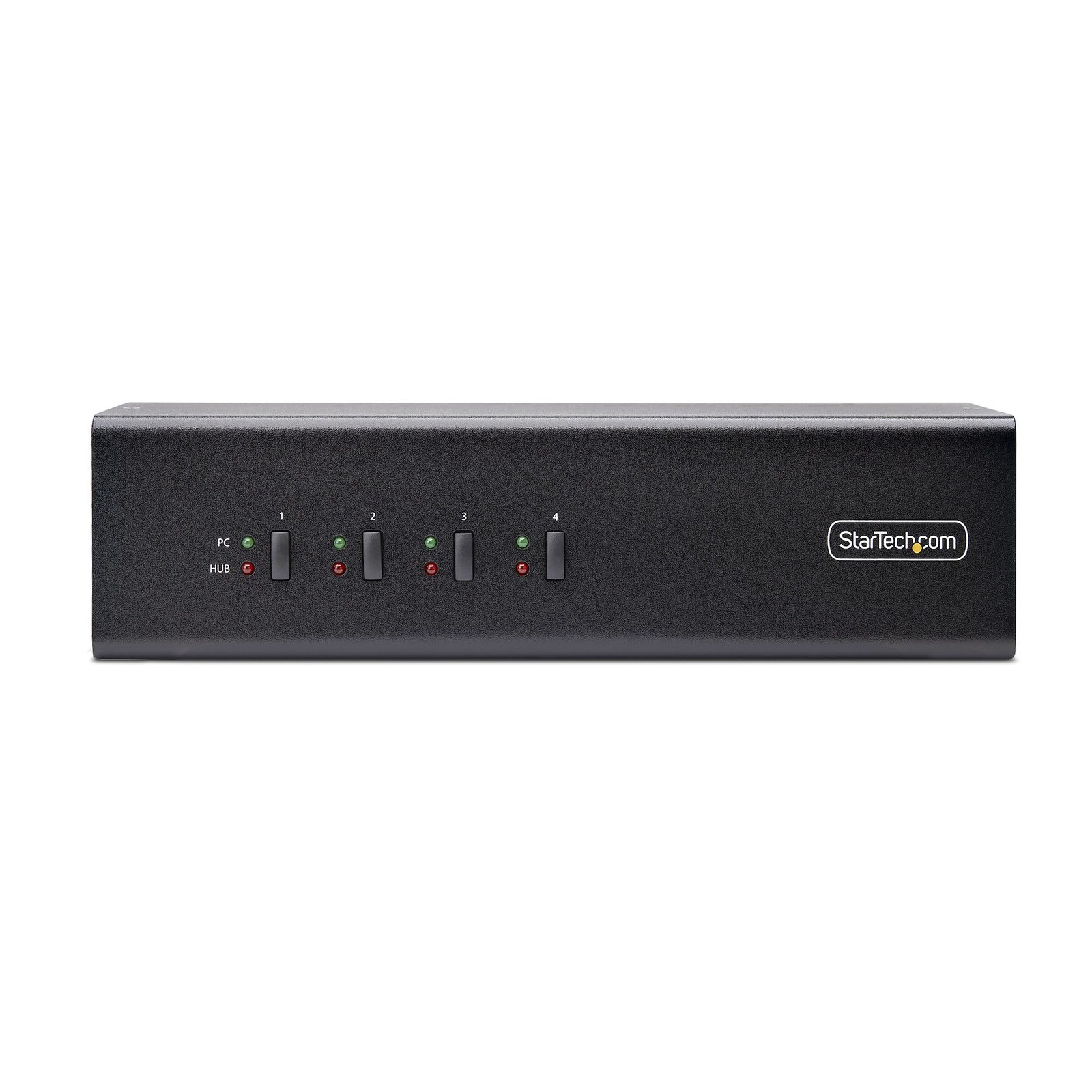
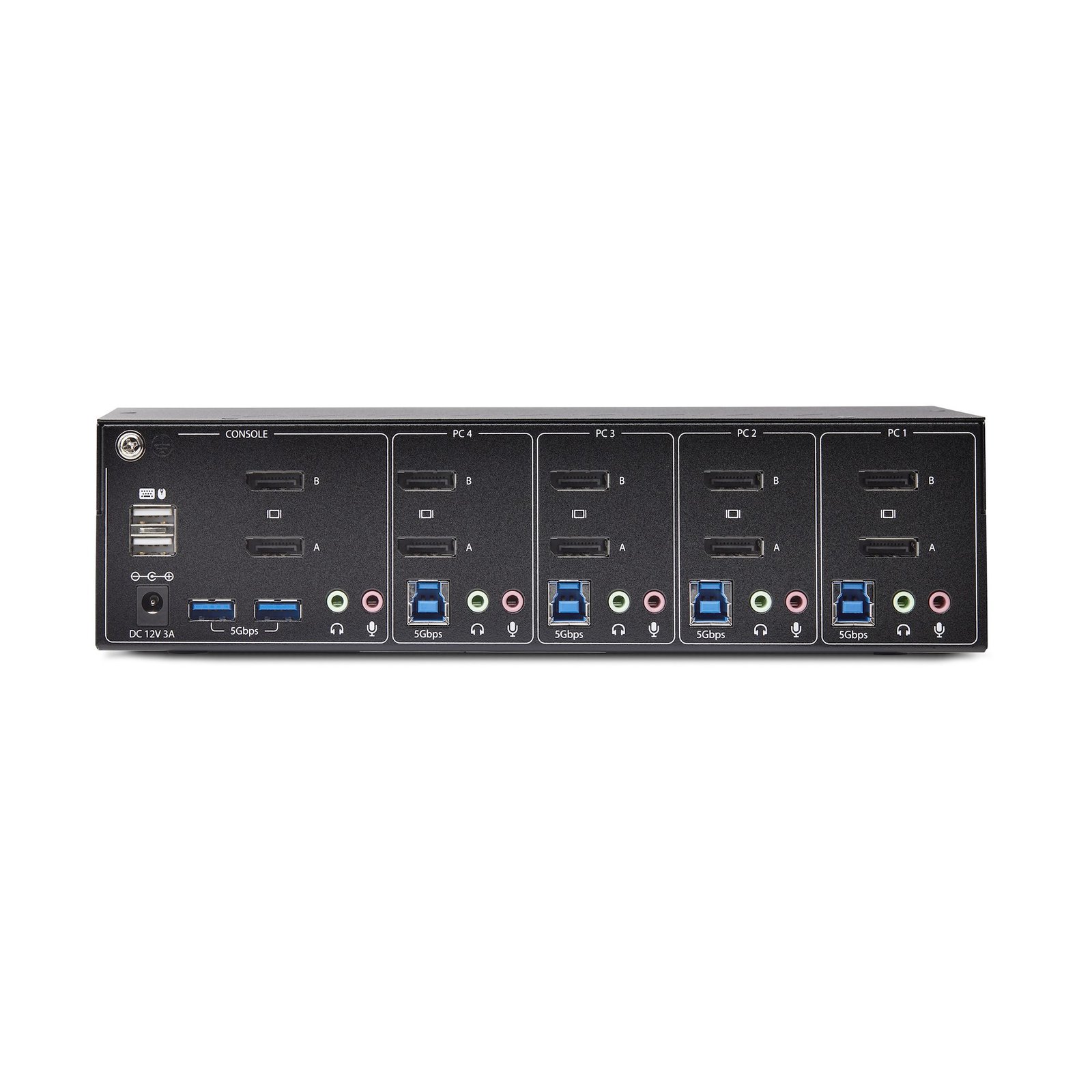
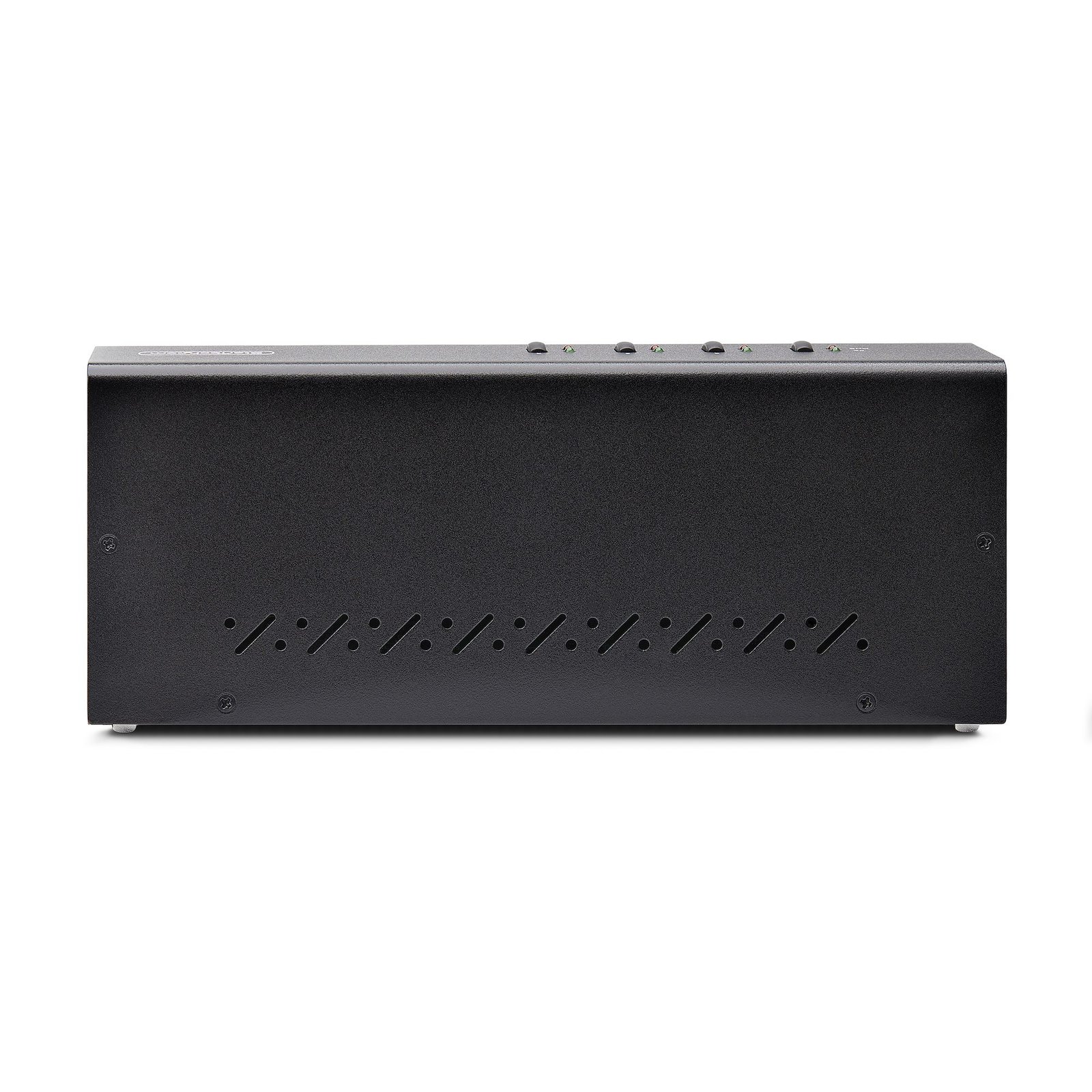


4-Port Dual-Monitor DisplayPort KVM Switch, 4K 60Hz, 2x USB 5Gbps Hub Ports, 2x USB 2.0 HID Ports, Hotkey and Push-Button Switching, TAA Compliant - 3.5mm Audio, HDCP
$1,019.99
Share a mouse, keyboard, USB 5Gbps hub, and dual 4K 60Hz DisplayPort displays between four DisplayPort-enabled computers
Specifications & Compliance
- UPC
- 065030899697
- Brand
- StarTech.com
- Included in Package
- 1 - KVM Switch, 1 - Universal Power Adapter (NA/JP, EU, UK, NZ), 1 - Quick-Start Guide
- Shipping (Package) Weight
- 3.3 lb [1.5 kg]
- Weight of Product
- 2.2 lb [1.0 kg]
- Product Length
- 10.0 in [25.3 cm]
- Product Width
- 3.9 in [100.0 mm]
- Product Height
- 2.6 in [66.0 mm]
- Package Depth
- 6.4 in [16.2 cm]
- Package Width
- 13.1 in [33.2 cm]
- Package Height
- 5.1 in [12.9 cm]
- Color
- Black
- Warranty
- 2 Years
- Connector 1
- DisplayPort
- Connector 1 (Quantity)
- 2
- Package Quantity
- 1
- Connector 2
- USB-A (5Gbps, 4.5W)
- Connector 2 (Quantity)
- 2
- Operating Temperature
- 0°C to 50°C (32°F to 122°F)
- Storage Temperature
- -20°C to 60°C (-4°F to 140°F)
- Humidity
- 0% ~ 90% RH (non-condensing)
- Material
- Steel
- Maximum Data Transfer Rate
- 5Gbps
- Power Source
- AC Adapter Included
- Input Voltage
- 100 - 240 AC
- Output Voltage
- 12V DC
- Connector 3
- USB-A (480Mbps, 2.5W)
- Connector 3 (Quantity)
- 2
- Power Consumption
- 0.1 W
- MTBF
- 103,062 Hours
- LED Indicators
- 4 - <b>PC LED:</b> Solid Green when a host connection is detected. Blinking Green when a host connection is not detected, 4 - <b>Hub LED:</b> Solid Red when the PC port is selected
- Input Current
- 1 A
- Output Current
- 3
- Maximum Digital Resolutions
- 3840 x 2160 60Hz
- Host Connector 1
- DisplayPort
- Host Connector 1 (Quantity)
- 8
- Audio
- Yes
- Plug Type
- N
- Center Tip Polarity
- Positive
- Connector 4
- 3.5mm (3 Conductors, TRS)
- Connector 4 (Quantity)
- 2
- Supported Resolutions
- 3840x2160 @60Hz <br> 2560x1440 @60Hz <br> 1920x1200 @60Hz <br> 1920x1080 @60Hz <br> <i>Other resolutions and refresh rates may be supported</i>
- Maximum Cable Length
- 24.6 ft [7.5 m]
- Audio Specifications
- DisplayPort - 2 Channel Audio, Analog Stereo - 2 Channel Audio
- Host Connector 2
- USB-B (5Gbps, 4.5W)
- Host Connector 2 (Quantity)
- 4
- Cascadable
- No
- Connector 5
- Barrel Power (N-Type, OD 5.5mm / ID 2.5mm)
- Connector 5 (Quantity)
- 1
- Rack-Mountable
- No
- Number of KVM Ports
- 4
- IP Control
- No
- Supported Platforms
- USB 3.2 Gen 1 (5Gbps)
- PC Video Type
- DisplayPort
- Number of Monitors Supported
- 2
- Video Revision
- DisplayPort 1.2
- On-Screen Display
- No
- Cables Included
- No
- Port Selection Support
- Push Button and Hotkeys
- Hot-Key Selection
- Yes
- Host Connector 3 (Quantity)
- 8
- CAC Support
- No
- Auto Scan
- 10, 20, 30, 40, 50, and 60 seconds
Questions & Answers
How to Arrange Windows Monitors to Fix Mouse Issues
In order for your mouse to move properly between your monitors you must rearrange your monitors in Windows to match the physical location of your monitors on your desk. To do so, complete the following based on your operating system: Windows 11 Click on the Windows Icon in the Taskbar (or the Windows key on the keyboard) and search for Display Settings . Click on Multiple Displays. Click Identify to display the numbers on each connected monitor, showing how the operating system has assigned their positions. Click and drag the monitor icons to best match your physical setup. Click Apply to confirm the changes and close the window. Windows 10 and Windows 8 On your keyboard, press the Windows key + X and select Control Panel . Click Appearance and Personalization , then click Display . Click the Resolution or Adjust Resolution option from the left column, which will display your monitors as numbered icons. Click Identify to display the numbers on each connected monitor, showing how the operating system has assigned their positions. Click and drag the monitor icons to best match your physical setup. Click OK to apply the changes and close the window. Windows 7 and Windows Vista Click the Start button and select Control Panel . Click Appearance and Personalization, then click Display . Click the Resolution or Adjust Resolution option from the left column, which will display your monitors as numbered icons. Click Identify to display the numbers on each connected monitor, showing how the operating system has assigned their positions. Click and drag the monitor icons to best match your physical setup. Click OK to apply the changes and close the window. Windows XP Click the Start button and select Control Panel . Double-click Display . Click the Settings tab, which will display your monitors as numbered icons. Click Identify to display the numbers on each connected monitor, showing how the operating system has assigned their positions. Click and drag the monitor icons to best match your physical setup. Click OK to apply the changes and close the window. To mirror the image from your primary monitor instead of extending your desktop, refer to the following FAQ: http://www.startech.com/faq/Windows_Mirroring_Monitors
What DC barrel connector power plug types do StarTech.com products use, and what are their dimensions?
StarTech.com DC barrel connector plug types are defined in the “Plug Type” field of the technical specifications, using a letter code that specifies the connector’s outer diameter (OD) and inner diameter (ID) in millimeters for power adapter compatibility. Explanation: In StarTech.com technical specifications, the “Plug Type” field is a standardized identifier for the exact DC barrel connector size required to power a product. Each plug type is assigned a letter code that corresponds to a specific combination of outer diameter (OD) and inner diameter (ID), measured in millimeters. Common DC barrel plug type dimensions Plug Type OD ID A 2.35 mm 0.7 mm B 4.0 mm 1.7 mm C 4.75 mm 1.7 mm H 3.4 mm 1.3 mm L 5.0 mm 2.5 mm M 5.5 mm 2.1 mm N 5.5 mm 2.5 mm The DC barrel connector plug type must match both the outer diameter and inner diameter exactly. A mismatch between the StarTech.com product requirement and the power adapter connector can prevent proper fit or stable power delivery, which may result in device startup failure or intermittent operation. The plug type defines only the physical connector size. The plug type does not define electrical power requirements such as voltage, current, or polarity. The power adapter used with a StarTech.com product must match the product’s specified electrical requirements. Using an incompatible power adapter can cause device malfunction or permanent damage. This standardized DC barrel connector plug type system enables IT professionals and procurement teams to verify connector dimensions, ensure power adapter compatibility, standardize hardware deployments, and identify the correct replacement power supply for StarTech.com products.
Related products
-
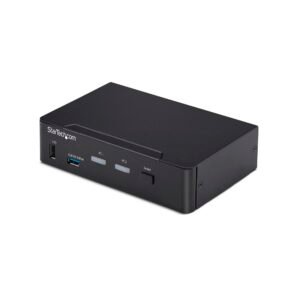
2-Port DisplayPort KVM Switch, 4K 60Hz, DP 1.2, EDID Management, 2-Port USB 3.0 Hub, 4x USB HID Ports, TAA Compliant
$522.99 Add to cart -

USB Crash Cart Adapter with File Transfer & Video Capture - TAA
$697.99 Add to cart -

2-Port Hybrid USB-C HDMI Cable KVM Switch, 4K 60Hz, Compact KVM with 6ft/1.8m USB-A/HDMI/Audio & 4ft/1.2m USB-C Integrated Host Cables, Bus Powered - Remote Push Button/Hotkey Switching
$98.99 Add to cart -
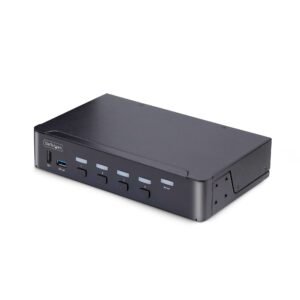
4-Port DisplayPort KVM Switch, 8K 60Hz / 4K 144Hz, Single Display, DP 1.4, 2x USB 3.0 Ports, 4x USB 2.0 HID Ports, Push-Button & Hotkey Switching, TAA Compliant - OS Independent, Metal Housing
$614.99 Add to cart