
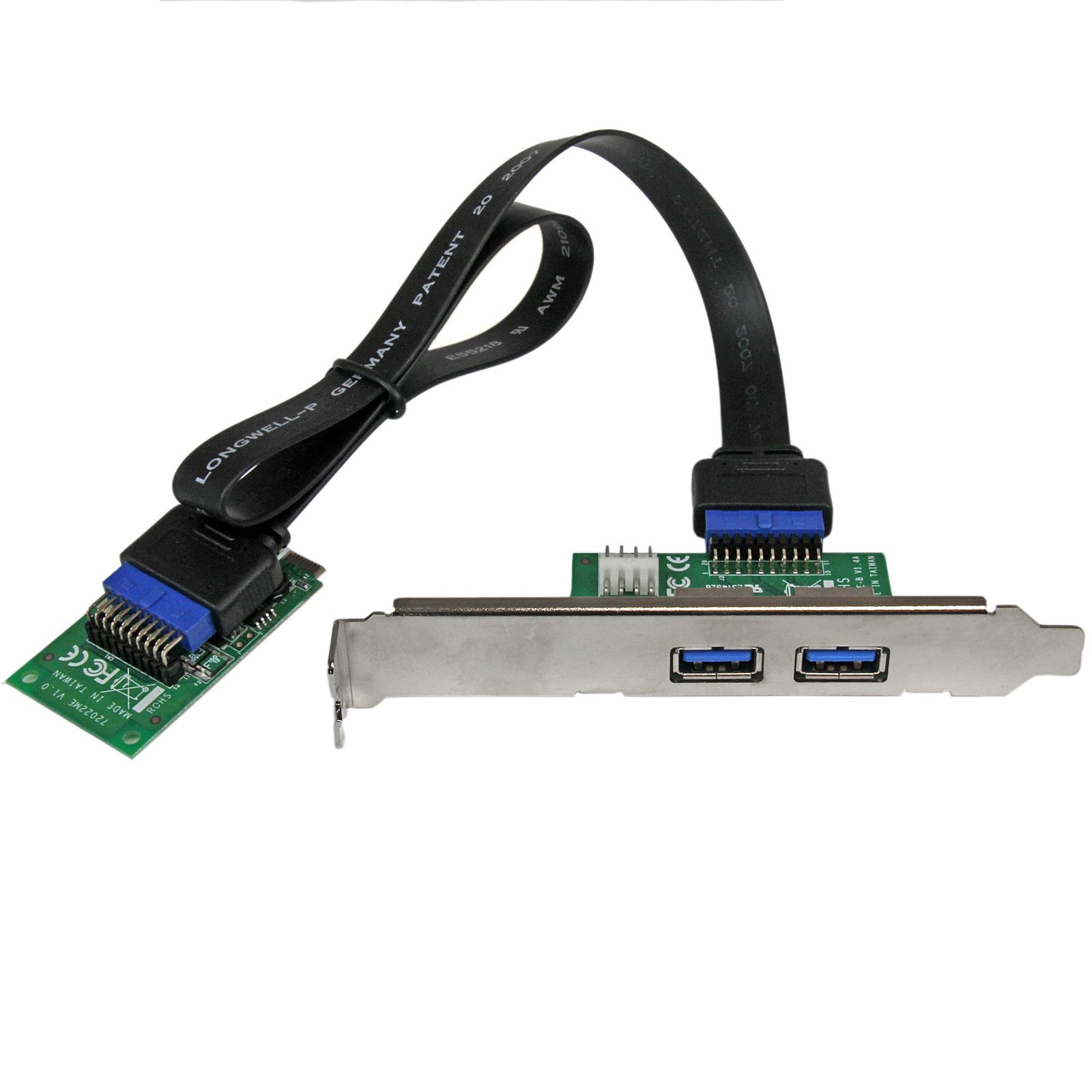
2 Port Mini PCI Express SuperSpeed USB 3.0 Card Adapter with UASP Support
$75.99
Add 2 USB 3.0 ports through a mini PCI Express slot
Specifications & Compliance
- UPC
- 065030843355
- Brand
- StarTech.com
- Included in Package
- 1 - Mini PCIe USB 3.0 Card, 1 - Low Profile Bracket, 1 - Driver CD, 1 - Instruction Manual
- Shipping (Package) Weight
- 6.1 oz [174.2 g]
- Weight of Product
- 2.5 oz [70.4 g]
- Product Length
- 2.0 in [50 mm]
- Product Width
- 1.2 in [30 mm]
- Product Height
- 0.1 in [3 mm]
- Package Depth
- 5.7 in [14.5 cm]
- Package Width
- 8.3 in [21 cm]
- Package Height
- 1.6 in [40 mm]
- Warranty
- 2 Years
- Connector 1
- Mini PCI Express x1
- Connector 1 (Quantity)
- 1
- Connector 2
- USB-A (5Gbps, 4.5W)
- Connector 2 (Quantity)
- 2
- Operating Temperature
- 0°C to 85°C (32°F to 185°F)
- Storage Temperature
- -65°C to 125°C (-85°F to 257°F)
- Chipset ID
- Renesas/NEC - µPD720200
- Special Notes
- Ensure computer case has an available expansion card slot
- Number of Ports
- 2
- Interface
- USB 3.2 Gen 1 (5Gbps)
- Bus Type
- Mini PCI Express
- Type and Rate
- USB 3.0 (5Gbps)
- System and Cable Requirements
- Available Mini PCI Express expansion slot (full length)
- Card Type
- Embedded
- UASP Support
- Yes
Questions & Answers
How do I install my USB card in Windows Vista / 7 / 8?
Prior to installing this device, ensure that your operating system is up to date (for example, you have installed the most recent service pack). To install the driver: Download the latest drivers from the StarTech.com website ( http://www.startech.com/Support ). You can find the part number and product ID on the product’s packaging. Note: Windows will typically save the files to the Downloads folder that is associated with your user account (for example, C:Users your_name Downloads). Once the download is complete, right-click the zip folder that you downloaded, select Extract All , and follow the on-screen instructions. In the list of extracted files, right-click the Setup.exe file and select Run as Administrator . Note: If the Run as Administrator option is not available, you might be attempting to run the installer from within the zipped file. Extract the files using the instructions in Step 2. Follow the on-screen prompts to install the device drivers and restart the computer when prompted. Your computer will automatically complete the driver installation and your device should be ready to use.
How do I install my USB card in Windows XP?
Prior to installing this device, ensure that your operating system is up to date (for example, you have installed the most recent service pack). To install the driver: Download the latest drivers from the StarTech.com website ( http://www.startech.com/Support ). You can find the part number and product ID on the product’s packaging. Note: Windows will typically save the files to the Downloads folder that is associated with your user account (for example, C:Documents and Settings your_name My DocumentsDownloads). Once the download is complete, right-click the zip folder that you downloaded, select Extract All , and follow the on-screen instructions. In the list of extracted files, double-click the Setup.exe file. Follow the on-screen prompts to install the device drivers and restart the computer when prompted. Your computer will automatically complete the driver installation and your device should be ready to use.
Everything is hooked up but nothing is working. What should I do? (Windows)
When you troubleshoot issues with a USB controller card, there are some quick tests that you can complete to rule out potential problems. You can test to make sure that the following components are working correctly and are not the source of the issue: USB cables USB devices USB controller card To test your setup components, try the following: Use the USB cable, device, and controller card in another setup to see if the problem is with the components or the setup. Use a different USB cable, device, and controller card in your setup to see if the problem persists. Ideally, you should test a component that you know works in another setup. When you test your cables, it is recommended that you do the following: Test each cable individually. Use short cables when you are testing. When you test the USB device and controller card, it is recommended that you do the following: Press the Windows key + R , type devmgmt.msc , and press Enter to open Device Manager . Check to see if your device is listed under Universal Serial Bus controllers . If you do not see the USB controller card listed in Device Manager please see this FAQ: https://www.startech.com/en-us/faq/pci-pcie-cannot-boot-os-or-detect-windows . If the device is listed with an error, follow the instructions on the website to reinstall the drivers.
When should I upgrade my device's firmware?
You should not upgrade your device's firmware if you do not have any issues with the functionality of your device. The only time you should consider an upgrade is if you are experiencing a problem with the device, and you have confirmed that the firmware addresses this problem. You can confirm this is the case by reviewing the documentation included with the firmware or by consulting with our Technical Support team. Incorrectly upgrading firmware can result in diminished performance so it is best to contact StarTech.com if you would like to perform this operation.
How do I confirm that Windows detects my expansion card?
To confirm that Windows detects your expansion card, complete the following: Press the Windows key+ R , type devmgmt.msc , and press Enter . In Device Manager , under the appropriate heading, confirm that your expansion card is listed and that there isn't an exclamation mark next to it. For example, a USB controller card would be under Universal Serial Bus controllers . Your expansion card is listed according to the name of the chipset. To determine the name of the chipset of your expansion card, navigate to www.StarTech.com and look on the Technical Specifications tab for your product.
Related products
-

2 Port ExpressCard SuperSpeed (5Gbps) USB 3.0 Card Adapter with UASP Support - TAA
$36.89 Add to cart -
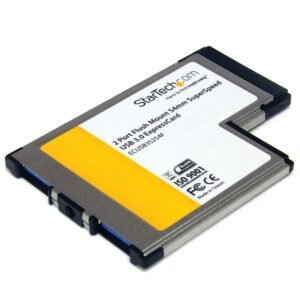
2 Port Flush Mount ExpressCard 54mm SuperSpeed (5Gbps) USB 3.0 Card Adapter with UASP Support - TAA
$46.11 Add to cart -
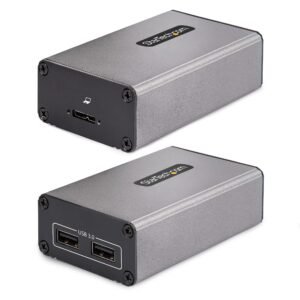
2-Port USB 3.0 Extender over OM3 Multimode Fiber - LC/LC - 2x 5Gbps USB-A Hub - 350m (1150ft) Range - Durable USB Fiber Optic Extender - Optical USB Extender - TAA
$1,097.76 Add to cart -
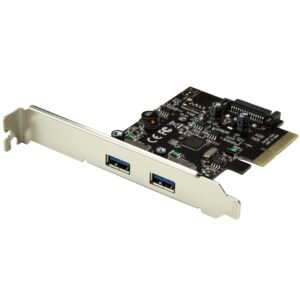
2-Port USB PCIe Card - 10Gbps USB 3.1 Gen 2 Type-A PCI Express Host Controller Card - USB 3.2 Gen 2x1 PCIe Add-On Adapter Card - Expansion Card
$52.99 Add to cart