
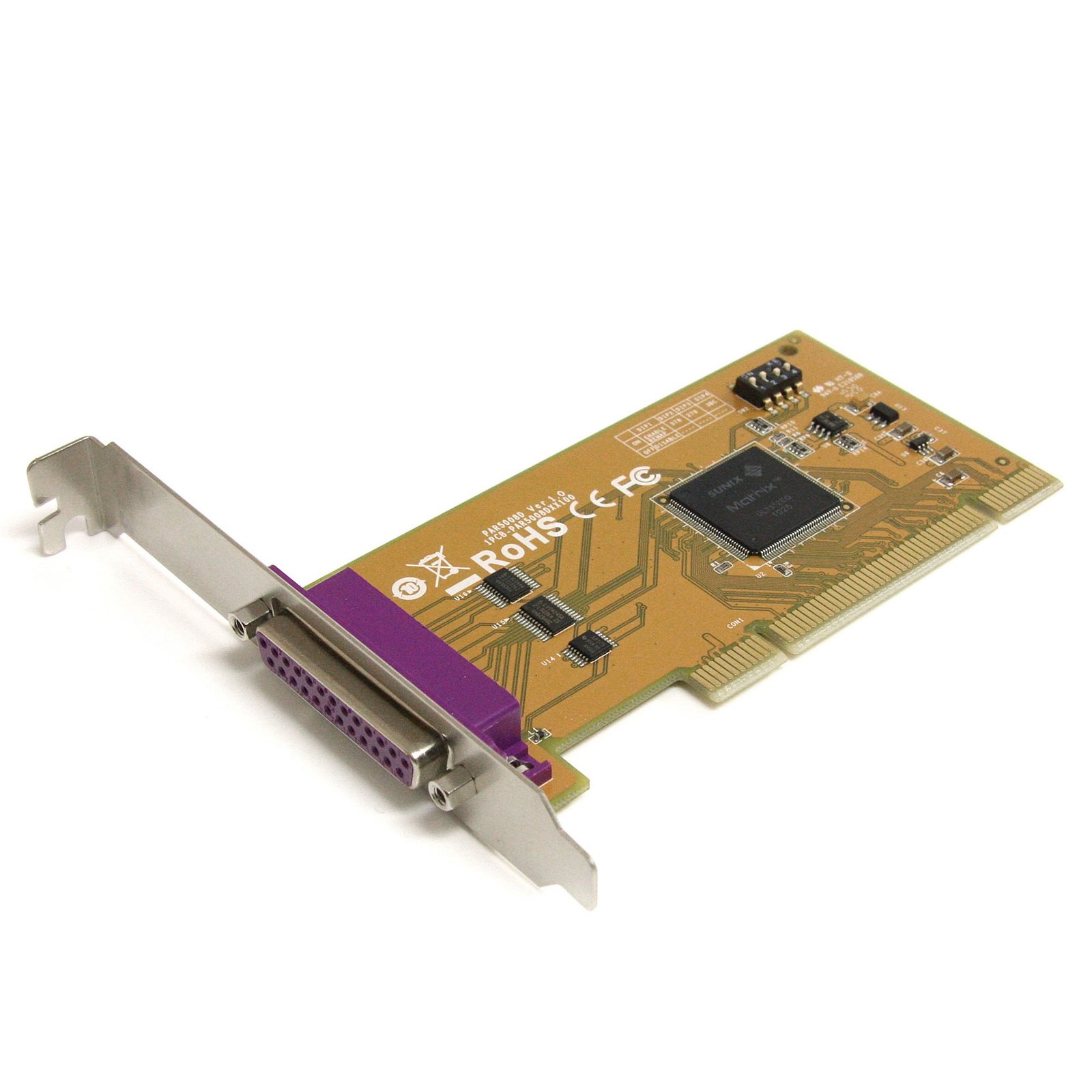
1 Port PCI Parallel Adapter Card with Re-mappable Address
$36.99
Add a fully featured, re-mappable I/O parallel port to your PC using a PCI expansion slot
Specifications & Compliance
- UPC
- 065030842938
- Brand
- StarTech.com
- Included in Package
- 1 - PCI Parallel Card, 1 - Low-Profile bracket, 1 - Driver CD, 1 - User Manual
- Shipping (Package) Weight
- 6.4 oz [180 g]
- Weight of Product
- 2.6 oz [75 g]
- Product Length
- 4.8 in [12.1 cm]
- Product Width
- 2.4 in [61 mm]
- Product Height
- 0.5 in [13 mm]
- Package Depth
- 5.8 in [14.7 cm]
- Package Width
- 8.0 in [20.3 cm]
- Package Height
- 1.6 in [41 mm]
- Color
- Yellow
- Warranty
- Lifetime
- Connector 1
- PCI / PCI-X
- Connector 1 (Quantity)
- 1
- Package Quantity
- 1
- Connector 2
- DB-25 Parallel / Serial
- Connector 2 (Quantity)
- 1
- Operating Temperature
- 0°C to 60°C (32°F to 140°F)
- Storage Temperature
- -20°C to 85°C (-4°F to 185°F)
- Humidity
- 5~95% RH
- Maximum Data Transfer Rate
- 1.8Mbps
- Industry Standards
- BPP/ECP/EPP/SPP <br> IEEE-1284
- Chipset ID
- Sunix - UL7512EQ
- Special Notes
- Supports re-mapping I/O to 278, 378, and 3BC legacy ISA addresses
- Power Consumption
- 0.033W
- Number of Ports
- 1
- Interface
- Parallel
- Bus Type
- PCI / PCI-X (5 / 3.3V)
- System and Cable Requirements
- Unused PCI slot
- Card Type
- Standard Profile (LP bracket incl.)
- Port Style
- Integrated on Card
- FIFO
- 16 byte
- Microsoft WHQL Certified
- Yes
Questions & Answers
How do I install my serial card in Windows XP? (.exe method)
Before you install the driver, make sure that your operating system is current (for example, the most recent service pack is installed). Download the latest drivers from the StarTech.com website at http://www.startech.com/Support . The part number and product ID are on the product packaging. Note: Windows usually saves the files to the Downloads folder that is associated with your user account (for example, C:Documents and Settings your_name My DocumentsDownloads). After the download is complete, right-click the zip folder that you downloaded, click Extract All , and complete the instructions. In the list of extracted files, double-click the Setup.exe file. Complete the instructions to install the device drivers, and restart your computer when prompted to. Your computer will automatically complete the driver installation and your device should be ready to use.
Everything is hooked up but nothing is working. What should I do? (Windows)
When you troubleshoot issues with a parallel device, there are some quick tests that you can complete to rule out potential problems. You can test to make sure that the following components are working correctly and are not the source of the issue: Parallel cables Parallel ports Parallel devices To test your setup components, try the following: Use the parallel cable, parallel port, and parallel device in another setup to see if the problem is with the components or the setup. Use a different parallel cable, parallel port, and parallel device in your setup to see if the problem persists. Ideally, you should test a component that you know works in another setup. When you test your cables, it is recommended that you do the following: Test each cable individually. Use short cables when you are testing. When you test the parallel ports and parallel device, it is recommended that you do the following: Press the Windows key + R , type devmgmt.msc , and press Enter . Check to see if the parallel ports and parallel device is listed under Ports (COM & LPT) . Make sure that the LPT port number is the correct number for the parallel device and that the software being used to connect the computer to the parallel device uses the correct LPT port number. If you do not see the LPT port number in Device Manager please see this FAQ for PCI/PCIe expansion cards: https://www.startech.com/en-us/faq/pci-pcie-cannot-boot-os-or-detect-windows or this FAQ for USB devices: https://www.startech.com/en-us/faq/usb-cannot-detect-windows If the device is listed with an error, follow the instructions on the website to reinstall the drivers. Note: Some parallel devices only work if the LPT port number is between a certain range, usually LPT1 or LPT2.
When I send jobs to my parallel port in Windows 10, it does not print. What do I do?
This issue was the result of a Windows update that has recently been fixed in the KB3140743 update. If you are still experiencing this issue, download the latest Windows update. You can also temporarily resolve the issue by completing the following: Press the Windows key + X . Click Device Manager . Expand the section for Ports (COM & LPT) . Right-click on the LPT port that is experiencing the issue. Click Properties . Click the Port Settings tab. Under Filter Resource Method, select an option that is not currently selected. Click OK .
How do I confirm that Windows detects my expansion card?
To confirm that Windows detects your expansion card, complete the following: Press the Windows key+ R , type devmgmt.msc , and press Enter . In Device Manager , under the appropriate heading, confirm that your expansion card is listed and that there isn't an exclamation mark next to it. For example, a USB controller card would be under Universal Serial Bus controllers . Your expansion card is listed according to the name of the chipset. To determine the name of the chipset of your expansion card, navigate to www.StarTech.com and look on the Technical Specifications tab for your product.
Will this PCI card work in a PCI-X slot?
Yes. This PCI card uses a universal PCI connector that is compatible with both 3.3V and 5V PCI and PCI-X slots. Explanation: This PCI card features a universal PCI connector that supports both 3.3V and 5V slot keying. As a result, it can be installed in compatible PCI and PCI-X slots that use either voltage standard. A universal PCI connector is easily identified by the presence of two keying notches on the edge connector. Standard PCI cards designed for only one voltage typically have a single notch. Because this card uses a universal PCI connector, slot voltage keying is not a compatibility concern.
Related products
-
1-Port Parallel PCIe Card - PCI Express to Parallel DB25 Adapter Card - Desktop Expansion LPT Controller for Printers, Scanners & Plotters - SPP/ECP - Standard/Low Profile
$39.96 Add to cart -

1 Port PCI Parallel Adapter Card
$31.99 Add to cart -
24in Internal USB Motherboard Header to Parallel Adapter
$21.99 Add to cart -
1 Port Low Profile PCI Parallel Adapter Card
$40.99 Add to cart