3 Port HDMI Auto Switch w/ IR Remote Control
$43.99
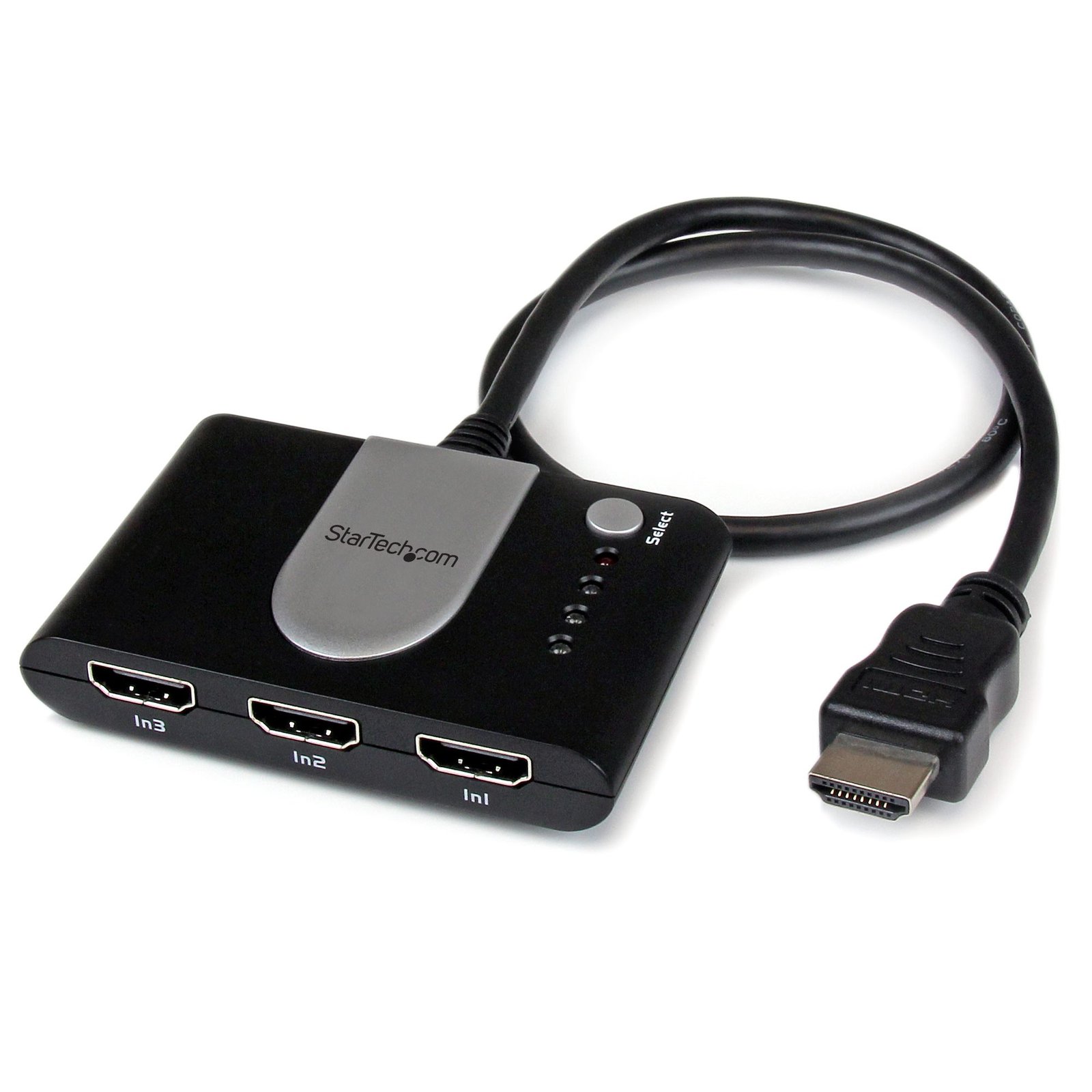
Share a single HDMI® display or projector between three HDMI® video sources - with device priority and signal loss switching
Specifications & Compliance
- UPC
- 065030849548
- Brand
- StarTech.com
- Included in Package
- 1 - 3 Port High Speed HDMI® Auto Switch, 1 - Remote Control, 1 - IR Extender Cable, 1 - Instruction Manual
- Shipping (Package) Weight
- 7.6 oz [214 g]
- Weight of Product
- 2.4 oz [68 g]
- Product Length
- 3.2 in [81 mm]
- Product Width
- 2.2 in [55 mm]
- Product Height
- 1.0 in [25 mm]
- Package Depth
- 5.7 in [14.5 cm]
- Package Width
- 8.3 in [21 cm]
- Package Height
- 1.6 in [40 mm]
- Color
- Black
- Warranty
- 2 Years
- Connector 1
- HDMI
- Connector 1 (Quantity)
- 1
- Package Quantity
- 1
- Connector 2
- HDMI
- Connector 2 (Quantity)
- 3
- Operating Temperature
- 0°C to 70°C (32°F to 158°F)
- Storage Temperature
- -65°C to 150°C (-85°F to 302°F)
- Humidity
- 10% to 85%RH
- Material
- Plastic
- Industry Standards
- High Speed HDMI®, HDCP
- Special Notes
- Port 1 is set to have higher priority than port 2 or port 3 when all signals are on. Port 2 is set to have higher priority than port 3 when both signals are on, but Port 1 is off.
- LED Indicators
- 3 - Two Green for Display Status, and one red for power.
- Number of Ports
- 3
- Maximum Digital Resolutions
- 1920x1200
- Audio
- Yes
- AV Input
- HDMI
- AV Output
- HDMI
- Wide Screen Supported
- Yes
- Max Distance
- 10m [33ft]
Questions & Answers
Everything is hooked up but nothing is working. What should I do?
When you troubleshoot issues with a video splitter, there are some quick tests that you can complete to rule out potential problems. You can test to make sure that the following components are working correctly and are not the source of the issue: Video cables Video switch Video source (such as a DVD player or computer) Video destination (such as a monitor or projector) Note: When you are testing setup components, you should avoid using video adapters. For example, if you are converting a VGA source to HDMI for use with an HDMI switch, you should use an HDMI source when you test the components. To test your setup components, try the following: Use the cable, video switch, video source, and video destination in another setup to see if the problem is with the components or the setup. Use a different cable, video switch, video source, and video destination in your setup to see if the problem persists. Ideally, you should test a component that you know works in another setup. When you test your cables, it is recommended that you do the following: Test each cable individually. Use short cables when you are testing. When you test the video source and video destination, it is recommended that you do the following: Remove the video switch from your setup and test to make sure that the video source and video destination work together without the video switch. Test to make sure that the video source and video destination work together at the resolution that you want to use. Note: In order for your setup to work properly, the video source, switch, and destination all need to support the resolution that you are using.
How can I connect this HDMI output to a VGA, DVI, or DisplayPort display?
An HDMI output can be connected to VGA, DVI, or DisplayPort displays using the appropriate adapter or video converter. The required solution depends on the input type of the display and whether HDCP-protected content is being used. Explanation: This device outputs HDMI video signals. If the display or video destination uses a different connection type, an adapter or active video converter may be required. Common conversion options include: VGA: An active HDMI to VGA converter is required because HDMI uses digital video signaling and VGA uses analog video signaling. DVI: A passive HDMI to DVI adapter or cable can be used because HDMI and DVI share compatible digital video signaling. DisplayPort: An active HDMI to DisplayPort converter is required because HDMI and DisplayPort use different signaling technologies. HDCP Considerations Before converting an HDMI signal, determine whether the source content is protected by High-bandwidth Digital Content Protection (HDCP). HDCP is commonly used by devices such as: Blu-ray players DVD players Streaming devices Gaming consoles If the HDMI source is transmitting HDCP-protected content, conversion to an analog video format such as VGA may not be supported because VGA does not support HDCP. In these situations, video may not display correctly or may not display at all. Best Practices For the most reliable results: Use the fewest possible adapters and converters. Verify the required resolution and refresh rate. Confirm that the converter supports the desired signal direction and video format. Consider HDCP requirements when converting protected content.
How can I connect a VGA, DVI, or DisplayPort video source to this device's HDMI input?
This device features an HDMI input. If your video source uses VGA, DVI, or DisplayPort, you can connect it using the appropriate adapter or video converter. The required solution depends on the video output available on the source device. Explanation: HDMI inputs require an HDMI signal. Video sources that use VGA, DVI, or DisplayPort may require signal conversion before they can be connected to this device. Common conversion options include: VGA source: Use an active VGA-to-HDMI converter because VGA uses analog video signaling and HDMI uses digital video signaling. DVI source: Use a passive DVI-to-HDMI adapter, cable, or converter. DVI and HDMI use compatible digital video signaling, making conversion straightforward in most applications. DisplayPort source: Use either a passive or active DisplayPort-to-HDMI adapter, depending on the capabilities of the DisplayPort source. DisplayPort Passive vs. Active Adapters When converting from DisplayPort to HDMI, the correct adapter type depends on whether the DisplayPort source supports DisplayPort Dual-Mode (DP++). Passive adapters require a DisplayPort Dual-Mode (DP++) source. Active adapters work with both standard DisplayPort and DisplayPort Dual-Mode (DP++) sources. If you are unsure whether the source supports DisplayPort Dual-Mode, consult the device documentation or use an active adapter for broader compatibility. For more information about converting DisplayPort video signals, refer to the following FAQ: https://www.startech.com/faq/DisplayPort_Converter_DP_Multi_Mode . For the most reliable installation: Use the fewest possible adapters and converters. Verify support for the required resolution and refresh rate. Confirm that the adapter or converter supports the correct signal direction.