
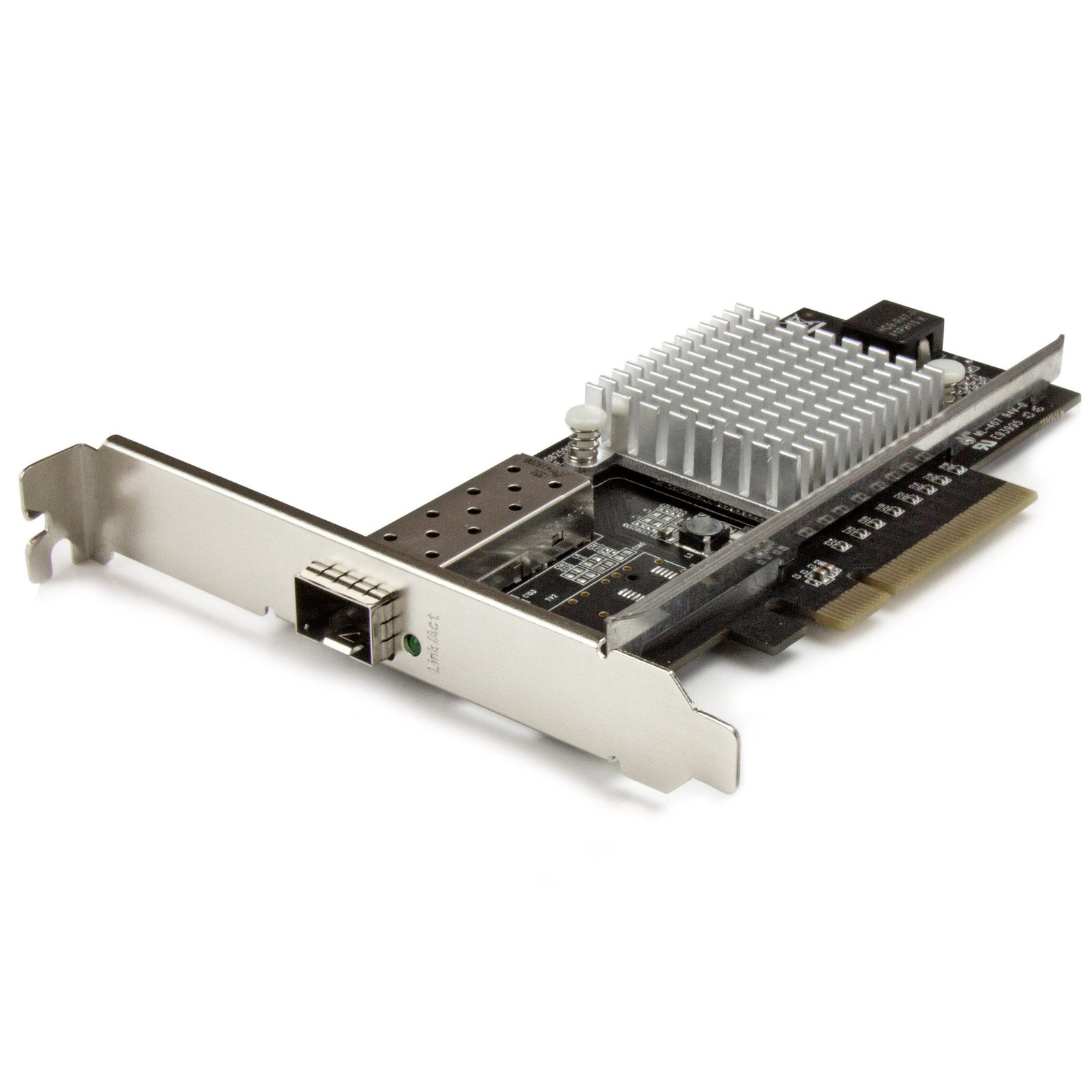
1-Port 10G Open SFP+ Network Card - PCIe - Intel Chip - MM/SM
$320.81
Get advanced connectivity over multimode or single-mode fiber, by adding a 10GBase-LR/SR open SFP+ port to your server or workstation
Specifications & Compliance
- UPC
- 065030866163
- Brand
- StarTech.com
- Included in Package
- 1 - 10G open SFP+ fiber network card, 1 - low-profile bracket, 1 - quick-start guide
- Shipping (Package) Weight
- 5.8 oz [164 g]
- Weight of Product
- 3.6 oz [102.0 g]
- Product Length
- 5.3 in [13.5 cm]
- Product Width
- 0.7 in [18.0 mm]
- Product Height
- 4.7 in [12.0 cm]
- Package Depth
- 5.6 in [14.3 cm]
- Package Width
- 6.9 in [17.4 cm]
- Package Height
- 1.2 in [30 mm]
- Color
- Black
- Warranty
- 2 Years
- Connector 1
- PCI Express x8
- Connector 1 (Quantity)
- 1
- Package Quantity
- 1
- Connector 2
- SFP+ Slot
- Connector 2 (Quantity)
- 1
- Operating Temperature
- 5°C to 50°C (41°F to 122°F)
- Storage Temperature
- -20°C to 60°C (-4°F to 140°F)
- Humidity
- 20% ~ 80% RH
- Material
- Steel
- Maximum Data Transfer Rate
- 10 Gbps
- Industry Standards
- IEEE 802.3ae (10GBASE-LR/SR only), IEEE 802.3aq (10GBASE-LRM)<br /> PCI Express Rev 2.0, using PCIe x8 (or higher) slot
- Chipset ID
- Intel - 82599
- Special Notes
- - Intel NIC Teaming is supported only on Windows Server OS (e.g., Server 2012, 2016) and not on desktop versions like Windows 10 or 11.
- Number of Ports
- 1
- Interface
- Fiber (10 Gigabit Ethernet), Gigabit Ethernet
- Bus Type
- PCI Express
- Compatible Networks
- 1Gbps / 10Gbps
- Card Type
- Standard Profile (LP bracket incl.)
- Full Duplex Support
- Yes
- Jumbo Frame Support
- 9K max.
- Supported Protocols
- IEEE 802.3ad (Link Aggregation)<br/> IEEE 802.3x (Flow Control Support) <br /> IEEE 802.1Q (VLAN tagging)
- Promiscuous Mode
- Yes
Questions & Answers
How do I install my network card in Windows 7, Windows 8, Windows 10, or Windows 11? (.exe method)
To install your network card in Windows, download the latest driver package from StarTech.com, extract the files, run Setup.exe as an administrator, and restart the computer if prompted. Explanation: Before installing the network card, ensure that Windows is fully updated with the latest service packs, security updates, and feature updates available for your operating system. To install the driver: Download the latest driver package from the StarTech.com Drivers & Downloads page. Extract the contents of the downloaded ZIP file. Open the folder for your version of Windows, if applicable. Right-click Setup.exe and select Run as administrator . Follow the on-screen instructions to install the driver. Restart the computer if prompted. After Windows restarts, the operating system will complete the driver installation and the network card will be ready to use. Note: If Run as administrator is not available, ensure that you are running Setup.exe from the extracted folder rather than directly from the ZIP file.
Everything is hooked up but nothing is working. What should I do?
When you troubleshoot issues with a network adapter, there are some quick tests that you can complete to rule out potential problems. You can test to make sure that the following components are working correctly and are not the source of the issue: Ethernet cables Network devices Computer system To test your setup components, try the following: Use the Ethernet cables, network devices, and computer system in another setup to see if the problem is with the components or the setup. Use different Ethernet cables, network devices, and a different computer system in your setup to see if the problem persists. Ideally, you should test a component that you know works in another setup. When you test your cables, it is recommended that you do the following: Test each cable individually. Use short cables when you are testing. When you test the Ethernet cables, network devices, and computer system, it is recommended that you do the following: In Device Manager , check under Network Adapters . To open Device Manager , press the Windows key + R , type devmgmt.msc , and press Enter . If you are using a USB network adapter and you do not see the network adapter listed in Device Manager , refer to the following FAQ: https://www.startech.com/en-us/faq/usb-cannot-detect-windows . If you are using a PCI/PCIe network adapter and you do not see the network adapter listed in Device Manager , refer to the following FAQ: https://www.startech.com/en-us/faq/pci-pcie-cannot-boot-os-or-detect-windows . If you are using a CardBus/ExpressCard adapter and you do not see the network adapter listed in Device Manager , refer to the following FAQ: https://www.startech.com/en-us/faq/cb-ec-cannot-detect-windows . If the device is listed with an error, follow the instructions on the product page to reinstall the drivers. Check to see if your network devices (for example, a network switch, router, and so on) use compatible protocols (for example, 10/100, Gigabit, and so on). Make sure that the link LEDs on the adapter are illuminated when it is plugged into a network device. If the link LEDs are illuminated, it means that a good electrical connection exists between the devices. If you use a wall jack with an Ethernet cable, make sure that the jack is patched in properly.
I am having issues with my new network interface card (NIC) and my on-board NIC is still enabled. What do I do in Windows?
Sometimes an on-board network interface card (NIC) conflicts with a new NIC. In these cases it is best to disable the on-board NIC. The best way to disable your on-board NIC is to go into your BIOS and disable it there if possible. To do this, consult your motherboard manual. You can also disable any NIC in Windows. Here is how you do this: First click Start , or, in Windows 10 and 8, hold down the Windows key and press X . Then click Control Panel . Windows 10 Click Network and Internet . Click Network and Sharing Center . On the left, click Change adapter settings . Right-click the NIC that you would like to disable and select Disable . Windows 8 Click Network and Sharing Center . On the left, click Change adapter settings . Right-click the NIC that you would like to disable and select Disable . Windows 7 Click Network and Internet . Click Network and Sharing Center . On the left, click Change adapter settings . Right-click the NIC that you would like to disable and select Disable . Windows Vista Click Network and Sharing Center . On the left, click Manage network connections . Right-click the NIC that you would like to disable and select Disable . Windows XP Click Network Connections . Right-click the NIC that you would like to disable and select Disable .
Why do I have speed or connectivity issues?
If you are experiencing speed or connectivity issues, it is best to set a specific speed at half or full duplex in your settings. You can set your network adapter to perform at a certain speed, but the device that the adapter is connected to (whether it is a router, switch, or computer) must also be able to perform at the same speed. Note : You must log in as the local administrator before you continue. To open Device Manager: Press Windows key + R . Type devmgmt.msc . Click OK . Open the Networking adapters section. Right-click the network adapter that you want to change and select Properties . Click the Advanced tab. Scroll down to Speed & Duplex . By default, it is set to Auto-Negotiate . Select any of the speeds that you see in the list. Click OK and restart your computer.
Can I use my network card for a Preboot Execution Environment (PXE)?
StarTech.com does not support a Preboot Execution Environment (PXE) as this requires third-party software. However, our devices can be used as long as the following conditions are met: The BIOS must support PXE. The BIOS must see the card. The environment must have drivers for the chipset used in the card. If using a USB networking card, the environment must have support for USB devices as well.
How do I confirm that Windows detects my expansion card?
To confirm that Windows detects your expansion card, complete the following: Press the Windows key+ R , type devmgmt.msc , and press Enter . In Device Manager , under the appropriate heading, confirm that your expansion card is listed and that there isn't an exclamation mark next to it. For example, a USB controller card would be under Universal Serial Bus controllers . Your expansion card is listed according to the name of the chipset. To determine the name of the chipset of your expansion card, navigate to www.StarTech.com and look on the Technical Specifications tab for your product.
Related products
-
Dual Port ExpressCard Gigabit Laptop Ethernet NIC Network Adapter Card
$167.99 Add to cart -

1 Port PCI Express 10/100 Ethernet Network Interface Adapter Card
$25.61 Add to cart -

100Mbps Full/Low Profile Ethernet Multi Mode SC Fiber PCI NIC Card 2km
$142.99 Add to cart -
PCI Express 10 Gigabit Ethernet Fiber Network Card w/ Open SFP+ - PCIe x4 10Gb NIC SFP+ Adapter
$219.99 Add to cart