
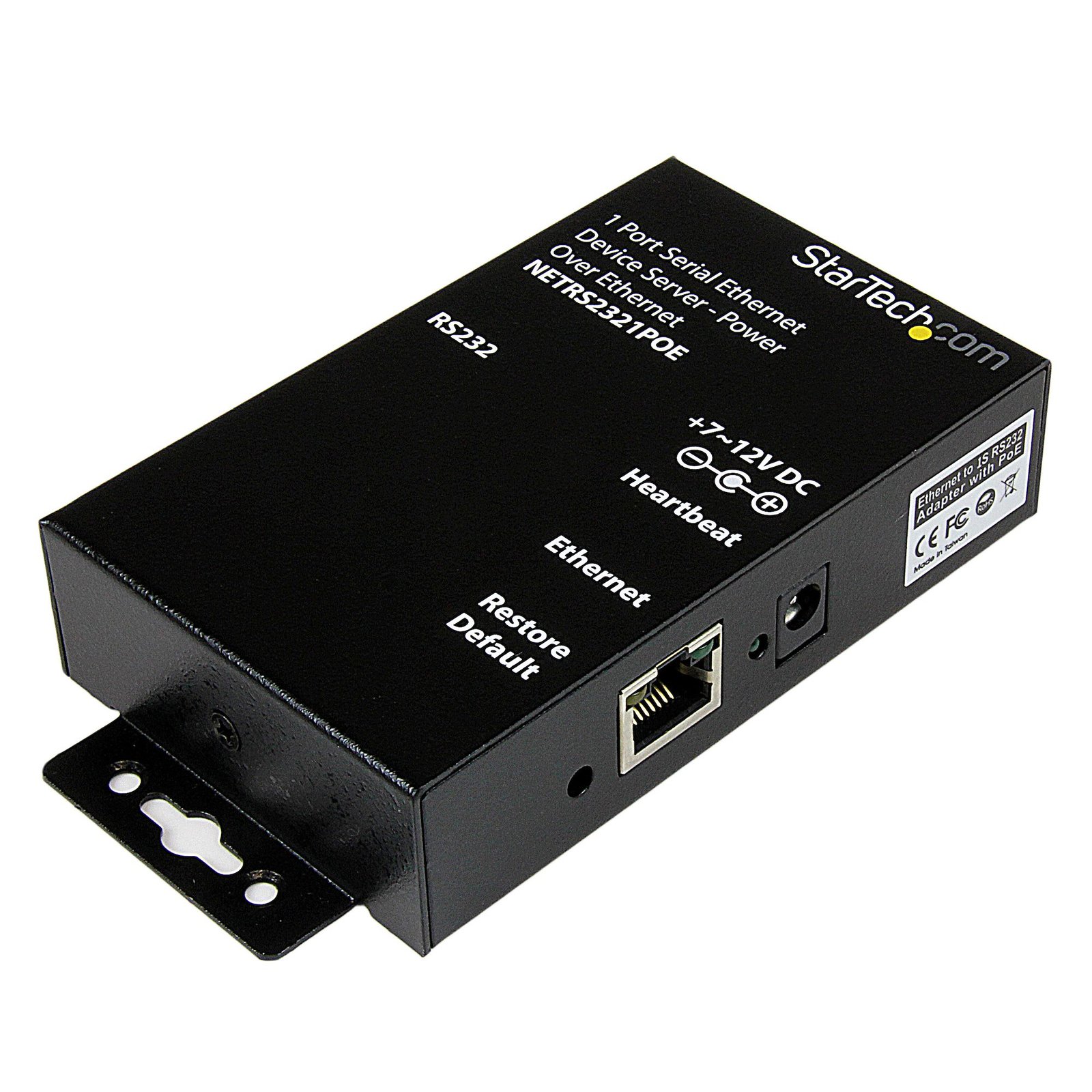
1 Port RS232 Serial Ethernet Device Server, PoE Power Over Ethernet, TAA - Replaced by I13P-SERIAL-ETHERNET
$153.74
Connect to, configure and remotely manage an RS-232 serial device over an IP network
Specifications & Compliance
- UPC
- 065030834162
- Brand
- StarTech.com
- Included in Package
- 1 - Industrial Serial over IP Device Server, 1 - Universal Power Adapter (NA/UK/EU), 1 - Instruction Manual
- Shipping (Package) Weight
- 33.2 oz [940 g]
- Weight of Product
- 9.1 oz [259.0 g]
- Product Length
- 4.2 in [10.7 cm]
- Product Width
- 2.6 in [66.3 mm]
- Product Height
- 1.0 in [25.4 mm]
- Package Depth
- 7.6 in [19.2 cm]
- Package Width
- 11.6 in [29.4 cm]
- Package Height
- 2.8 in [70 mm]
- Color
- Black
- Warranty
- 2 Years
- Connector 1
- RJ-45
- Connector 1 (Quantity)
- 1
- Package Quantity
- 1
- Connector 2
- DB-9 Serial
- Connector 2 (Quantity)
- 1
- Operating Temperature
- 0°C to 55°C (32°F to 131°F)
- Storage Temperature
- -20°C to 85°C (-4°F to 185°F)
- Humidity
- 5~95% RH
- Material
- Aluminum
- Maximum Data Transfer Rate
- 115.2Kbps
- Industry Standards
- IEEE 802.3af Power-over-Ethernet
- Power Source
- AC Adapter Included
- Input Voltage
- 100 - 240 AC
- Output Voltage
- 12V DC
- Power Consumption
- 1.2
- MTBF
- 233,403 Hours
- LED Indicators
- 3 - Heartbeat, Link/Activity, 10/100 Mbps
- Input Current
- 0.3 A
- Output Current
- 0.1
- Plug Type
- M
- Center Tip Polarity
- Positive
- Supported Protocols
- UDP, IP, TCP, ICMP, HTTP, DHCP, ARP-Ping
- Data Bits
- 6, 7, 8
- Stop Bits
- 1, 2
- Patents and Licenses
- The following patents are licensed for this product. This list might not be all inclusive.<br> • United States Patent No. 5,406,260 (expired)<br> • United States Patent No. 6,650,622<br> • United States Patent No. 7,457,250<br> • United States Patent No. 8,155,012<br> • United States Patent No. 8,902,760<br> • United States Patent No. 8,942,107<br> • United States Patent No. 9,019,838<br> • United States Patent No. 9,049,019<br> • United States Patent Application No. 14/695,456<br> • United States Patent Application No. 14/726,940
Questions & Answers
How do I set up the NETRS2321POE network serial device and create a virtual COM port in Windows?
Yes, you can set up the NETRS2321POE in Windows by installing the required software, configuring the NETRS2321POE for your network, and creating a virtual COM port. The virtual COM port must use the IP address and serial I/O socket port configured for the NETRS2321POE. Explanation: First, download and extract the NETRS2321POE software: Download the software from https://www.startech.com/NETRS2321POE#dnlds . Right-click the downloaded folder. Click Extract all . Next, configure the NETRS2321POE: Connect the NETRS2321POE to your computer or network using an Ethernet cable. Connect the NETRS2321POE to a power source. Open the extracted folder. Open the IP-Search-Utility folder. Right-click Etm.exe . Click Run as administrator . Confirm that the software locates the NETRS2321POE. If you need to change the device IP address, click Config > IP Address , enter the preferred IP address, and click OK . Ensure that the IP address matches your network. If the NETRS2321POE is connected directly to your computer, disconnect it and connect it to your network. Refresh the Ethernet Manager and confirm that the device is still detected. Click Config > Device Settings to edit the port settings. Click Login . By default, no password is required. Configure any required port settings. Note the Socket port of serial I/O number. You need this number when mapping the virtual COM port to the computer. Click Update . After configuring the NETRS2321POE, create the virtual COM port: Open the Virtual-Com folder in the extracted software files. Open the folder for your Windows operating system. Right-click VSerPortConsole.exe . Click Run as administrator . Right-click inside the application window. Click add port . Use the default values or select a specific COM port if required. Right-click the port. Click add net . Enter the IP address and Socket port of serial I/O number for the NETRS2321POE. Click OK .
How do I ensure my computer and my serial device are on the same subnet?
In order for the serial device and your computer to communicate to each other, they both need to be on the same physical network and the same subnet. To connect your serial device and your computer to the same physical network, plug both devices into the same router. Typically, in order for devices to be on the same subnet, the first three numbers of the IP address must match. The fourth number of the IP address must be different, as two devices cannot have the same IP address. For example, if your computer’s IP address is 192.168.0.1, then the subnet is 192.168.0. XXX . You can replace the XXX with any number, as long as it is not currently in use by another device.
How can I make sure my serial port is working in Windows?
To check whether or not an RS-232 serial port is working, perform an RS-232 loopback test by doing the following: If your serial port is not female, convert it by taking a female/female cable or gender changer and plugging it into the serial port. Take a metal paperclip or wire and cross pins 2 and 3. If you look closely at the female end, the pins should be numbered. Open a telnet session on the COM port number of the device that you are testing. To find out the COM port number, refer to the following FAQ: https://www.startech.com/faq/com-port-listing-windows . Note: To open a telnet session on the COM port, you need a telnet client like PuTTY or Hyper Terminal. Windows XP comes with Hyper Terminal. When the session is open, anything you type into it you should see. The loopback test fails when you cannot see what you are typing. If the loopback test fails, make sure that the serial cable or gender changer that you are using works and that the adapter is in the correct port. You can check multiple ports at the same time by opening multiple sessions, putting the loopback adapter on one port, and trying to type into each session. When you can see what you are typing, you know that the COM port is working and you can see which port number the physical serial port is. Close the window for the port that you just tested to speed up the testing of the remaining serial ports. For products related to this article, click here .
What is this device’s default static IP address?
This device's default static IP address is 192.168.1.254.
How do I access this device’s web interface?
Make sure that the NETRS2321POE is on the same network as your computer. In an Internet browser, enter the IP address of the unit. The default IP address is 192.168.1.254. In the password field, enter the password. There is no password by default.
How do I reset my device to the default factory settings?
Press the Restore Default button on the device. This will immediately restore the unit to its default settings.
When should I upgrade my device's firmware?
You should not upgrade your device's firmware if you do not have any issues with the functionality of your device. The only time you should consider an upgrade is if you are experiencing a problem with the device, and you have confirmed that the firmware addresses this problem. You can confirm this is the case by reviewing the documentation included with the firmware or by consulting with our Technical Support team. Incorrectly upgrading firmware can result in diminished performance so it is best to contact StarTech.com if you would like to perform this operation.
I cannot communicate with my serial over IP device over the network. What do I do?
To troubleshoot this issue, you can try the following: Ping the serial device. Connect the serial device directly to the computer and ping the device. Connect to the web interface (if there is one) or connect using the included software. Before you begin, make sure that the serial device is on the same network and subnet. For more information, see this FAQ: http://www.startech.com/faq/serial_ip_networks_and_subnets . If the device starts with an IP address that is not on your subnet, change your IP address to match the subnet being used before you continue. Ping the serial device If the serial device and your computer are on the same network and subnet, try pinging the device. To ping the device using a computer that is running a version of Windows XP, do the following: Click Start . Click Run . Type ping <IP address> and press Enter . For example, ping 192.168.0.20 . To ping the device using a computer that is running a version of Windows Vista or Windows 7, do the following: Click Start . Click Accessories . Click Command Prompt . Type ping < IP address > and press Enter . For example, ping 192.168.0.20 . To ping the device using a computer that is running a version of Windows 8, do the following: Press the Windows key + X . Click Run . Type cmd and press Enter . Type ping < IP address > and press Enter . For example, ping 192.168.0.20 . To ping the device using a computer that is running a version of Mac OS, do the following: Double-click the hard drive. Double-click Applications > Utilities > Network Utility . Click the Ping tab. Enter the IP address in the Please enter the network address to ping field. Enter the number of packets that you want to test with. If you receive replies from the IP address, then you can see the device on the network and the issue is with something else. Connect the serial device directly to the computer To connect the serial device directly to the computer that you are troubleshooting with, complete the following: Use a crossover Ethernet cable to connect the device and the computer. Try pinging the device again. If you cannot ping the device, use a different computer, Ethernet cable, and serial device (if one is available). Note: The second computer will need to be on the same network and subnet as the serial over IP device. If you still cannot ping the device, contact support. Make sure that you are working in a secure environment Unplug the connection between your modem and your router. Disable any firewalls (especially Windows Firewall), antivirus programs, and security programs that are currently running. Try accessing the web interface (if the device has one) or try to connect using the included software. If you still cannot connect to the device's web interface or by using the included software, contact support. If you can access the web interface or connect using the included software, one at a time turn on your firewalls, antivirus programs, and security programs. Each time that you turn on software and cannot connect to the web interface or by using the included software, add an exception for the serial device to what you last re-enabled.
What are the common uses for a network serial device?
A network serial device can be used to connect serial devices to a TCP/IP network, extend serial communications over a network, or convert network traffic into serial data. Common applications include virtual COM port mapping, serial-over-IP communication, and UDP-to-serial data conversion. Explanation: Network serial devices enable serial equipment to communicate over Ethernet networks, allowing serial devices to be accessed remotely or integrated into modern network environments. Virtual COM Port One of the most common uses for a network serial device is creating a virtual COM port. In this configuration: A serial device is connected to the network serial device's serial port. The network serial device is connected to an Ethernet network. Software installed on a computer maps the remote serial connection as a virtual COM port. The virtual COM port appears to the operating system and applications as a standard local serial port, allowing existing software to communicate with the remote serial device without modification. Serial-over-IP Extension A network serial device can also be used to extend a serial connection across a TCP/IP network. In this configuration: One network serial device is configured as a client. A second network serial device is configured as a server. Serial data is transmitted between the devices over the network. To ensure proper operation: Serial communication settings must match on both devices. UART settings must match the connected serial equipment. IP addresses and TCP ports must be configured correctly. This method allows serial devices to communicate over distances that exceed the limitations of traditional serial cabling. UDP-to-Serial Conversion Network serial devices can also convert UDP network traffic into serial communications. In this configuration: The network serial device listens for UDP traffic on specified IP addresses and ports. Received network data is transmitted through the serial port. UART settings are configured to match the requirements of the connected serial device. This application is commonly used to integrate serial equipment with network-based monitoring, control, and automation systems.
What DC barrel connector power plug types do StarTech.com products use, and what are their dimensions?
StarTech.com DC barrel connector plug types are defined in the “Plug Type” field of the technical specifications, using a letter code that specifies the connector’s outer diameter (OD) and inner diameter (ID) in millimeters for power adapter compatibility. Explanation: In StarTech.com technical specifications, the “Plug Type” field is a standardized identifier for the exact DC barrel connector size required to power a product. Each plug type is assigned a letter code that corresponds to a specific combination of outer diameter (OD) and inner diameter (ID), measured in millimeters. Common DC barrel plug type dimensions Plug Type OD ID A 2.35 mm 0.7 mm B 4.0 mm 1.7 mm C 4.75 mm 1.7 mm H 3.4 mm 1.3 mm L 5.0 mm 2.5 mm M 5.5 mm 2.1 mm N 5.5 mm 2.5 mm The DC barrel connector plug type must match both the outer diameter and inner diameter exactly. A mismatch between the StarTech.com product requirement and the power adapter connector can prevent proper fit or stable power delivery, which may result in device startup failure or intermittent operation. The plug type defines only the physical connector size. The plug type does not define electrical power requirements such as voltage, current, or polarity. The power adapter used with a StarTech.com product must match the product’s specified electrical requirements. Using an incompatible power adapter can cause device malfunction or permanent damage. This standardized DC barrel connector plug type system enables IT professionals and procurement teams to verify connector dimensions, ensure power adapter compatibility, standardize hardware deployments, and identify the correct replacement power supply for StarTech.com products.
Related products
-
2-Port Serial-to-IP Ethernet Device Server - RS232 - Metal and Mountable - TAA
$230.61 Add to cart -
4 Port RS232 Serial over IP Ethernet Device Server
$299.99 Add to cart -

2-Port Serial to Ethernet Adapter, IP Serial Device Server For Remote RS232 Devices, Wall/DIN Rail Mountable, Metal Housing, RJ45 LAN to DB9 Serial Converter, TAA
$261.36 Add to cart -
2 Port RS232 Serial over IP Ethernet Device Server
$241.99 Add to cart