
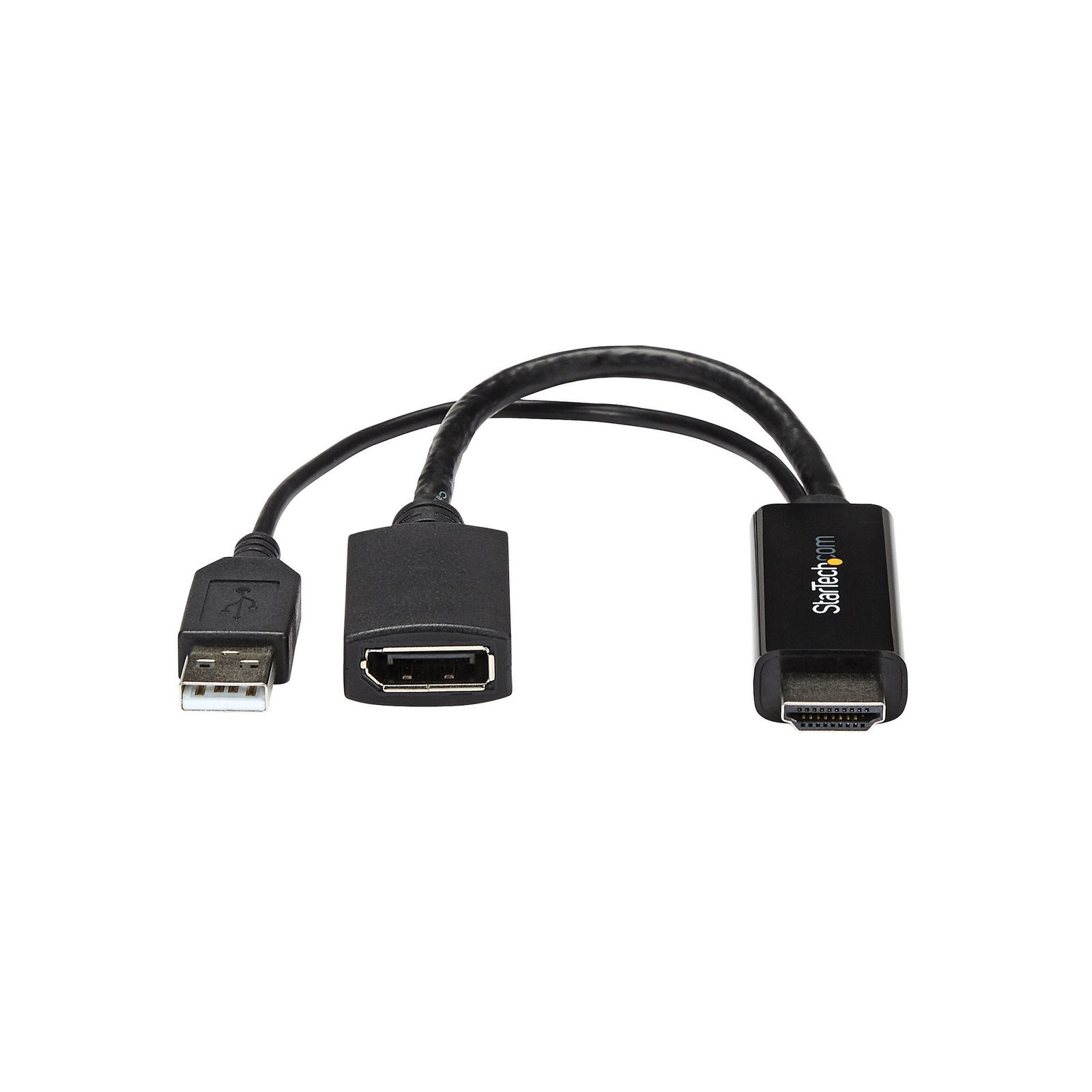
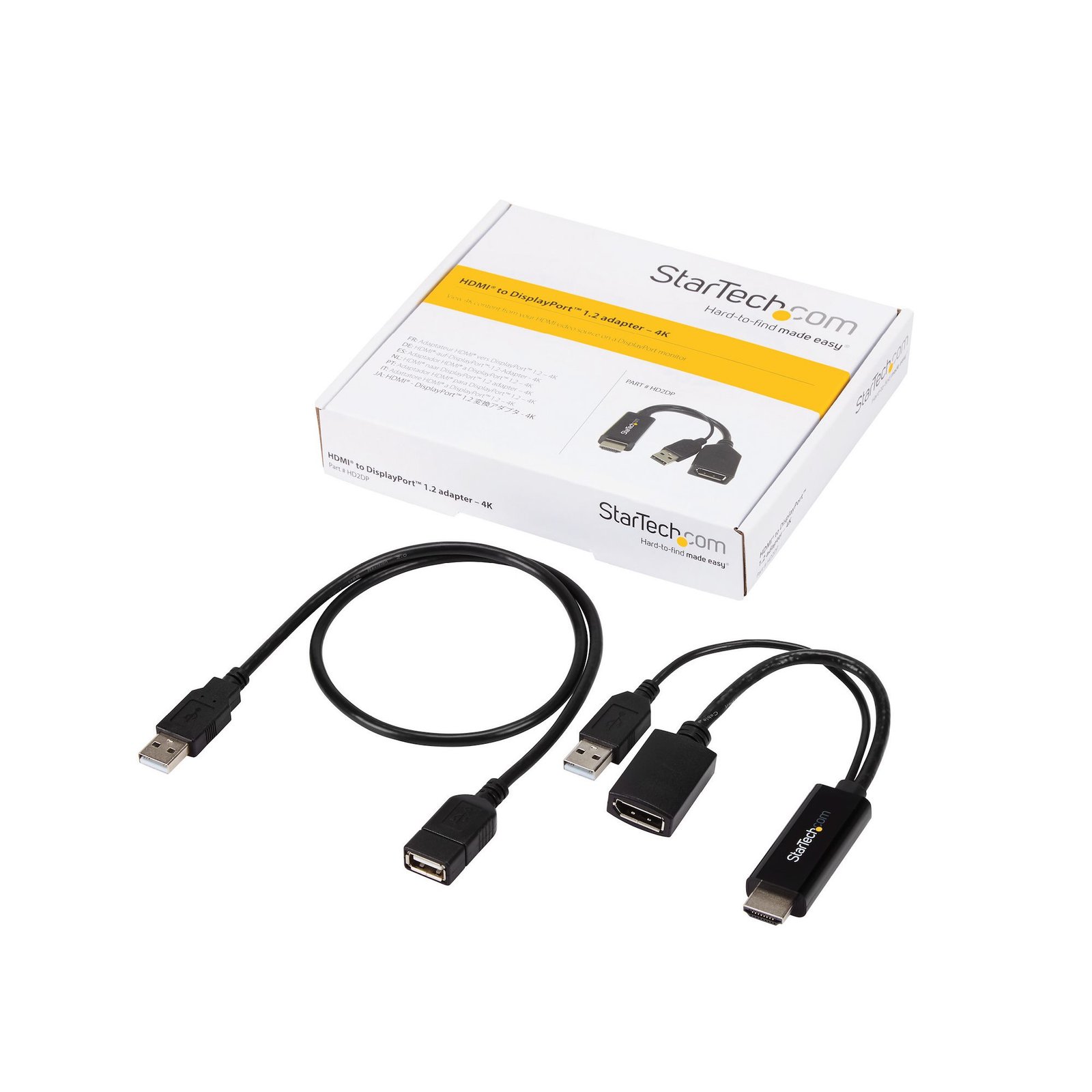
HDMI to DisplayPort Adapter - 4K 30Hz
$76.99
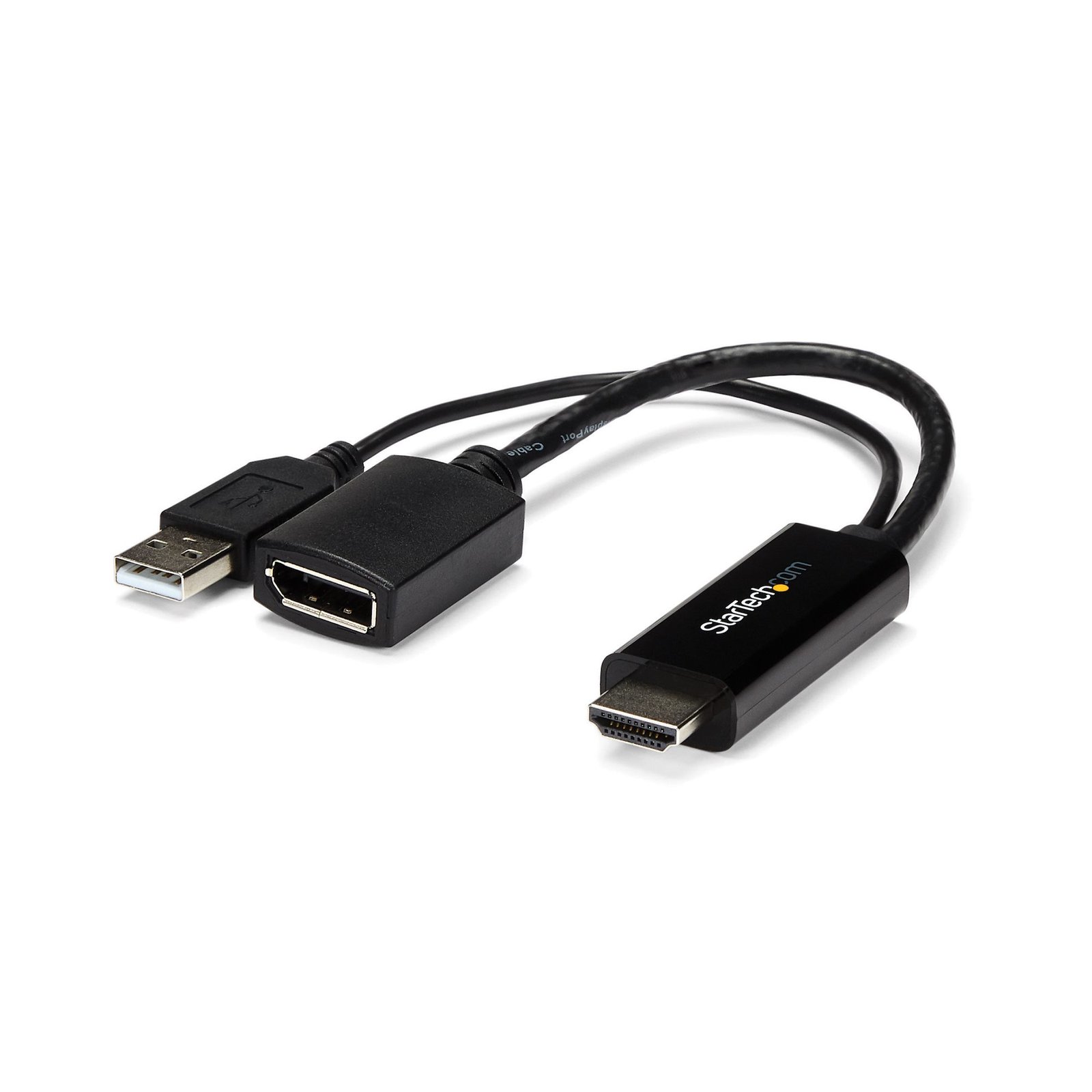
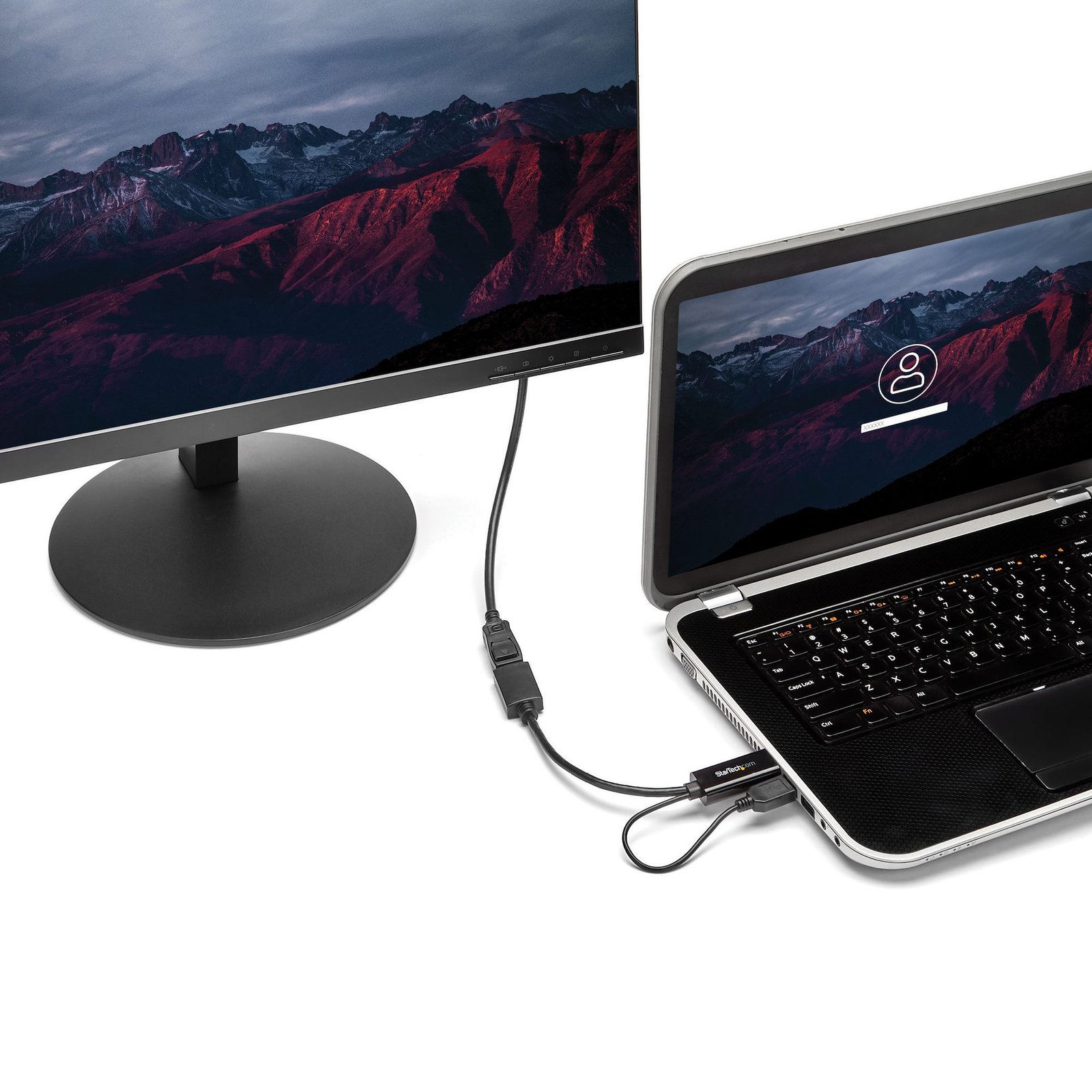
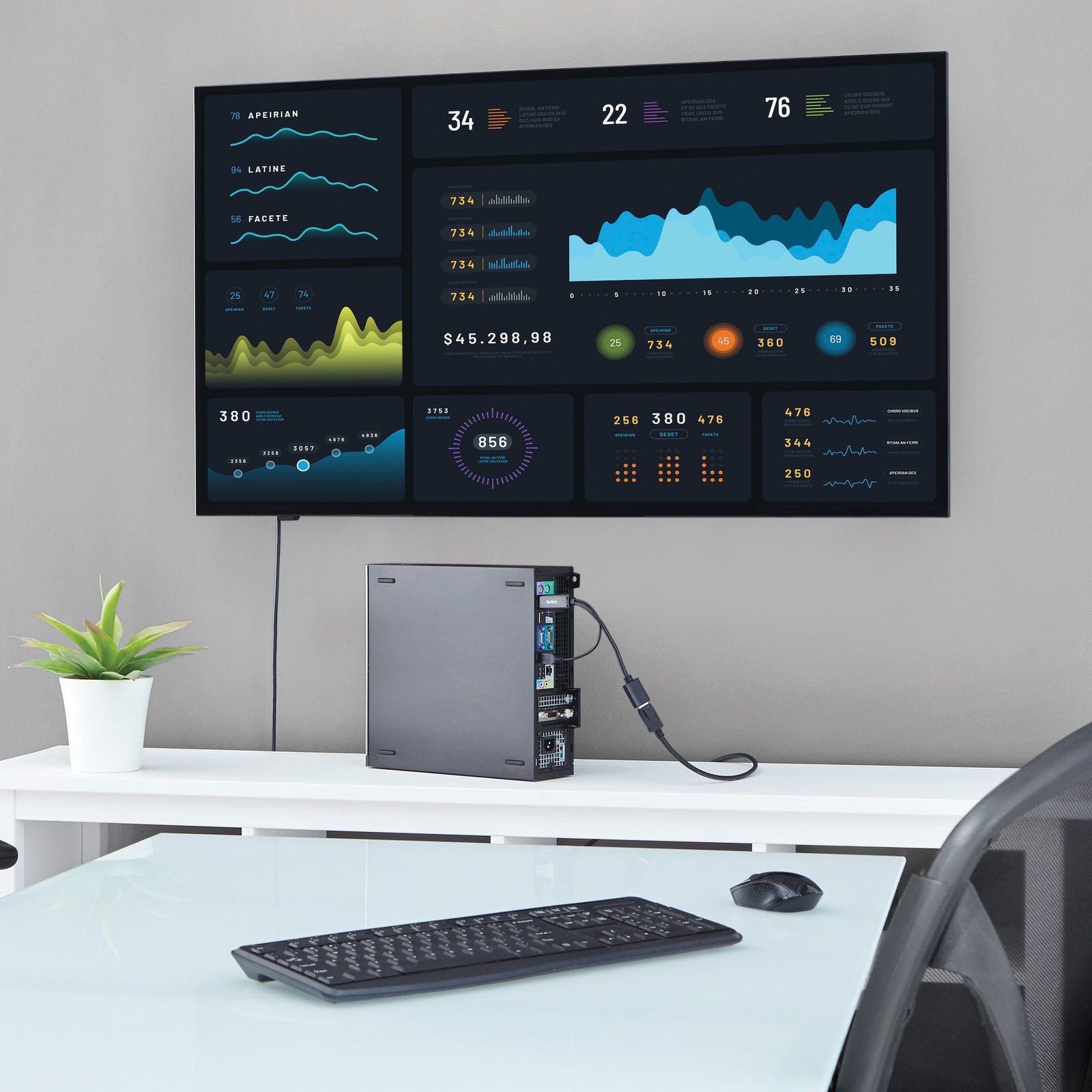
Connect your HDMI enabled Ultrabook or laptop to a DP monitor using this compact, USB-powered adapter
Specifications & Compliance
- Manufacturer #
- HD2DP
- UPC
- 065030861588
- Brand
- StarTech.com
- Included in Package
- 1 - HDMI to DisplayPort adapter, 1 - 2ft USB extension cable
- Shipping (Package) Weight
- 4.0 oz [114 g]
- Weight of Product
- 2.5 oz [70.0 g]
- Product Length
- 10.0 in [25.5 cm]
- Product Width
- 0.9 in [23.0 mm]
- Product Height
- 0.5 in [13.0 mm]
- Package Depth
- 6.9 in [17.4 cm]
- Package Width
- 5.6 in [14.3 cm]
- Package Height
- 1.3 in [33 mm]
- Color
- Black
- Warranty
- 2 Years
- Connector 1
- HDMI
- Connector 1 (Quantity)
- 1
- Package Quantity
- 1
- Connector 2
- DisplayPort
- Connector 2 (Quantity)
- 1
- Operating Temperature
- 0°C to 45°C (32°F to 113°F)
- Storage Temperature
- -10°C to 70°C (14°F to 158°F)
- Humidity
- 10%-85% RH
- Power Source
- USB-Powered
- Chipset ID
- MegaChips - STDP2600
- Special Notes
- This adapter does not support HDCP 2.2
- Input Voltage
- 5V DC
- Maximum Digital Resolutions
- 3840 x2160
- Audio
- Yes
- AV Input
- HDMI
- AV Output
- DisplayPort
- Wide Screen Supported
- Yes
- Active or Passive Adapter
- Active
- Supported Resolutions
- 3840 X 2160 at 30 Hz <br> 1920x1200<br> 1920x1080 (1080p) at 120 Hz<br> 1280x720 (720p)
Questions & Answers
Why am I experiencing issues converting from HDMI to VGA on certain devices?
Certain HDMI sources have known issues where they do not output enough power over HDMI to power HDMI adapters. In this case, it is best to consider HDMI adapters with external power over USB or with an external power adapter. This affects our HDMI to VGA adapters. See below for alternative solutions. Standard HDMI to VGA Our HD2VGAA2 has both audio and a USB Micro B port for external power. Micro HDMI to VGA Our MCHD2VGAA2 has both audio and a USB Micro B port for external power. Mini HDMI to VGA Our HDACFM lets you adapt from standard HDMI to Mini HDMI. You can pair this with our HD2VGAA2 to go from Mini HDMI to VGA with external power.
How to Arrange Windows Monitors to Fix Mouse Issues
In order for your mouse to move properly between your monitors you must rearrange your monitors in Windows to match the physical location of your monitors on your desk. To do so, complete the following based on your operating system: Windows 11 Click on the Windows Icon in the Taskbar (or the Windows key on the keyboard) and search for Display Settings . Click on Multiple Displays. Click Identify to display the numbers on each connected monitor, showing how the operating system has assigned their positions. Click and drag the monitor icons to best match your physical setup. Click Apply to confirm the changes and close the window. Windows 10 and Windows 8 On your keyboard, press the Windows key + X and select Control Panel . Click Appearance and Personalization , then click Display . Click the Resolution or Adjust Resolution option from the left column, which will display your monitors as numbered icons. Click Identify to display the numbers on each connected monitor, showing how the operating system has assigned their positions. Click and drag the monitor icons to best match your physical setup. Click OK to apply the changes and close the window. Windows 7 and Windows Vista Click the Start button and select Control Panel . Click Appearance and Personalization, then click Display . Click the Resolution or Adjust Resolution option from the left column, which will display your monitors as numbered icons. Click Identify to display the numbers on each connected monitor, showing how the operating system has assigned their positions. Click and drag the monitor icons to best match your physical setup. Click OK to apply the changes and close the window. Windows XP Click the Start button and select Control Panel . Double-click Display . Click the Settings tab, which will display your monitors as numbered icons. Click Identify to display the numbers on each connected monitor, showing how the operating system has assigned their positions. Click and drag the monitor icons to best match your physical setup. Click OK to apply the changes and close the window. To mirror the image from your primary monitor instead of extending your desktop, refer to the following FAQ: http://www.startech.com/faq/Windows_Mirroring_Monitors
My DisplayPort display is not working when I try to output 4K at 30Hz with this device. How do I resolve this issue?
To output 4K to a DisplayPort display at 30Hz, your monitor must support the resolution and refresh rate. If your monitor also supports 4K at 60Hz (DP 1.2 or higher), you may also need to set the monitor to work at 30Hz. To resolve this issue, use the buttons on your monitor to change the DisplayPort settings to DP1.1. For more information about how to change your monitor settings, refer to the website of the manufacturer of your monitor.
Is this device an active or passive video converter, and what is the difference?
This device is an active video converter, which changes both the connector type and the video signal. Explanation: Active video converters modify the video signal to enable conversion between different formats, such as digital-to-analog or between incompatible digital standards. Because this process requires signal processing, active converters are typically larger and may require external power. Common examples include DVI-D to VGA, HDMI to DisplayPort, and VGA to HDMI converters. Passive video converters (also called adapters) only change the physical connector type and do not alter the video signal. They require compatible signal types on both ends and are typically smaller, simpler, and do not require external power. Examples include DVI-I to VGA, HDMI to DVI, and DisplayPort to Mini DisplayPort. For more information about DisplayPort converter types, refer to: https://www.startech.com/faq/DisplayPort_Converter_DP_Multi_Mode . For guidance on converter selection with MST hubs, refer to: https://www.startech.com/faq/mst_hubs_passive_vs_active_adapters .
Related products
-
DVI-D to VGA Active Adapter Converter Cable - 1080p
$51.99 Add to cart -
HDMI to VGA Converter with Audio - Compact - 1920x1200
$30.99 Add to cart -
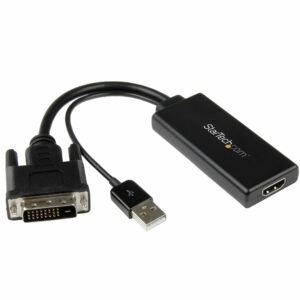
DVI to HDMI Video Adapter with USB Power and Audio - 1080p
$31.99 Add to cart -

6 ft DVI to VGA Active Converter Cable – DVI-D to VGA Adapter – 1920x1200
$65.99 Add to cart