

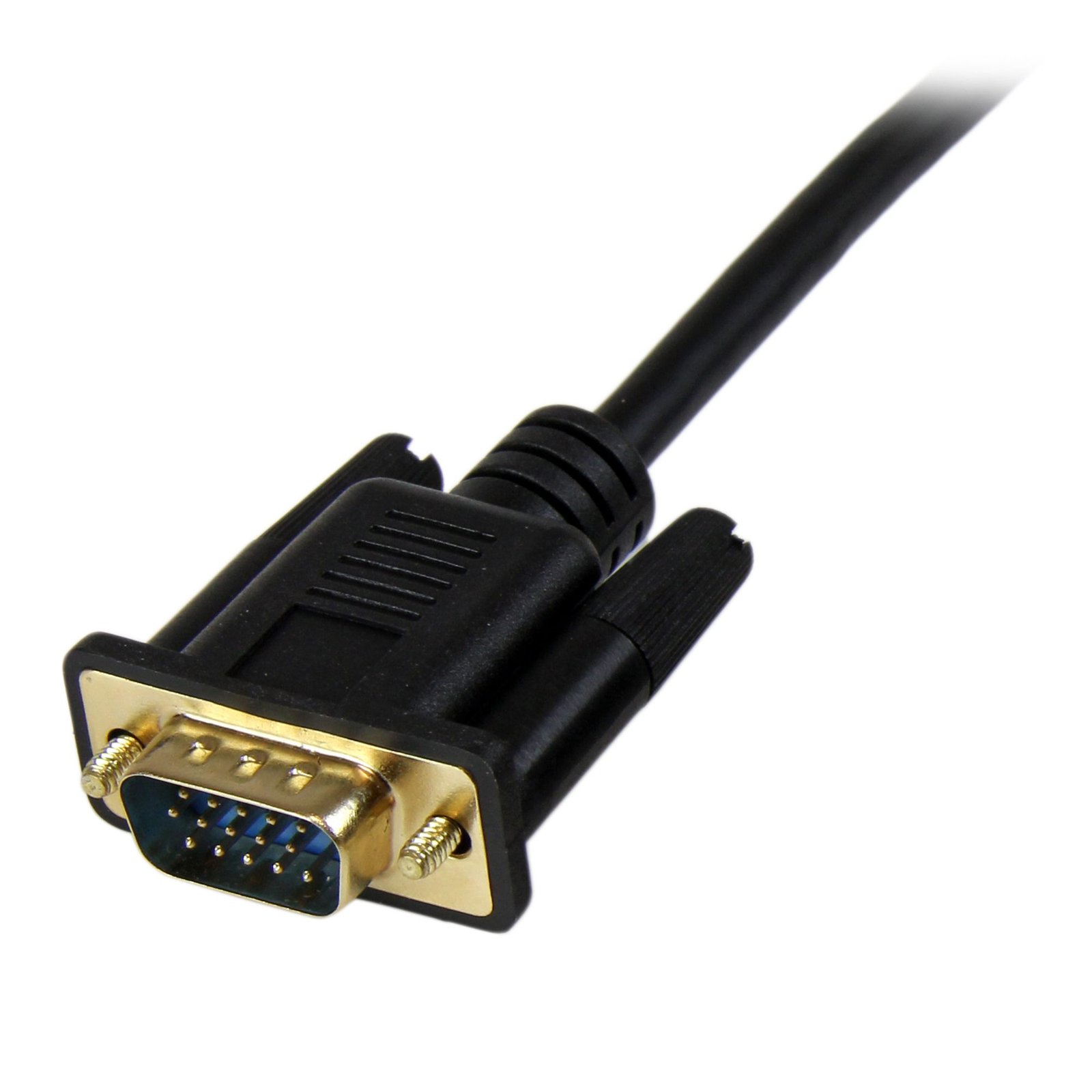

6 ft DVI to VGA Active Converter Cable – DVI-D to VGA Adapter – 1920x1200
$65.99
Connect your digital DVI-equipped computer directly to a VGA monitor or projector located up to 6ft away
Specifications & Compliance
- UPC
- 065030859462
- Brand
- StarTech.com
- Included in Package
- 1 - DVI to VGA converter cable
- Shipping (Package) Weight
- 5.7 oz [161 g]
- Weight of Product
- 5.3 oz [150.0 g]
- Product Length
- 6.0 ft [1.8 m]
- Product Width
- 1.6 in [40.0 mm]
- Product Height
- 0.6 in [15.0 mm]
- Package Depth
- 7.9 in [20 cm]
- Package Width
- 8.7 in [22 cm]
- Package Height
- 1.4 in [35 mm]
- Warranty
- 3 Years
- Connector 1
- USB Micro-B (480Mbps, 2.5W)
- Connector 1 (Quantity)
- 1
- Package Quantity
- 1
- Connector 2
- DVI-D Dual-Link (25-Pin)
- Connector 2 (Quantity)
- 1
- Operating Temperature
- 0°C to 60°C (32°F to 140°F)
- Storage Temperature
- -10°C to 70°C (14°F to 158°F)
- Humidity
- 40%-85%RH
- Power Source
- USB-Powered
- Chipset ID
- Chrontel - 7101A
- Connector 3
- VGA
- Connector 3 (Quantity)
- 1
- Maximum Digital Resolutions
- PC resolutions up to 1920 x 1200 @ 60 Hz
- Audio
- No
- AV Input
- DVI-D
- AV Output
- VGA
- Active or Passive Adapter
- Active
- Maximum Analog Resolutions
- 1920 x 1200
Questions & Answers
Everything is hooked up but nothing is working. What should I do?
When you troubleshoot issues with a video adapter, there are some quick tests that you can complete to rule out potential problems. You can test to make sure that the following components are working correctly and are not the source of the issue: Video cables Video adapter Video source (such as a DVD player or computer) Video destination (such as a monitor or projector) To test your setup components, try the following: Use the cable, video adapter, video source, and video destination in another setup to see if the problem is with the components or the setup. Use a different cable, video adapter, video source, and video destination in your setup to see if the problem persists. Ideally, you should test a component that you know works in another setup. When you test your cables, it is recommended that you do the following: Test each cable individually. Use short cables when you are testing. When you test the video source and video destination, it is recommended that you do the following: Remove the video adapter from your setup and test to make sure that the video source and video destination work together without the video adapter. Test to make sure that the video source and video destination work together at the resolution that you want to use. Note: In order for your setup to work properly, the video source, adapter, and destination all need to support the resolution that you are using.
Why am I experiencing issues converting from HDMI to VGA on certain devices?
Certain HDMI sources have known issues where they do not output enough power over HDMI to power HDMI adapters. In this case, it is best to consider HDMI adapters with external power over USB or with an external power adapter. This affects our HDMI to VGA adapters. See below for alternative solutions. Standard HDMI to VGA Our HD2VGAA2 has both audio and a USB Micro B port for external power. Micro HDMI to VGA Our MCHD2VGAA2 has both audio and a USB Micro B port for external power. Mini HDMI to VGA Our HDACFM lets you adapt from standard HDMI to Mini HDMI. You can pair this with our HD2VGAA2 to go from Mini HDMI to VGA with external power.
How to Arrange Windows Monitors to Fix Mouse Issues
In order for your mouse to move properly between your monitors you must rearrange your monitors in Windows to match the physical location of your monitors on your desk. To do so, complete the following based on your operating system: Windows 11 Click on the Windows Icon in the Taskbar (or the Windows key on the keyboard) and search for Display Settings . Click on Multiple Displays. Click Identify to display the numbers on each connected monitor, showing how the operating system has assigned their positions. Click and drag the monitor icons to best match your physical setup. Click Apply to confirm the changes and close the window. Windows 10 and Windows 8 On your keyboard, press the Windows key + X and select Control Panel . Click Appearance and Personalization , then click Display . Click the Resolution or Adjust Resolution option from the left column, which will display your monitors as numbered icons. Click Identify to display the numbers on each connected monitor, showing how the operating system has assigned their positions. Click and drag the monitor icons to best match your physical setup. Click OK to apply the changes and close the window. Windows 7 and Windows Vista Click the Start button and select Control Panel . Click Appearance and Personalization, then click Display . Click the Resolution or Adjust Resolution option from the left column, which will display your monitors as numbered icons. Click Identify to display the numbers on each connected monitor, showing how the operating system has assigned their positions. Click and drag the monitor icons to best match your physical setup. Click OK to apply the changes and close the window. Windows XP Click the Start button and select Control Panel . Double-click Display . Click the Settings tab, which will display your monitors as numbered icons. Click Identify to display the numbers on each connected monitor, showing how the operating system has assigned their positions. Click and drag the monitor icons to best match your physical setup. Click OK to apply the changes and close the window. To mirror the image from your primary monitor instead of extending your desktop, refer to the following FAQ: http://www.startech.com/faq/Windows_Mirroring_Monitors
Is this device an active or passive video converter, and what is the difference?
This device is an active video converter, which changes both the connector type and the video signal. Explanation: Active video converters modify the video signal to enable conversion between different formats, such as digital-to-analog or between incompatible digital standards. Because this process requires signal processing, active converters are typically larger and may require external power. Common examples include DVI-D to VGA, HDMI to DisplayPort, and VGA to HDMI converters. Passive video converters (also called adapters) only change the physical connector type and do not alter the video signal. They require compatible signal types on both ends and are typically smaller, simpler, and do not require external power. Examples include DVI-I to VGA, HDMI to DVI, and DisplayPort to Mini DisplayPort. For more information about DisplayPort converter types, refer to: https://www.startech.com/faq/DisplayPort_Converter_DP_Multi_Mode . For guidance on converter selection with MST hubs, refer to: https://www.startech.com/faq/mst_hubs_passive_vs_active_adapters .
How can I identify which DVI connector type I have or need?
You can identify the DVI connector type by the pin configuration and determine compatibility based on whether the connection supports analog, digital, or both signal types. Explanation: DVI (Digital Visual Interface) connectors are defined by their pin layout and supported signal type. The main DVI connector types are: DVI-A (17 pin) . Analog signal only DVI-D Single Link (19 pin) . Digital signal only DVI-D Dual Link (25 pin) . Digital signal only, higher bandwidth DVI-I Single Link (23 pin) . Supports both analog and digital signals DVI-I Dual Link (29 pin) . Supports both analog and digital signals, higher bandwidth DVI-A is used for analog signals (similar to VGA), while DVI-D is used for digital signals (similar to HDMI). DVI-I connectors can carry both analog and digital signals, but actual support depends on the device’s specifications. Single Link and Dual Link indicate bandwidth capacity, which affects maximum supported resolution. Typical limits are up to 1920 × 1080 @ 60 Hz for Single Link and up to 2560 × 1600 @ 60 Hz for Dual Link. However, actual resolution support depends on the capabilities of the connected devices, not just the connector type. To ensure compatibility, verify both the connector type and the signal support in the specifications of the source and display devices.
Related products
-
HDMI to VGA Adapter, Active Video Converter For Laptop/Desktop, 1920x1080 (1080p), HDMI Source to VGA Monitor/Display/Projector
$20.99 Add to cart -

10 ft DVI to VGA Active Converter Cable – DVI-D to VGA Adapter – 1920x1200
$61.99 Add to cart -
HDMI to DisplayPort Adapter - 4K 30Hz
$76.99 Add to cart -
HDMI to VGA Converter with Audio - Compact - 1920x1200
$30.99 Add to cart