

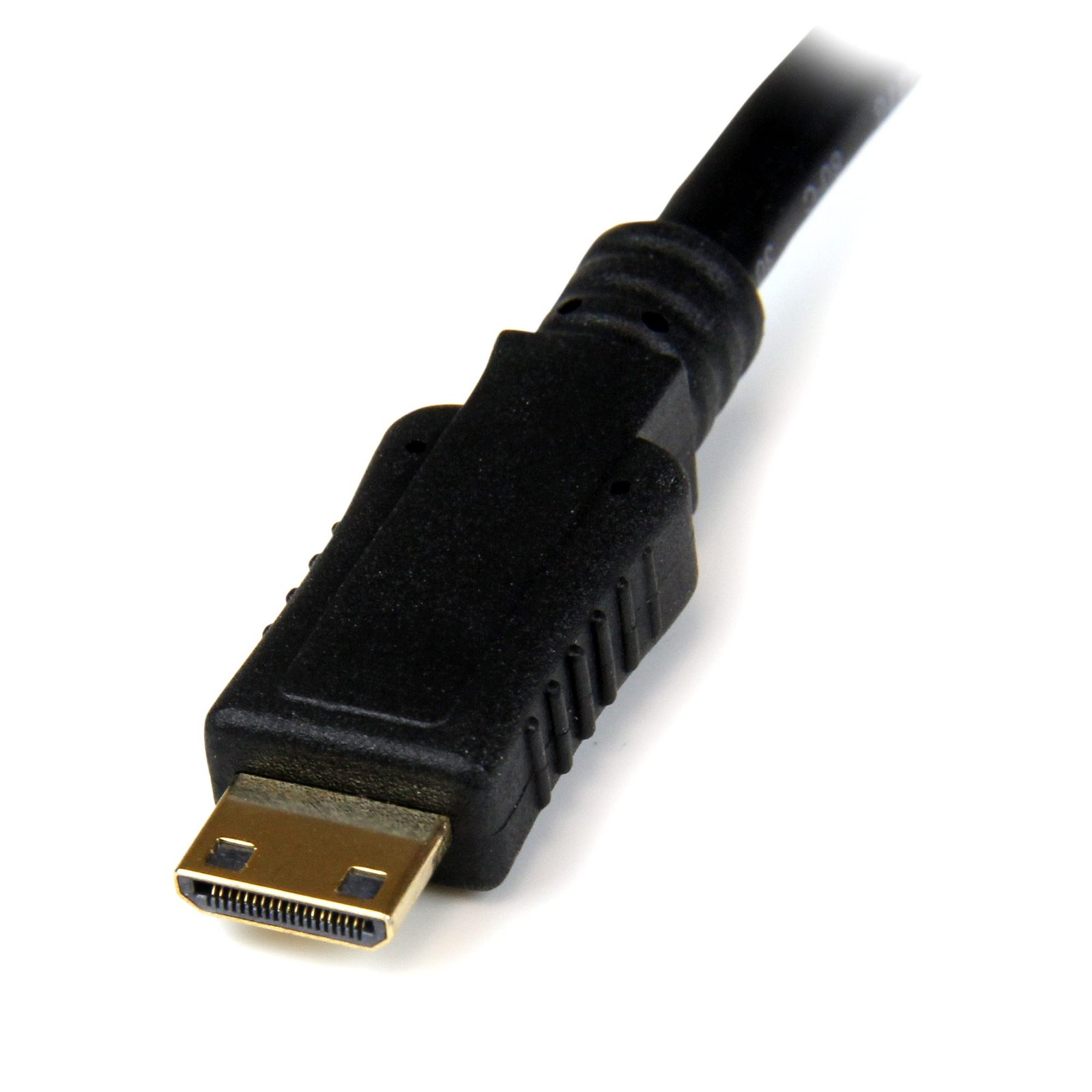


Mini HDMI to VGA Adapter Converter for Digital Still Camera / Video Camera - 1920x1080
$55.99
Connect a Mini HDMI® equipped Digital Camera or Tablet to your VGA Display, or Projector
Specifications & Compliance
- UPC
- 065030848398
- Brand
- StarTech.com
- Included in Package
- 1 - Mini HDMI® to VGA Converter Adapter
- Shipping (Package) Weight
- 1.2 oz [33 g]
- Weight of Product
- 0.0 oz [0.1 g]
- Product Length
- 6.7 in [17 cm]
- Product Width
- 1.6 in [40 mm]
- Product Height
- 0.6 in [15 mm]
- Package Depth
- 7.7 in [19.5 cm]
- Package Width
- 8.7 in [22 cm]
- Package Height
- 1.2 in [30 mm]
- Color
- Black
- Warranty
- 2 Years
- Connector 1
- Mini HDMI
- Connector 1 (Quantity)
- 1
- Package Quantity
- 1
- Connector 2
- VGA
- Connector 2 (Quantity)
- 1
- Operating Temperature
- 0°C to 60°C (32°F to 140°F)
- Storage Temperature
- -10°C to 70°C (14°F to 158°F)
- Humidity
- 40% to 85% RH Non-Condensing
- Material
- Plastic
- Industry Standards
- High Speed HDMI®
- Number of Ports
- 1
- Maximum Digital Resolutions
- 1920x1200
- Audio
- No
- AV Input
- Mini HDMI
- AV Output
- VGA
- Wide Screen Supported
- Yes
- Supported Resolutions
- 1920x1200, 1920x1080 (1080p), 1600x1200 @ 60Hz
Questions & Answers
Does this device require drivers or additional setup?
No. This device is plug and play and does not require drivers or additional software. Simply connect the source device and the destination device to begin using it. Explanation: This device is designed for plug-and-play operation and is automatically recognized by the connected system. To use the device: Connect the source device (such as a computer). Connect the destination device (such as a monitor, projector, or other compatible peripheral). Power on the connected devices, if required. No driver installation, software configuration, or additional setup is necessary. If the device is not detected, verify that: All cables are securely connected. The source and destination devices are compatible with the product. The correct input and output ports are being used.
Everything is hooked up but nothing is working. What should I do?
When you troubleshoot issues with a video adapter, there are some quick tests that you can complete to rule out potential problems. You can test to make sure that the following components are working correctly and are not the source of the issue: Video cables Video adapter Video source (such as a DVD player or computer) Video destination (such as a monitor or projector) To test your setup components, try the following: Use the cable, video adapter, video source, and video destination in another setup to see if the problem is with the components or the setup. Use a different cable, video adapter, video source, and video destination in your setup to see if the problem persists. Ideally, you should test a component that you know works in another setup. When you test your cables, it is recommended that you do the following: Test each cable individually. Use short cables when you are testing. When you test the video source and video destination, it is recommended that you do the following: Remove the video adapter from your setup and test to make sure that the video source and video destination work together without the video adapter. Test to make sure that the video source and video destination work together at the resolution that you want to use. Note: In order for your setup to work properly, the video source, adapter, and destination all need to support the resolution that you are using.
The monitor is not getting a signal and there is no error on the monitor. What do I do?
Try the following: Check that the monitor’s video port works with another source. Check that the cables between the source and the destination work with other equipment. Check whether the video adapter works with another source and another destination. NOTE: Thunderbolt 3 to DisplayPort video adapters will require active adapters to convert from DisplayPort to DVI or HDMI.
What to do When the Monitor is Not Getting a Signal and the Monitor Says “Out of Range"
The error “Out of Range” normally means that the resolution being output by the computer is not compatible with the display. Try lowering the resolution to see if that helps resolve the issue. You may need to connect another monitor or restart the computer or source to accomplish this.
The monitor says HDCP, the monitor only works with certain sources, or I am getting a black screen, but only when displaying certain content. What do I do?
This is likely a High-bandwidth Digital Content Protection (HDCP) issue. If you are converting a video signal from a device that can play copyright-protected content, HDCP will block the conversion to an analog signal (for example, VGA) or to any video capture cards. You will likely run into this issue when you use devices like Blu-ray players, DVD players, and certain gaming consoles. For more information on HDCP and gaming consoles, refer to the following FAQ: https://www.startech.com/faq/video_capture_cards_video_game_console_compatibility . Some video cards also output an HDCP signal full time. In this case there should be an option for your video card to disable this feature. You might need to contact the manufacturer of your video card for more information. Adhering to HDCP is required for converting all digital signals to analog signals or to video capture cards. Unfortunately, there is nothing you can do in these situations other than convert to a digital display.
Why am I experiencing issues converting from HDMI to VGA on certain devices?
Certain HDMI sources have known issues where they do not output enough power over HDMI to power HDMI adapters. In this case, it is best to consider HDMI adapters with external power over USB or with an external power adapter. This affects our HDMI to VGA adapters. See below for alternative solutions. Standard HDMI to VGA Our HD2VGAA2 has both audio and a USB Micro B port for external power. Micro HDMI to VGA Our MCHD2VGAA2 has both audio and a USB Micro B port for external power. Mini HDMI to VGA Our HDACFM lets you adapt from standard HDMI to Mini HDMI. You can pair this with our HD2VGAA2 to go from Mini HDMI to VGA with external power.
Does this device support bidirectional conversion?
No, this device does not support bidirectional conversion. It is designed to operate in one direction only. Explanation This device converts signals from a specific input (source) to a specific output (destination) . It cannot reverse the signal path or function in the opposite direction. The supported direction of conversion is determined by the product’s design and is clearly indicated in the product title and technical specifications. Attempting to use the device in reverse is not supported and will not function.
Related products
-

DVI to Mini DisplayPort Adapter with Audio
$131.99 Add to cart -

USB 3.0 HDMI Video Capture Device, 4K 30Hz Video Capture Adapter/External USB Capture Card, UVC, Live Stream, Screen Recorder, Works w/ USB-A, USB-C, TB3 - Windows/Mac/Ubuntu - TAA
$77.99 Add to cart -

DVI to DisplayPort Adapter - USB Power - 1920 x 1200 - DVI to DisplayPort Converter - Video Adapter - DVI-D to DP
$76.99 Add to cart -
6ft (2m) HDMI to DisplayPort Cable 4K 30Hz - Active HDMI 1.4 to DP 1.2 Adapter Converter Cable with Audio - USB Powered - Mac & Windows - HDMI Laptop to DP Monitor - Male/Male
$93.99 Add to cart