
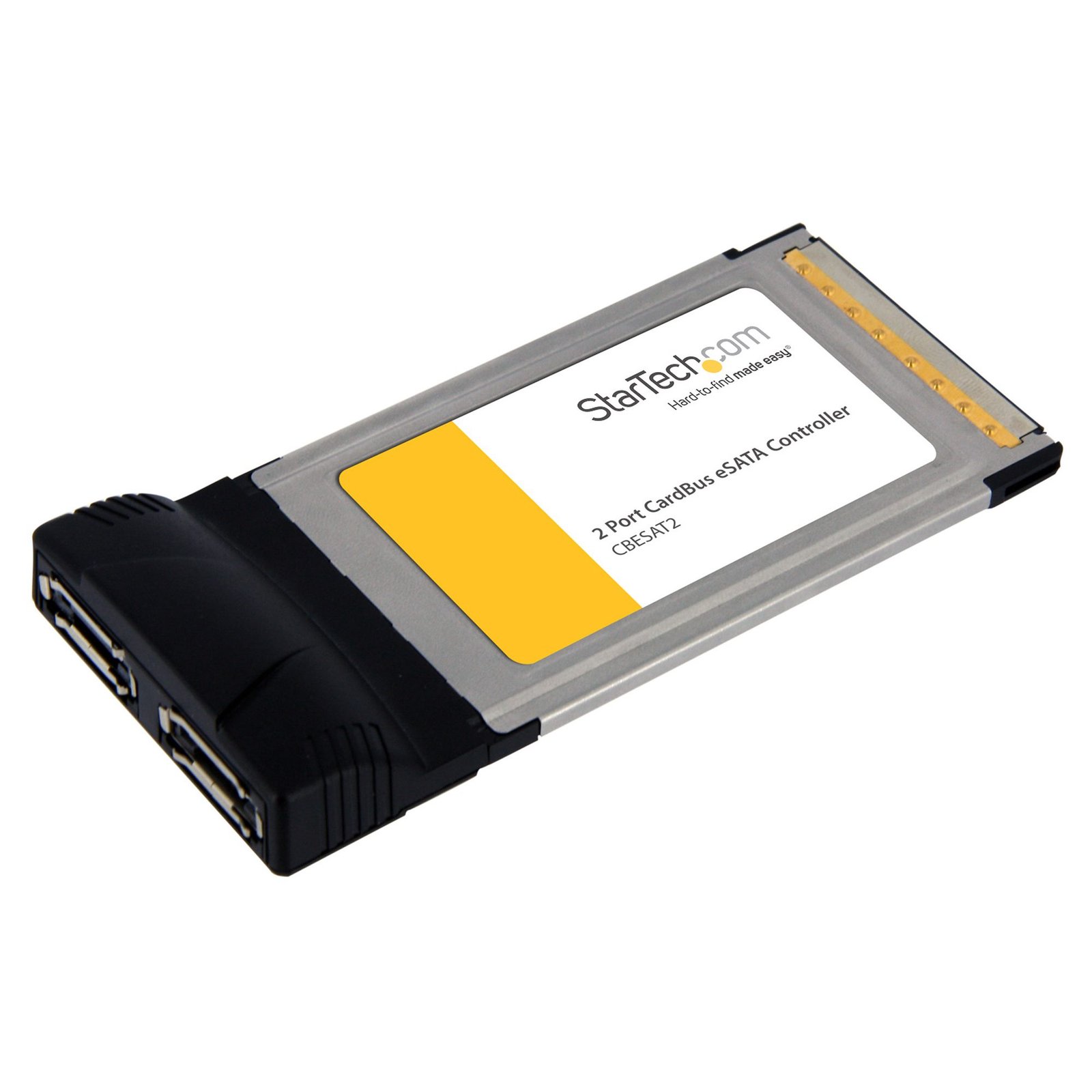
2 Port CardBus eSATA Laptop Controller Adapter Card
$8.99
Adds 2 eSATA ports to a laptop through a CardBus slot
Specifications & Compliance
- UPC
- 065030835282
- Brand
- StarTech.com
- Included in Package
- 1 - 2 Port eSATA CardBus Card, 1 - Driver CD, 1 - Instruction Manual
- Shipping (Package) Weight
- 12.0 oz [340 g]
- Weight of Product
- 1.5 oz [42.9 g]
- Product Length
- 4.5 in [11.5 cm]
- Product Width
- 2.2 in [55 mm]
- Product Height
- 0.6 in [15 mm]
- Package Depth
- 1.7 in [42 mm]
- Package Width
- 8.3 in [21.1 cm]
- Package Height
- 5.8 in [14.7 cm]
- Warranty
- Lifetime
- Connector 1
- eSATA (7-Pin)
- Connector 1 (Quantity)
- 2
- Connector 2
- CardBus Slot
- Connector 2 (Quantity)
- 1
- Operating Temperature
- 0°C to 70°C (32°F to 158°F)
- Storage Temperature
- -10°C to 85°C (14°F to 185°F)
- Humidity
- 0 to 85% RH
- Maximum Data Transfer Rate
- 150Mbps
- Chipset ID
- Silicon Image - Sil3512
- Number of Ports
- 2
- Interface
- eSATA
- Bus Type
- CardBus (PCMCIA)
- SATA Type and Rate
- SATA II (3 Gbps)
- RAID
- No
- Microsoft WHQL Certified
- Yes
- Port Multiplier
- No
Questions & Answers
Why are my drives not detected during Windows installation, and how do I make them available?
If the storage drives are not visible during Windows installation, you may need to load the RAID or storage controller driver before the installer can detect the drives. Explanation: During Windows Setup, storage drives connected to certain RAID or storage controllers may not appear automatically because the required controller driver is not included with the Windows installation media. If you reach the "Where do you want to install Windows?" screen and no drives are listed: Select Load Driver. Connect a USB flash drive or insert media containing the storage controller or RAID driver. Browse to the driver location and load the driver that matches the operating system being installed. Once the driver is loaded, Windows Setup should detect the connected storage drives and make them available for installation. Without the appropriate controller driver, Windows Setup may not be able to detect drives connected through RAID or specialized storage controllers.
Everything is hooked up but nothing is working. What should I do? (Windows)
When you troubleshoot issues with a hard drive controller card, there are some quick tests that you can complete to rule out potential problems. You can test to make sure that the following components are working correctly and are not the source of the issue: IDE, SATA, and eSATA cables Hard drives Hard drive controller card To test your setup components, try the following: Use the IDE, SATA, or eSATA cable, hard drive, and hard drive controller card in another setup to see if the problem is with the components or the setup. Use a different IDE, SATA, or eSATA cable, hard drive, and hard drive controller card in your setup to see if the problem persists. Ideally, you should test a component that you know works in another setup. When you test your cables, it is recommended that you do the following: Test each cable individually. Use short cables when you are testing. When you test the hard drive and hard drive controller card, it is recommended that you do the following: To open the Device Manager, press the Windows key + R , type devmgmt.msc , and press Enter . Check the IDE ATA/ATAPI controllers (for IDE) section, or the Storage controllers (for SATA) section. Do one of the following: If you do not see the hard drive controller card in Device Manager, refer to the following FAQ: https://www.startech.com/en-us/faq/pci-pcie-cannot-boot-os-or-detect-windows . If the device is listed with an error, reinstall the drivers by completing the instructions on the website. If the hard drive is listed with unallocated space, the hard drive needs to be formatted. Right-click unallocated and click New Simple Volume . Follow the on-screen instructions to complete the reformatting. Note: Formatting a hard drive erases all of the data on it. Make sure that you back up all of your data before you reformat the hard drive. To check Disk Management , press the Windows key + R , type diskmgmt.msc , and press Enter . Check to see if your hard drive is listed. If the hard drive is listed as healthy but does not have a drive letter, for example, C:, right-click healthy and click Change Drive Letter and Paths . Click Add , assign a drive letter, and click OK . Note: A formatted hard drive does not show up in Computer or My Computer until it has a drive letter assigned to it.
How do I confirm that Windows detects my expansion card?
To confirm that Windows detects your expansion card, complete the following: Press the Windows key+ R , type devmgmt.msc , and press Enter . In Device Manager , under the appropriate heading, confirm that your expansion card is listed and that there isn't an exclamation mark next to it. For example, a USB controller card would be under Universal Serial Bus controllers . Your expansion card is listed according to the name of the chipset. To determine the name of the chipset of your expansion card, navigate to www.StarTech.com and look on the Technical Specifications tab for your product.
I want to move the hard drive with my operating system installed to my StarTech.com hard drive controller. What do I do?
In order to use a hard drive plugged into a hard drive controller card as your operating system, you need to install the operating system onto the hard drive while it is plugged into the expansion card. To do this, complete the following: Note: Not all hard drive controller cards have drivers that allow you to install the operating system onto the hard drive. All of the hard drive controllers that display this FAQ include this capability. Before you begin, consult the documentation that came with the motherboard to make sure that the motherboard or BIOS supports booting from an expansion card. Back up any data on the hard drive. Make a copy of the drivers from the website onto a floppy disc, CD, DVD, or USB flash drive. The drivers that you download depends on the operating system that you want to install. Install the hard drive controller card onto your motherboard. Plug the hard drive into the controller card. Turn on your computer and open the operating system install wizard. Before you select the hard drive that you want to install the operating system onto, select the option to install third-party drivers. Point the driver installer to the floppy disc, CD, DVD, or USB flash drive. Install the drivers. Select the hard drive on the hard drive controller card as the location where you want to install the operating system. Complete the on-screen instructions to finish installing the operating system.
Is this SATA controller card compatible with Serial Attached SCSI (SAS) drives?
No, this SATA controller card is not compatible with SAS drives. Explanation: Serial Attached SCSI (SAS) drives require a controller that supports the SAS command set. SATA controllers only support the SATA command set and cannot process SAS commands. Although a SAS drive may be physically connected to a SATA controller using an adapter, the SATA controller cannot communicate with the SAS drive. As a result, SAS drive compatibility is not supported on this SATA controller card.
Is this device compatible with optical drives such as CD-ROM, DVD-ROM, or Blu-ray drives?
No, this device is not compatible with optical drives. Explanation: Optical drive compatibility requires support for the ATA Packet Interface (ATAPI) protocol. CD-ROM, DVD-ROM, and Blu-ray drives all rely on ATAPI for communication. This device does not support the ATAPI protocol and therefore cannot communicate with optical drives. As a result, optical drives are not supported over IDE, SATA, or eSATA connections on this device. For a list of products that support ATAPI and optical drive compatibility, refer to: https://www.startech.com/en-us/faq/hard-drive-controllers-atapi-support .
Related products
-
2 Port PCI Express SATA 6 Gbps eSATA Controller Card - Dual Port PCIe x1 SATA III Adapter with Configurable Internal/External Connectivity
$54.31 Add to cart -

1 Port Flush Mount ExpressCard 34mm eSATA II Controller Adapter Card
$27.99 Add to cart -
SATA PCIe Card - 4 Port PCIe SATA Expansion Card - 6Gbps - Low/Full Profile - Stacked SATA Connectors - ASM1164 Non-Raid - PCI Express to SATA Converter - TAA
$63.54 Add to cart -

2S1I PCI SATA IDE Combo Controller Adapter Card
$21.99 Add to cart