
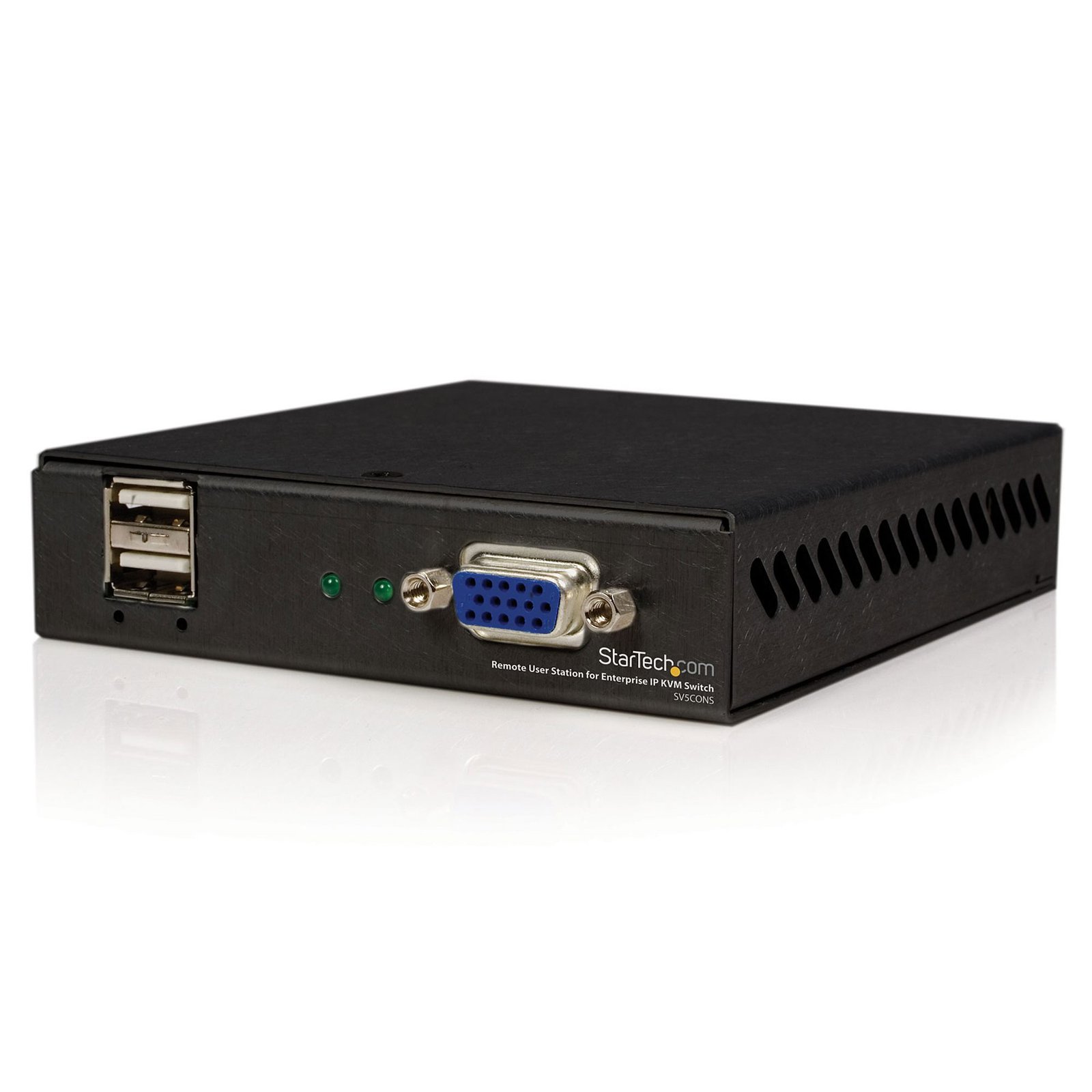
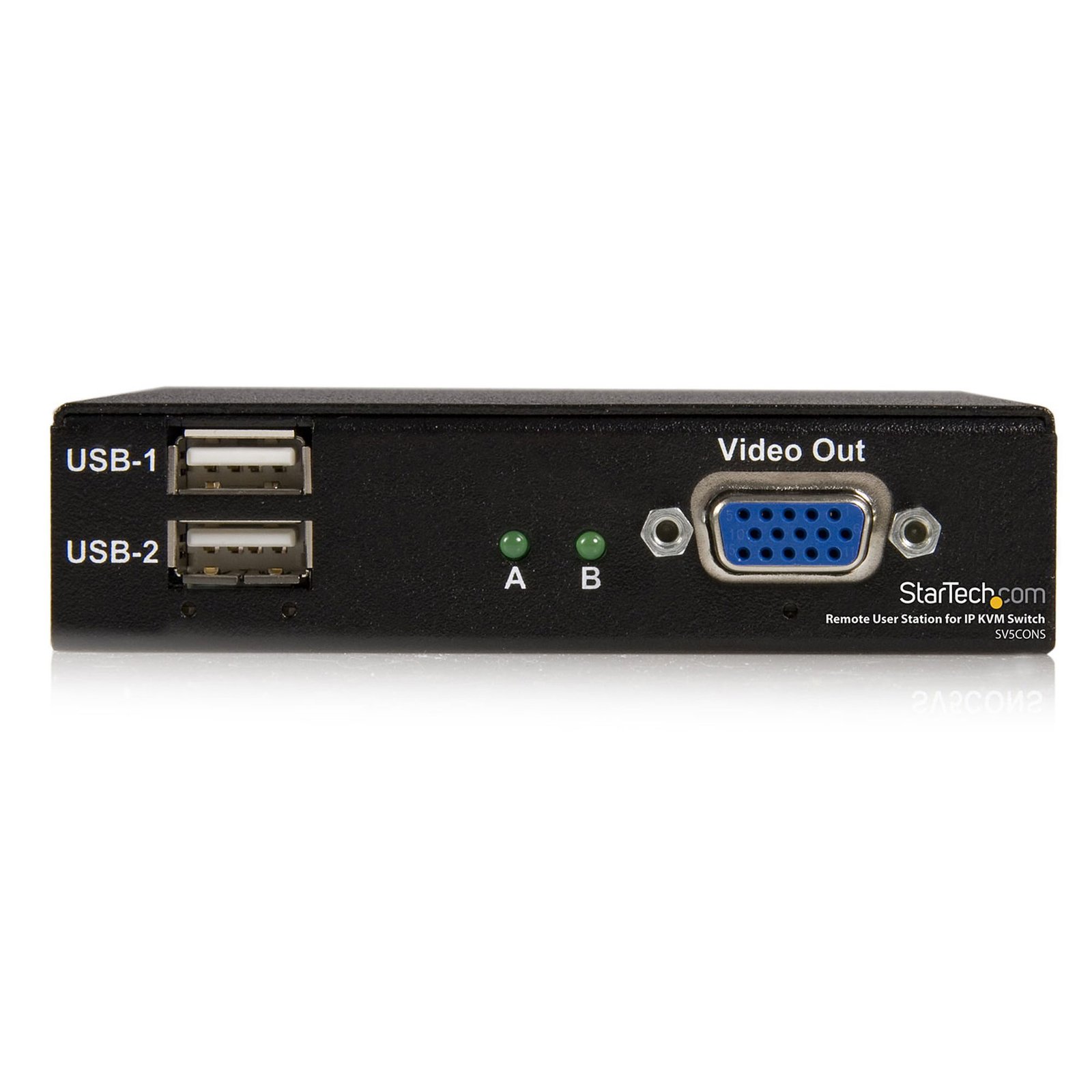
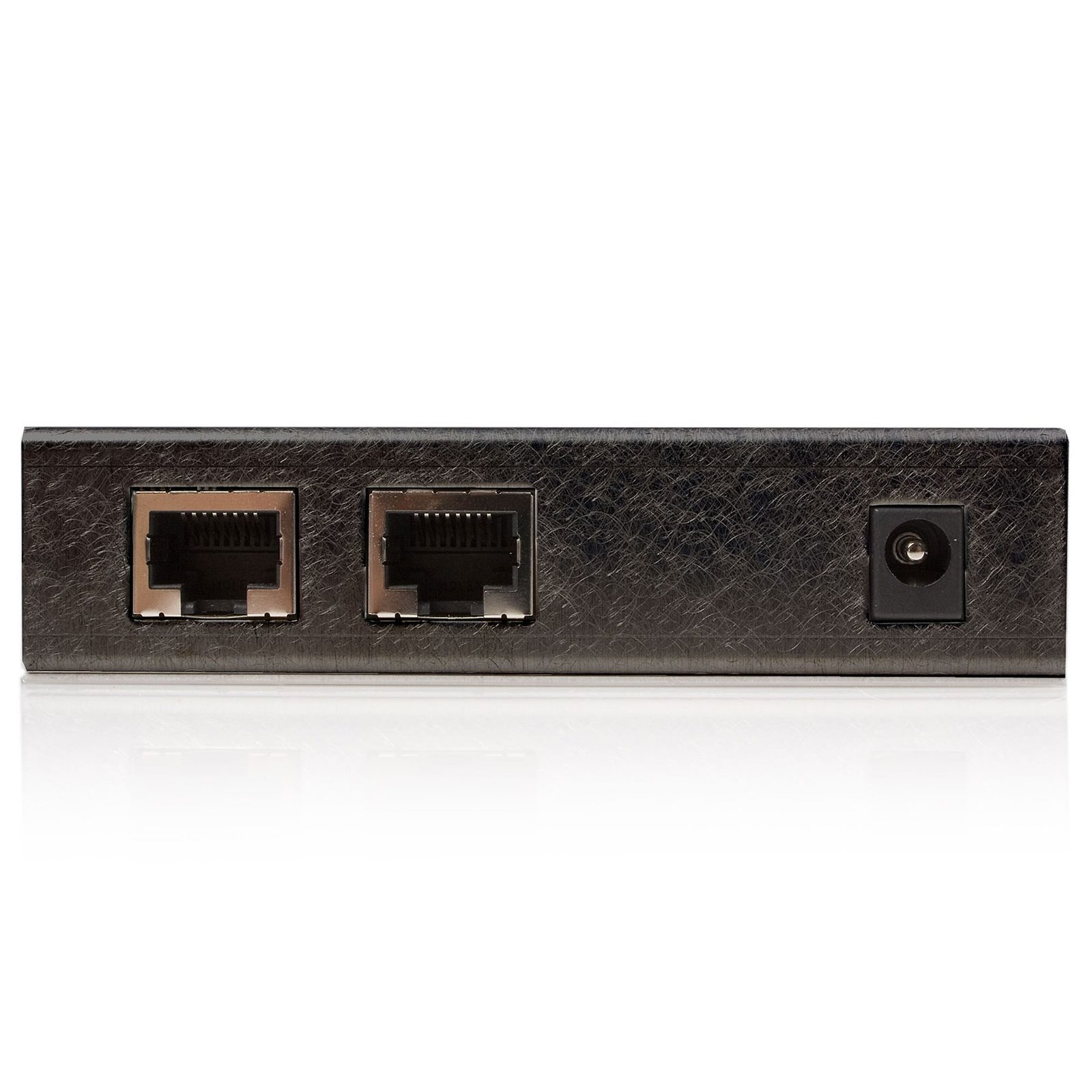
Remote User Station for Enterprise IP KVM Switch
$682.99
Control your StarTech.com Enterprise IP KVM Switch remotely without the need for a PC
Specifications & Compliance
- UPC
- 065030831741
- Brand
- StarTech.com
- Included in Package
- 1 - Remote User Station, 1 - Power Adapter, 1 - Instruction Sheet
- Shipping (Package) Weight
- 23.3 oz [660 g]
- Weight of Product
- 6.7 oz [190 g]
- Product Length
- 4.0 in [10.2 cm]
- Product Width
- 4.4 in [11.2 cm]
- Product Height
- 0.9 in [24 mm]
- Package Depth
- 2.5 in [63 mm]
- Package Width
- 12.6 in [32 cm]
- Package Height
- 5.2 in [13.2 cm]
- Color
- Black
- Warranty
- 2 Years
- Connector 1
- VGA
- Connector 1 (Quantity)
- 1
- Connector 2
- USB-A (480Mbps, 2.5W)
- Connector 2 (Quantity)
- 2
- Material
- Aluminum
- Power Source
- AC Adapter Included
- Input Voltage
- 115V AC
- Output Voltage
- 5 DC
- LED Indicators
- 1 - Green – Port Indicator
- Output Current
- 3
- Host Connector 1
- RJ-45
- Host Connector 1 (Quantity)
- 2
- Audio
- No
- Center Tip Polarity
- Positive
- Max Transfer Distance
- 300m [984ft]
- Maximum Analog Resolutions
- 1280 x 1024 @75Hz
- Rack-Mountable
- No
- Number of KVM Ports
- 1
- IP Control
- No
- Supported Platforms
- USB
- PC Video Type
- VGA
- Number of Monitors Supported
- 1
Questions & Answers
Everything is hooked up, but nothing is working. What do I do?
There are some quick tests that you can complete to rule out potential issues. You can test to make sure that the following components are working correctly and are not the source of the issue: Video and Ethernet cables Mouse and keyboard Video source (such as a DVR or computer) Video destination (such as a monitor or projector) Note: When you test setup components, you should avoid using video adapters. For example, if you are converting a VGA source to HDMI for use with an HDMI extender, you should use an HDMI source when you test the components. To test your setup components, try the following: Use a different cable, mouse, keyboard, video source, and video destination in your setup to see if the problem persists. Ideally, you should test a component that you know works in another setup. Use the cable, mouse, keyboard, video extender, video source, and video destination in another setup to see if the problem is with the components or the setup. When you test your cables, it is recommended that you do the following: Test each cable individually. Use short cables when you are testing. When you test the video source and video destination, it is recommended that you do the following: Test to make sure that the video source and video destination work together without using the KVM extender. Test to make sure that the video source and video destination work together at the resolution that you want to use. Note: In order for your setup to work properly, the video source, extender, and destination all need to support the resolution that you are using.
How can I convert the VGA output on this device to DVI, HDMI, or DisplayPort?
This device outputs an analog VGA signal. To connect it to a display that uses DVI, HDMI, or DisplayPort, an active video converter is typically required. The exact conversion method depends on the input type supported by the destination display. Explanation: VGA is an analog video standard. Most modern display interfaces, including HDMI, DisplayPort, and DVI-D, use digital video signaling. As a result, signal conversion is often required when connecting a VGA source to a non-VGA display. The following table outlines example adapters for common conversion paths: Target connection First conversion Second conversion (if required) DVI-D VGA to HDMI: https://www.startech.com/VGA2HDU HDMI to DVI-D: https://www.startech.com/HDDVIMF8IN DVI-I VGA to DVI-I: https://www.startech.com/dvivgafm N/A HDMI VGA to HDMI: https://www.startech.com/VGA2HDU N/A DisplayPort VGA to HDMI: https://www.startech.com/VGA2HDU HDMI to DisplayPort: https://www.startech.com/128-hdmi-displayport When selecting a conversion solution, use the fewest possible adapters and converters. Fewer conversion stages typically improve reliability and simplify installation. Understanding DVI-I and DVI-D When converting a VGA signal to DVI, it is important to identify the type of DVI connection used by the destination device. DVI-I supports both Analog and digital signals, whereas DVI-D supports digital signals only. Because VGA is an analog signal: VGA can be adapted directly to DVI-I when the destination device supports analog DVI-I signaling. VGA cannot be adapted directly to DVI-D without an active signal converter because DVI-D supports digital video only. Some devices include a DVI-I connector but support only DVI-D signaling internally. In these cases, a passive VGA-to-DVI-I adapter will not work. Before selecting a conversion solution, verify: The video output type of the source device (VGA) The video input type of the display (HDMI, DisplayPort, DVI-I, or DVI-D) Whether the destination device supports analog or digital signaling Any resolution or refresh rate requirements for the installation Choosing the correct converter ensures compatibility and helps maintain the best possible video quality for the connected display.
Related products
-
USB HDMI over Cat 5e / Cat 6 KVM Console Extender w/ 1080p Uncompressed Video - 330ft (100m)
$1,261.99 Add to cart -
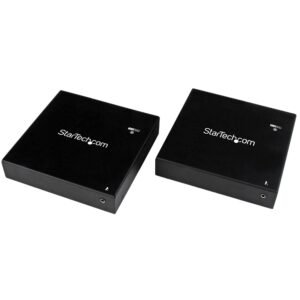
HDMI over Fiber KVM Console Extender - USB or PS2 - 1KM
$1,081.99 Add to cart -
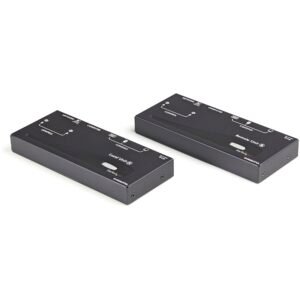
Long Range USB VGA KVM Console Extender over Cat5 UTP - 1000 ft - TAA
$472.99 Add to cart -
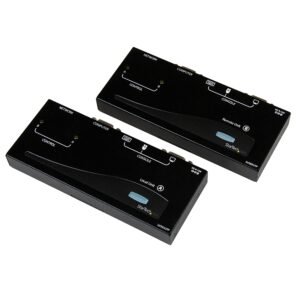
USB PS2 KVM Console Extender Cat5 Extender - 500 ft - TAA
$252.99 Add to cart