
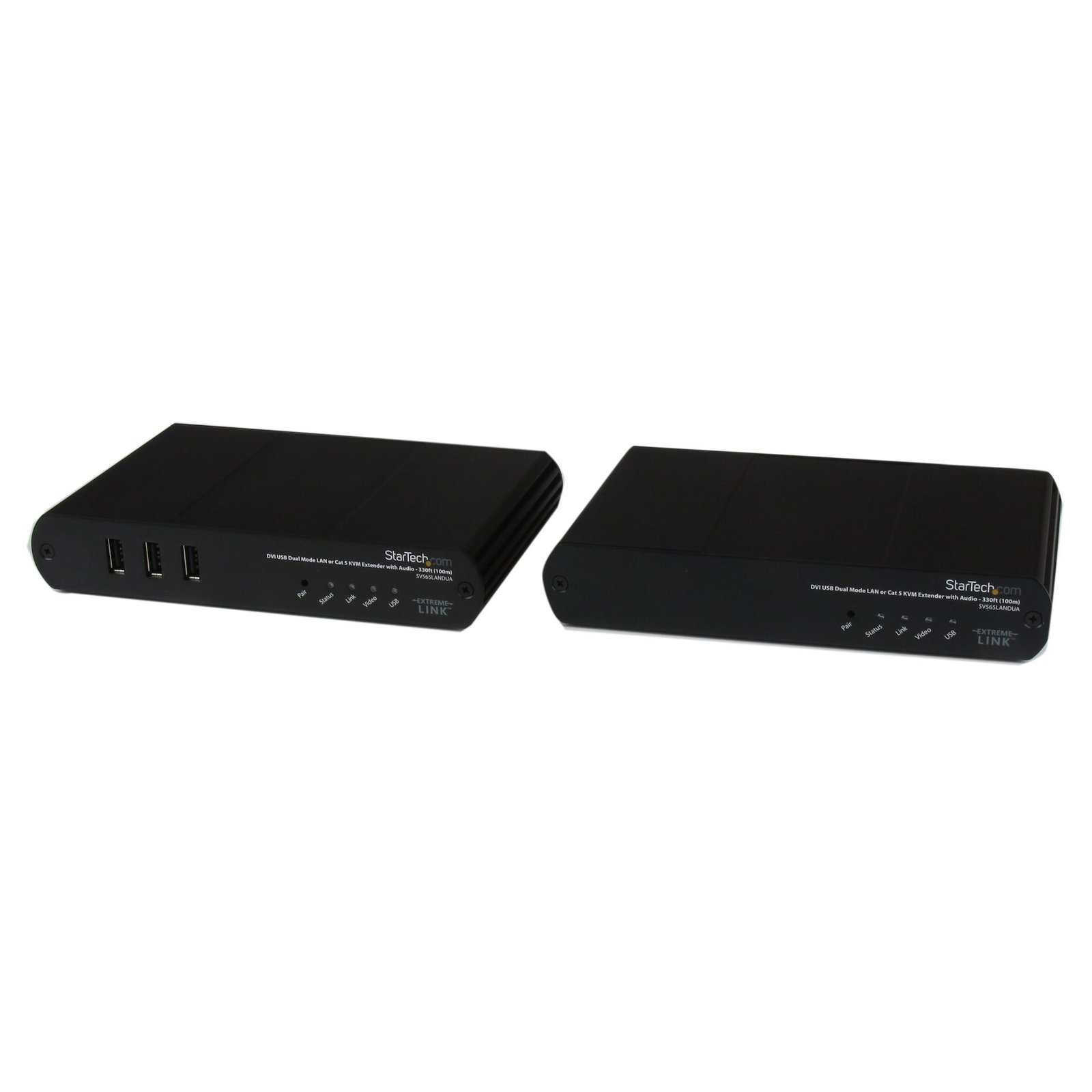
USB DVI KVM Console IP Extender over Cat5 with Audio - 1680x1050 330 ft (100m)
$991.99
Extend DVI-D (or HDMI) video, USB and Audio through a LAN, or Cat 5 cabling, up to 100m (330ft)
Specifications & Compliance
- UPC
- 065030847957
- Brand
- StarTech.com
- Included in Package
- 1 - Local Unit, 1 - Remote Unit, 1 - 1.5m DVI Cable, 1 - 2m USB Cable (A-B), 1 - 5V 3A Power Adapter (w/ NA, UK, EU Cords), 1 - 24V 1A Power Adapter (w/ NA, UK, EU Cords), 1 - Instruction Manual
- Shipping (Package) Weight
- 4.4 lb [2.0 kg]
- Weight of Product
- 14.8 oz [420 g]
- Product Length
- 6.9 in [17.5 cm]
- Product Width
- 4.6 in [11.8 cm]
- Product Height
- 1.2 in [31 mm]
- Package Depth
- 8.3 in [21 cm]
- Package Width
- 11.6 in [29.5 cm]
- Package Height
- 4.2 in [10.7 cm]
- Color
- Black
- Warranty
- 2 Years
- Connector 1
- DVI-D Dual-Link (25-Pin)
- Connector 1 (Quantity)
- 1
- Package Quantity
- 1
- Connector 2
- 3.5mm (3 Conductors, TRS)
- Connector 2 (Quantity)
- 2
- Operating Temperature
- 0°C to 50°C (32°F to 122°F)
- Storage Temperature
- -20°C to 70°C (-4°F to 158°F)
- Humidity
- 20~80% RH Non-condensing
- Material
- Steel
- Maximum Data Transfer Rate
- 1 Gbps (LAN) <br /> 480 Mbps (USB)
- Power Source
- 2 AC Adapters Included
- Input Voltage
- 110V-240V AC
- Output Voltage
- 24 / 5 DC
- Connector 3
- USB-A (480Mbps, 2.5W)
- Connector 3 (Quantity)
- 3
- LED Indicators
- 1 - Status (Green), 1 - Link (Green), 1 - Video (Green/Amber), 1 - USB (Green/Amber)
- Input Current
- 0.6 A
- Output Current
- 3
- System and Cable Requirements
- 100 Mbps or 1 Gbps network connection for LAN mode (1 Gbps recommended)
- Maximum Digital Resolutions
- 1680x1050 @ 60Hz
- Host Connector 1 (Quantity)
- 1
- Audio
- Yes
- Plug Type
- C / M
- Connector 4
- RJ-45
- Connector 4 (Quantity)
- 1
- Supported Resolutions
- Widescreen:<br> 1680x1050, 1440x900, 1360x768, 1280x800, 1280x768, 1280x720<br><br> Standard:<br> 1280x1024, 1024x768, 800x600, 640x480
- Max Transfer Distance
- 100m [328ft]
- Host Connector 2
- USB-B (480Mbps, 2.5W)
- Host Connector 2 (Quantity)
- 1
- Cascadable
- Yes
- Rack-Mountable
- No
- Number of KVM Ports
- 1
- IP Control
- Yes
- Supported Platforms
- USB
- PC Video Type
- DVI
- Number of Monitors Supported
- 1
- Host Connector 3
- RJ-45
- Host Connector 3 (Quantity)
- 1
- DVI Support
- Yes - Single Link
Questions & Answers
Everything is hooked up, but nothing is working. What do I do?
There are some quick tests that you can complete to rule out potential issues. You can test to make sure that the following components are working correctly and are not the source of the issue: Video and Ethernet cables Mouse and keyboard Video source (such as a DVR or computer) Video destination (such as a monitor or projector) Note: When you test setup components, you should avoid using video adapters. For example, if you are converting a VGA source to HDMI for use with an HDMI extender, you should use an HDMI source when you test the components. To test your setup components, try the following: Use a different cable, mouse, keyboard, video source, and video destination in your setup to see if the problem persists. Ideally, you should test a component that you know works in another setup. Use the cable, mouse, keyboard, video extender, video source, and video destination in another setup to see if the problem is with the components or the setup. When you test your cables, it is recommended that you do the following: Test each cable individually. Use short cables when you are testing. When you test the video source and video destination, it is recommended that you do the following: Test to make sure that the video source and video destination work together without using the KVM extender. Test to make sure that the video source and video destination work together at the resolution that you want to use. Note: In order for your setup to work properly, the video source, extender, and destination all need to support the resolution that you are using.
How can I connect this DVI-D output to a VGA, HDMI, or DisplayPort display?
A DVI-D output supports only digital video signaling. The type of adapter or converter required depends on the display connection you want to use. Explanation: This device features a DVI-D output, which supports digital video only. Because DVI-D does not carry analog video signals, some display types require active signal conversion. The following conversion options are commonly used: HDMI: A DVI to HDMI adapter or cable can be used because DVI-D and HDMI use compatible digital video signaling. DisplayPort: An active DVI-D to DisplayPort converter is required because DVI and DisplayPort use different signaling technologies. VGA: An active DVI-D to VGA converter is required because VGA uses analog video signaling and DVI-D outputs only digital video. Before selecting an adapter or converter, verify: The input type of the display or video destination The required resolution and refresh rate Whether the conversion requires active signal processing When multiple conversion options are available, use the fewest possible adapters and converters to maximize compatibility and maintain signal quality.
Related products
-

USB Dual VGA over Cat5 KVM Console Extender - 650 ft / 200m - TAA
$559.99 Add to cart -
Long Range USB VGA KVM Console Extender over Cat5 UTP - 1000 ft - TAA
$472.99 Add to cart -
HDMI KVM Extender over IP Network - 4K 30Hz HDMI 2.0 and USB over IP LAN or Cat5e/Cat6 Ethernet Cable (100m/330ft) - Remote KVM Switch/Console Transmitter/Receiver Extender Kit - TAA
$837.99 Add to cart -
DisplayPort KVM Extender over Fiber Optic, 4K 60Hz, Console Extender Kit, Up to 984ft/300m (Multi-mode) with Pre-installed SFP+ Modules, 3x USB HID - TAA
$952.99 Add to cart