
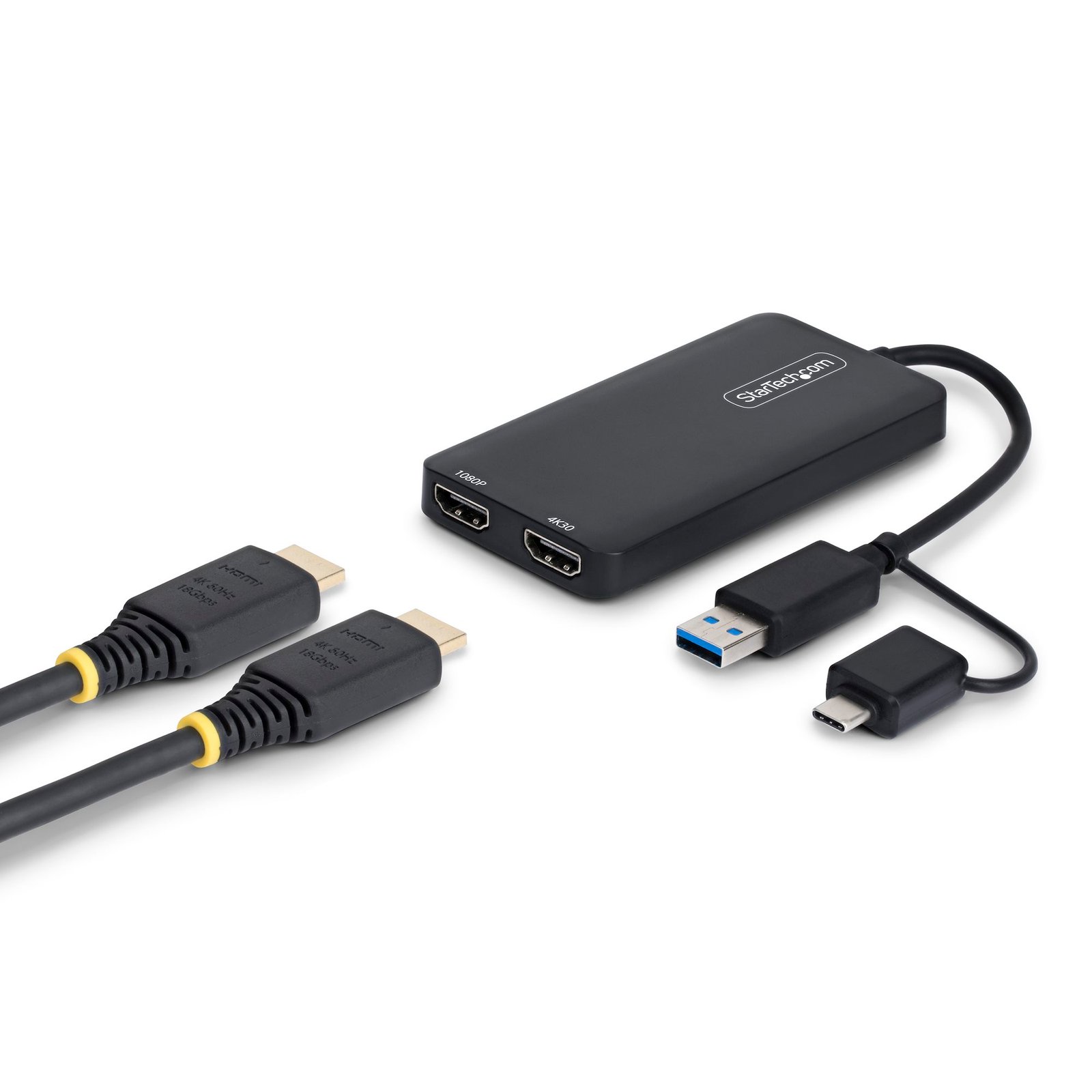
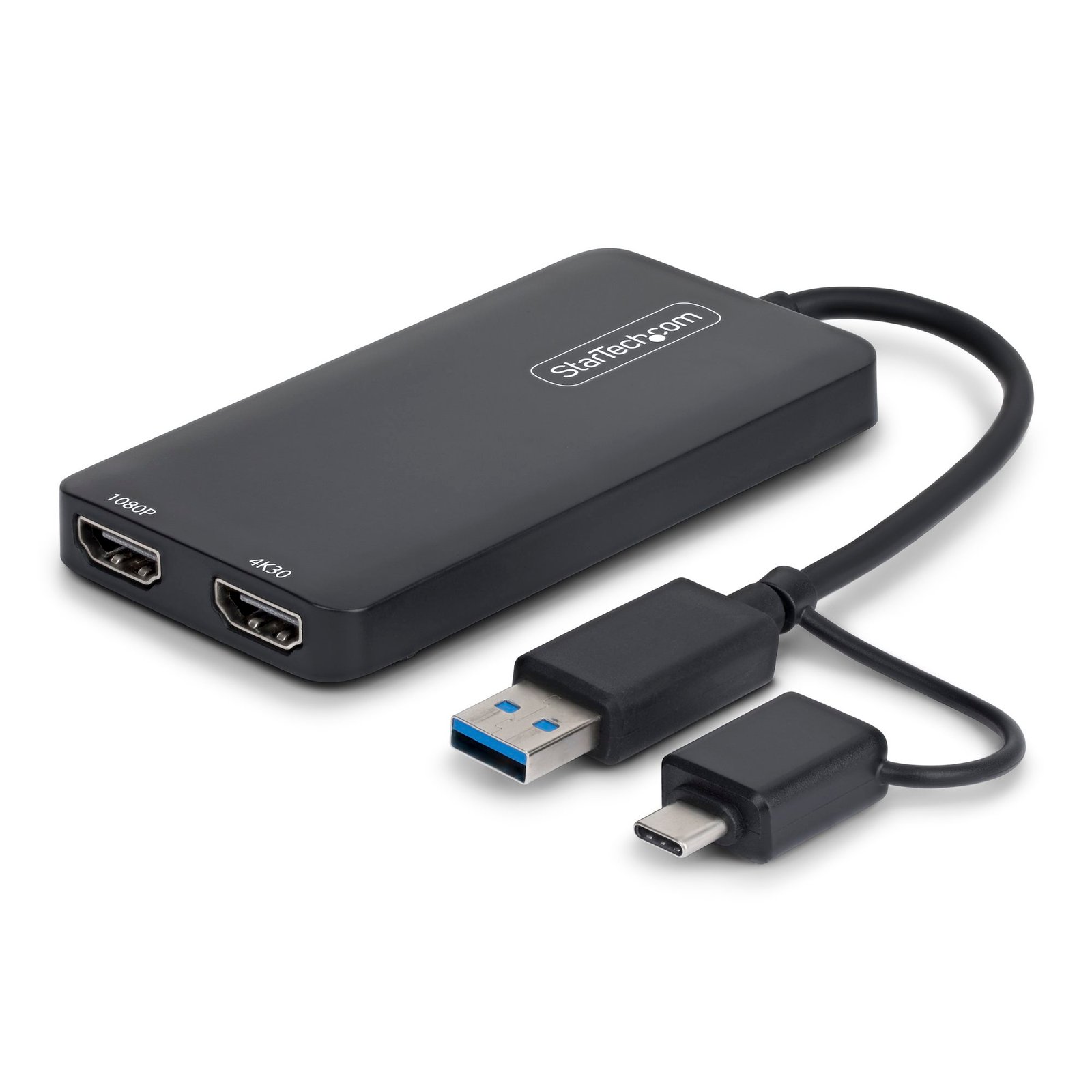
USB to Dual HDMI Adapter, USB A/C to 2x HDMI Displays (1x 4K30Hz, 1x 1080p), 4.3in/11cm Cable, USB 3.0 to HDMI Display Adapter, Windows/macOS, Black
$59.99
Connect two HDMI displays (1x 4K 30Hz and 1x 1080p) to a computer using a single USB-C or USB-A port
Specifications & Compliance
- UPC
- 065030911382
- Brand
- StarTech.com
- Included in Package
- 1 - USB-C/USB-A to Dual HDMI Adapter, 1 - Product Documentation
- Shipping (Package) Weight
- 2.6 oz [75 g]
- Weight of Product
- 2.3 oz [66 g]
- Product Length
- 3.9 in [100 mm]
- Product Width
- 2.1 in [52.8 mm]
- Product Height
- 0.4 in [11 mm]
- Package Depth
- 6.2 in [15.7 cm]
- Package Width
- 5.0 in [12.6 cm]
- Package Height
- 0.7 in [19 mm]
- Color
- Black
- Cable Length
- 7.2 in [18.3 cm]
- Warranty
- 3 Years
- Connector 1
- USB-A (5Gbps, 4.5W)
- Connector 1 (Quantity)
- 1
- Connector 2
- USB-C (5Gbps, 4.5W)
- Connector 2 (Quantity)
- 1
- Operating Temperature
- 0°C to 40°C (32°F to 104°F)
- Storage Temperature
- -10°C to 70°C (14°F to 158°F)
- Humidity
- 5% to 90% RH (non-condensing)
- Power Source
- Bus Powered
- Chipset ID
- Silicon Motion - SM768
- Special Notes
- This device is HDCP compliant, and will not playback copy protected content, When installed on Linux, this adapter supports up to two 1080p 60Hz displays
- Connector 3
- HDMI
- Connector 3 (Quantity)
- 2
- Number of Ports
- 2
- System and Cable Requirements
- Manual driver installation is required for macOS
- Maximum Digital Resolutions
- 3840 x 2160 @ 30Hz
- AV Input
- USB-C, USB-A
- AV Output
- HDMI
- Wide Screen Supported
- Yes
- Supported Resolutions
- <b>Output 1:</b><br> 3840×2160, 2560×1440, 1920×1080, 1600×900, 1280×720 <br><br> <b>Output 2:</b><br> 1920 x 1080, 1600 x 900, 1280x720 <br><br> Other lower resolutions may be supported
- Audio Specifications
- HDMI - 2 Channel Audio
- Video Revision
- HDMI 1.4
- Memory
- 8Gb DDR3
Questions & Answers
How to Arrange Windows Monitors to Fix Mouse Issues
In order for your mouse to move properly between your monitors you must rearrange your monitors in Windows to match the physical location of your monitors on your desk. To do so, complete the following based on your operating system: Windows 11 Click on the Windows Icon in the Taskbar (or the Windows key on the keyboard) and search for Display Settings . Click on Multiple Displays. Click Identify to display the numbers on each connected monitor, showing how the operating system has assigned their positions. Click and drag the monitor icons to best match your physical setup. Click Apply to confirm the changes and close the window. Windows 10 and Windows 8 On your keyboard, press the Windows key + X and select Control Panel . Click Appearance and Personalization , then click Display . Click the Resolution or Adjust Resolution option from the left column, which will display your monitors as numbered icons. Click Identify to display the numbers on each connected monitor, showing how the operating system has assigned their positions. Click and drag the monitor icons to best match your physical setup. Click OK to apply the changes and close the window. Windows 7 and Windows Vista Click the Start button and select Control Panel . Click Appearance and Personalization, then click Display . Click the Resolution or Adjust Resolution option from the left column, which will display your monitors as numbered icons. Click Identify to display the numbers on each connected monitor, showing how the operating system has assigned their positions. Click and drag the monitor icons to best match your physical setup. Click OK to apply the changes and close the window. Windows XP Click the Start button and select Control Panel . Double-click Display . Click the Settings tab, which will display your monitors as numbered icons. Click Identify to display the numbers on each connected monitor, showing how the operating system has assigned their positions. Click and drag the monitor icons to best match your physical setup. Click OK to apply the changes and close the window. To mirror the image from your primary monitor instead of extending your desktop, refer to the following FAQ: http://www.startech.com/faq/Windows_Mirroring_Monitors
Related products
-
6.6ft (2m) USB C to DisplayPort 1.4 Cable 8K 60Hz/4K - Bidirectional DP to USB-C or USB-C to DP Reversible Video Adapter Cable -HBR3/HDR/DSC - USB Type C/Thunderbolt Monitor Cable
$20.99 Add to cart -
USB C Video Adapter, USB C to HDMI VGA Multiport Adapter, 3.5mm Audio, 4K 60Hz HDR, 100W PD Pass-Through, Thunderbolt 3/4 Compatible - USB C Display Travel Adapter
$28.99 Add to cart -
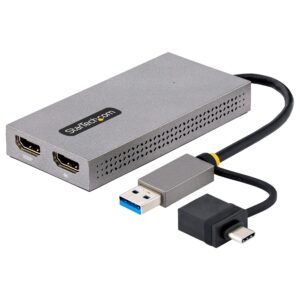
USB to Dual HDMI Adapter, USB A/C to 2x HDMI Displays (1x 4K30Hz, 1x 1080p), Integrated USB-A to C Dongle, 4in/11cm Cable, USB 3.0 to HDMI Display Adapter, Windows & macOS
$83.99 Add to cart -
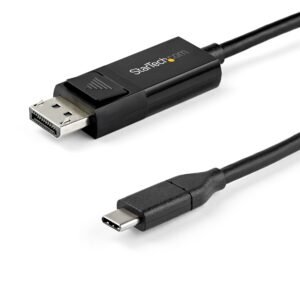
3.3ft (1m) USB C to DisplayPort 1.4 Cable 8K 60Hz/4K - Bidirectional DP to USB-C or USB-C to DP Reversible Video Adapter Cable -HBR3/HDR/DSC - USB Type-C/Thunderbolt Monitor Cable
$44.99 Add to cart