
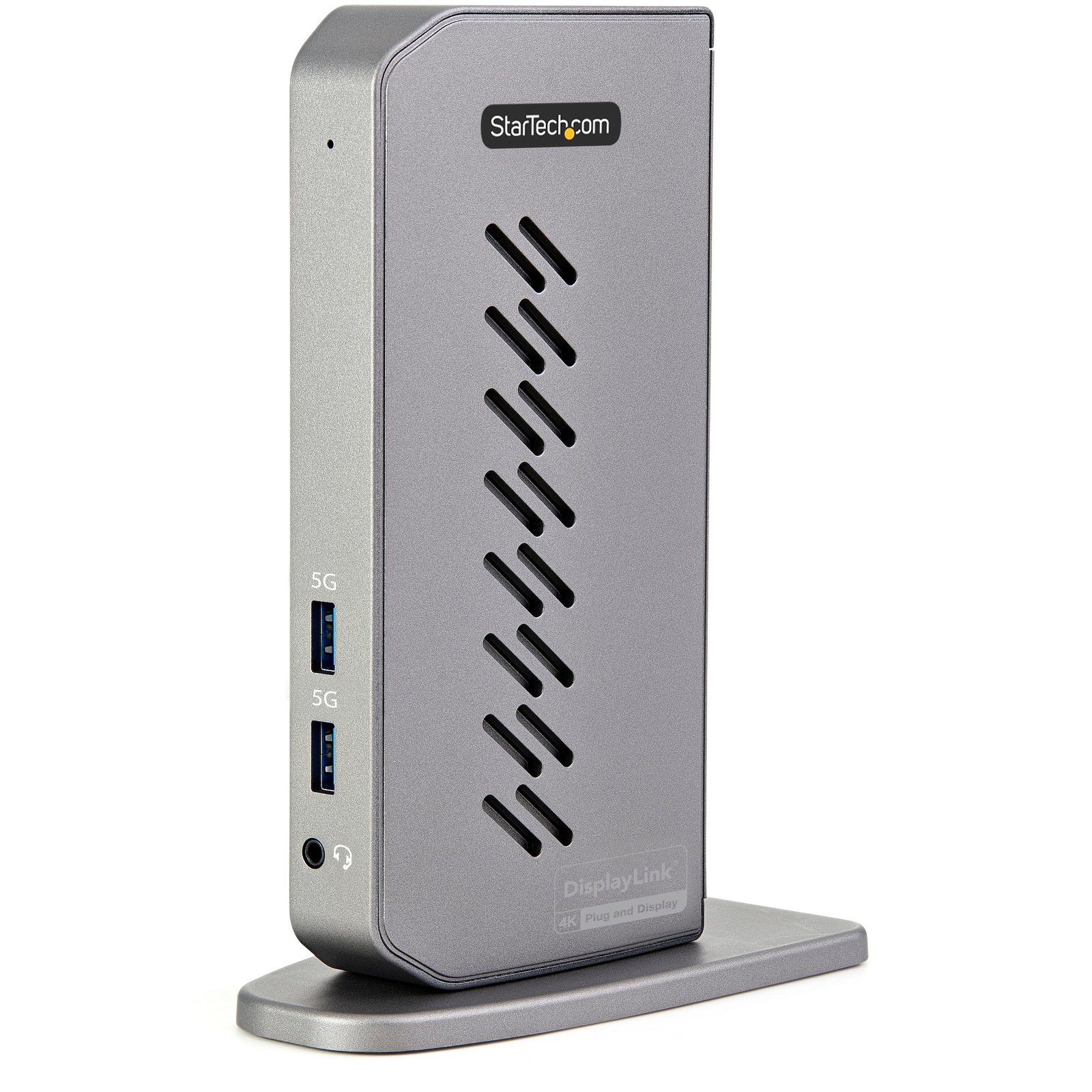
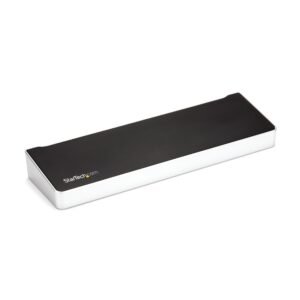
USB-C USB-A Dock - Hybrid Universal USB 3.0 Docking Station for USB-C or USB-A Laptop - Dual Monitor 4K 60Hz HDMI/DisplayPort - 6x USB-A, GbE - USB 5Gbps - Windows/Mac
$100.99
Universal Hybrid Dock | USB Type-C & USB Type-A | Dual 4K 60Hz HDMI & DisplayPort
Specifications & Compliance
- UPC
- 065030891349
- Brand
- StarTech.com
- Included in Package
- 1 - Docking Station, 1 - USB-C to USB-B Cable, 1 - Universal Power Adapter (NA/JP, ANZ), 1 - Quick-Start Guide, 1 - Dock Stand, 1 - USB-A to USB-B Cable
- Shipping (Package) Weight
- 27.9 oz [790 g]
- Weight of Product
- 12.2 oz [347.0 g]
- Product Length
- 5.2 in [13.3 cm]
- Product Width
- 2.9 in [73.0 mm]
- Product Height
- 7.4 in [18.7 cm]
- Package Depth
- 4.5 in [11.4 cm]
- Package Width
- 8.3 in [21.2 cm]
- Package Height
- 5.7 in [14.4 cm]
- Color
- Black & Gray
- Cable Length
- 3.3 ft [1 m]
- Warranty
- 3 Years
- Connector 1
- USB-A (5Gbps, 4.5W)
- Connector 1 (Quantity)
- 6
- Package Quantity
- 1
- Connector 2
- RJ-45
- Connector 2 (Quantity)
- 1
- Operating Temperature
- 0 to 50°C
- Storage Temperature
- -20 to 70°C
- Humidity
- 0% to 95% (non-condensing) at 25°C
- Material
- Aluminum and Plastic
- Power Source
- AC Adapter Included
- Chipset ID
- DisplayLink - DL-6950<br>VIA/VLI - VL813<br>Realtek RTS5411 or RTS5411E
- Special Notes
- DisplayLink docking stations and video adapters support more than one external display on Apple's M1-based Mac. Requires driver installation. Please contact StarTech.com support for a recommendation based on your specific setup.
- Power Delivery
- No PD
- Input Voltage
- 110V-240V AC
- Output Voltage
- 20V DC
- Connector 3
- HDMI
- Connector 3 (Quantity)
- 2
- Power Consumption
- 40W
- MTBF
- 26 280 hrs
- Number of Ports
- 8
- Interface
- USB 3.2 Gen 1
- Bus Type
- USB-C
- Input Current
- 1.0A
- Output Current
- 2
- Maximum Digital Resolutions
- 4K 60Hz
- Host Connector 1
- USB-B (5Gbps, 4.5W)
- Host Connector 1 (Quantity)
- 1
- Audio
- Yes
- Plug Type
- N
- Compatible Networks
- 10/100/1000 Mbps
- Connector 4
- DisplayPort
- Connector 4 (Quantity)
- 2
- General Specifications
- Wake-on-LAN (WoL): Yes
- Number of Displays
- 2
- Connector 5
- 3.5mm (3 Conductors, TRS)
- Connector 5 (Quantity)
- 1
- Fast-Charge Port(s)
- No
- Wake-On-LAN (WOL)
- Yes
- Displays Supported
- 2
- 4K Support
- Yes
- USB Pass-Through
- Yes
Questions & Answers
How do I uninstall my USB video adapter in Windows 7, Windows 8, Windows 10, or Windows 11?
To uninstall the USB video adapter, disconnect the adapter from the computer, uninstall the DisplayLink Graphics Software, and restart the computer when prompted. Explanation: Before uninstalling the software, disconnect the USB video adapter from the computer. To remove the DisplayLink software: Open Control Panel . Select Programs and Features or Uninstall a Program . Locate DisplayLink Graphics in the list of installed programs. Right-click DisplayLink Graphics and select Uninstall . Follow the on-screen prompts to complete the removal process. Restart the computer when prompted.
How do I install DisplayLink on macOS 10.15 (Catalina) or later?
To use a DisplayLink-enabled device with macOS 10.15 (Catalina) or later, install the latest DisplayLink Manager application and grant the required macOS permissions for screen recording and accessibility. Explanation: DisplayLink devices require the DisplayLink Manager application to function on macOS 10.15 (Catalina) and later. To install DisplayLink: Download and install the latest DisplayLink Manager application. Connect the StarTech.com device to your Mac and external display. Complete the DisplayLink Manager setup process, including granting all required macOS permissions. Launch the DisplayLink Manager application. Enable the option to automatically launch DisplayLink Manager after login. For proper operation, verify that: DisplayLink Manager is running after installation. The required Screen Recording permissions have been granted in macOS System Settings. DisplayLink Manager is configured to launch automatically when you sign in. If external displays are not detected after installation, review the DisplayLink setup instructions and confirm that all required permissions have been enabled. Apple Silicon (M1, M2, M3, and Later) On Apple Silicon-based Macs, you may be prompted to install Rosetta during the DisplayLink installation process. If prompted, complete the Rosetta installation to ensure compatibility with DisplayLink software components that require it. Additional Resources For the latest installation instructions, troubleshooting information, and software updates, refer to the DisplayLink Manager documentation and support resources here .
Some graphics are not rendered correctly on the USB connected display when using Microsoft Office applications or web browsers. How do I fix this?
If hardware acceleration is enabled on any of your software applications, it can result in poor resource management and limit the performance of your video device. If you experience this problem, you should disable hardware acceleration in the program(s) that were impacted. To disable hardware acceleration in common applications and operating systems, complete one of the following series of steps, depending on what software application(s) or operating system that you are running. Chromium-Based Microsoft Edge: Click the Options icon (it has three dots on it). Click Settings . Click System . Uncheck Use hardware acceleration when available . Internet Explorer 9 and later Note: Earlier versions of Internet Explorer do not use hardware acceleration. Click the Start button. Open Control Panel . Click Network and Internet . Click Internet Options . Click the Advanced tab. Browse to the Accelerated graphics screen. Select the Use software rendering instead of GPU rendering check box. Click Apply . Restart your computer. Mozilla Firefox Open Firefox. Press the Alt key. Click Tools and Options . Click the Advanced icon. Click the General tab. Under Browsing , clear the Use hardware acceleration when available check box. Click the OK button. Restart your web browser. Google Chrome Open Google Chrome. Click the Options icon (it has three horizontal lines on it). Click Settings . Click Show advanced settings . Scroll to the bottom of the screen and clear the Use hardware acceleration when available check box. Restart your web browser. Microsoft Office 2013 / 2010 Open any program in Microsoft Office (for example, Microsoft Word). Click the File tab. In the menu on the left side of the screen, click Options . Click Advanced . Under Display , select the Disable hardware graphics acceleration check box. Close and restart all of the Microsoft Office programs that you had open. Windows 10 / 8 Press the Windows key + X . Click Control Panel . Click Personalization . Select a high-contrast theme. Windows 7 / Vista Click the Start button. Click Control Panel . Click Personalization . Select a non-Aero theme. Ideally, you should select a basic and high-contrast theme. Windows XP Click the Start button. Open the Control Panel . Select Display . Click the Settings tab. Click Advanced . Click the Troubleshooting tab. Move the Hardware Acceleration slider to None . Restart your computer.
What DC barrel connector power plug types do StarTech.com products use, and what are their dimensions?
StarTech.com DC barrel connector plug types are defined in the “Plug Type” field of the technical specifications, using a letter code that specifies the connector’s outer diameter (OD) and inner diameter (ID) in millimeters for power adapter compatibility. Explanation: In StarTech.com technical specifications, the “Plug Type” field is a standardized identifier for the exact DC barrel connector size required to power a product. Each plug type is assigned a letter code that corresponds to a specific combination of outer diameter (OD) and inner diameter (ID), measured in millimeters. Common DC barrel plug type dimensions Plug Type OD ID A 2.35 mm 0.7 mm B 4.0 mm 1.7 mm C 4.75 mm 1.7 mm H 3.4 mm 1.3 mm L 5.0 mm 2.5 mm M 5.5 mm 2.1 mm N 5.5 mm 2.5 mm The DC barrel connector plug type must match both the outer diameter and inner diameter exactly. A mismatch between the StarTech.com product requirement and the power adapter connector can prevent proper fit or stable power delivery, which may result in device startup failure or intermittent operation. The plug type defines only the physical connector size. The plug type does not define electrical power requirements such as voltage, current, or polarity. The power adapter used with a StarTech.com product must match the product’s specified electrical requirements. Using an incompatible power adapter can cause device malfunction or permanent damage. This standardized DC barrel connector plug type system enables IT professionals and procurement teams to verify connector dimensions, ensure power adapter compatibility, standardize hardware deployments, and identify the correct replacement power supply for StarTech.com products.
Related products
-
Dual-Monitor USB-C Dock for Windows® - 4x USB 3.0 Ports
$188.99 Add to cart -
USB C Dock - Triple 4K Monitor USB Type-C Docking Station - 100W Power Delivery - DP 1.4 Alt Mode & DSC, 2x DisplayPort 1.4/HDMI 2.0 - 6xUSB (2x 10Gbps), SD - Windows/Chrome
$177.99 Add to cart -
USB-C Triple Monitor Docking Station for MacBook Pro / Air M1 M2 M3 M4 M5 & Windows, Universal 4K HDMI DP Dock, Thunderbolt Compatible, 60W Laptop Charging - TAA
$126.99 Add to cart -
USB-C Triple Monitor Docking Station for MacBook Pro / Air M1 M2 M3 M4 M5 & Windows, Universal 4K HDMI DP Dock, Thunderbolt Compatible, 100W Laptop Charging - TAA
$170.99 Add to cart