

USB-C to Parallel Printer Cable
$58.41
Add a parallel port through your laptop or desktop computer’s USB-C port, and connect to a DB25 parallel printer
Specifications & Compliance
- UPC
- 065030872010
- Brand
- StarTech.com
- Included in Package
- 1 - parallel printer adapter cable, 1 - quick-start guide
- Shipping (Package) Weight
- 3.8 oz [108 g]
- Weight of Product
- 3.2 oz [92.0 g]
- Product Length
- 6.1 ft [1.8 m]
- Product Width
- 0.0 in [0.0 mm]
- Package Depth
- 5.9 in [15.1 cm]
- Package Width
- 6.1 in [15.4 cm]
- Package Height
- 1.1 in [28 mm]
- Color
- Black
- Warranty
- 2 Years
- Connector 1
- USB-C (480Mbps, 2.5W)
- Connector 1 (Quantity)
- 1
- Package Quantity
- 1
- Connector 2
- DB-25 Parallel / Serial
- Connector 2 (Quantity)
- 1
- Operating Temperature
- 5°C to 40°C (41°F to 140°F)
- Storage Temperature
- -20°C to 70°C (-4°F to 158°F)
- Humidity
- 0~80% RH non-condensing
- Maximum Data Transfer Rate
- 1.5Mbps
- Power Source
- USB-Powered
- Chipset ID
- Prolific - PL2305
- Number of Ports
- 1
- Interface
- Parallel
- Bus Type
- USB-C
- System and Cable Requirements
- One available USB-C port
Questions & Answers
Everything is hooked up but nothing is working. What should I do? (Windows)
When you troubleshoot issues with a parallel device, there are some quick tests that you can complete to rule out potential problems. You can test to make sure that the following components are working correctly and are not the source of the issue: Parallel cables Parallel ports Parallel devices To test your setup components, try the following: Use the parallel cable, parallel port, and parallel device in another setup to see if the problem is with the components or the setup. Use a different parallel cable, parallel port, and parallel device in your setup to see if the problem persists. Ideally, you should test a component that you know works in another setup. When you test your cables, it is recommended that you do the following: Test each cable individually. Use short cables when you are testing. When you test the parallel ports and parallel device, it is recommended that you do the following: Press the Windows key + R , type devmgmt.msc , and press Enter . Check to see if the parallel ports and parallel device is listed under Ports (COM & LPT) . Make sure that the LPT port number is the correct number for the parallel device and that the software being used to connect the computer to the parallel device uses the correct LPT port number. If you do not see the LPT port number in Device Manager please see this FAQ for PCI/PCIe expansion cards: https://www.startech.com/en-us/faq/pci-pcie-cannot-boot-os-or-detect-windows or this FAQ for USB devices: https://www.startech.com/en-us/faq/usb-cannot-detect-windows If the device is listed with an error, follow the instructions on the website to reinstall the drivers. Note: Some parallel devices only work if the LPT port number is between a certain range, usually LPT1 or LPT2.
When I send jobs to my parallel port in Windows 10, it does not print. What do I do?
This issue was the result of a Windows update that has recently been fixed in the KB3140743 update. If you are still experiencing this issue, download the latest Windows update. You can also temporarily resolve the issue by completing the following: Press the Windows key + X . Click Device Manager . Expand the section for Ports (COM & LPT) . Right-click on the LPT port that is experiencing the issue. Click Properties . Click the Port Settings tab. Under Filter Resource Method, select an option that is not currently selected. Click OK .
Can this USB to parallel adapter be used with devices other than printers?
No, this USB to parallel adapter is only compatible with printers. Explanation: This USB to parallel adapter is designed specifically for printer communication and is recognized by the operating system as a USB Printer Support device. It does not function as a standard parallel (LPT) port and cannot be used with other parallel devices. As a result, non-printer devices that require a true parallel port are not supported.
Related products
-
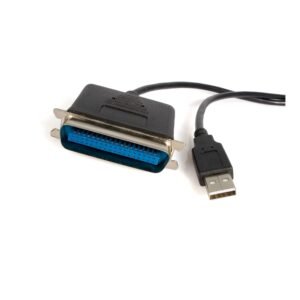
6 ft USB to Parallel Printer Adapter - M/M
$21.51 Add to cart -

2 Port PCI Express / PCI-e Parallel Adapter Card – IEEE 1284 with Low Profile Bracket
$33.99 Add to cart -
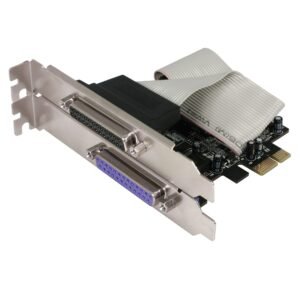
2 Port PCI Express Parallel Adapter Card - EPP/ECP
$19.99 Add to cart -
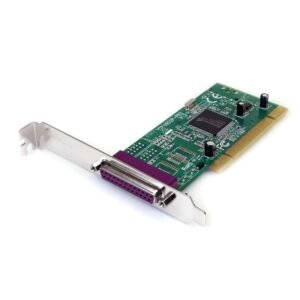
1 Port PCI Dual Voltage Parallel Adapter Card
$36.99 Add to cart