
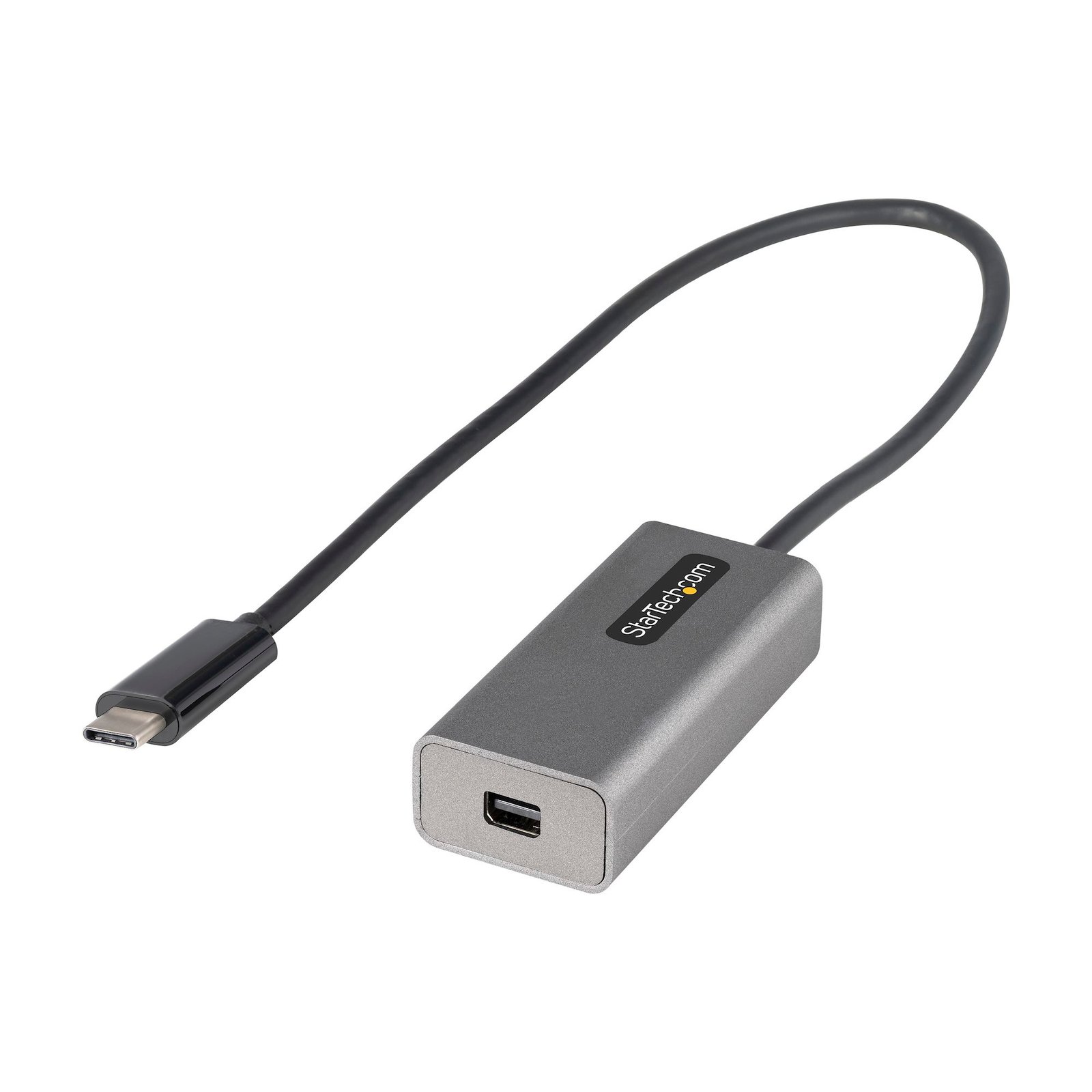
USB C to Mini DisplayPort Adapter - 4K 60Hz USB-C to mDP Adapter Dongle - USB Type-C to Mini DP Monitor - Video Converter - Works w/Thunderbolt 3-12" Long Attached Cable - Upgraded Version of CDP2MDP
$24.59
Extended Cable | DP 1.2 | HBR2 | Thunderbolt 3 Compatible
Specifications & Compliance
- UPC
- 065030888967
- Brand
- StarTech.com
- Included in Package
- 1 - USB-C to Mini DisplayPort Adapter
- Shipping (Package) Weight
- 1.2 oz [34 g]
- Weight of Product
- 1.0 oz [28.0 g]
- Product Length
- 15.4 in [39.2 cm]
- Product Width
- 1.1 in [27.0 mm]
- Product Height
- 0.6 in [16.0 mm]
- Package Depth
- 4.8 in [12.2 cm]
- Package Width
- 6.9 in [17.6 cm]
- Package Height
- 0.9 in [23 mm]
- Color
- Gray
- Cable Length
- 12.0 in [30.6 cm]
- Warranty
- 3 Years
- Connector 1
- USB-C DP++ (DP Alt-Mode)
- Connector 1 (Quantity)
- 1
- Package Quantity
- 1
- Connector 2
- Mini DisplayPort
- Connector 2 (Quantity)
- 1
- Operating Temperature
- 0°C to 45°C (32°F to 113°F)
- Storage Temperature
- -10°C to 70°C (14°F to 158°F)
- Humidity
- 10%-85%RH
- Material
- Plastic
- Chipset ID
- VL103
- Power Delivery
- No PD Pass-Through
- System and Cable Requirements
- Your USB-C device must support DisplayPort over USB-C (DP alt mode) to work with this adapter, This adapter outputs a single-mode Mini DisplayPort signal and will not work with additional video adapters such as Mini DisplayPort to HDMI, Mini DisplayPort to VGA or Mini DisplayPort to DVI adapters, This adapter will not support Thunderbolt displays
- Number of Displays
- 1
- Wide Screen Supported
- Yes
- Supported Resolutions
- Mini DisplayPort: 3840x2160 (4K) / 60Hz
- Audio Specifications
- Mini DisplayPort - 2 Channel Audio
- HDR Support
- No
- Video Revision
- DisplayPort 1.2
- Maximum Cable Distance To Display
- 6.6 ft [2 m]
Questions & Answers
How to Arrange Windows Monitors to Fix Mouse Issues
In order for your mouse to move properly between your monitors you must rearrange your monitors in Windows to match the physical location of your monitors on your desk. To do so, complete the following based on your operating system: Windows 11 Click on the Windows Icon in the Taskbar (or the Windows key on the keyboard) and search for Display Settings . Click on Multiple Displays. Click Identify to display the numbers on each connected monitor, showing how the operating system has assigned their positions. Click and drag the monitor icons to best match your physical setup. Click Apply to confirm the changes and close the window. Windows 10 and Windows 8 On your keyboard, press the Windows key + X and select Control Panel . Click Appearance and Personalization , then click Display . Click the Resolution or Adjust Resolution option from the left column, which will display your monitors as numbered icons. Click Identify to display the numbers on each connected monitor, showing how the operating system has assigned their positions. Click and drag the monitor icons to best match your physical setup. Click OK to apply the changes and close the window. Windows 7 and Windows Vista Click the Start button and select Control Panel . Click Appearance and Personalization, then click Display . Click the Resolution or Adjust Resolution option from the left column, which will display your monitors as numbered icons. Click Identify to display the numbers on each connected monitor, showing how the operating system has assigned their positions. Click and drag the monitor icons to best match your physical setup. Click OK to apply the changes and close the window. Windows XP Click the Start button and select Control Panel . Double-click Display . Click the Settings tab, which will display your monitors as numbered icons. Click Identify to display the numbers on each connected monitor, showing how the operating system has assigned their positions. Click and drag the monitor icons to best match your physical setup. Click OK to apply the changes and close the window. To mirror the image from your primary monitor instead of extending your desktop, refer to the following FAQ: http://www.startech.com/faq/Windows_Mirroring_Monitors
What is the difference between mirroring, spanning, and extending monitors?
Mirroring monitors means that you see the same thing on multiple monitors. Spanning monitors means that your computer interprets all of the monitors that are spanning as one giant monitor. You can see different things on each monitor, and your desktop, taskbar, Start menu, and background are stretched across the monitors. Extending monitors means that your computer interprets the monitors that you are extending as separate devices. You can see different things on each monitor, and your desktop background is displayed on each monitor. In general, video splitters can only be used to mirror monitors. If you want to extend your desktop across monitors, you need to make a separate video connection for each monitor that you are attaching. If you want to attach more monitors than your computer has video ports for, you can read about USB Video Adapters here: www.startech.com/AV/USB-Video-Adapters/ . If you are using a video card with a DisplayPort connection that supports DisplayPort 1.2 you can use MST hubs from StarTech.com to extend your desktop to each monitor.
Related products
-

6ft (1.8m) USB C to DisplayPort 1.4 Cable - 4K/5K/8K USB Type-C to DP 1.4 Alt Mode Video Adapter Converter - HBR3/HDR/DSC - 8K 60Hz DP Monitor Cable for USB-C/Thunderbolt
$34.84 Add to cart -

3.3ft (1m) USB C to DisplayPort 1.2 Cable 4K 60Hz - USB-C to DisplayPort Adapter Cable - HBR2 - USB Type-C DP Alt Mode to DP Monitor Video Cable - Works with Thunderbolt - Black
$17.99 Add to cart -
30ft (9.1m) USB-C to HDMI 2.0 Active Optical Cable (AOC), 4K 60Hz, CL3 Rated, Unidirectional USB Type-C to HDMI Adapter Cable
$145.54 Add to cart -
USB C to DisplayPort Adapter with Power Delivery - 8K 60Hz /4K 120Hz USB Type C to DP 1.4 Video Converter w/ 60W PD Pass-Through Charging - HBR3 - Thunderbolt 3 Compatible
$27.99 Add to cart