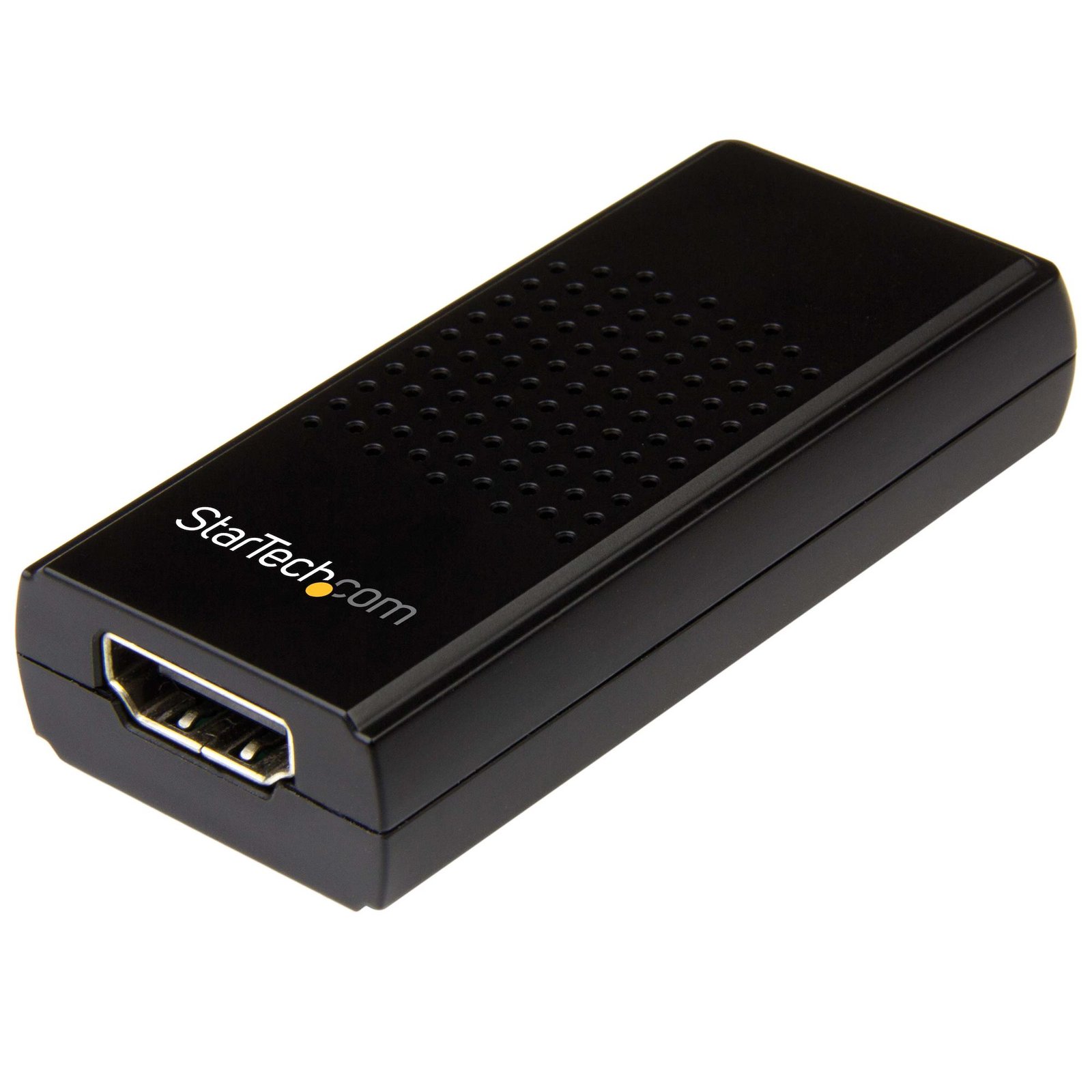
USB 2.0 Capture Device for HDMI Video - Compact External Capture Card - 1080p
$141.99
Capture an HDMI video source to your PC using this compact external capture device
Specifications & Compliance
- UPC
- 065030861939
- Brand
- StarTech.com
- Included in Package
- 1 - USB 2.0 HDMI video capture device, 1 - USB Cable, 1 - Quick install guide
- Shipping (Package) Weight
- 5.1 oz [145 g]
- Weight of Product
- 0.6 oz [17 g]
- Product Length
- 2.6 in [65 mm]
- Product Width
- 1.1 in [27 mm]
- Product Height
- 0.6 in [14 mm]
- Package Depth
- 8.2 in [20.8 cm]
- Package Width
- 5.8 in [14.8 cm]
- Package Height
- 1.6 in [41 mm]
- Warranty
- 2 Years
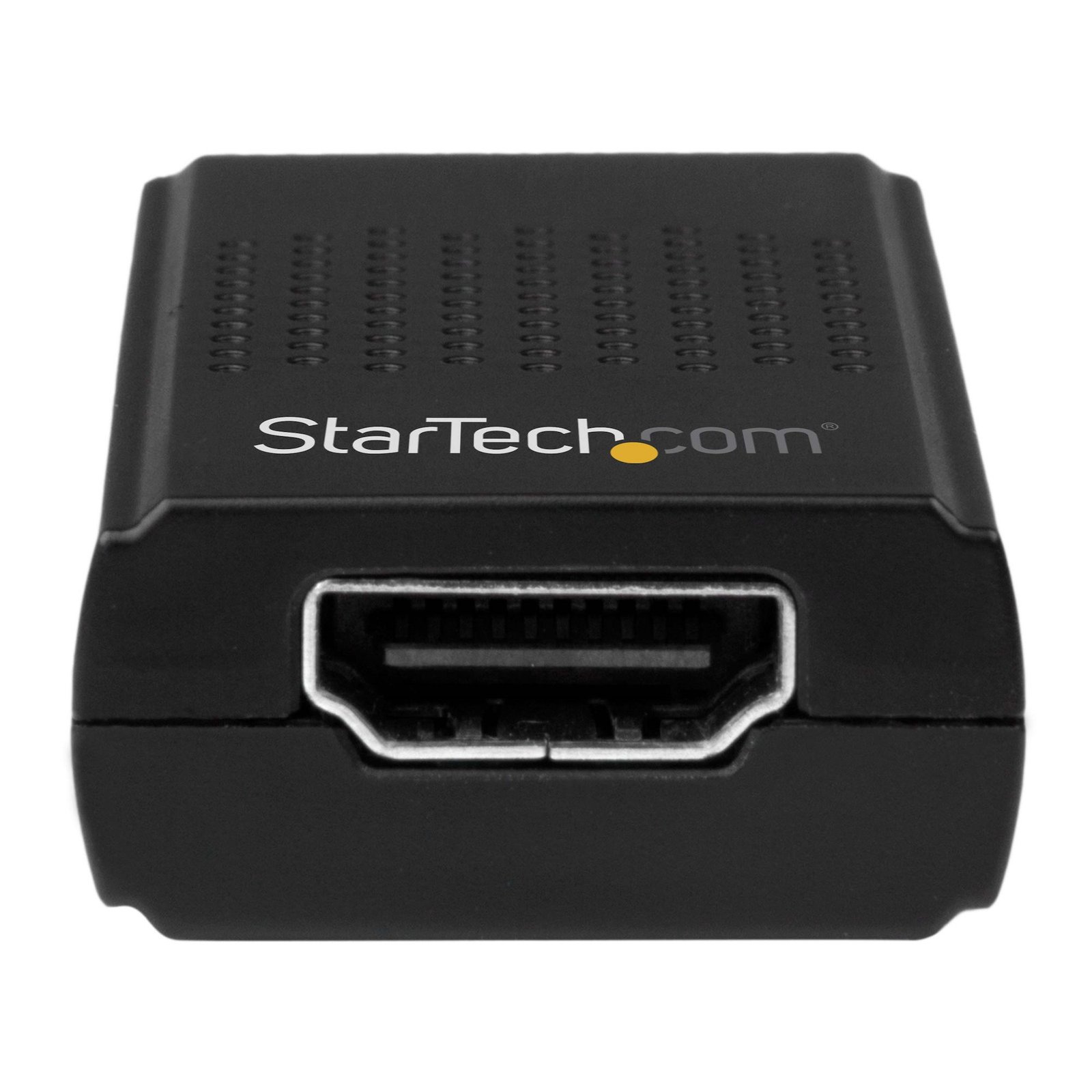
- Connector 1
- HDMI
- Connector 1 (Quantity)
- 1
- Package Quantity
- 1
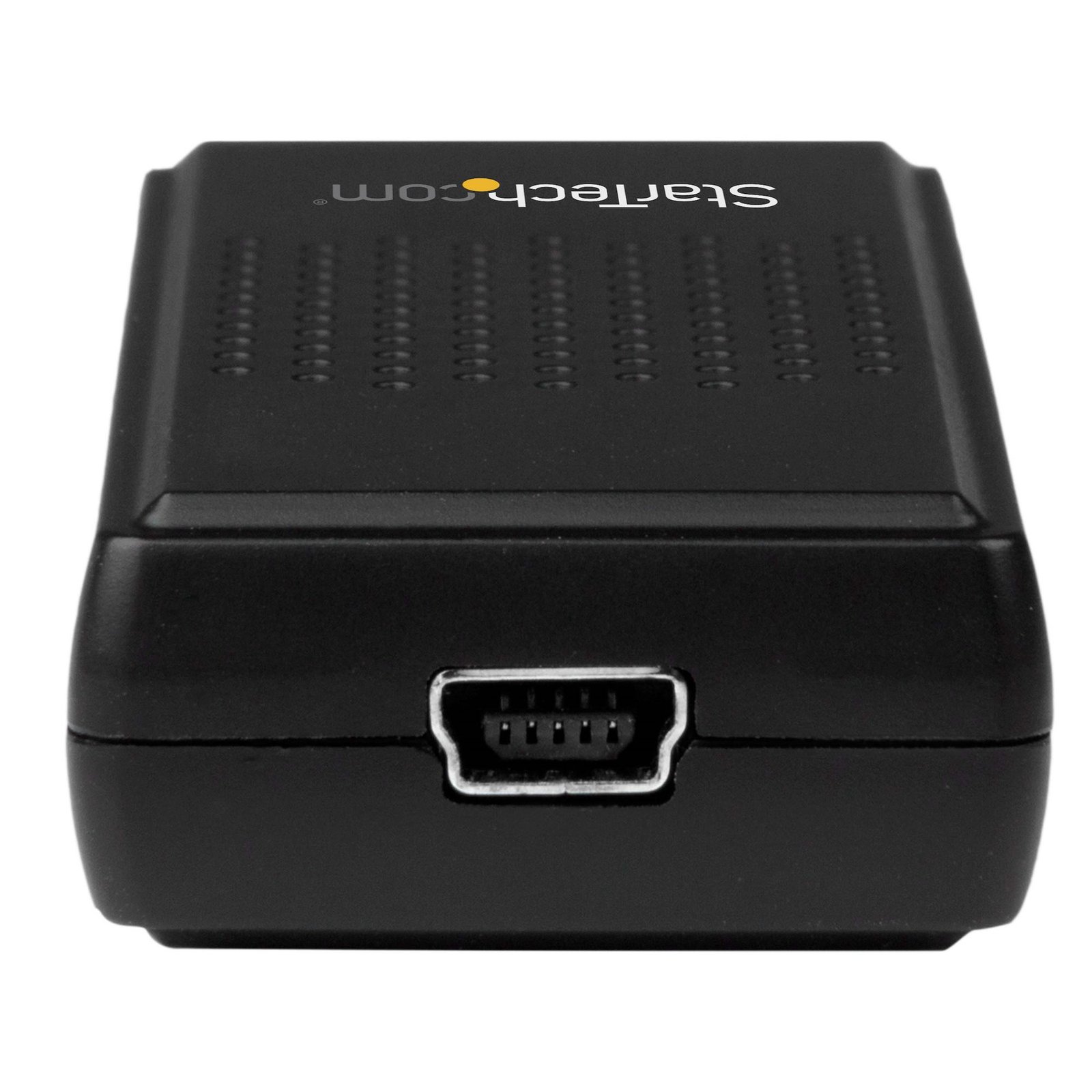
- Connector 2
- USB Mini-B (480Mbps, 2.5W)
- Connector 2 (Quantity)
- 1
- Industry Standards
- NTSC, PAL-M, PAL-60, PAL, Video Encoding: MPEG4/H.264
- Power Source
- USB-Powered
- Chipset ID
- Mstar - MST3367CMK-LF-170
- MTBF
- 2,328,329 Hours
- Maximum Digital Resolutions
- 1080p/30/50/60 <br> Video Output at 1080p/30
- Audio
- Yes
- AV Input
- HDMI
- AV Output
- USB
- Supported Resolutions
- 1080i/p, 720p, 576i/p, 480i/p
Questions & Answers
Why is my device not detected after updating to Windows 10?
A Windows 10 update may prevent a Capture Device from being detected by your Computer. Enabling access to your Camera and Microphone will resolve this issue. To enable access to your Camera: Click the Start icon. Click the Settings icon. Click the Privacy tile. Click Camera . Locate the slider that says Let apps use my camera . Toggle this slider to the On position. To enable access to your Microphone: Click the Start icon. Click Settings icon. Click Privacy tile. Click Microphone . Locate the slider that says Let apps use my microphone . Toggle this slider to the On position.
Everything is hooked up but nothing is working. What should I do?
When you troubleshoot issues with a video capture device, there are some quick tests that you can complete to rule out potential problems. You can test to make sure that the following components are working correctly and are not the source of the issue: Video cables Video source Video capture device To test your setup components, try the following: Use the video cables, source, and capture device in another setup to see if the problem is with the components or the setup. Use a different video cable, source, and capture device in your setup to see if the problem persists. Ideally, you should test a component that you know works in another setup. When you test your cables, it is recommended that you do the following: Test each cable individually. Use short cables when you are testing. When you test the video cables and source with the video capture device, make sure that the following is true: Other video destinations work with the same video source. For more information, visit http://www.startech.com/faq/video_capture_cards_source_compatibility . Adapters and extenders are kept to a minimum. The video source is not copyright protected (for example, HDCP). The video standard (for example, NTSC, PAL, HDMI, and so on) of the video source matches the Technical Specifications of the video capture device. To check if the video capture device is detected in Windows ® , complete the following: Press the Windows key + R , type devmgmt.msc , and press Enter to open Device Manager. Check to see if your device is listed under Sound, video and game controllers . Do one of the following: If you do not see the video capture device in Device Manager , for more information, visit https://www.startech.com/en-us/faq/pci-pcie-cannot-boot-os-or-detect-windows or https://www.startech.com/en-us/faq/usb-cannot-detect-windows . If the device is listed with an error, follow the instructions on the Support tab on the StarTech.com product page to reinstall the drivers. When you test the video capture device on your computer, make sure that the driver and capture software is installed on your system for your adapter. Some cards may be able to support third party software, however, support is limited. For more information, visit https://www.startech.com/faq/video-capture-cards-third-party-software . Note: The USB3HDCAP requires a compatible USB 3.0 card.
I am experiencing issues while trying to use the included StreamCatcher software. What do I do?
Before you begin to troubleshoot StreamCatcher, make sure that you have tried to troubleshoot the video capture device by referring to the following FAQ: www.startech.com/faq/video_capture_cards_general_troubleshooting . If you are unable to display or record video, complete the following in Device Settings: Make sure that the input that you are trying to record or display is selected in the Settings Panel under Source > Video Input. If your audio is not working, make sure that you selected the correct audio source in Audio Input. Note: this product will not record digitally encrypted content. If the recorded video is poor quality, navigate to Record in the Settings Panel and change the following settings to best suit your setup: Quality: 0 (Best Speed) – 4 (Best Quality) Bit Rate: 1 (Best Speed) – 200 000 (Best Quality) Note: the default setting is 16 000. Setting this value lower will improve performance but reduce the quality of the recording. A higher value will improve the quality of the recording but may reduce performance on slower computers. Mode: VBR (Variable Bit Rate) adjusts the bit rate based on the complexity of the video. This will save drive space when recording and reduces the bandwidth needed while streaming. CBR (Constant Bit Rate) maintains the same bit rate regardless of complexity and offers the best recording quality. If you are experiencing any issues with streaming, make sure that the following is true: The correct protocol under Stream Setting is selected. The Stream URL and Stream Key are both correct. The Profile Slider is toggled on (green). The Encoder Type is set to GPU (if available). Note: GPUs that do not support video encoding will not appear in the dropdown list. You tested a low resolution and low bit rate to get the best performance.
Why is StreamCatcher no longer working in Windows after January 12th 2021?
Adobe Flash-based applications will no longer run as of January 12, 2021. As a result, the original StreamCatcher software is not currently functional and is no longer available for download. StarTech.com has replaced the previous Flash based software with the new StreamCatcher Pro which is now available for free under the Drivers/Downloads section of all supported capture device product pages. Please uninstall the original software and download/install the new StreamCatcher Pro to continue using your StarTech.com capture devices. More information about Flash support being discontinued is available here from Adobe.
How do I confirm that Windows detects my USB device?
To confirm that Windows detects your USB device, complete the following: Press the Windows key+ R , type devmgmt.msc , and press Enter . In Device Manager , under the appropriate heading, confirm that your expansion card is listed and that there isn't an exclamation mark next to it. For example, a USB controller card would be under Universal Serial Bus controllers . Your USB device is listed according to the name of the chipset. To determine the name of the chipset of your USB device, navigate to www.StarTech.com and look on the Technical Specifications tab for your product.
How do I use Stream Catcher to stream to YouTube Live Events?
Open a web browser and navigate to https://www.youtube.com/live_dashboard . Under Encoder setup , copy the Server URL from the bottom of the page. Add a slash mark and your stream name or key to the end of the URL (for example, rtmp://a.rtmp.youtube.com/live2/USERACCOUNT-8033.d1fj-m8d7-ds8y-41qj). Copy the RMTP link (you will need it to complete step 8). Open Stream Catcher . Click Settings > Streaming Settings . In the Streaming Protocol Type drop-down menu, click RTMP . In the Streaming Public URL field, paste the link that you copied in step 4. On the Stream Catcher home page, click the blue record icon.
What is a video capture card, and how do I determine if it is compatible with my setup?
A video capture card records audio and video signals to a computer. Compatibility depends on matching input types, meeting system requirements, and supporting the required resolutions. Explanation A video capture card (or capture device) is used to record or stream audio and video signals from an external source to a computer. These devices typically connect via USB or PCIe and support input types such as HDMI, DVI, VGA, S‑Video, component, or composite. To determine compatibility with a specific setup, verify the following: Input connections: Ensure the capture device supports the same audio/video output interface as the source device. Avoid using adapters or converters, as they may reduce signal quality or cause compatibility issues. Operating system support: Confirm that the capture device supports the intended operating system. Supported systems are listed in the product’s Technical Specifications. Resolution and refresh rate: Verify that the device supports the required video resolution and refresh rate for the intended use case. Software and drivers: Capture devices require drivers and software, which are provided on the product support page. Features vary by software, so review the documentation to confirm suitability. StarTech.com supports only the included software. HDCP limitations: All StarTech.com capture devices comply with HDCP (High‑Bandwidth Digital Content Protection) and cannot record protected content. HDCP‑protected signals may appear as a blank screen or error message. Some capture devices also support live streaming to platforms such as YouTube, depending on the included software and supported features. For detailed setup instructions and capabilities, refer to the product manual.
How can I verify that my video source is compatible with this video capture card?
Video source compatibility depends on copyright protection, video signal type, adapter compatibility, and supported resolution settings. Explanation: To ensure compatibility with this video capture card, verify the following requirements between the video source and the capture device: Copyright protection compatibility: Some video sources use content protection technologies that prevent video capture on non-display devices. HDCP (High-bandwidth Digital Content Protection): Common on HDMI and DVI video sources. HDCP-protected content may display a blank screen, error message, or HDCP warning when connected to a capture card. ACP (Analog Content Protection): Found on analog video sources such as composite, S-Video, and component video. ACP may cause brightness pulsing or unstable video. Copyright protection cannot legally be bypassed, and capture devices cannot record protected content. Video signal compatibility: The video output standard from the source device must be compatible with the capture card input. Some video connector types can be passively adapted, while others require active signal conversion. Examples of conversions that require active converters include: VGA to composite or component video Composite or component video to VGA Composite video to S-Video VGA to DVI-D or DVI-D to VGA Some compatible passive conversions include: S-Video to composite video VGA with DVI-I or DVI-A connections Resolution and refresh rate compatibility: The output resolution and refresh rate of the video source must be supported by the capture card. Verify the supported industry standards and maximum resolution in the product’s Technical Specifications. Configure the video source to use a supported resolution and refresh rate if necessary. For reliable operation, confirm that the video source output standard, signal type, and resolution all match the specifications supported by the video capture card.
Will this video capture card work with video game consoles such as PlayStation, Xbox, or Nintendo Switch?
It depends. Video game console compatibility is determined by HDCP settings, video output standards, and the supported resolution and refresh rate of the capture card. Explanation: Most modern video game consoles can work with HDMI video capture cards when the console output matches the capture card specifications and HDCP-protected content is disabled or not in use. HDCP compatibility: High-bandwidth Digital Content Protection (HDCP) prevents capture cards from recording protected video content. Streaming apps, Blu-ray playback, and other protected media may display a blank screen or capture error when HDCP is enabled. PlayStation 4 and PlayStation 5: HDCP can be disabled for gameplay capture. Xbox One and Xbox Series X/S: Gameplay capture is generally supported, but protected media content may still use HDCP. Nintendo Switch: HDMI gameplay output is typically compatible with capture cards. PlayStation 3: HDMI output is protected by HDCP at all times, preventing standard HDMI gameplay capture. Resolution and refresh rate compatibility: The console output resolution and refresh rate must be supported by the capture card. Verify the maximum supported input resolution, capture resolution, and passthrough specifications in the product’s Technical Specifications. Features such as 4K, 120 Hz, Variable Refresh Rate (VRR), and HDMI 2.1 may require specific capture hardware support. Video interface compatibility: Most modern consoles use HDMI video output. The capture card must support the HDMI version and video standard used by the console. For reliable gameplay capture, confirm that the console video settings, HDCP configuration, and output resolution are compatible with the specifications of the video capture card.
Does this video capture card support the use of third party software?
It depends. Some StarTech.com video capture cards support third-party software through DirectShow compatibility. Explanation: Certain StarTech.com video capture cards are compatible with DirectShow, a Microsoft multimedia framework commonly used by video capture and streaming applications. DirectShow-compatible capture cards may work with third-party software that supports DirectShow input devices. Compatibility with third-party applications depends on the software, operating system, and capture card model. StarTech.com does not officially certify, endorse, or provide support for third-party video capture applications, even if the software recognizes the capture card. To determine whether a specific capture card supports DirectShow, refer to the following FAQ: https://www.startech.com/faq/video-capture-cards-directshow .
Can I use this video capture card to use my camcorder as a webcam?
No, this video capture card cannot be used to turn a camcorder into a webcam. Explanation: This video capture card does not use a DirectShow-compatible driver, which is required by many third-party webcam, streaming, and video conferencing applications to recognize the capture device as a webcam input source. As a result, compatible software applications cannot use this capture card to present a connected camcorder as a webcam. For a list of StarTech.com video capture cards that support webcam-style functionality with compatible software, refer to: https://www.startech.com/faq/video-capture-cards-webcam-capable.
Can the USB2HDCAPS video capture card record from multiple video inputs at the same time?
No, the USB2HDCAPS video capture card can capture video from only one input source at a time. Explanation: The USB2HDCAPS does not support simultaneous video capture from multiple input sources. Although the capture card can be connected to multiple computers on the same network, only one device can actively capture or record video at any given time. Concurrent video capture sessions are not supported.