
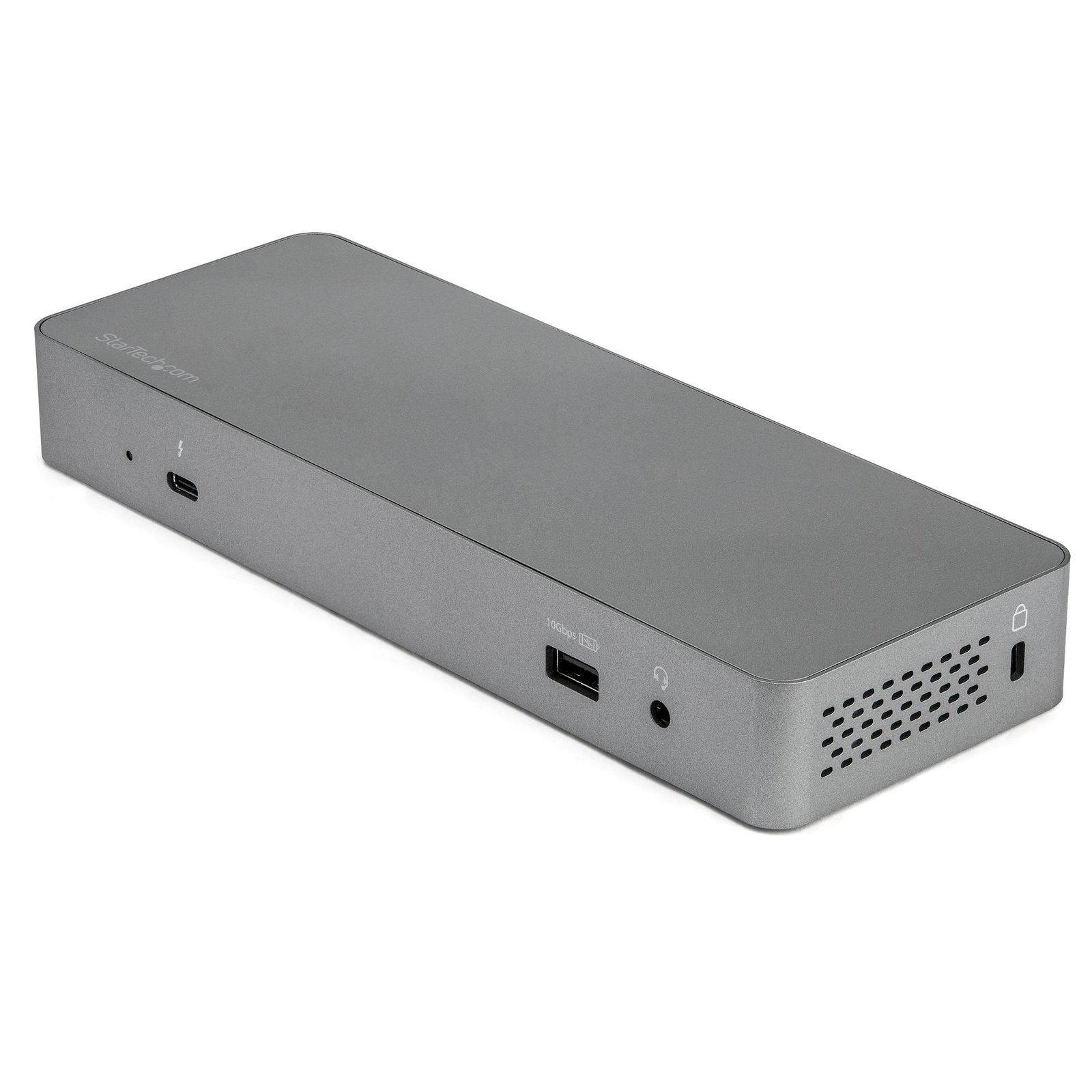
Universal Thunderbolt 3 Dock with USB-C Host Compatibility - Dual Monitor 4K 60Hz DisplayPort TB3 Laptop Docking Station - 60W PD, GbE, 5-Port USB Hub - USB 3.1 Gen 2 10Gbps
$294.99
Dual DP 4K 60Hz | macOS & Windows®| 5x USB 3.0 Ports | 60W PD | 0.7 m Cable
Specifications & Compliance
- UPC
- 065030883665
- Brand
- StarTech.com
- Included in Package
- 1 - Docking Station, 1 - Universal Power Adapter (NA/JP, ANZ), 1 - Thunderbolt 3 Cable (0.7 m), 1 - Quick-Start Guide
- Shipping (Package) Weight
- 3.2 lb [1.5 kg]
- Weight of Product
- 14.7 oz [416.0 g]
- Product Length
- 3.1 in [80.0 mm]
- Product Width
- 8.7 in [22.0 cm]
- Product Height
- 1.2 in [30.0 mm]
- Package Depth
- 10.7 in [27.2 cm]
- Package Width
- 6.3 in [16 cm]
- Package Height
- 4.3 in [11 cm]
- Color
- Space Gray
- Cable Length
- 2.8 in [70 mm]
- Warranty
- 3 Years
- Connector 1
- USB-A (10Gbps, 4.5W)
- Connector 1 (Quantity)
- 1
- Package Quantity
- 1
- Connector 2
- 3.5mm (3 Conductors, TRS)
- Connector 2 (Quantity)
- 1
- Operating Temperature
- -40 to 65°C
- Storage Temperature
- 0 to 35°C
- Humidity
- 0% to 95% (non-condensing) at 25°C
- Material
- Plastic
- Industry Standards
- DP 1.2a Version </br> HDCP 1.4 and HDCP 2.2 Compliant
- Special Notes
- Please note that host laptops which do not support MST or Thunderbolt™ 3, support only a single display, MacBook Air and MacBook Pro systems using the new Apple M1 chip support only a single external display over the Thunderbolt 3 ports, even when connected to a Thunderbolt 3 docking station with more than one video output. This single monitor limitation does not affect Intel-based Macs with Thunderbolt 3.
- Power Delivery
- 60W
- Input Voltage
- 100 - 240 AC
- Output Voltage
- 5 DC
- Connector 3
- RJ-45
- Connector 3 (Quantity)
- 1
- Number of Ports
- 3
- Bus Type
- Thunderbolt 3, USB-C
- Input Current
- 0.5A
- Output Current
- 3
- Type and Rate
- Thunderbolt 3 (40Gbps), USB 10Gbps, USB 5Gbps, USB 3.0 (5Gbps)
- Maximum Digital Resolutions
- Thunderbolt 3 Laptops Dual Monitors: 4096 x 2160 <br> USB 3.1 Type C Laptops Dual Monitors: 1920 x 1080 | 1920 x 1200 <br> USB 3.1 Type C Laptops Single Monitor: 3840 x 2160
- Host Connector 1
- USB-C (Thunderbolt 40Gbps)
- Host Connector 1 (Quantity)
- 1
- Audio
- Yes
- Connector 4
- USB-A (5Gbps, 4.5W)
- Connector 4 (Quantity)
- 2
- Number of Displays
- 2
- Connector 5
- USB-C (10Gbps, 4.5W)
- Connector 5 (Quantity)
- 2
- Port Style
- External Hub
- Fast-Charge Port(s)
- Yes
- Connector 6
- DisplayPort
- Connector 6 (Quantity)
- 2
- Displays Supported
- 2
- 4K Support
- Yes
- USB-C Host Connection
- Yes
- Compatible Lock Slot
- Kensington Standard Slot (K-Slot)
- Supported Charging Outputs
- BC 1.2 (1.5A)
Questions & Answers
Will my DisplayPort adapter work with this docking station?
Only active DisplayPort adapters are supported when connecting DisplayPort outputs to HDMI or DVI displays through this docking station. Passive DisplayPort adapters are not compatible with this device. Explanation: This docking station requires active DisplayPort video conversion when connecting HDMI or DVI monitors through DisplayPort outputs. Active adapters contain integrated conversion circuitry that converts the DisplayPort signal to the required display format. Passive adapters rely on DisplayPort Dual-Mode (DP++) functionality and are not supported with this docking station. You can confirm whether a DisplayPort adapter is active or passive in the Technical Specifications for each product on our website. Before deployment, verify that the adapter supports the required resolution, refresh rate, and display configuration for your installation.
How do I install my network card in Windows Vista, Windows 7, Windows 8, Windows 10, or Windows 11? (.exe method)
To install your network card in Windows, download the latest driver package from StarTech.com, extract the files, run Setup.exe as an administrator, and restart the computer if prompted. Explanation: Before installing the network card, ensure that Windows is fully updated with the latest service packs, security updates, and feature updates available for your operating system. To install the driver: Download the latest driver package from the StarTech.com Drivers & Downloads page. Extract the contents of the downloaded ZIP file. Open the folder for your version of Windows, if applicable. Right-click Setup.exe and select Run as administrator . Follow the on-screen instructions to install the driver. Restart the computer if prompted. After Windows restarts, the operating system will complete the driver installation and the network card will be ready to use. Note: If Run as administrator is not available, ensure that you are running Setup.exe from the extracted folder rather than directly from the ZIP file.
My DisplayPort displays are not working at 60Hz with this adapter. How do I resolve this issue?
To use a Thunderbolt 3 adapter to output to a display at 60Hz, your monitor must support the refresh rate and you need to set the monitor to work at 60Hz. By default, most monitors are set to DP1.1, which will not work with this Thunderbolt 3 device when you use a display at 60Hz. In most cases, you need to set your monitor's DisplayPort settings to DP1.2. To resolve this issue, use the buttons on your monitor to change the DisplayPort settings to DP1.2. For more information about changing your monitor settings, refer to the website of the manufacturer of your monitor.
Why is only one external display working with my Apple M1 or M2 Mac?
Late 2020 models of MacBook Air, MacBook Pro 13-inch, and Mac Mini systems using the original Apple M1 or 2022 models of MacBook Air, and MacBook Pro using the Apple M2 chip support only a single external display over the Thunderbolt 3 ports, even when connected to a Thunderbolt 3 docking station or adapter with more than one video output. This limitation also applies to using multiple Thunderbolt or USB Type-C display adapters on both Thunderbolt/USB Type-C ports. This is not a limitation of StarTech.com products specifically, and Apple lists support for only one external display in the Tech Specs for Video Support on the M1 MacBook Pro 13” [external link to apple.com]. Turning off the laptop display or using clamshell mode does not change this. One option that allows for more than one external display with an Apple M1 or M2 silicon is to use a USB-C DisplayLink-based docking station or video adapter that requires a driver install. One dual monitor example is our DK30CHDDPPD, but please contact StarTech.com support for a recommendation based on your specific setup. Please note: this single monitor limitation does not affect Intel-based Macs with Thunderbolt 3, or later M1 and M2 models that ship with M1 Pro, M1 Max, M1 Ultra, M2 Pro, or M2 Max processors.
Related products
-
USB C Docking Station for MacBook Pro/Air-M1/M2/M3/M4, Thunderbolt Compatible, HDMI/DisplayPort, Dual 4K 60Hz/Single 8K, USB Type-C Laptop Dock, 96W Power Delivery, USB 10Gbps
$228.99 Add to cart -
Thunderbolt 2 Dual-Monitor Docking Station for Laptops - 2x DisplayPort - Includes TB Cable
$329.99 Add to cart -

Dual 4K Monitor Mini Thunderbolt 3 Dock with DisplayPort - Mac & Windows Docking Station - Discontinued, Limited Stock, & Replaced by TB3DKM2DPL (TB3DKM2DP)
$153.99 Add to cart -

Dual 4K Monitor Mini Thunderbolt 3 Dock with HDMI - Mac & Windows Docking Station - Discontinued, Limited Stock, & Replaced by TB3DKM2HDL (TB3DKM2HD)
$137.99 Add to cart