

Thunderbolt to Dual DisplayPort Adapter DP 1.4, Dual 4K 60Hz or Single 8K/5K Thunderbolt to DP Converter, 2x DisplayPort Monitor Video Display Adapter - Mac & Windows
$96.99
DisplayPort™ 1.4 Video Splitter | HBR3 Adapter | HDR | 2 x 4K 60Hz | Mac & Windows®
Specifications & Compliance
- UPC
- 065030888752
- Brand
- StarTech.com
- Included in Package
- 1 - Thunderbolt 3 to Dual DisplayPort Adapter
- Shipping (Package) Weight
- 7.3 oz [208 g]
- Weight of Product
- 4.9 oz [138.0 g]
- Product Length
- 3.9 in [99.0 mm]
- Product Width
- 2.5 in [64.0 mm]
- Product Height
- 0.6 in [16.0 mm]
- Package Depth
- 5.6 in [14.2 cm]
- Package Width
- 6.8 in [17.3 cm]
- Package Height
- 1.3 in [33 mm]
- Color
- Silver
- Cable Length
- 17.3 in [43.9 cm]
- Warranty
- 3 Years
- Connector 1
- USB-C (Thunderbolt 40Gbps)
- Connector 1 (Quantity)
- 1
- Package Quantity
- 1
- Connector 2
- DisplayPort
- Connector 2 (Quantity)
- 2
- Operating Temperature
- 0°C to 40°C (32°F to 104°F)
- Storage Temperature
- -10°C to 70°C (14°F to 158°F)
- Humidity
- 10~90% RH (non-condensing)
- Material
- Metal
- Chipset ID
- Intel JHL7440
- Special Notes
- MacBook Air, MacBook Pro and Mac Mini systems using the new Apple M1 chip support only a single external display over the Thunderbolt 3 ports, even when connected to a Thunderbolt 3 adapter with more than one video output. This limitation also applies to using multiple Thunderbolt or Type C display adapters on both Type C ports.
- Number of Displays
- 2
- AV Input
- Thunderbolt™ 3 USB-C (24-pin) (40Gbps)
- AV Output
- DisplayPort - 1.4
- Wide Screen Supported
- Yes
- Supported Resolutions
- DisplayPort: 7680x4320 (8K) / 30Hz<br> Lower resolutions and refresh rates may also be supported
- Audio Specifications
- DisplayPort - 2 Channel Audio
- Maximum Cable Distance To Display
- 16.4 ft [5 m]
- Bandwidth
- HBR3
Questions & Answers
The monitor is not getting a signal and there is no error on the monitor. What do I do?
Try the following: Check that the monitor’s video port works with another source. Check that the cables between the source and the destination work with other equipment. Check whether the video adapter works with another source and another destination. NOTE: Thunderbolt 3 to DisplayPort video adapters will require active adapters to convert from DisplayPort to DVI or HDMI.
What do I do if I can only get a single display to work with my Thunderbolt 3 device?
If you are only getting a single display to work with your Thunderbolt™3 device, make sure that your Thunderbolt 3 host device can support two separate DisplayPort lines over Thunderbolt 3. While Thunderbolt 3 supports dual monitors over a single connection, not all Thunderbolt 3 host devices are designed to meet this requirement . If your Thunderbolt 3 host device does not meet this requirement, you cannot troubleshoot this issue with software, firmware, or driver updates, and you cannot use this device to achieve dual displays over Thunderbolt 3. If you are not sure whether your Thunderbolt 3 host device supports dual monitors, contact your Thunderbolt 3 host device manufacturer. If you confirmed that your Thunderbolt 3 host device does support dual monitors and you are only seeing a single display, see the following FAQ: https://www.startech.com/faq/thunderbolt-3-update-software-firmware . For more information about Thunderbolt 3 host system and motherboard compatibility, refer to the Thunderbolt 3 Compatibility and Troubleshooting guide .
How to Arrange Windows Monitors to Fix Mouse Issues
In order for your mouse to move properly between your monitors you must rearrange your monitors in Windows to match the physical location of your monitors on your desk. To do so, complete the following based on your operating system: Windows 11 Click on the Windows Icon in the Taskbar (or the Windows key on the keyboard) and search for Display Settings . Click on Multiple Displays. Click Identify to display the numbers on each connected monitor, showing how the operating system has assigned their positions. Click and drag the monitor icons to best match your physical setup. Click Apply to confirm the changes and close the window. Windows 10 and Windows 8 On your keyboard, press the Windows key + X and select Control Panel . Click Appearance and Personalization , then click Display . Click the Resolution or Adjust Resolution option from the left column, which will display your monitors as numbered icons. Click Identify to display the numbers on each connected monitor, showing how the operating system has assigned their positions. Click and drag the monitor icons to best match your physical setup. Click OK to apply the changes and close the window. Windows 7 and Windows Vista Click the Start button and select Control Panel . Click Appearance and Personalization, then click Display . Click the Resolution or Adjust Resolution option from the left column, which will display your monitors as numbered icons. Click Identify to display the numbers on each connected monitor, showing how the operating system has assigned their positions. Click and drag the monitor icons to best match your physical setup. Click OK to apply the changes and close the window. Windows XP Click the Start button and select Control Panel . Double-click Display . Click the Settings tab, which will display your monitors as numbered icons. Click Identify to display the numbers on each connected monitor, showing how the operating system has assigned their positions. Click and drag the monitor icons to best match your physical setup. Click OK to apply the changes and close the window. To mirror the image from your primary monitor instead of extending your desktop, refer to the following FAQ: http://www.startech.com/faq/Windows_Mirroring_Monitors
Why is only one external display working with my Apple M1 or M2 Mac?
Late 2020 models of MacBook Air, MacBook Pro 13-inch, and Mac Mini systems using the original Apple M1 or 2022 models of MacBook Air, and MacBook Pro using the Apple M2 chip support only a single external display over the Thunderbolt 3 ports, even when connected to a Thunderbolt 3 docking station or adapter with more than one video output. This limitation also applies to using multiple Thunderbolt or USB Type-C display adapters on both Thunderbolt/USB Type-C ports. This is not a limitation of StarTech.com products specifically, and Apple lists support for only one external display in the Tech Specs for Video Support on the M1 MacBook Pro 13” [external link to apple.com]. Turning off the laptop display or using clamshell mode does not change this. One option that allows for more than one external display with an Apple M1 or M2 silicon is to use a USB-C DisplayLink-based docking station or video adapter that requires a driver install. One dual monitor example is our DK30CHDDPPD, but please contact StarTech.com support for a recommendation based on your specific setup. Please note: this single monitor limitation does not affect Intel-based Macs with Thunderbolt 3, or later M1 and M2 models that ship with M1 Pro, M1 Max, M1 Ultra, M2 Pro, or M2 Max processors.
Related products
-

Thunderbolt 3 to Dual HDMI Adapter - 4k 30Hz - Windows only Compatible
$124.99 Add to cart -
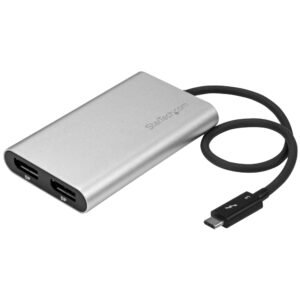
Thunderbolt 3 to Dual DisplayPort Adapter - 4K 60 Hz - Windows Only Compatible
$105.99 Add to cart -
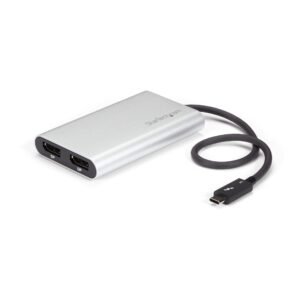
Thunderbolt to Dual DisplayPort Adapter, Dual 4K 60Hz Thunderbolt to DP Converter, 2x DisplayPort Monitor Video Display Adapter, Thunderbolt Certified - Mac & Windows
$115.81 Add to cart -

Thunderbolt to Dual HDMI 2.0 Adapter, Dual 4K 60Hz Thunderbolt to HDMI Converter, 2x HDMI Monitor Video Display Adapter, Thunderbolt Certified - Mac & Windows
$107.61 Add to cart