
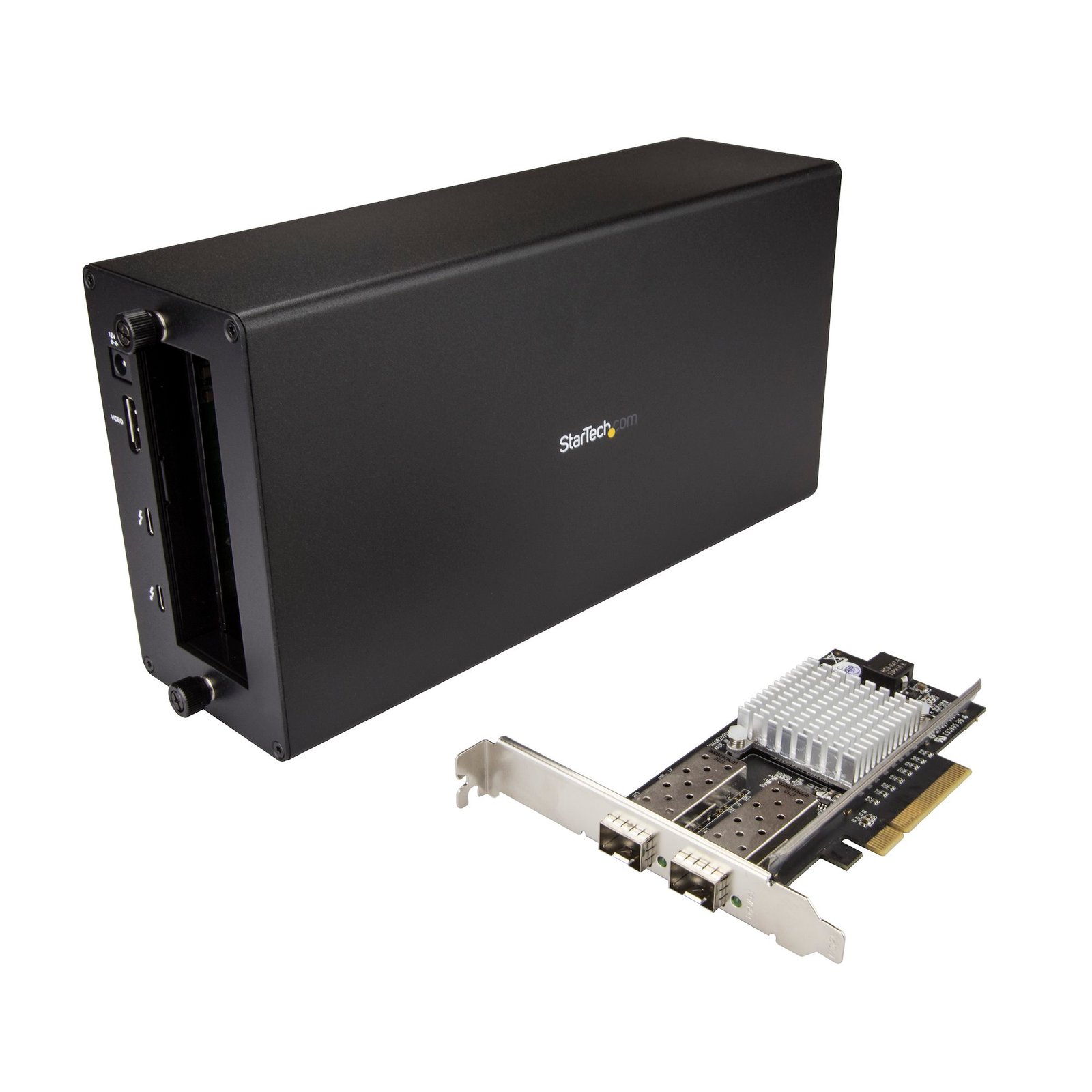


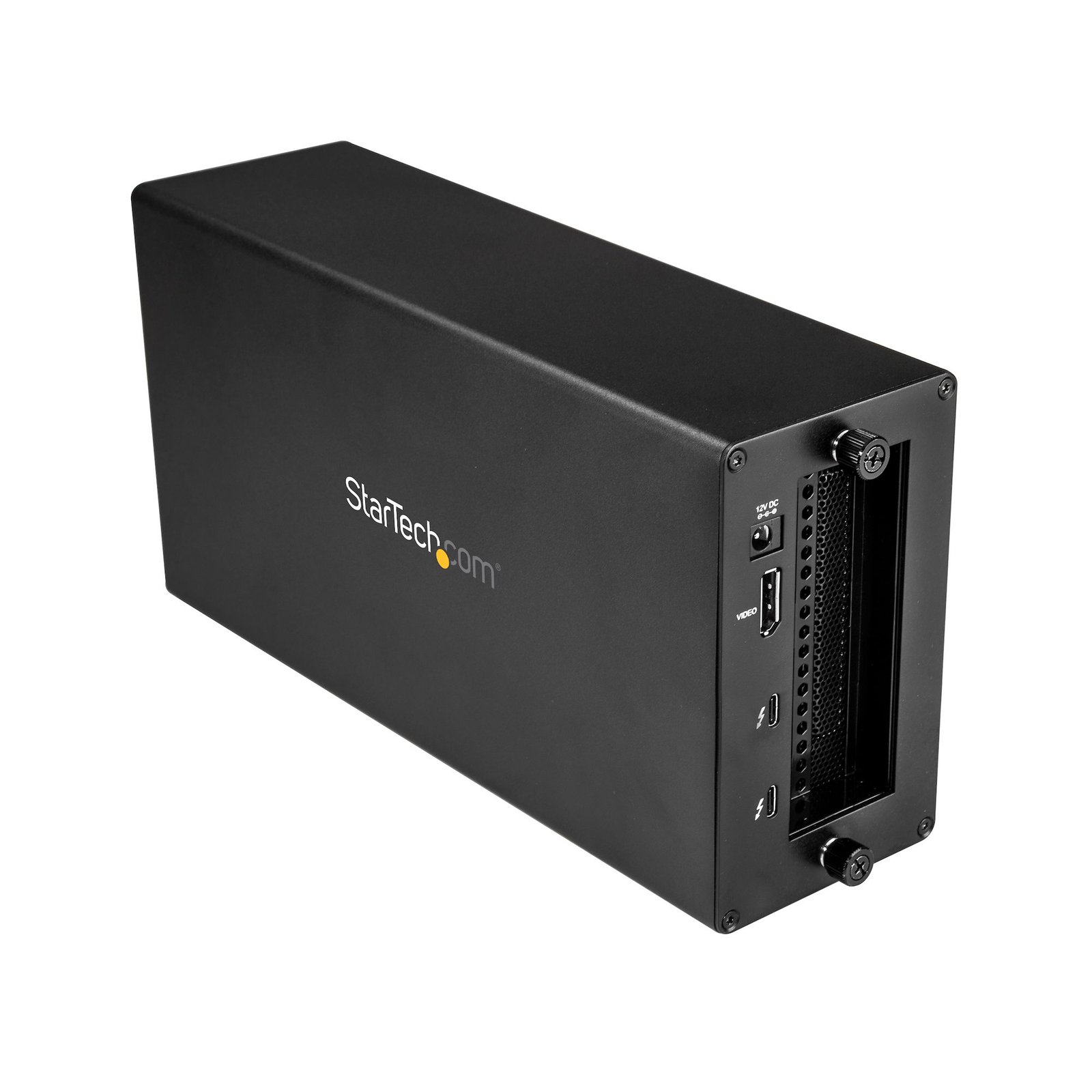
Thunderbolt 3 to 10GbE Fiber Network Chassis 2 Port
$857.99
This Thunderbolt 3 network adapter connects your Thunderbolt 3 enabled device to a 10GbE fiber network via a PCIe expansion chassis
Specifications & Compliance
- UPC
- 065030879071
- Brand
- StarTech.com
- Included in Package
- 1 - Thunderbolt 3 PCIe expansion box, 1 - Thunderbolt 3 cable, 4 - rubber feet, 1 - universal power adapter (NA/JP, UK, EU, ANZ), 1 - PCIe 10GBase Fiber Card, 1 - low-profile bracket, 2 - quick-start guides
- Shipping (Package) Weight
- 7.3 lb [3.3 kg]
- Weight of Product
- 3.6 lb [1.6 kg]
- Product Length
- 11.0 in [28.0 cm]
- Product Width
- 5.6 in [14.2 cm]
- Product Height
- 3.2 in [82.0 mm]
- Package Depth
- 11.4 in [29 cm]
- Package Width
- 14.2 in [36 cm]
- Package Height
- 5.7 in [14.5 cm]
- Color
- Black
- Cable Length
- 19.7 in [50 cm]
- Warranty
- 2 Years
- Connector 1
- PCI Express x8
- Connector 1 (Quantity)
- 1
- Package Quantity
- 1
- Connector 2
- USB-C (Thunderbolt 40Gbps)
- Connector 2 (Quantity)
- 2
- Operating Temperature
- Chassis: 5°C to 35°C (41°F to 95°F) PCIe Card: 5°C to 50°C (41°F to 122°F)
- Storage Temperature
- Chassis: -20°C to 50°C (-4°F to 122°F) PCIe Card: -20°C to 60°C (-4°F to 140°F)
- Humidity
- Chassis & PCIe Card: 20% ~ 80%RH
- Material
- Aluminum and Steel
- Maximum Data Transfer Rate
- Chassis: 40 Gbps (Thunderbolt 3)<br /> PCIe Card: 20 Gbps - Full-Duplex
- Industry Standards
- Thunderbolt 3, IEEE 802.3ae (10GBASE-LR/SR only), IEEE 802.3aq (10GBASE-LRM), PCI Express Rev 2.0, using PCIe x8 (or higher) slot
- Power Source
- AC Adapter Included
- Chipset ID
- Chassis: Intel - Alpine Ridge DSL6540 <br /> PCIe Card: Intel 82599
- Special Notes
- The expansion chassis does not support video cards., This expansion chassis does not provide full power delivery but will provide 15W of power, resulting in a slow charge to some laptops, such as MacBook Pro. When the dock is connected to your host laptop, a charging icon may appear on your laptop's screen. This is only sufficient enough to charge your laptop in sleep state, and charging will require an extended time period., 5K support can only be achieved using a Thunderbolt 3 5K monitor. DisplayPort 5K monitors will not work with this expansion chassis., A 4K-capable display is required to achieve 4K x 2K resolution (4K is also known as 4K x 2K)., Certain monitors may be limited to 4K at 30Hz when connecting through DisplayPort. These monitors include the following models: Dell P2715Q, Viewsonic VX2475Smhl-4K, Philips 288P6LJEB, LG 31MU97C-B, Asus PB287Q (these models will need to be set to 4K at 30Hz)., When connecting a display to one of the Thunderbolt 3 USB-C ports, a USB-C video adapter might be required depending on the input of your display., Secondary Thunderbolt 3 port can also be used to connect USB 3.1 (10Gbps) USB-Type C devices, such as USB 3.1 Hubs. Backwards compatible with USB 3.0 (USB 3.1 Gen 1), and USB 2.0.
- Input Voltage
- 100 - 240 AC
- Output Voltage
- 12V DC
- Connector 3
- DisplayPort
- Connector 3 (Quantity)
- 1
- Power Consumption
- 65
- Number of Ports
- 5
- Interface
- Thunderbolt, Fiber (10 Gigabit Ethernet)
- Bus Type
- Thunderbolt 3, PCI Express
- Input Current
- 2A
- Output Current
- 5.417
- Type and Rate
- Thunderbolt 3 (40Gbps)
- System and Cable Requirements
- Thunderbolt 3 equipped computer with a Thunderbolt 3 port.
- Plug Type
- N
- Compatible Networks
- 10 Gbps
- Center Tip Polarity
- Positive
- Connector 4
- PCI Express x16
- Connector 4 (Quantity)
- 1
- Card Type
- Standard Profile (LP bracket incl.)
- Connector 5
- SFP+ Slot
- Connector 5 (Quantity)
- 2
- Full Duplex Support
- Yes
- Fans Included? Yes/No
- Yes
- Jumbo Frame Support
- 15K max.
- Supported Protocols
- IEEE 802.3ad (Link Aggregation)<br/> IEEE 802.3x (2005 Flow Control Support) <br /> IEEE 802.1Q (VLAN tagging)
- Fan Bearing Type
- Sleeve Bearing
- Fans
- 1 - 92 mm
- Noise Level
- 24.55 dB
- Air Flow Rate
- 14.06 CFM
- Bandwidth
- 3.94 GB/s (x4 PCIe 3.0 )
- Promiscuous Mode
- Yes
Questions & Answers
I am having issues with my new network interface card (NIC) and my on-board NIC is still enabled. What do I do in Windows?
Sometimes an on-board network interface card (NIC) conflicts with a new NIC. In these cases it is best to disable the on-board NIC. The best way to disable your on-board NIC is to go into your BIOS and disable it there if possible. To do this, consult your motherboard manual. You can also disable any NIC in Windows. Here is how you do this: First click Start , or, in Windows 10 and 8, hold down the Windows key and press X . Then click Control Panel . Windows 10 Click Network and Internet . Click Network and Sharing Center . On the left, click Change adapter settings . Right-click the NIC that you would like to disable and select Disable . Windows 8 Click Network and Sharing Center . On the left, click Change adapter settings . Right-click the NIC that you would like to disable and select Disable . Windows 7 Click Network and Internet . Click Network and Sharing Center . On the left, click Change adapter settings . Right-click the NIC that you would like to disable and select Disable . Windows Vista Click Network and Sharing Center . On the left, click Manage network connections . Right-click the NIC that you would like to disable and select Disable . Windows XP Click Network Connections . Right-click the NIC that you would like to disable and select Disable .
Why do I have speed or connectivity issues?
If you are experiencing speed or connectivity issues, it is best to set a specific speed at half or full duplex in your settings. You can set your network adapter to perform at a certain speed, but the device that the adapter is connected to (whether it is a router, switch, or computer) must also be able to perform at the same speed. Note : You must log in as the local administrator before you continue. To open Device Manager: Press Windows key + R . Type devmgmt.msc . Click OK . Open the Networking adapters section. Right-click the network adapter that you want to change and select Properties . Click the Advanced tab. Scroll down to Speed & Duplex . By default, it is set to Auto-Negotiate . Select any of the speeds that you see in the list. Click OK and restart your computer.
My DisplayPort displays are not working at 60Hz with this adapter. How do I resolve this issue?
To use a Thunderbolt 3 adapter to output to a display at 60Hz, your monitor must support the refresh rate and you need to set the monitor to work at 60Hz. By default, most monitors are set to DP1.1, which will not work with this Thunderbolt 3 device when you use a display at 60Hz. In most cases, you need to set your monitor's DisplayPort settings to DP1.2. To resolve this issue, use the buttons on your monitor to change the DisplayPort settings to DP1.2. For more information about changing your monitor settings, refer to the website of the manufacturer of your monitor.
Can I use my network card for a Preboot Execution Environment (PXE)?
StarTech.com does not support a Preboot Execution Environment (PXE) as this requires third-party software. However, our devices can be used as long as the following conditions are met: The BIOS must support PXE. The BIOS must see the card. The environment must have drivers for the chipset used in the card. If using a USB networking card, the environment must have support for USB devices as well.
How do I setup a network interface card (NIC) team in Windows Server 2012?
For most operating systems, network interface card (NIC) teaming requires that the NIC and the router or switch support the protocol IEEE 802.1ax or IEEE 802.3ad. Windows Server 2012, however, has native support for NIC teaming, so the NIC and the router or switch do not need to support the protocols. To configure NIC teaming in Windows Server 2012 do the following: Click Start . Click Server Management . Click NIC Teaming enabled . Set up the NIC team as you would like. If you view the Networking Connections section in the window, you can see the NIC team in the list as well as the Ethernet and wireless adapter cards.
Can I use a Thunderbolt 3, Thunderbolt 4, or Thunderbolt 5 device on a USB-C or USB4 port?
No, a Thunderbolt 3, Thunderbolt 4, or Thunderbolt 5 device requires a Thunderbolt-enabled port and will not work on a USB-C port that does not support Thunderbolt. Explanation: Thunderbolt 3, Thunderbolt 4, and Thunderbolt 5 use the USB-C connector, but they require Thunderbolt protocol support from the host port, cable, and device. Compatibility rules are as follows: A Thunderbolt device (Thunderbolt 3, 4, or 5) only works when connected to a Thunderbolt-enabled USB-C port. A standard USB-C port without Thunderbolt support does not support Thunderbolt devices and will result in no functionality. USB-C devices are compatible with Thunderbolt 3, Thunderbolt 4, and Thunderbolt 5 ports because Thunderbolt includes USB support. USB4 ports may support Thunderbolt 3 devices, but this support is optional and not guaranteed. USB4 does not ensure compatibility with Thunderbolt 4 or Thunderbolt 5 devices. To confirm compatibility, look for the Thunderbolt symbol on the host port, cable, and device. If the Thunderbolt symbol is not present, the connection supports USB-C only and does not support Thunderbolt devices. All components in the connection must support the required Thunderbolt standard to ensure proper operation and full performance.
What DC barrel connector power plug types do StarTech.com products use, and what are their dimensions?
StarTech.com DC barrel connector plug types are defined in the “Plug Type” field of the technical specifications, using a letter code that specifies the connector’s outer diameter (OD) and inner diameter (ID) in millimeters for power adapter compatibility. Explanation: In StarTech.com technical specifications, the “Plug Type” field is a standardized identifier for the exact DC barrel connector size required to power a product. Each plug type is assigned a letter code that corresponds to a specific combination of outer diameter (OD) and inner diameter (ID), measured in millimeters. Common DC barrel plug type dimensions Plug Type OD ID A 2.35 mm 0.7 mm B 4.0 mm 1.7 mm C 4.75 mm 1.7 mm H 3.4 mm 1.3 mm L 5.0 mm 2.5 mm M 5.5 mm 2.1 mm N 5.5 mm 2.5 mm The DC barrel connector plug type must match both the outer diameter and inner diameter exactly. A mismatch between the StarTech.com product requirement and the power adapter connector can prevent proper fit or stable power delivery, which may result in device startup failure or intermittent operation. The plug type defines only the physical connector size. The plug type does not define electrical power requirements such as voltage, current, or polarity. The power adapter used with a StarTech.com product must match the product’s specified electrical requirements. Using an incompatible power adapter can cause device malfunction or permanent damage. This standardized DC barrel connector plug type system enables IT professionals and procurement teams to verify connector dimensions, ensure power adapter compatibility, standardize hardware deployments, and identify the correct replacement power supply for StarTech.com products.
Related products
-

USB-C to Ethernet Adapter with 3-Port USB 3.0 Hub and Power Delivery
$86.99 Add to cart -

USB-C to Gigabit Network Adapter with Extra USB 3.0 Port - Black
$70.99 Add to cart -
USB 2.0 to Fiber Optic Converter - Open SFP
$164.99 Add to cart -
2.5GbE USB-C to Ethernet Adapter, 100W PD Pass-Through, NBASE-T NIC, USB 3.0 Type-C 2.5/1G Multi Speed Network, Thunderbolt Compatible, Windows & Mac
$52.99 Add to cart