
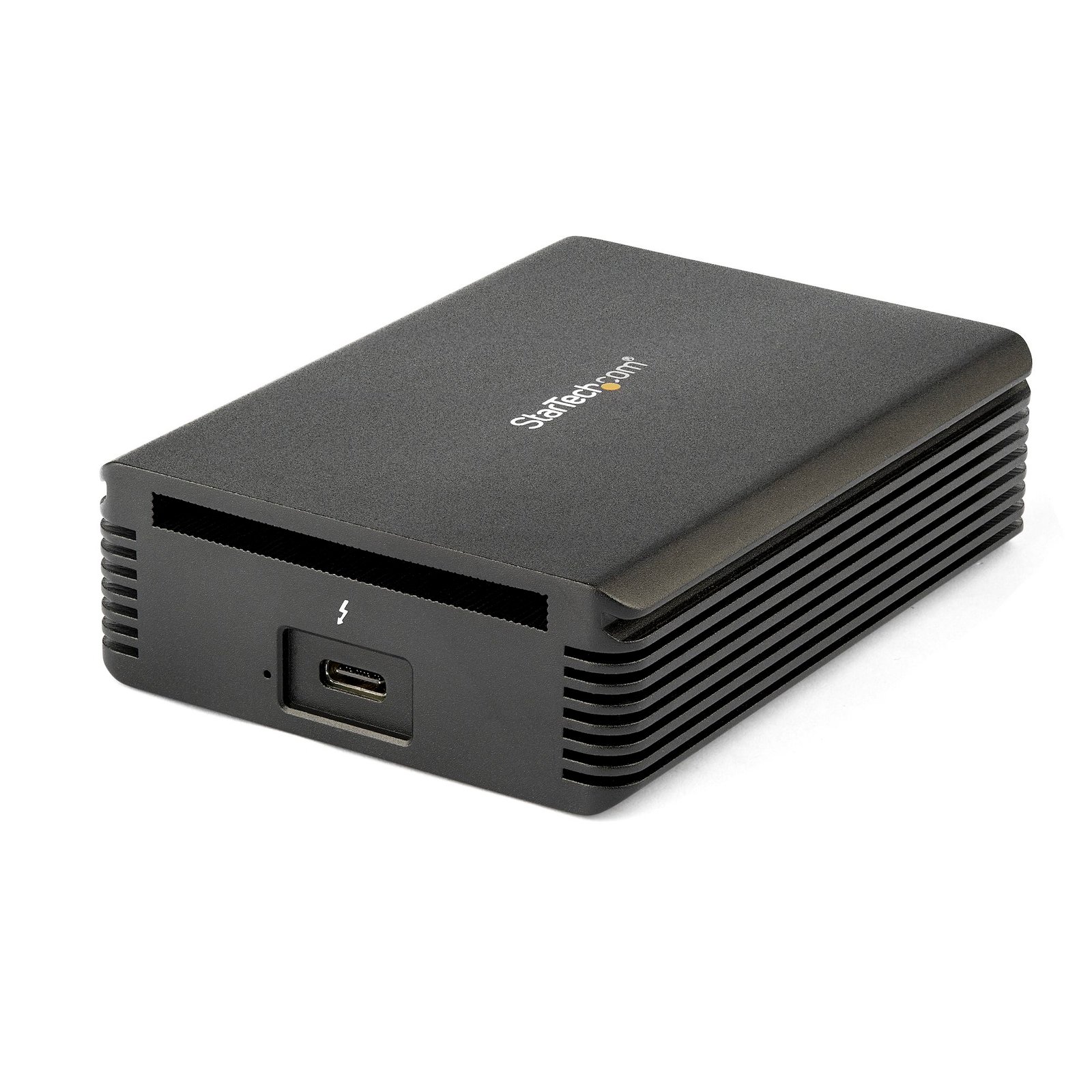
Thunderbolt™ 3 to 10GBase-T Ethernet Adapter
$289.99
Add high-speed wired 10G Ethernet network connectivity to your Thunderbolt 3 enabled desktop or laptop computer
Specifications & Compliance
- UPC
- 065030877954
- Brand
- StarTech.com
- Included in Package
- 1 - Network Adapter, 1 - Thunderbolt 3 Cable, 1 - Travel Pouch, 1 - Quick-Start Guide
- Shipping (Package) Weight
- 16.9 oz [478 g]
- Weight of Product
- 11.4 oz [322.0 g]
- Product Length
- 4.0 in [10.2 cm]
- Product Width
- 3.0 in [75.0 mm]
- Product Height
- 1.1 in [29.0 mm]
- Package Depth
- 5.4 in [13.8 cm]
- Package Width
- 6.9 in [17.6 cm]
- Package Height
- 3.0 in [76 mm]
- Color
- Black
- Cable Length
- 11.8 in [30 cm]
- Warranty
- 2 Years
- Connector 1
- USB-C (Thunderbolt 40Gbps)
- Connector 1 (Quantity)
- 1
- Package Quantity
- 1
- Connector 2
- RJ-45
- Connector 2 (Quantity)
- 1
- Operating Temperature
- 5°C ~ 35°C
- Storage Temperature
- -20°C ~ 50°C
- Humidity
- 20%RH ~ 80%RH
- Material
- Aluminum
- Industry Standards
- IEEE 802.3an (10GBASE-T) <br/> IEEE 802.3ab (1000BASE-T ) <br/> IEEE 802.3u (100BASE-TX )<br/> NBase-T (5GBASE-T) <br/> NBase-T (2.5GBASE-T) <br/> IEEE 802.1q (VLAN Tagging)<br/> IEEE 802.3ad (Link Aggregation)
- Chipset ID
- Intel - Alpine Ridge DSL6340 <br/> Tehuti TN4010 <br/> Marvell 88X3310PA1
- Special Notes
- Due to technical limitations of the IC solution, max bandwidth is limited to about 7.5 Gbps
- Input Voltage
- 5V DC
- Output Voltage
- 5 DC
- LED Indicators
- 1 - Solid White - Thunderbolt 3 is connected to host laptop, 1 - Solid Green - RJ45 link speed of 1G, 2.5G, or 5G, 1 - Solid Orange - RJ45 link speed of 10G
- Bus Type
- Thunderbolt 3
- System and Cable Requirements
- Requires a Thunderbolt 3 port with 15W of power
- Compatible Networks
- 10 Gbps/5G/2.5G/1G/100 Mbps
- Auto MDIX
- Yes
- Full Duplex Support
- Yes
- Jumbo Frame Support
- 9K max.
- PXE
- No
- Promiscuous Mode
- Yes
- Network Adapter Form Factor
- Separate Cable
- Auto-Negotiation
- Yes
Questions & Answers
I am having issues with my new network interface card (NIC) and my on-board NIC is still enabled. What do I do in Windows?
Sometimes an on-board network interface card (NIC) conflicts with a new NIC. In these cases it is best to disable the on-board NIC. The best way to disable your on-board NIC is to go into your BIOS and disable it there if possible. To do this, consult your motherboard manual. You can also disable any NIC in Windows. Here is how you do this: First click Start , or, in Windows 10 and 8, hold down the Windows key and press X . Then click Control Panel . Windows 10 Click Network and Internet . Click Network and Sharing Center . On the left, click Change adapter settings . Right-click the NIC that you would like to disable and select Disable . Windows 8 Click Network and Sharing Center . On the left, click Change adapter settings . Right-click the NIC that you would like to disable and select Disable . Windows 7 Click Network and Internet . Click Network and Sharing Center . On the left, click Change adapter settings . Right-click the NIC that you would like to disable and select Disable . Windows Vista Click Network and Sharing Center . On the left, click Manage network connections . Right-click the NIC that you would like to disable and select Disable . Windows XP Click Network Connections . Right-click the NIC that you would like to disable and select Disable .
Why do I have speed or connectivity issues?
If you are experiencing speed or connectivity issues, it is best to set a specific speed at half or full duplex in your settings. You can set your network adapter to perform at a certain speed, but the device that the adapter is connected to (whether it is a router, switch, or computer) must also be able to perform at the same speed. Note : You must log in as the local administrator before you continue. To open Device Manager: Press Windows key + R . Type devmgmt.msc . Click OK . Open the Networking adapters section. Right-click the network adapter that you want to change and select Properties . Click the Advanced tab. Scroll down to Speed & Duplex . By default, it is set to Auto-Negotiate . Select any of the speeds that you see in the list. Click OK and restart your computer.
Can I use my network card for a Preboot Execution Environment (PXE)?
StarTech.com does not support a Preboot Execution Environment (PXE) as this requires third-party software. However, our devices can be used as long as the following conditions are met: The BIOS must support PXE. The BIOS must see the card. The environment must have drivers for the chipset used in the card. If using a USB networking card, the environment must have support for USB devices as well.
Can I use a Thunderbolt 3, Thunderbolt 4, or Thunderbolt 5 device on a USB-C or USB4 port?
No, a Thunderbolt 3, Thunderbolt 4, or Thunderbolt 5 device requires a Thunderbolt-enabled port and will not work on a USB-C port that does not support Thunderbolt. Explanation: Thunderbolt 3, Thunderbolt 4, and Thunderbolt 5 use the USB-C connector, but they require Thunderbolt protocol support from the host port, cable, and device. Compatibility rules are as follows: A Thunderbolt device (Thunderbolt 3, 4, or 5) only works when connected to a Thunderbolt-enabled USB-C port. A standard USB-C port without Thunderbolt support does not support Thunderbolt devices and will result in no functionality. USB-C devices are compatible with Thunderbolt 3, Thunderbolt 4, and Thunderbolt 5 ports because Thunderbolt includes USB support. USB4 ports may support Thunderbolt 3 devices, but this support is optional and not guaranteed. USB4 does not ensure compatibility with Thunderbolt 4 or Thunderbolt 5 devices. To confirm compatibility, look for the Thunderbolt symbol on the host port, cable, and device. If the Thunderbolt symbol is not present, the connection supports USB-C only and does not support Thunderbolt devices. All components in the connection must support the required Thunderbolt standard to ensure proper operation and full performance.
Related products
-

USB 3.0 to Fiber Optic Converter - Compact USB to Open SFP Adapter - USB to Gigabit Network Adapter - USB 3.0 Fiber Adapter Multi Mode(MMF)/Single Mode Fiber(SMF) Compatible
$241.99 Add to cart -
USB-C to Gigabit Ethernet Adapter, Aluminum, Thunderbolt 3 / 4 Compatible, USB Type C Network Adapter
$44.06 Add to cart -

USB-C to Ethernet Adapter with USB-A Dongle, 10/100/1000Mbps, USB 3.0 to Gigabit Ethernet Network Adapter, 6in/15cm Attached Cable, USB GbE Adapter
$37.91 Add to cart -
USB-C to Ethernet Adapter, USB 3.0 to Gigabit Ethernet Network Adapter, 10/100/1000 Mbps, USB-C to RJ45 Ethernet Adapter (GbE), 12in Attached Cable, Driverless Install
$23.56 Add to cart