
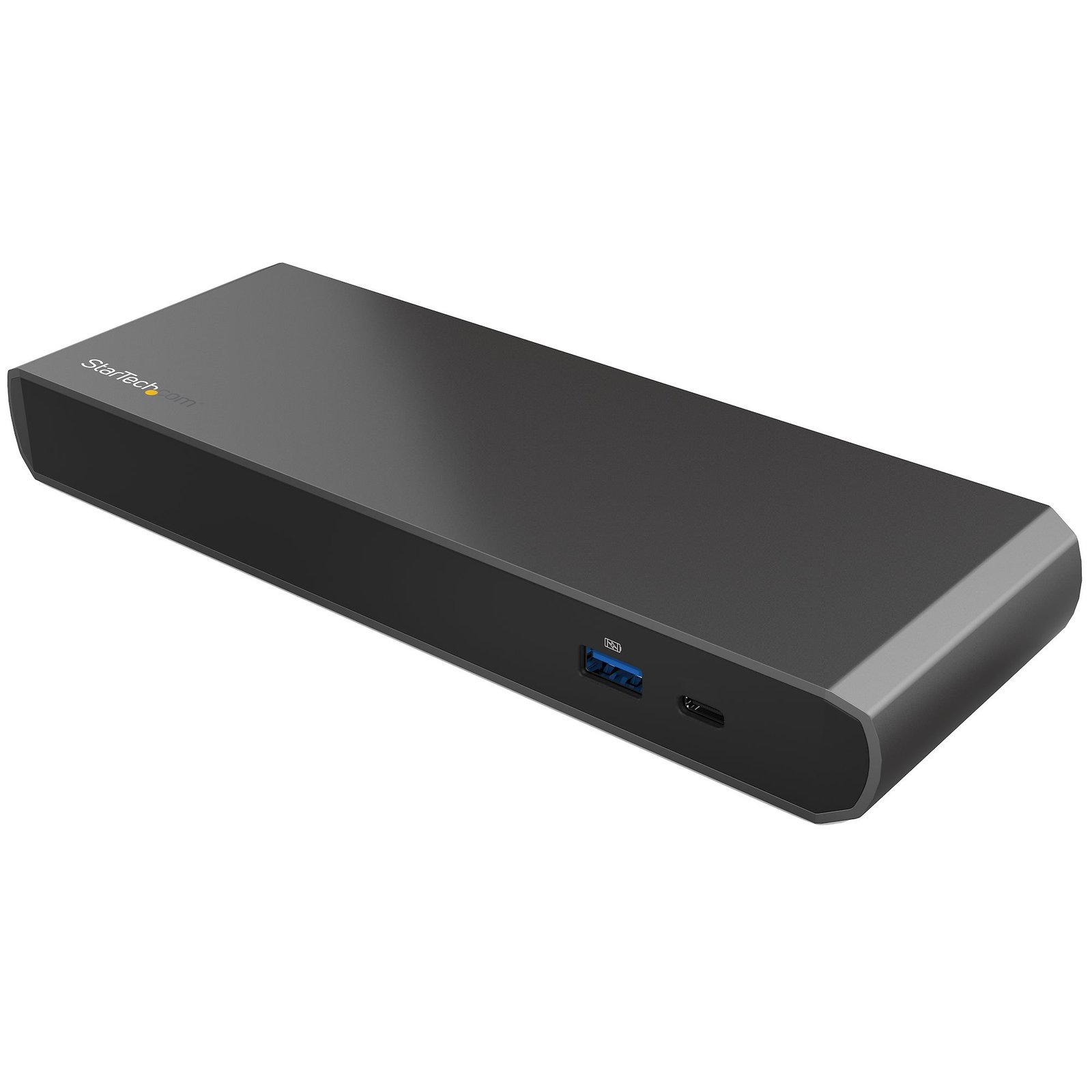
Thunderbolt 3 Dual-4K Docking Station for Laptops - Windows Only
$253.99
Laptop Docking Station | Windows® | Dual 4K DisplayPort | 3x USB 3.0 (Type A) Ports
Specifications & Compliance
- UPC
- 065030864893
- Brand
- StarTech.com
- Included in Package
- 1 - Thunderbolt™ 3 dual-4K docking station for laptops, 1 - Thunderbolt 3 cable - 40Gbps - 0.5m, 1 - universal power adapter, 1 - power cord (NA), 1 - instruction manual
- Shipping (Package) Weight
- 2.6 lb [1.2 kg]
- Weight of Product
- 15.6 oz [442.0 g]
- Product Length
- 8.7 in [22.0 cm]
- Product Width
- 3.1 in [80.0 mm]
- Product Height
- 1.1 in [27.0 mm]
- Package Depth
- 5.3 in [13.4 cm]
- Package Width
- 9.8 in [25 cm]
- Package Height
- 4.5 in [11.4 cm]
- Color
- Gray and Black
- Cable Length
- 20.5 in [52 cm]
- Warranty
- 3 Years
- Connector 1
- USB-C (Thunderbolt 40Gbps)
- Connector 1 (Quantity)
- 2
- Package Quantity
- 1
- Connector 2
- DisplayPort
- Connector 2 (Quantity)
- 1
- Operating Temperature
- 5°C to 40°C (41°F to 104°F)
- Storage Temperature
- -40°C to 70°C (-40°F to 158°F)
- Humidity
- 5~95% RH (Non-condensing)
- Material
- Aluminum and Plastic
- Maximum Data Transfer Rate
- 40 Gbps (Thunderbolt 3)<br /> 10 Gbps (USB 3.1 Gen 2) <br /> 5 Gbps (USB 3.0)<br /> 2 Gbps (Ethernet; Full-Duplex)
- Industry Standards
- Thunderbolt 3<br /> USB Battery Charging Specification Rev. 1.2<br /> IEEE 802.3, IEEE 802.3u, IEEE 802.3ab <br /> USB 3.0 - Backward compatible with USB 2.0 and 1.1 <br />
- Power Source
- AC Adapter Included
- Chipset ID
- Intel - Alpine Ridge DSL6540 <br>Fresco - FL1100EX <br>Texas Instruments - PCM2912A <br>Intel - WGI210AT<br>Texas Instruments - TPS65982
- Special Notes
- This docking station will not charge your host laptop., A 4K-capable display is required to achieve 4K x 2K resolution (4K is also known as 4K x 2K)., Certain monitors may be limited to 4K at 30Hz when connecting through DisplayPort. These monitors include the following models: Dell P2715Q, Viewsonic VX2475Smhl-4K, Philips 288P6LJEB, LG 31MU97C-B, Asus PB287Q (these models will need to be set to 4K at 30Hz)., When connecting a display to one of the Thunderbolt 3 USB-C ports, a USB-C video adapter may be required depending on the input of your display., USB 3.0 is also known as USB 3.1 Gen 1; this connectivity standard offers speeds up to 5Gbps. USB 3.1 Gen 2 offers speeds up to 10Gbps., The DisplayPort output port on this dock does not support MST., Your computer’s Thunderbolt 3 ports might not function properly until you update one or more of the following on your computer:</br> • BIOS</br> • Thunderbolt firmware</br> • Thunderbolt 3 controller drivers</br> • Thunderbolt 3 software</br> The required updates will vary depending on your computer.</br> For an up-to-date list of affected computers and instructions, visit http://thunderbolttechnology.net/updates. If your manufacturer isn’t listed on the Thunderbolt website, contact your manufacturer.</br>
- Power Delivery
- No PD
- Input Voltage
- 100 - 240 AC
- Output Voltage
- 12V DC
- Connector 3
- USB-C (5Gbps, 4.5W)
- Connector 3 (Quantity)
- 1
- Power Consumption
- 72
- Bus Type
- Thunderbolt 3
- Input Current
- 1.5 A
- Output Current
- 6
- Type and Rate
- Thunderbolt 3 (40Gbps)
- System and Cable Requirements
- Thunderbolt 3 equipped computer with a Thunderbolt 3 port - Windows only., The docking station does not support Mac or Linux operating systems.
- Maximum Digital Resolutions
- Single display - DisplayPort - 4096 x 2160p / 3840 x 2160p <br> Single display - Thunderbolt 3 USB-C - 4096 x 2160p / 3840 x 2160p <br> Dual displays - DisplayPort - 4096 x 2160p / 3840 x 2160p - and Thunderbolt 3 USB-C - 4096 x 2160p / 3840 x 2160p<br> Lower resolutions are also supported.
- Plug Type
- N
- Compatible Networks
- 10/100/1000 Mbps
- Center Tip Polarity
- Positive
- Connector 4
- USB-A (7.5W Power Only)
- Connector 4 (Quantity)
- 1
- Number of Displays
- 2
- UASP Support
- Yes
- Connector 5
- USB-A (5Gbps, 4.5W)
- Connector 5 (Quantity)
- 1
- Auto MDIX
- Yes
- Full Duplex Support
- Yes
- Fast-Charge Port(s)
- Yes
- Connector 6
- 3.5mm (3 Conductors, TRS)
- Connector 6 (Quantity)
- 2
- Displays Supported
- 2
- 4K Support
- Yes
- Connector 7
- RJ-45
- Connector 7 (Quantity)
- 1
Questions & Answers
Will my DisplayPort adapter work with this docking station?
Only active DisplayPort adapters are supported when connecting DisplayPort outputs to HDMI or DVI displays through this docking station. Passive DisplayPort adapters are not compatible with this device. Explanation: This docking station requires active DisplayPort video conversion when connecting HDMI or DVI monitors through DisplayPort outputs. Active adapters contain integrated conversion circuitry that converts the DisplayPort signal to the required display format. Passive adapters rely on DisplayPort Dual-Mode (DP++) functionality and are not supported with this docking station. You can confirm whether a DisplayPort adapter is active or passive in the Technical Specifications for each product on our website. Before deployment, verify that the adapter supports the required resolution, refresh rate, and display configuration for your installation.
I am having issues with my new network interface card (NIC) and my on-board NIC is still enabled. What do I do in Windows?
Sometimes an on-board network interface card (NIC) conflicts with a new NIC. In these cases it is best to disable the on-board NIC. The best way to disable your on-board NIC is to go into your BIOS and disable it there if possible. To do this, consult your motherboard manual. You can also disable any NIC in Windows. Here is how you do this: First click Start , or, in Windows 10 and 8, hold down the Windows key and press X . Then click Control Panel . Windows 10 Click Network and Internet . Click Network and Sharing Center . On the left, click Change adapter settings . Right-click the NIC that you would like to disable and select Disable . Windows 8 Click Network and Sharing Center . On the left, click Change adapter settings . Right-click the NIC that you would like to disable and select Disable . Windows 7 Click Network and Internet . Click Network and Sharing Center . On the left, click Change adapter settings . Right-click the NIC that you would like to disable and select Disable . Windows Vista Click Network and Sharing Center . On the left, click Manage network connections . Right-click the NIC that you would like to disable and select Disable . Windows XP Click Network Connections . Right-click the NIC that you would like to disable and select Disable .
Why do I have speed or connectivity issues?
If you are experiencing speed or connectivity issues, it is best to set a specific speed at half or full duplex in your settings. You can set your network adapter to perform at a certain speed, but the device that the adapter is connected to (whether it is a router, switch, or computer) must also be able to perform at the same speed. Note : You must log in as the local administrator before you continue. To open Device Manager: Press Windows key + R . Type devmgmt.msc . Click OK . Open the Networking adapters section. Right-click the network adapter that you want to change and select Properties . Click the Advanced tab. Scroll down to Speed & Duplex . By default, it is set to Auto-Negotiate . Select any of the speeds that you see in the list. Click OK and restart your computer.
What do I do if my display flickers when I use it with my laptop docking station?
If you set your display to 4K@60Hz and connect a display to the DisplayPort output on the laptop docking station, your display may flicker. This issue only affects certain monitors and is a result of an interoperability issue between the hardware used in the display and the docking station. This issue is not specific to StarTech.com docking stations. To resolve this issue, try any of the following: Connect a USB-C to DisplayPort cable from the USB-C Thunderbolt 3 port on the docking station to the DisplayPort input on the display. (StarTech.com product ID for the USB-C to DisplayPort cable: CDP2DPMM1MB .) Connect a USB-C to HDMI 2.0 cable from the USB-C Thunderbolt 3 port on the docking station to the HDMI input on the display. (StarTech.com product ID for the USB-C to HDMI 2.0 cable: CDP2HD4K60 .) If you are using a dual monitor setup, connect a dual DisplayPort adapter from the USB-C Thunderbolt 3 port on the docking station to the DisplayPort input on the displays. (StarTech.com product ID for the Thunderbolt 3 dual DisplayPort adapter: TB32DP2 .) Disable MST (Multi Stream Transport) or DisplayPort 1.2 mode on your display and enable 4K@30Hz. Refer to the information provided by the manufacturer for assistance.
My computer is not properly detecting my Thunderbolt 3 device. What do I do?
If your computer is not detecting your Thunderbolt™ 3 device, try the following: Update the Thunderbolt software on your Thunderbolt 3 host device. Update the Thunderbolt controller NVM firmware on your Thunderbolt 3 host device. Update the Thunderbolt controller drivers. Update your motherboard BIOS or UEFI. For more information about how to update the software, firmware, drivers, and BIOS or UEFI, refer to the website of the manufacturer of the Thunderbolt 3 host device. The following website includes links to some of the manufacturers of Thunderbolt 3 host devices: https://thunderbolttechnology.net/updates . If the manufacturer of your host device is not listed, you should contact the manufacturer or refer to their website for more information. For more information about how to check which version of the Thunderbolt software and firmware you are currently using, see the following FAQ: https://www.startech.com/faq/thunderbolt-3-check-software-firmware . For more information about Thunderbolt 3 host system and motherboard compatibility, refer to the Thunderbolt 3 Compatibility and Troubleshooting guide .
What do I do if I can only get a single display to work with my Thunderbolt 3 device?
If you are only getting a single display to work with your Thunderbolt™3 device, make sure that your Thunderbolt 3 host device can support two separate DisplayPort lines over Thunderbolt 3. While Thunderbolt 3 supports dual monitors over a single connection, not all Thunderbolt 3 host devices are designed to meet this requirement . If your Thunderbolt 3 host device does not meet this requirement, you cannot troubleshoot this issue with software, firmware, or driver updates, and you cannot use this device to achieve dual displays over Thunderbolt 3. If you are not sure whether your Thunderbolt 3 host device supports dual monitors, contact your Thunderbolt 3 host device manufacturer. If you confirmed that your Thunderbolt 3 host device does support dual monitors and you are only seeing a single display, see the following FAQ: https://www.startech.com/faq/thunderbolt-3-update-software-firmware . For more information about Thunderbolt 3 host system and motherboard compatibility, refer to the Thunderbolt 3 Compatibility and Troubleshooting guide .
What do I do if only the video portion of my Thunderbolt device is working?
When you connect a Thunderbolt™ device to any Windows operating system that can support Thunderbolt 3, a pop-up message appears. To use your Thunderbolt 3 device do one of the following: Select Connect Only Once . Select Always Connect . Caution! If you select Do Not Connect , only video will pass through on your Thunderbolt 3 device. If you accidentally set a Thunderbolt™3 device to not connect to your computer when prompted by the system, you can force the software to prompt you again for authentication. To do so, complete the following: Right-click the Thunderbolt icon. Click Approve Attached Devices . Select the Thunderbolt 3 port that you want to authenticate.
I received an error message stating that the Thunderbolt device I’m using is not certified for PC use. How do I resolve this issue?
If you receive an error message that your Thunderbolt device is not certified for PC use, try the following to resolve the issue: Click Start . Type Thunderbolt and click the search result. In the system tray, right-click the Thunderbolt icon. Click Settings . Clear the Only allow Thunderbolt Devices that have been certified for PC check box.
My DisplayPort displays are not working at 60Hz with this adapter. How do I resolve this issue?
To use a Thunderbolt 3 adapter to output to a display at 60Hz, your monitor must support the refresh rate and you need to set the monitor to work at 60Hz. By default, most monitors are set to DP1.1, which will not work with this Thunderbolt 3 device when you use a display at 60Hz. In most cases, you need to set your monitor's DisplayPort settings to DP1.2. To resolve this issue, use the buttons on your monitor to change the DisplayPort settings to DP1.2. For more information about changing your monitor settings, refer to the website of the manufacturer of your monitor.
My DisplayPort display is not working when I try to output 4K at 30Hz with this device. How do I resolve this issue?
To output 4K to a DisplayPort display at 30Hz, your monitor must support the resolution and refresh rate. If your monitor also supports 4K at 60Hz (DP 1.2 or higher), you may also need to set the monitor to work at 30Hz. To resolve this issue, use the buttons on your monitor to change the DisplayPort settings to DP1.1. For more information about how to change your monitor settings, refer to the website of the manufacturer of your monitor.
How do I configure additional displays in Windows?
Windows 11 To configure displays in Windows 11, complete the following: Press the Windows + I (capital letter i) keys together to open Settings Click 'System' > 'Display' Click 'Duplicate these displays' and choose 'Extend these displays' (if needed). Click ‘Identify’ to determine the number assigned to each display. Drag and drop each display accordingly to the physical layout on your desk. Click the Apply button. Windows 10 To configure displays on Windows 10, complete the following: Press the Windows + I (capital letter i) keys together. Click 'System' > 'Display' Under the ‘Multiple displays’ section, select ‘Extend Desktop To This Display.’ Click ‘Identify’ to determine the number assigned to each display. Drag and drop each display accordingly to the physical layout on your desk. Click the Apply button.
How do I arrange extended displays on macOS?
To arrange extended displays on macOS, complete the following. Navigate to the Apple Menu > System Preferences, click Displays , then click Arrangement . Make sure that the ‘ Mirror Displays ’ checkbox is not selected. Click on each display to determine what number each display is assigned to. Drag and drop each display accordingly to the physical layout on your desk.
Can I use my network card for a Preboot Execution Environment (PXE)?
StarTech.com does not support a Preboot Execution Environment (PXE) as this requires third-party software. However, our devices can be used as long as the following conditions are met: The BIOS must support PXE. The BIOS must see the card. The environment must have drivers for the chipset used in the card. If using a USB networking card, the environment must have support for USB devices as well.
How do I confirm that Windows detects my USB device?
To confirm that Windows detects your USB device, complete the following: Press the Windows key+ R , type devmgmt.msc , and press Enter . In Device Manager , under the appropriate heading, confirm that your expansion card is listed and that there isn't an exclamation mark next to it. For example, a USB controller card would be under Universal Serial Bus controllers . Your USB device is listed according to the name of the chipset. To determine the name of the chipset of your USB device, navigate to www.StarTech.com and look on the Technical Specifications tab for your product.
How do I check which version of Thunderbolt 3 software, firmware, and drivers I am running in Windows?
To check which version of the Thunderbolt™ software, NVM firmware, and drivers you are running, do the following: Click Start . Type Thunderbolt and click on the search result. In the system tray, right-click the Thunderbolt icon. Click Settings > Details . Review the versions of the software package, NVM firmware, PD firmware, and drivers. If you are not running the latest versions, navigate to the manufacturer’s website and download the latest versions.
When I connect my Thunderbolt 3 device to my Windows computer, I get pop-up messages. What do I do?
When you connect a Thunderbolt™ device to any Windows operating system that can support Thunderbolt 3, a pop-up message appears. To use your device, complete the following: In the New Thunderbolt devices have been attached pop-up message, click OK . In the User Account Control pop-up message, click Yes . In the Approve Thunderbolt Devices pop-up message, do one of the following: If you want to authorize your Thunderbolt devices every time that you connect them, select Connect Only Once in the drop-down list. If you want to authorize your Thunderbolt devices only once, select Always Connect in the drop-down list. Click OK . If you accidentally set your Thunderbolt device to Do Not Connect in step three above, refer to the following FAQ: https://www.startech.com/faq/thunderbolt-3-denied-authentication .
What do I do if I accidentally set my Thunderbolt 3 device to Do Not Connect and it stops working?
If you accidentally set a Thunderbolt™3 device to not connect to your computer when prompted by the system, you can force the software to prompt you again for authentication. To do so, complete the following: Right-click the Thunderbolt icon. Click Approve Attached Devices . Select the Thunderbolt 3 port that you want to authenticate.
How do I manage my authenticated Thunderbolt 3 devices in Windows?
You can use the Thunderbolt™ software to manage your Thunderbolt 3 devices on a computer running a version of Windows. To manage your Thunderbolt 3 devices, complete the following: Click Start . Type Thunderbolt and click on the search result. Right-click the Thunderbolt icon. Click Manage Approved Devices .
Can I use a Thunderbolt 3, Thunderbolt 4, or Thunderbolt 5 device on a USB-C or USB4 port?
No, a Thunderbolt 3, Thunderbolt 4, or Thunderbolt 5 device requires a Thunderbolt-enabled port and will not work on a USB-C port that does not support Thunderbolt. Explanation: Thunderbolt 3, Thunderbolt 4, and Thunderbolt 5 use the USB-C connector, but they require Thunderbolt protocol support from the host port, cable, and device. Compatibility rules are as follows: A Thunderbolt device (Thunderbolt 3, 4, or 5) only works when connected to a Thunderbolt-enabled USB-C port. A standard USB-C port without Thunderbolt support does not support Thunderbolt devices and will result in no functionality. USB-C devices are compatible with Thunderbolt 3, Thunderbolt 4, and Thunderbolt 5 ports because Thunderbolt includes USB support. USB4 ports may support Thunderbolt 3 devices, but this support is optional and not guaranteed. USB4 does not ensure compatibility with Thunderbolt 4 or Thunderbolt 5 devices. To confirm compatibility, look for the Thunderbolt symbol on the host port, cable, and device. If the Thunderbolt symbol is not present, the connection supports USB-C only and does not support Thunderbolt devices. All components in the connection must support the required Thunderbolt standard to ensure proper operation and full performance.
What is Thunderbolt, and how do Thunderbolt 3, Thunderbolt 4, and Thunderbolt 5 differ?
Thunderbolt is a high-performance connectivity standard that combines data, video, networking, and power delivery over a single connection. Thunderbolt 3, Thunderbolt 4, and Thunderbolt 5 all use the USB-C connector, but each generation offers different performance capabilities, certification requirements, and feature sets. Explanation: Thunderbolt is an Intel-developed connectivity technology that enables high-speed communication between computers, displays, storage devices, docking stations, and other peripherals through a single cable connection. Thunderbolt combines multiple technologies, including: PCI Express (PCIe) data transfer DisplayPort video USB data connectivity Power delivery The following table compares the capabilities of Thunderbolt 3, Thunderbolt 4, and Thunderbolt 5: Feature Thunderbolt 3 Thunderbolt 4 Thunderbolt 5 Maximum Bandwidth Up to 40Gbps Up to 40Gbps Up to 80Gbps (120Gbps with Bandwidth Boost) USB Compatibility Up to USB4 Up to USB4 Up to USB4 Version 2.0 Display Support Up to two 4K displays or one 5K display Up to two 4K displays or one 8K display Up to three 4K displays, multiple 8K displays, or higher resolutions depending on device support PCIe Bandwidth Up to 32Gbps Minimum 32Gbps required Up to 64Gbps Power Delivery Up to 100W (device dependent) Up to 100W (device dependent) Up to 240W supported with USB Power Delivery 3.1 Extended Power Range on supported devices Daisy Chaining Up to six devices Up to six devices Up to six devices Thunderbolt 4 maintains the same maximum bandwidth as Thunderbolt 3 but introduces stricter certification requirements, including: Support for dual 4K displays or one 8K display PCIe bandwidth requirements for storage devices Wake-from-sleep support through Thunderbolt peripherals Mandatory support for docks with multiple Thunderbolt ports Enhanced security protections against direct memory access (DMA) attacks Thunderbolt 5 significantly increases available bandwidth and is designed for high-performance applications such as: Professional content creation High-resolution multi-display environments AI and workstation workloads External GPU and high-speed storage connectivity USB-C and Thunderbolt Compatibility Thunderbolt 3, Thunderbolt 4, and Thunderbolt 5 all use the USB-C connector. However, a USB-C connector alone does not indicate Thunderbolt support. A device may include a USB-C port that supports: USB 2.0 USB 3.2 USB4 Thunderbolt 3 Thunderbolt 4 Thunderbolt 5 The capabilities of a USB-C port depend on the hardware implementation of the host device. In general: USB devices can typically connect to Thunderbolt ports. Thunderbolt devices require a Thunderbolt-compatible host to access Thunderbolt functionality. A USB-C host that does not support Thunderbolt cannot provide Thunderbolt features to a Thunderbolt peripheral. Thunderbolt-certified ports and devices are typically identified by the Thunderbolt logo next to the USB-C connector. Backward Compatibility Thunderbolt maintains broad backward compatibility across generations: Thunderbolt 5 is compatible with Thunderbolt 4, Thunderbolt 3, USB4, and USB-C devices when supported by the host and device. Thunderbolt 4 is compatible with Thunderbolt 3 devices. Thunderbolt 3 can connect to Thunderbolt 1 and Thunderbolt 2 devices using an appropriate adapter. Thunderbolt 1 and Thunderbolt 2 hosts cannot fully support Thunderbolt 3, Thunderbolt 4, or Thunderbolt 5 devices without compatible hardware and adapters. Actual performance depends on the capabilities of the host computer, peripheral device, cable, and software environment.
What do I need to know about Thunderbolt cables and their performance capabilities?
Not all Thunderbolt cables support the same data transfer speeds, display capabilities, or power delivery levels. Thunderbolt 3, Thunderbolt 4, and Thunderbolt 5 cables may look similar because they use USB-C connectors, but their performance depends on the cable type, length, certification, and supported Thunderbolt generation. Explanation: Thunderbolt cables use the USB-C connector and can carry data, video, networking, and power over a single connection. However, a Thunderbolt cable's capabilities are determined by its design and certification, not just by the connector type. The following table summarizes common Thunderbolt cable capabilities: Thunderbolt Generation Maximum Bandwidth Thunderbolt 3 Up to 40Gbps Thunderbolt 4 Up to 40Gbps Thunderbolt 5 Up to 80Gbps bidirectional, with bandwidth boost up to 120Gbps for display-intensive applications Not all Thunderbolt cables support the maximum bandwidth available for the Thunderbolt standard they are connected to. Factors that affect cable performance include: Cable length Active or passive cable design Copper or optical construction Thunderbolt certification level USB4 and Thunderbolt generation support For example: Some Thunderbolt 3 cables support only 20Gbps data transfer speeds. Certified Thunderbolt 3 and Thunderbolt 4 cables can support up to 40Gbps. Certified Thunderbolt 5 cables are designed to support up to 80Gbps bandwidth and higher display bandwidth modes on compatible devices. To verify cable capabilities, review the specifications provided by the manufacturer. StarTech.com lists supported bandwidth, power delivery, display support, and compatibility information on individual product pages. Thunderbolt Cable Identification Thunderbolt-certified cables typically display a Thunderbolt logo on the connector housing. Newer cables may also include a bandwidth designation to indicate supported performance. Compatibility Considerations Thunderbolt cables are generally backward compatible across Thunderbolt generations, but performance is limited by the lowest-capability component in the connection path. Actual performance depends on: The host computer The Thunderbolt cable The connected device The supported Thunderbolt or USB4 version For example, a Thunderbolt 5 cable connected to a Thunderbolt 3 device will operate at Thunderbolt 3 performance levels. Power Delivery Support Many Thunderbolt cables support USB Power Delivery (USB PD), but supported wattage varies by cable and certification. Optical Thunderbolt cables do not support power delivery. Always verify the specifications of the cable, host device, and connected peripheral when evaluating data transfer, display, and charging capabilities.
Thunderbolt 3 vs. USB-C Ports: What's the Difference?
USB-C and Thunderbolt are not the same technology. USB-C is a connector type, while Thunderbolt is a connectivity standard that uses the USB-C connector. Not all USB-C ports support Thunderbolt, but Thunderbolt 3, Thunderbolt 4, and Thunderbolt 5 ports all use the USB-C connector and support USB devices. Explanation: A common source of confusion is that USB-C and Thunderbolt ports look identical because they use the same physical connector. However, the connector shape does not determine the capabilities of the port. USB-C is a connector standard that can support a variety of technologies, including: USB 2.0 USB 3.2 USB4 DisplayPort Alternate Mode (DP Alt Mode) USB Power Delivery (USB PD) Thunderbolt 3 Thunderbolt 4 Thunderbolt 5 The actual features available depend on the hardware implementation of the computer, cable, and connected device. Compatibility In most cases: USB devices can connect to Thunderbolt 3, Thunderbolt 4, and Thunderbolt 5 ports. Thunderbolt ports support USB functionality in addition to Thunderbolt functionality. Thunderbolt devices require a Thunderbolt-compatible host to access Thunderbolt features. A USB-C port that does not support Thunderbolt cannot provide Thunderbolt functionality to a Thunderbolt device. As a result, a USB-C device will generally work when connected to a Thunderbolt port, but a Thunderbolt device may not function correctly when connected to a USB-C port that does not support Thunderbolt. How to Identify a Thunderbolt Port Thunderbolt-certified ports typically display a Thunderbolt logo next to the USB-C connector. To determine whether a computer, cable, or device supports Thunderbolt: Look for the Thunderbolt symbol on the port or cable. Check the product specifications provided by the manufacturer. Review the technical documentation for the computer or device. Because USB-C ports can support a wide range of capabilities, checking the product specifications is the most reliable way to confirm support for Thunderbolt, USB4, display output, charging, or other advanced features. Thunderbolt symbol:
Can this device increase the maximum number of displays supported by my video card?
No, this device cannot increase the maximum number of displays supported by a video card or graphics processor. The maximum number of displays in a system is determined by the capabilities of the graphics hardware and its drivers. Explanation: This device can provide additional display connectivity, but it does not increase the display limit imposed by the video card, integrated graphics processor (GPU), or graphics drivers. For example, if a graphics adapter supports a maximum of three displays, connecting this device will not increase that limit. The system will still support a maximum of three active displays. If you have connected multiple instances of this device and are experiencing display detection, activation, or performance issues, verify that the graphics hardware in your computer supports the total number of displays connected. To determine the maximum number of supported displays, consult the specifications for your graphics card, integrated graphics processor, or computer manufacturer documentation.
Why is only one external display working with my Apple M1 or M2 Mac?
Late 2020 models of MacBook Air, MacBook Pro 13-inch, and Mac Mini systems using the original Apple M1 or 2022 models of MacBook Air, and MacBook Pro using the Apple M2 chip support only a single external display over the Thunderbolt 3 ports, even when connected to a Thunderbolt 3 docking station or adapter with more than one video output. This limitation also applies to using multiple Thunderbolt or USB Type-C display adapters on both Thunderbolt/USB Type-C ports. This is not a limitation of StarTech.com products specifically, and Apple lists support for only one external display in the Tech Specs for Video Support on the M1 MacBook Pro 13” [external link to apple.com]. Turning off the laptop display or using clamshell mode does not change this. One option that allows for more than one external display with an Apple M1 or M2 silicon is to use a USB-C DisplayLink-based docking station or video adapter that requires a driver install. One dual monitor example is our DK30CHDDPPD, but please contact StarTech.com support for a recommendation based on your specific setup. Please note: this single monitor limitation does not affect Intel-based Macs with Thunderbolt 3, or later M1 and M2 models that ship with M1 Pro, M1 Max, M1 Ultra, M2 Pro, or M2 Max processors.
What DC barrel connector power plug types do StarTech.com products use, and what are their dimensions?
StarTech.com DC barrel connector plug types are defined in the “Plug Type” field of the technical specifications, using a letter code that specifies the connector’s outer diameter (OD) and inner diameter (ID) in millimeters for power adapter compatibility. Explanation: In StarTech.com technical specifications, the “Plug Type” field is a standardized identifier for the exact DC barrel connector size required to power a product. Each plug type is assigned a letter code that corresponds to a specific combination of outer diameter (OD) and inner diameter (ID), measured in millimeters. Common DC barrel plug type dimensions Plug Type OD ID A 2.35 mm 0.7 mm B 4.0 mm 1.7 mm C 4.75 mm 1.7 mm H 3.4 mm 1.3 mm L 5.0 mm 2.5 mm M 5.5 mm 2.1 mm N 5.5 mm 2.5 mm The DC barrel connector plug type must match both the outer diameter and inner diameter exactly. A mismatch between the StarTech.com product requirement and the power adapter connector can prevent proper fit or stable power delivery, which may result in device startup failure or intermittent operation. The plug type defines only the physical connector size. The plug type does not define electrical power requirements such as voltage, current, or polarity. The power adapter used with a StarTech.com product must match the product’s specified electrical requirements. Using an incompatible power adapter can cause device malfunction or permanent damage. This standardized DC barrel connector plug type system enables IT professionals and procurement teams to verify connector dimensions, ensure power adapter compatibility, standardize hardware deployments, and identify the correct replacement power supply for StarTech.com products.
Related products
-
Thunderbolt 3 Dock - Dual 4K 60Hz Monitor TB3 Laptop Docking Station with DisplayPort, HDMI & 1080p VGA - 85W Power Delivery & Charging - 2x USB-A, Ethernet - Mac & Windows - TAA
$88.99 Add to cart -

Thunderbolt Docking Station for Laptops - Includes TB Cable
$275.99 Add to cart -

Thunderbolt 3 Dock, Dual Monitor 4K 60Hz TB3 Laptop Docking Station, DisplayPort, 85W PD, 3x USB, GbE
$281.86 Add to cart -
Dual-Monitor Thunderbolt Mini Dock, 4K 60Hz DisplayPort, Driverless Hub for Windows & Mac, Gigabit Ethernet, 1x USB-A (USB 5Gbps), 11in (28cm) Cable
$39.99 Add to cart