
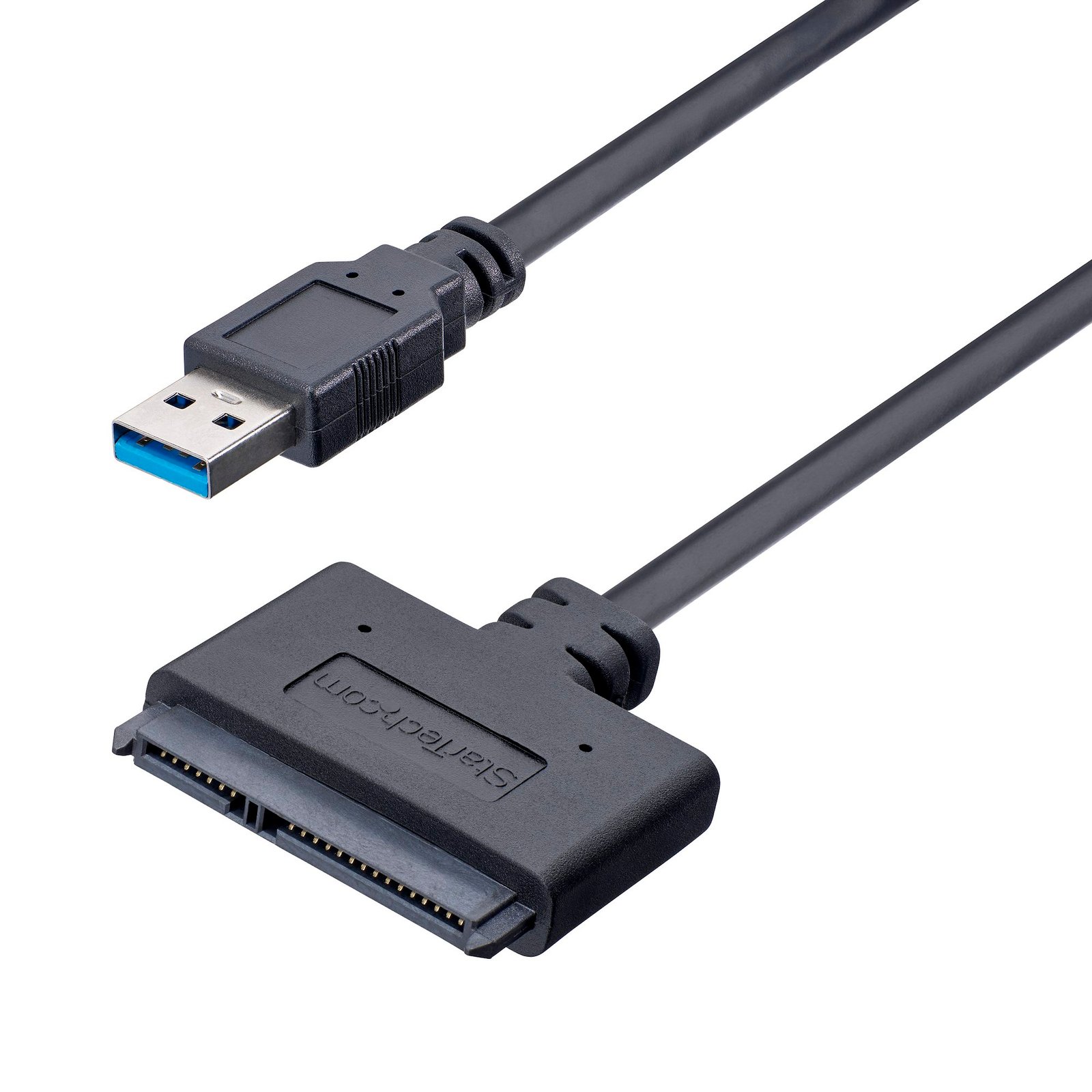
SATA to USB Cable, USB 10Gbps to 2.5in SATA I II III Hard Drive Adapter, External Converter for SSD or HDD Data Transfer
$23.56
Connect a 2.5" SATA SSD/HDD to your computer using this USB 3.1 Gen 2 ultra-portable cable
Specifications & Compliance
- UPC
- 065030861779
- Brand
- StarTech.com
- Included in Package
- 1 - USB 3.1 to SATA 2.5" HDD adapter cable, 1 - quick start guide
- Shipping (Package) Weight
- 1.9 oz [54 g]
- Weight of Product
- 1.4 oz [39.0 g]
- Product Length
- 20.3 in [51.5 cm]
- Product Width
- 1.8 in [45.0 mm]
- Product Height
- 0.3 in [8.0 mm]
- Package Depth
- 7.8 in [19.9 cm]
- Package Width
- 5.9 in [15.1 cm]
- Package Height
- 0.9 in [22 mm]
- Color
- Black
- Warranty
- 2 Years
- Connector 1
- SATA (7-Pin + 15-Pin)
- Connector 1 (Quantity)
- 1
- Package Quantity
- 1
- Operating Temperature
- 0°C to 70°C (32°F to 158°F)
- Storage Temperature
- -10°C to 55°C (14°F to 131°F)
- Humidity
- 40% ~ 50% RH
- Material
- Plastic
- Maximum Data Transfer Rate
- 10 Gbps
- Power Source
- USB-Powered
- Chipset ID
- ASMedia - ASM235CM
- Special Notes
- Windows 7 and earlier Windows versions do not support TRIM with USB to SATA devices.
- MTBF
- 1,665,032 hours
- Interface
- USB 3.2 Gen 2
- Type and Rate
- USB 10Gbps
- Host Connector 1
- USB-A (10Gbps, 4.5W)
- Host Connector 1 (Quantity)
- 1
- UASP Support
- Yes
- Compatible Drive Types
- SATA
- Number of Drives
- 1
- Drive Size
- 2.5in
- RAID
- No
- Max Drive Capacity
- Currently tested with hard drives up to 2TB at 7200 RPM
- Hot Swap Capability
- Yes
- 4Kn Support
- Yes
- TRIM Support
- Yes
Questions & Answers
Why does my USB device stop working after my computer wakes back up from sleep mode in Windows?
If the USB device does not work after your computer has been in extended hibernation, it is likely that Windows has automatically turned off the USB Root hub to save power. The steps below outline how to configure the USB root hub to stay on during hibernation, to prevent this from happening. Windows 10 / 8 On your keyboard, press the Windows key + X and select Control Panel . Click Hardware and Sound , then click Power Options . Click Change plan settings for the plan you want to change. Click Change advanced power settings . Click the plus sign (+) next to “USB settings” and “USB selective suspend setting” to expand the options and change the setting to Disabled . Click OK to apply the setting. Note : You may need to disconnect and re-connect your USB device after applying these settings to re-establish the connection. Windows 7 / Vista Click the Start button and select Control Panel . Click Hardware and Sound , then click Power Options . Click Change plan settings for the plan you want to change. Click Change advanced power settings . Click the plus sign (+) next to “USB settings” and “USB selective suspend setting” to expand the options and change the setting to Disabled . Click OK to apply the setting. Note : You may need to disconnect and re-connect your USB device after applying these settings to re-establish the connection. Windows XP On your desktop, right-click the My Computer icon and select Properties . Click the Device Manager tab. Expand Universal Serial Bus controllers by clicking the arrow to the left of it. Right-click the first USB Root Hub device and select Properties . Click the Power Management tab. Clear the box next to Allow the computer to turn off this device to save power . Click OK to apply the setting. Repeat steps 4-7 for any remaining devices in the Universal Serial Bus Controllers section with “ Root Hub ” in the name. Note : You may need to disconnect and re-connect your USB device after applying these settings to re-establish the connection.
What do I do if I am not achieving USB 3.1 speeds with my USB 3.1 device?
If your setup components support USB 3.1 but you are experiencing slower transfer speeds than you expected, consider the following: A USB host connection with multiple USB 3.1 ports might not be able to support 10Gbps on each port simultaneously. The type of port on a device does not determine whether the device is capable of USB 3.1 speeds. A USB-C port might not support USB 3.1 speeds, while USB-A and USB-B ports might support USB 3.1 speeds. Any other devices that you include in your setup, such as an older hard drive in a USB 3.1 enclosure, might create a point of congestion and slow down transfer speeds. To confirm the functionality of your USB host connection, its ports, and any other devices in your setup, refer to the information provided by the manufacturer. Note : USB 3.1 is also known as USB 3.1 Gen 2 (10Gbps). Devices that support USB 3.1 should have the USB 3.1 symbol on them. If the USB 3.1 symbol does not appear on your USB source or device, refer to the information provided by the manufacturer to confirm whether the USB source or device support USB 3.1.
When should I upgrade my device's firmware?
You should not upgrade your device's firmware if you do not have any issues with the functionality of your device. The only time you should consider an upgrade is if you are experiencing a problem with the device, and you have confirmed that the firmware addresses this problem. You can confirm this is the case by reviewing the documentation included with the firmware or by consulting with our Technical Support team. Incorrectly upgrading firmware can result in diminished performance so it is best to contact StarTech.com if you would like to perform this operation.
How can I determine whether a USB hard drive adapter can provide enough power for my SATA drive?
It depends on the USB port’s power output and the power requirements of the SATA drive. Explanation: A USB hard drive adapter draws power directly from the USB port on the host system. USB ports provide limited power, which may not be sufficient for all SATA drives. Most USB hard drive adapters are designed to support 2.5-inch hard disk drives (HDDs) and solid-state drives (SSDs), which typically operate within USB power limits. In contrast, 3.5-inch SATA drives usually require a 12V power supply and cannot be powered by a standard USB connection or the adapter alone. USB power output varies by standard: USB 2.0 ports provide up to 500 mA (0.5 A) USB 3.0 ports provide up to 900 mA (0.9 A) For the adapter to work reliably, the USB port’s available current (mA) must meet or exceed the power requirements of the connected drive. The drive’s power requirements can typically be found on the drive label or in the manufacturer’s technical specifications.
Do USB to SATA or NVMe adapters support TRIM on Windows, macOS, or Linux?
TRIM is supported on Windows only for select USB to SATA or USB to NVMe adapters. TRIM is not supported on macOS or Linux. Explanation: TRIM support for USB storage adapters is limited and depends on both the operating system and the specific product. On Windows, only select adapters support TRIM, and this capability is explicitly listed in the product’s Technical Specifications under the Performance section as “TRIM Support – Yes.” If this entry is not present, the product does not support TRIM. On macOS and Linux, TRIM is not supported for USB storage adapters due to operating system limitations in standard configurations. While some third‑party utilities on macOS or manual system modifications on Linux may enable TRIM in certain scenarios, these configurations are not supported. This limitation applies specifically to USB storage adapters and does not apply to SATA controller cards.
Is this device compatible with optical drives such as CD-ROM, DVD-ROM, or Blu-ray drives?
No, this device is not compatible with optical drives. Explanation: Optical drive compatibility requires support for the ATA Packet Interface (ATAPI) protocol. CD-ROM, DVD-ROM, and Blu-ray drives all rely on ATAPI for communication. This device does not support the ATAPI protocol and therefore cannot communicate with optical drives. As a result, optical drives are not supported over IDE, SATA, or eSATA connections on this device. For a list of products that support ATAPI and optical drive compatibility, refer to: https://www.startech.com/en-us/faq/hard-drive-controllers-atapi-support .
What are the capabilities of USB 3.2 and USB4, and how do they differ from earlier USB standards?
USB 3.2 and USB4 are newer USB standards that provide higher data transfer speeds, improved bandwidth management, and expanded compatibility with modern devices and display technologies. USB 3.2 supports transfer speeds up to 20Gbps, while USB4 supports transfer speeds up to 40Gbps and adds advanced features such as Thunderbolt 3 compatibility on supported devices. Explanation: USB (Universal Serial Bus) standards have evolved over time to support faster data transfer speeds, increased power delivery, and improved compatibility across computers, storage devices, docking stations, displays, and peripherals. The USB naming convention has also changed over multiple revisions, which can cause confusion between older and current terminology. The following table summarizes common USB standards and updated naming conventions: Current USB Name Previous Naming Maximum Transfer Speed USB 2.0 USB 2.0 480Mbps USB 3.2 Gen 1 USB 3.0 / USB 3.1 Gen 1 5Gbps USB 3.2 Gen 2 USB 3.1 / USB 3.1 Gen 2 10Gbps USB 3.2 Gen 2x2 USB 3.2 Gen 2x2 20Gbps USB4 USB4 20Gbps Up to 20Gbps USB4 USB4 40Gbps Up to 40Gbps USB4 Version 2.0 Up to 80 Gbps (or asymmetric 120 Gbps) USB4 version 2.0 devices can support even higher bandwidths up to 80Gbps or 120Gbps in specific asymmetric configurations, depending on device support and certification. USB transfer performance depends on all connected components supporting the same standard, including: Host computer or controller USB cable Connected device or peripheral Adapters or docking stations in the connection path USB connector types and USB standards are separate specifications. For example: USB-C is a connector type. USB 3.2 and USB4 are performance and protocol standards. A USB-C connector can support different USB standards depending on the device design. USB4 introduces additional capabilities beyond raw transfer speed, including: Dynamic bandwidth allocation for video and data Support for multiple display protocols Compatibility with Thunderbolt 3 devices on supported hardware Improved tunneling for PCIe and DisplayPort traffic USB standards are generally backward compatible, but some limitations apply: USB-C ports require adapters to connect to USB-A or USB-B devices. USB 3.x and USB4 devices connected to older USB ports operate at the lower supported speed. Devices requiring higher power delivery or bandwidth may not function correctly on older USB standards. USB-B SuperSpeed connectors are not physically compatible with USB 2.0 USB-B ports. For maximum performance and compatibility, verify that the host device, cable, and peripheral all support the same USB standard and required feature set.
What is required to transfer data at USB 10Gbps speeds?
To achieve USB 10Gbps data transfer speeds, all components in the connection must support USB 10Gbps performance, including the host port, USB cable, connected device, and any internal subcomponents. Explanation: USB 10Gbps performance requires end-to-end support across the entire connection path, including: The USB host port on the computer or docking station The USB cable The connected USB device Any internal components that affect data throughput, such as storage drives inside a hard drive docking station USB 10Gbps is the current USB-IF naming convention for the specification previously called USB 3.1 Gen 2 and USB 3.2 Gen 2x1. If any component in the connection only supports lower USB performance levels, the entire connection will operate at the maximum speed supported by the slowest component. To confirm compatibility, check the technical specifications for the USB host port, cable, and connected device. Some devices may display USB SuperSpeed 10Gbps branding or equivalent USB 10Gbps markings.
Does the included USB cable support USB 10Gbps data transfer speeds?
Yes. The included USB cable has been tested and verified to support USB 10Gbps data transfer speeds. Explanation: The included USB cable is validated to operate at USB 10Gbps performance levels when connected to compatible USB host ports and devices. USB 10Gbps is the current USB-IF naming convention for the specification previously referred to as USB 3.1 Gen 2 and USB 3.2 Gen 2x1. Actual transfer speeds depend on the capabilities of the connected host device, USB peripherals, and the overall system configuration.
Related products
-
IDE to Slim Optical IDE Drive Adapter
$9.99 Add to cart -
Dual M.2 PCIe SSD Adapter Card, PCIe x8 / x16 to Dual NVMe or AHCI M.2 SSDs, PCI Express 4.0, 7.8GBps/Drive, Bifurcation Required - Windows/Linux Compatible - TAA
$81.99 Add to cart -

PCMCIA to Compact Flash Adapter
$21.99 Add to cart -

40 Pin Female IDE to SATA Adapter Converter - TAA
$18.44 Add to cart