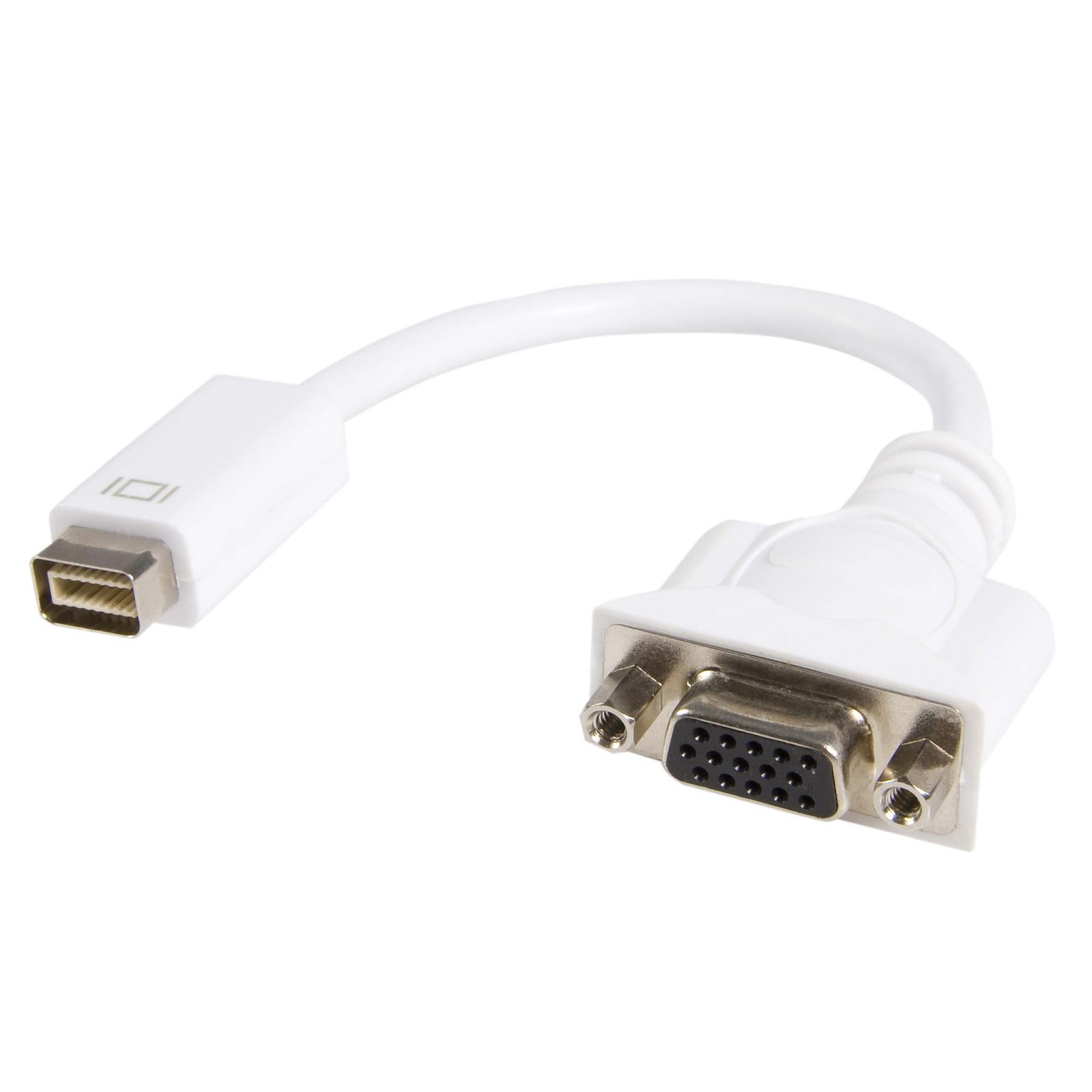
Mini DVI to VGA Video Cable Adapter for Macbooks and iMacs
$20.49
Connect an Apple® mini DVI-equipped computer to a VGA monitor
Specifications & Compliance
- Manufacturer #
- MDVIVGAMF
- UPC
- 065030832007
- Brand
- StarTech.com
- Included in Package
- 1 - Mini DVI to VGA Video Cable Adapter for Macbooks and iMacs
- Shipping (Package) Weight
- 1.2 oz [34 g]
- Weight of Product
- 1.1 oz [31.8 g]
- Product Length
- 8.0 in [20.3 cm]
- Product Width
- 0.0 in [0.0 mm]
- Package Depth
- 3.5 in [88 mm]
- Package Width
- 4.0 in [10.2 cm]
- Package Height
- 0.7 in [18 mm]
- Color
- White
- Warranty
- Lifetime
- Connector 1
- Mini DVI Single-Link (32-Pin)
- Connector 1 (Quantity)
- 0
- Package Quantity
- 1
- Connector 2
- VGA
- Connector 2 (Quantity)
- 0
- Cable Jacket Material
- PVC - Polyvinyl Chloride
- Special Notes
- This product is not manufactured or endorsed by Apple Computer Inc.
- Active or Passive Adapter
- Passive
Questions & Answers
Is this device an active or passive video converter, and what is the difference?
This device is a passive video converter, which changes the connector type without modifying the video signal. Explanation: Passive video converters (also called adapters) change only the physical connection type while maintaining the original video signal format. Because they do not process or convert the signal, passive converters are typically smaller, simpler, and do not require external power. Common examples include DVI-I to VGA, HDMI to DVI, and DisplayPort to Mini DisplayPort. Active video converters change both the connector type and the video signal itself, enabling conversion between different signal formats (such as digital to analog or between incompatible digital standards). Due to the required signal processing, active converters are usually larger and may require external power. Examples include DVI-D to VGA, HDMI to DisplayPort, and VGA to HDMI. For additional details on DisplayPort converter types, refer to: https://www.startech.com/faq/DisplayPort_Converter_DP_Multi_Mode . For guidance on converter selection with MST hubs, refer to: https://www.startech.com/faq/mst_hubs_passive_vs_active_adapters .
How can I identify which DVI connector type I have or need?
You can identify the DVI connector type by the pin configuration and determine compatibility based on whether the connection supports analog, digital, or both signal types. Explanation: DVI (Digital Visual Interface) connectors are defined by their pin layout and supported signal type. The main DVI connector types are: DVI-A (17 pin) . Analog signal only DVI-D Single Link (19 pin) . Digital signal only DVI-D Dual Link (25 pin) . Digital signal only, higher bandwidth DVI-I Single Link (23 pin) . Supports both analog and digital signals DVI-I Dual Link (29 pin) . Supports both analog and digital signals, higher bandwidth DVI-A is used for analog signals (similar to VGA), while DVI-D is used for digital signals (similar to HDMI). DVI-I connectors can carry both analog and digital signals, but actual support depends on the device’s specifications. Single Link and Dual Link indicate bandwidth capacity, which affects maximum supported resolution. Typical limits are up to 1920 × 1080 @ 60 Hz for Single Link and up to 2560 × 1600 @ 60 Hz for Dual Link. However, actual resolution support depends on the capabilities of the connected devices, not just the connector type. To ensure compatibility, verify both the connector type and the signal support in the specifications of the source and display devices.