
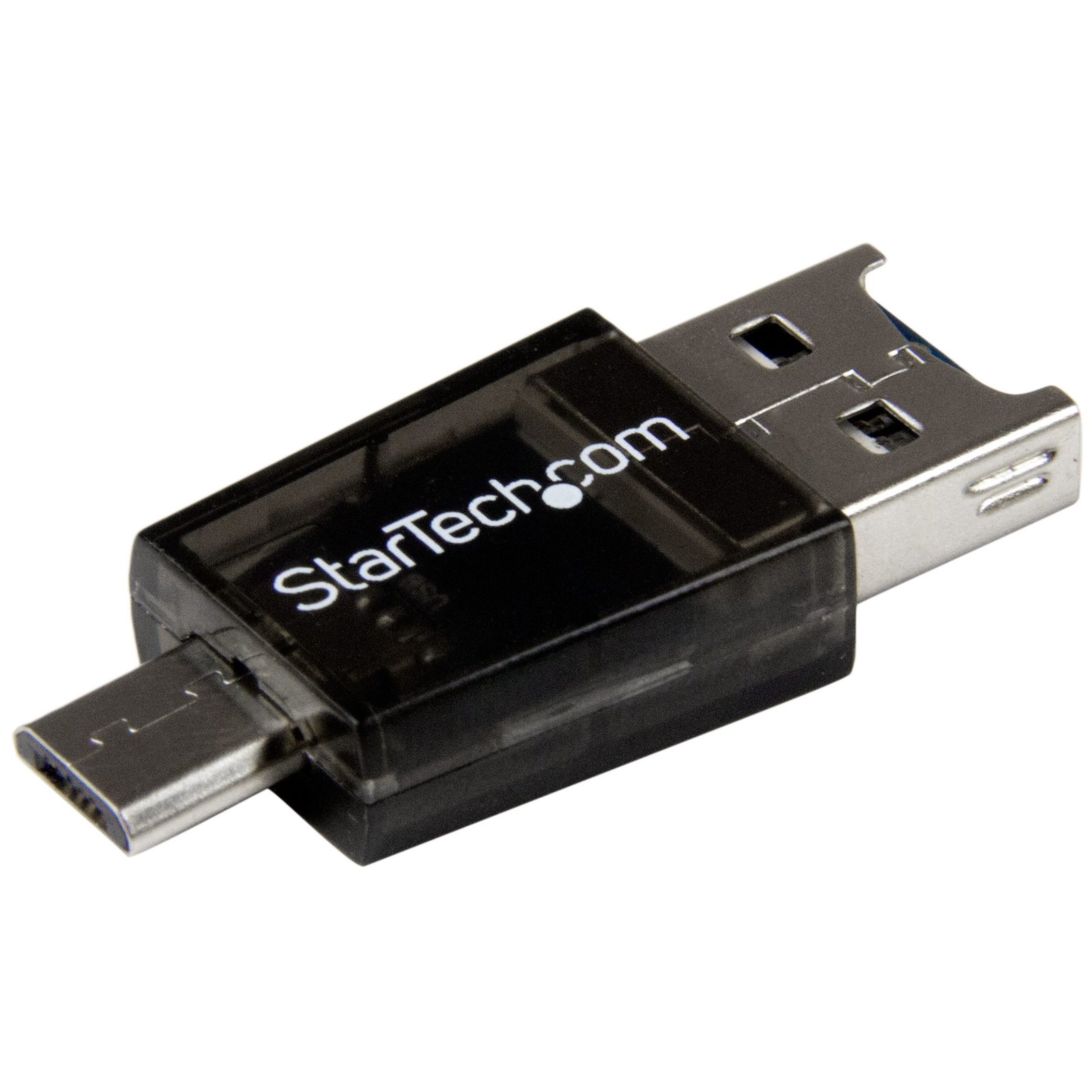
Micro SD to Micro USB / USB OTG Adapter Card Reader For Android Devices
$8.99
Connect a Micro SD card to your computer or OTG mobile device, through a USB or Micro USB port
Specifications & Compliance
- UPC
- 065030858564
- Brand
- StarTech.com
- Included in Package
- 1 - Micro SD to USB / Micro USB OTG Adapter
- Shipping (Package) Weight
- 1.0 oz [27 g]
- Weight of Product
- 0.1 oz [4.0 g]
- Product Length
- 1.6 in [40.0 mm]
- Product Width
- 0.5 in [12.0 mm]
- Product Height
- 0.2 in [5.0 mm]
- Package Depth
- 4.0 in [10.2 cm]
- Package Width
- 3.0 in [75 mm]
- Package Height
- 0.9 in [22 mm]
- Color
- Transparent
- Warranty
- 2 Years
- Connector 1
- Micro SD Card Slot
- Connector 1 (Quantity)
- 1
- Package Quantity
- 1
- Operating Temperature
- 0°C to 50°C (32°F to 122°F)
- Storage Temperature
- -20°C to 60°C (-4°F to 140°F)
- Humidity
- 5% ~ 80% RH
- Maximum Data Transfer Rate
- 480 Mbps
- Chipset ID
- Genesys Logic - GL823
- Input Voltage
- 5V DC
- Output Voltage
- 5 DC
- Bus Type
- USB 2.0
- Type and Rate
- USB 2.0 (480Mbps)
- Host Connector 1
- USB-A (480Mbps, 2.5W)
- Host Connector 1 (Quantity)
- 1
- UASP Support
- No
- Host Connector 2
- USB Micro-B (480Mbps, 2.5W)
- Host Connector 2 (Quantity)
- 1
- Drive Installation
- Fixed
- Max Drive Capacity
- Tested with MSD cards up to 64GB
- Memory Media Type
- Mini-SD, Micro-SD (Mini/Micro Secure Digital)
Questions & Answers
Why does my USB device stop working after my computer wakes back up from sleep mode in Windows?
If the USB device does not work after your computer has been in extended hibernation, it is likely that Windows has automatically turned off the USB Root hub to save power. The steps below outline how to configure the USB root hub to stay on during hibernation, to prevent this from happening. Windows 10 / 8 On your keyboard, press the Windows key + X and select Control Panel . Click Hardware and Sound , then click Power Options . Click Change plan settings for the plan you want to change. Click Change advanced power settings . Click the plus sign (+) next to “USB settings” and “USB selective suspend setting” to expand the options and change the setting to Disabled . Click OK to apply the setting. Note : You may need to disconnect and re-connect your USB device after applying these settings to re-establish the connection. Windows 7 / Vista Click the Start button and select Control Panel . Click Hardware and Sound , then click Power Options . Click Change plan settings for the plan you want to change. Click Change advanced power settings . Click the plus sign (+) next to “USB settings” and “USB selective suspend setting” to expand the options and change the setting to Disabled . Click OK to apply the setting. Note : You may need to disconnect and re-connect your USB device after applying these settings to re-establish the connection. Windows XP On your desktop, right-click the My Computer icon and select Properties . Click the Device Manager tab. Expand Universal Serial Bus controllers by clicking the arrow to the left of it. Right-click the first USB Root Hub device and select Properties . Click the Power Management tab. Clear the box next to Allow the computer to turn off this device to save power . Click OK to apply the setting. Repeat steps 4-7 for any remaining devices in the Universal Serial Bus Controllers section with “ Root Hub ” in the name. Note : You may need to disconnect and re-connect your USB device after applying these settings to re-establish the connection.
How do I confirm that Windows detects my USB device?
To confirm that Windows detects your USB device, complete the following: Press the Windows key+ R , type devmgmt.msc , and press Enter . In Device Manager , under the appropriate heading, confirm that your expansion card is listed and that there isn't an exclamation mark next to it. For example, a USB controller card would be under Universal Serial Bus controllers . Your USB device is listed according to the name of the chipset. To determine the name of the chipset of your USB device, navigate to www.StarTech.com and look on the Technical Specifications tab for your product.
How can I check if my USB device is properly detected by Mac OS?
To confirm that the Mac OS detects your USB device, complete the following: Click the Apple icon. Click About This Mac . Click More Info or System Report . Under the appropriate heading, confirm that your USB device is listed and that there isn't an error. For example, a network card would be under Ethernet Cards . You may need to refresh the System Information page after you plug in your device. To do so, press Command + R with the System Information page open. Your USB device is listed according to the name of the chipset. To determine the name of the chipset of your USB device, navigate to www.StarTech.com and look on the Technical Specifications tab for your product.
How can I tell if my device supports USB OTG (On-The-Go)?
USB OTG support must be built into the device hardware. Most modern devices support OTG through USB-C or micro-USB host mode, but compatibility must be confirmed in the device specifications. Explanation: USB On-The-Go (OTG) allows a mobile device to function as a USB host for peripherals such as flash drives, keyboards, mice, and other USB devices. OTG support is hardware-based and cannot be added through software or firmware updates. Older mobile devices typically used micro-USB OTG adapters to connect standard USB peripherals. Modern devices commonly use USB-C and may support OTG functionality through USB host mode or USB-C adapters and hubs. To determine whether a device supports USB OTG, check the manufacturer’s technical specifications for features such as: USB OTG support USB host mode USB peripheral support USB-C data and accessory support Some devices may limit OTG functionality depending on power requirements, operating system restrictions, or supported peripheral types.
Related products
-
2-Slot USB 3.0 SD Card Reader - SD 4.0, UHS II
$35.99 Add to cart -
USB 3.0 External Flash Multi Media Memory Card Reader, SDHC MicroSD, TAA - Replaced by FCREADMICRO3V2
$13.99 Add to cart -
USB 3.0 Multi-Media Memory Card Reader, SD/microSD/CompactFlash Card Reader, Portable USB 5Gbps Card Adapter, External USB-C Card Reader with Attached USB-A Adapter - Works with Any Operating System
$28.69 Add to cart -
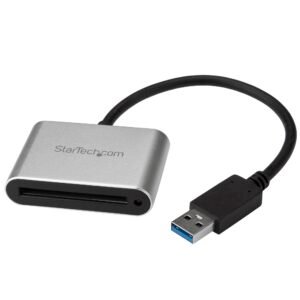
USB 3.0 Card Reader/Writer for CFast 2.0 Cards
$44.06 Add to cart