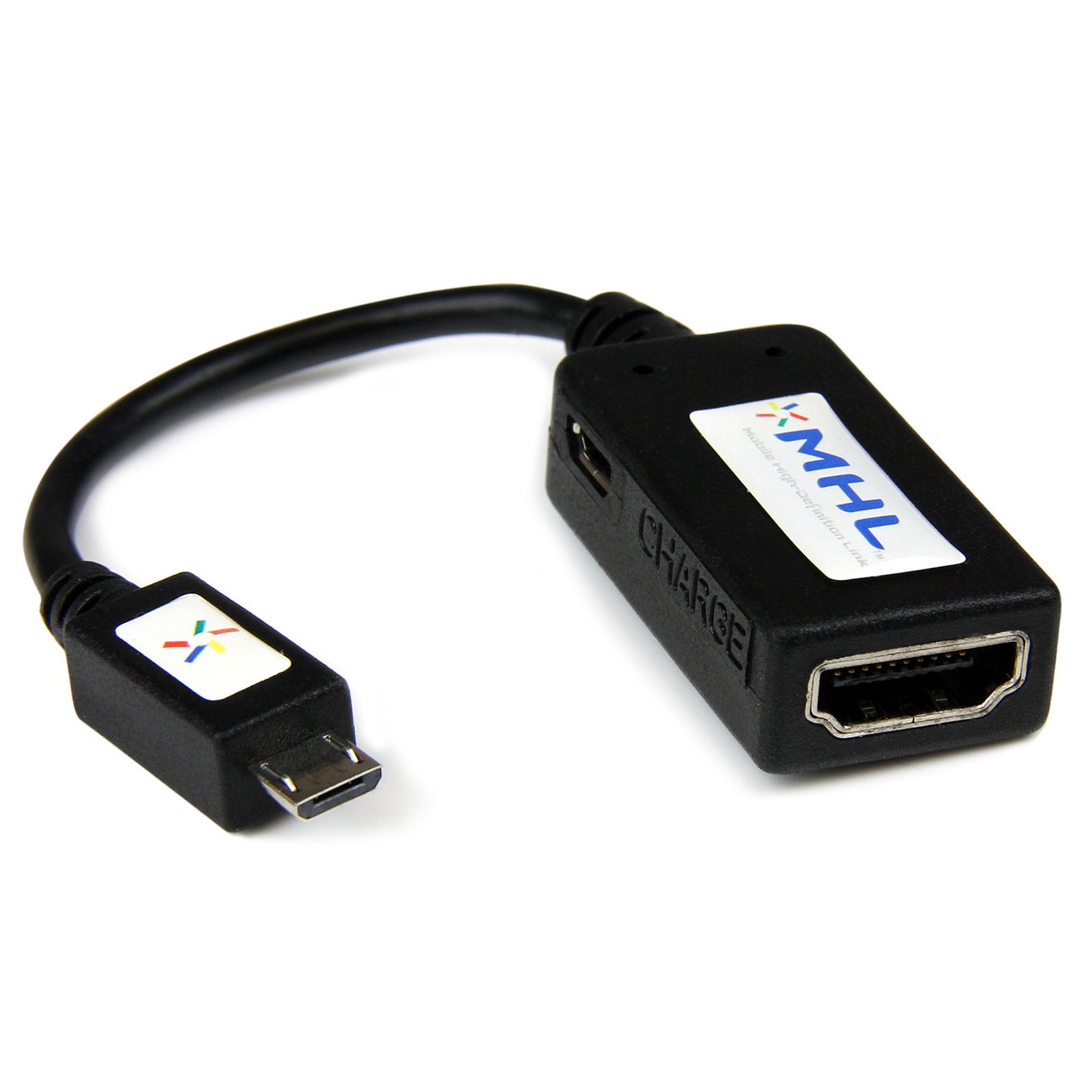


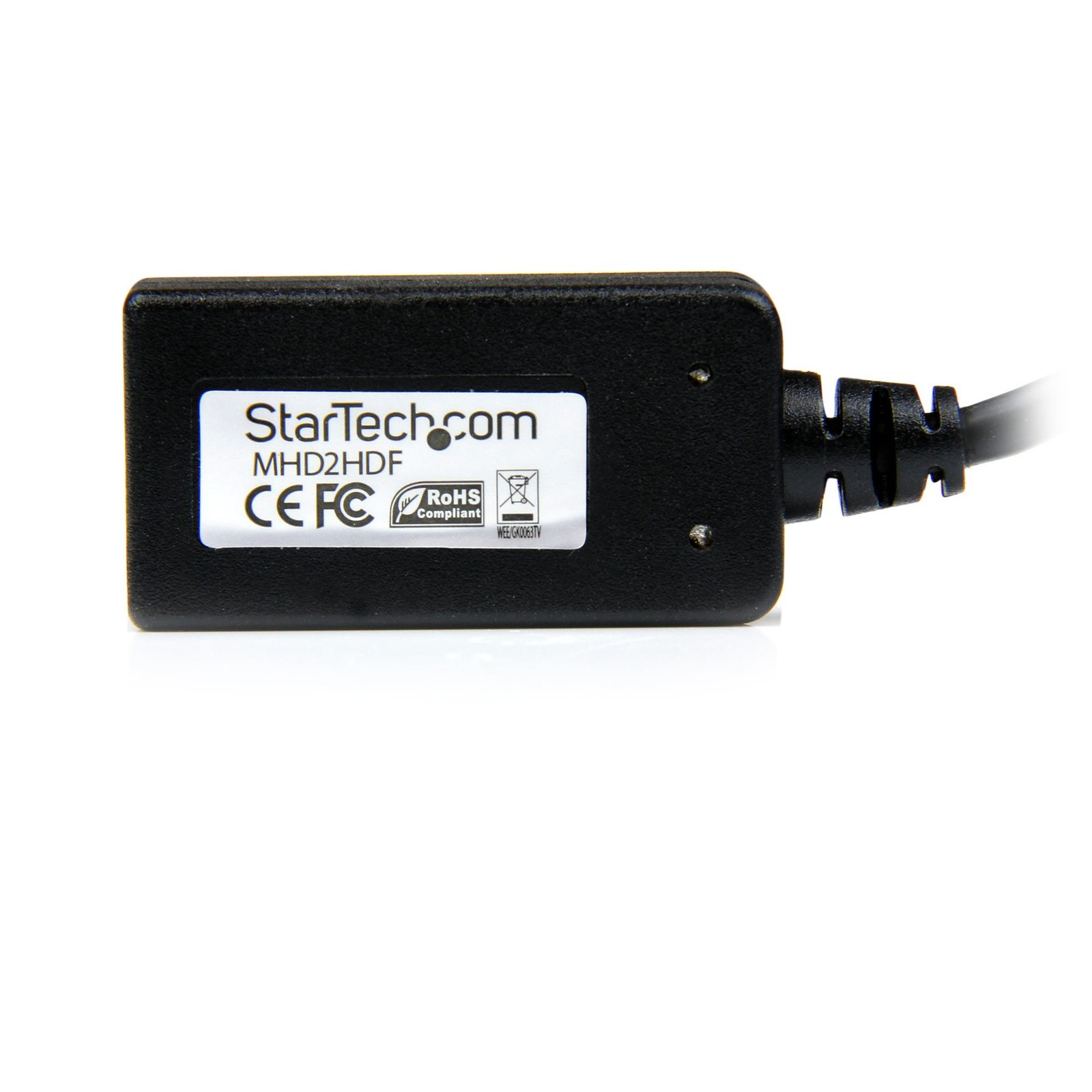
MHL Adapter Converter – Micro USB to HDMI
$33.99
Connect your MHL™ enabled mobile device to an HDTV, monitor or projector using HDMI®
Specifications & Compliance
- UPC
- 065030845946
- Brand
- StarTech.com
- Included in Package
- 1 - MHL™ to HDMI® Adapter
- Shipping (Package) Weight
- 1.0 oz [27 g]
- Weight of Product
- 0.7 oz [20 g]
- Product Length
- 5.9 in [15 cm]
- Product Width
- 0.8 in [20 mm]
- Product Height
- 0.4 in [10 mm]
- Package Depth
- 7.9 in [20 cm]
- Package Width
- 8.7 in [22 cm]
- Color
- Black
- Warranty
- 2 Years
- Connector 1
- USB Micro-B (MHL)
- Connector 1 (Quantity)
- 1
- Package Quantity
- 1
- Connector 2
- HDMI
- Connector 2 (Quantity)
- 1
- Operating Temperature
- 0°C to 45°C (32°F to 113°F)
- Storage Temperature
- -20°C to 70°C (4°F to 158°F)
- Material
- Plastic
- Industry Standards
- MHL 1 enabled
- Chipset ID
- Silicon Image - SiI9292CNUC
- Connector 3
- USB Micro-B (480Mbps, 2.5W)
- Connector 3 (Quantity)
- 1
- Maximum Digital Resolutions
- 1080p
- Audio
- Yes
- AV Input
- Micro USB (MHL)
- AV Output
- HDMI
- Maximum Cable Length
- 16.4 ft [5 m]
Questions & Answers
Everything is hooked up but nothing is working. What should I do?
When you troubleshoot issues with an MHL adapter, there are some quick tests that you can complete to rule out potential problems. You can test to make sure that the following components are working correctly and are not the source of the issue: Mobile device Display Video cables (if required) To test your setup components, try the following: Use the mobile device, display, and video cables in another setup to see if the problem is with the components or the setup. Use a different mobile device, display, and video cables in your setup to see if the problem persists. Ideally, you should test a component that you know works in another setup. When you test your cables, it is recommended that you do the following: Test each cable individually. Use short cables when you are testing. Note: You should avoid using adapters to further convert the HDMI signal. If you need to further convert the HDMI signal, make sure that all of the adapters and displays are compatible with the output resolution of the mobile device. When you test your setup, make sure that the following is true: Your mobile device is MHL compliant. For more information, navigate to the following FAQ: http://www.startech.com/faq/mhl_compliance . The correct source is selected on your display. The display is compatible with at least 1080p.
How can I tell if my device supports MHL, and what video output standard do modern devices use?
I MHL support must be built into the device hardware, but most modern devices no longer support MHL and instead use USB-C with DisplayPort Alt Mode. Explanation: Mobile High-Definition Link (MHL) is a legacy video output standard that was used on some older mobile devices with micro-USB ports. MHL support is hardware-based and cannot be added through software updates. To determine if a device supports MHL, you must check the manufacturer’s specifications. MHL is no longer commonly supported on modern smartphones and tablets. Older MHL-compatible devices may require specific adapters (such as 5-pin or 11-pin micro-USB) and, in some cases, external power to function. These requirements vary by device and must be verified before selecting an adapter. Modern devices typically use USB-C with DisplayPort Alt Mode for video output. This standard allows direct connection to displays using USB-C to HDMI or DisplayPort adapters. Some devices may also support wireless display technologies such as Miracast or AirPlay. To ensure compatibility, confirm whether your device supports MHL (legacy) or USB-C DisplayPort Alt Mode (modern) before choosing a video adapter.