
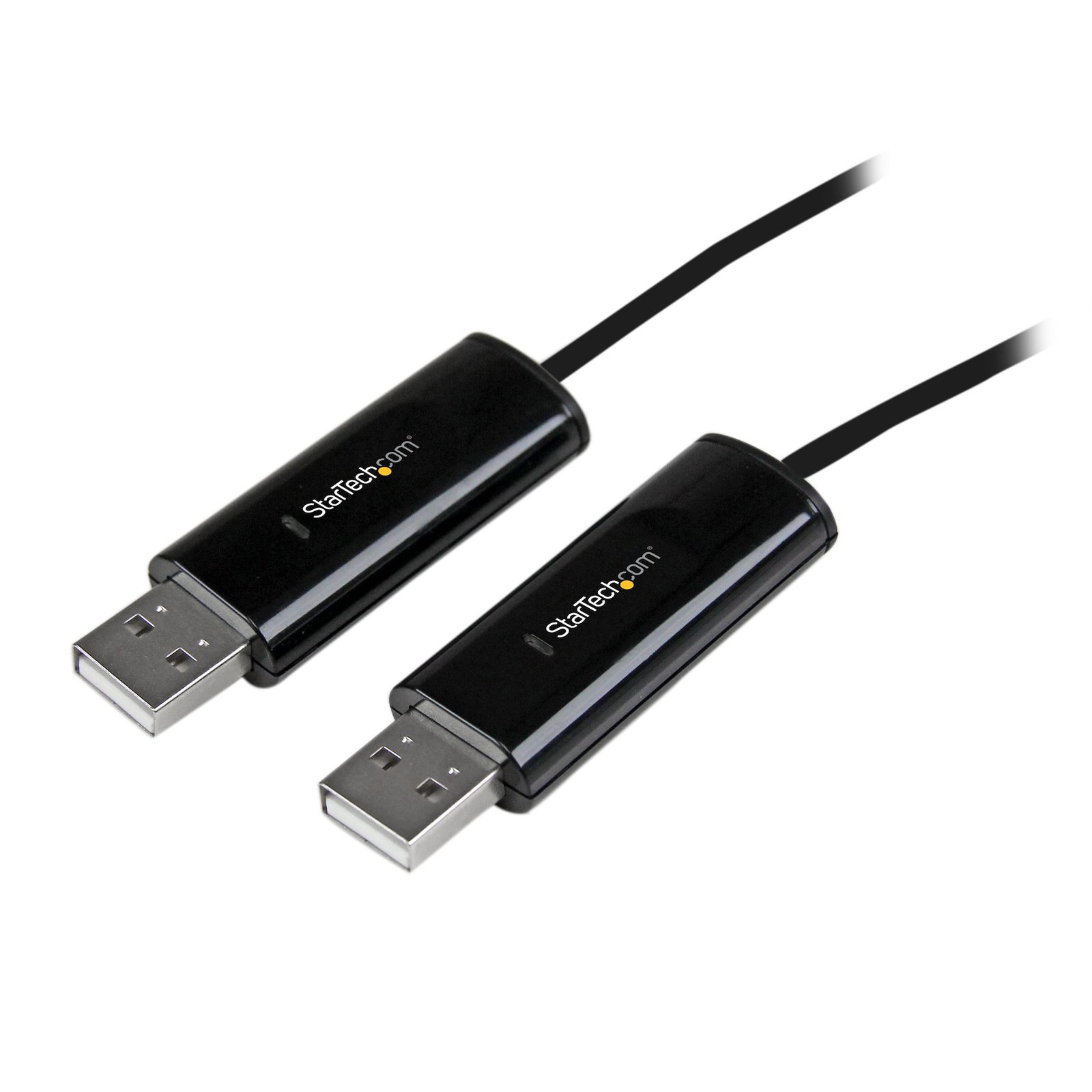
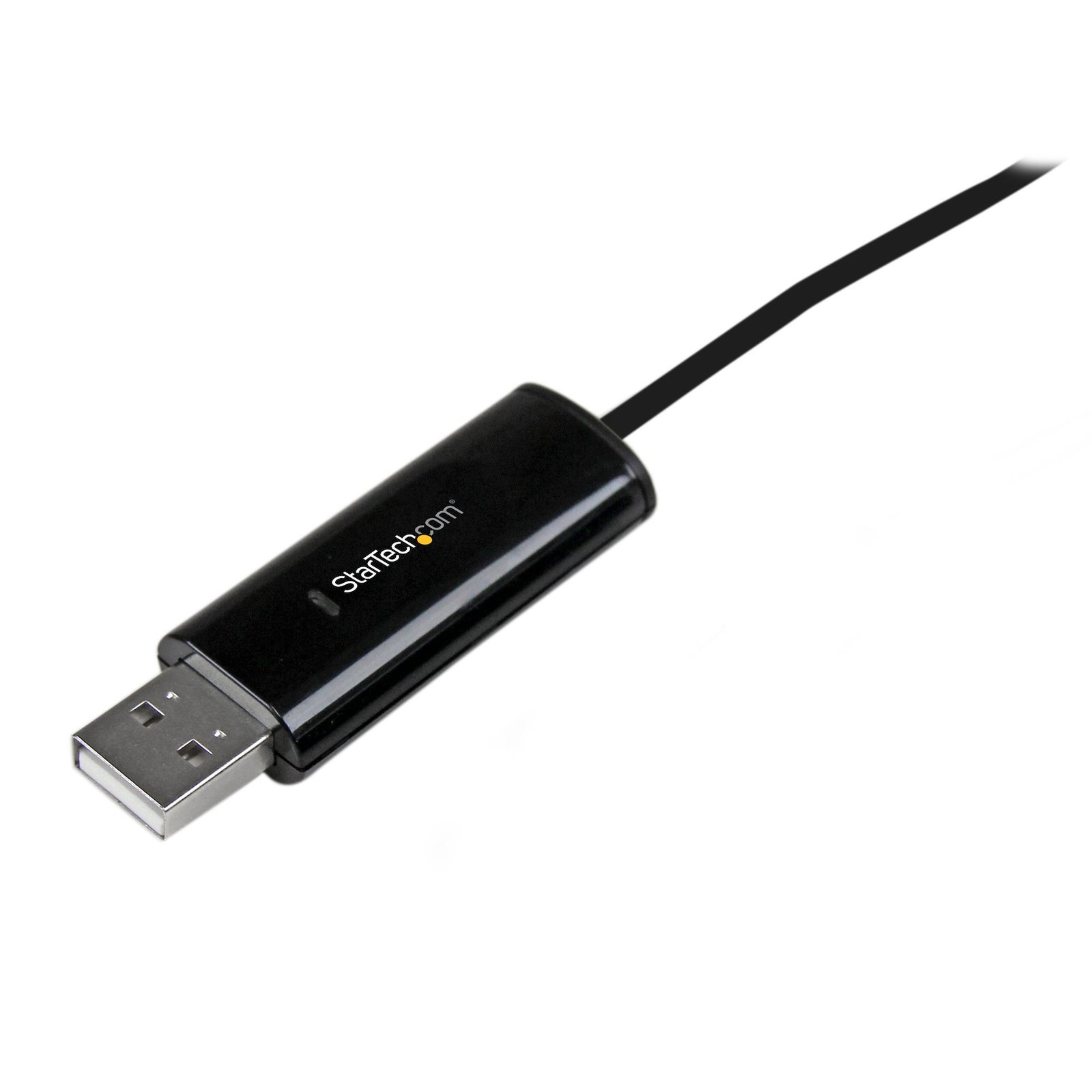
KM Switch Cable with File Transfer for Mac and PC - USB 2.0 - TAA
$23.99
Control and transfer files between two Windows® and/or Mac® systems using a single keyboard and mouse
Specifications & Compliance
- UPC
- 065030850636
- Brand
- StarTech.com
- Included in Package
- 1 - Keyboard Mouse Sharing Cable, 1 - Instruction Manual
- Shipping (Package) Weight
- 4.1 oz [116 g]
- Weight of Product
- 1.4 oz [40 g]
- Product Length
- 6.0 ft [1.8 m]
- Product Width
- 0.7 in [18.5 mm]
- Product Height
- 0.5 in [11.5 mm]
- Package Depth
- 5.7 in [14.6 cm]
- Package Width
- 6.9 in [17.4 cm]
- Package Height
- 1.3 in [34 mm]
- Color
- Black
- Warranty
- 2 Years
- Package Quantity
- 1
- Operating Temperature
- 0°C to 50°C (32°F to 122°F)
- Storage Temperature
- -10°C to 55°C (14°F to 131°F)
- Humidity
- 85% RH (Non-Condensing)
- Material
- Plastic
- Power Source
- USB-Powered
- Chipset ID
- MCT - WH88
- LED Indicators
- 2 - Power / Link
- Host Connector 1
- USB-A (480Mbps, 2.5W)
- Host Connector 1 (Quantity)
- 2
- Cascadable
- No
- Rack-Mountable
- No
- Number of KVM Ports
- 2
- IP Control
- No
- Supported Platforms
- USB
- On-Screen Display
- No
- Cables Included
- Yes
- Hot-Key Selection
- Yes
- Maximum Number of Users
- 1
- Microsoft WHQL Certified
- Yes
- CAC Support
- No
Questions & Answers
Why did the software not install properly in macOS High Sierra (10.13) or later?
Starting in High Sierra 10.13, macOS enforces stricter security policies than previous revisions. As a result of these changes, software packages, like those used in this installation, will need to be allowed within the macOS Security and Privacy settings, immediately after the software has been installed, in order for the device to operate. To allow the software, follow these steps after you've completed installation on your Mac: Open System Preferences . Open Security & Privacy . Click the Allow button near the bottom of the General tab. Note: The option to allow the software will be available within the Security & Privacy settings for 30 minutes. If the software is not allowed within that time frame, the software must be reinstalled in order for macOS to grant the opportunity to allow it again.
I just updated to macOS Catalina (10.15) and my Displays stopped working. How do I fix this issue?
Computers running macOS Catalina (10.15) may experience compatibility issues with products that use DisplayLink technology, such as USB Docking Stations and Video Adapters . Connecting to a DisplayLink-powered Product may cause the Display(s) to output a blank screen. If you experience this problem, follow these steps: Update computer to the latest version of macOS 10.15 Permit Screen Recording by following these steps: macOS Catalina 10.15: Screen Recording permission (external link) Enable the DisplayLink Kernel Extension by following these steps: macOS 10.13, 10.14 and 10.15: Video functionality not enabled (external link) If the problem persists, try installing the DisplayLink Manager Application (external link). Be sure to run the application after installation and select “Launch automatically after logging-in” for it to start automatically every time you log-in.
My Monitors are flickering when connected through the KVM Switch. What do I do?
Monitors may begin flickering when they receive a signal of insufficient quality. There are a few potential fixes available that will help to improve the signal quality in order to eliminate flickering: Replace Video Cables with high-quality Video Cables (e.g. upgrade DisplayPort 1.2 Cables to DisplayPort 1.4 Cables ). Use shorter Video Cables to reduce signal attenuation. When possible, remove Video Adapters to use native Video Connection Types (e.g. go from VGA to VGA , or DisplayPort to DisplayPort ) For DisplayPort Monitors , try changing the DisplayPort Version on the Monitor . For information on how to change your Monitor Settings refer to the Manual from the Monitor Manufacturer . Update the Drivers for the Computer’s GPU to the latest available from the Monitor Manufacturer .
When should I upgrade my device's firmware?
You should not upgrade your device's firmware if you do not have any issues with the functionality of your device. The only time you should consider an upgrade is if you are experiencing a problem with the device, and you have confirmed that the firmware addresses this problem. You can confirm this is the case by reviewing the documentation included with the firmware or by consulting with our Technical Support team. Incorrectly upgrading firmware can result in diminished performance so it is best to contact StarTech.com if you would like to perform this operation.
Related products
-
2-Port Hybrid USB-C DisplayPort Cable KVM Switch, 4K 60Hz, Compact KVM with 6ft/1.8m USB-A/DisplayPort/Audio & 4ft/1.2m USB-C Integrated Host Cables, Bus Powered - Remote Push Button/Hotkey Switching
$99.99 Add to cart -
2-Port USB-C KVM Switch, Single-4K 60Hz HDMI Monitor, Dual-100W Power Delivery Pass-through Ports, Bus Powered, USB Type-C/USB4/Thunderbolt 3/4 Compatible - Small Form Factor - TAA
$250.99 Add to cart -
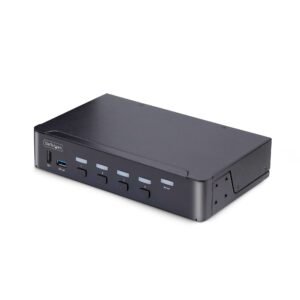
4-Port DisplayPort KVM Switch, 8K 60Hz / 4K 144Hz, Single Display, DP 1.4, 2x USB 3.0 Ports, 4x USB 2.0 HID Ports, Push-Button & Hotkey Switching, TAA Compliant - OS Independent, Metal Housing
$614.99 Add to cart -

2-Port Dual-Monitor DisplayPort KVM Switch, 8K 60Hz / 4K 144Hz, DP 1.4, 2x USB 10Gbps Ports, 4x USB HID Ports, Hotkey Switching, TAA Compliant
$648.99 Add to cart