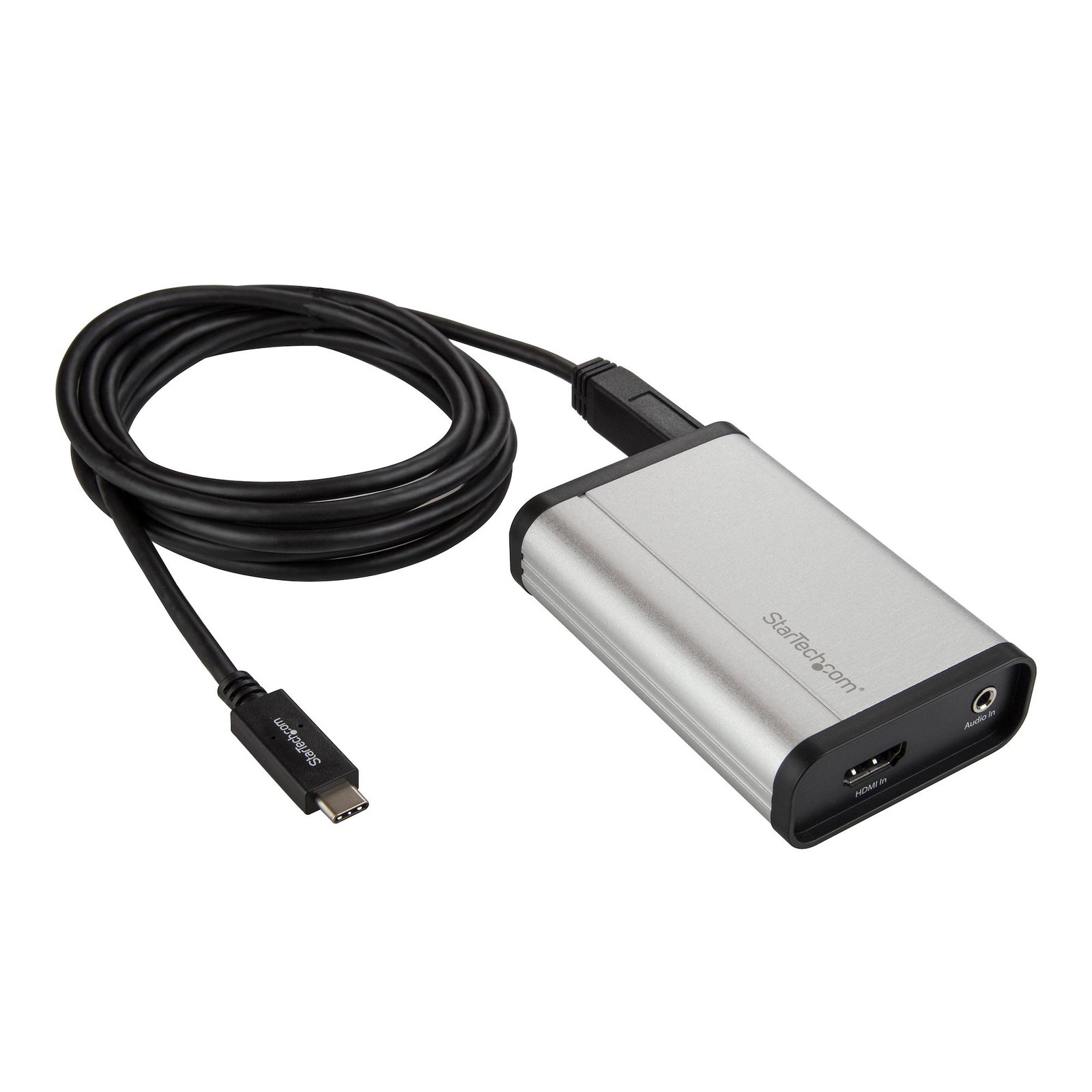
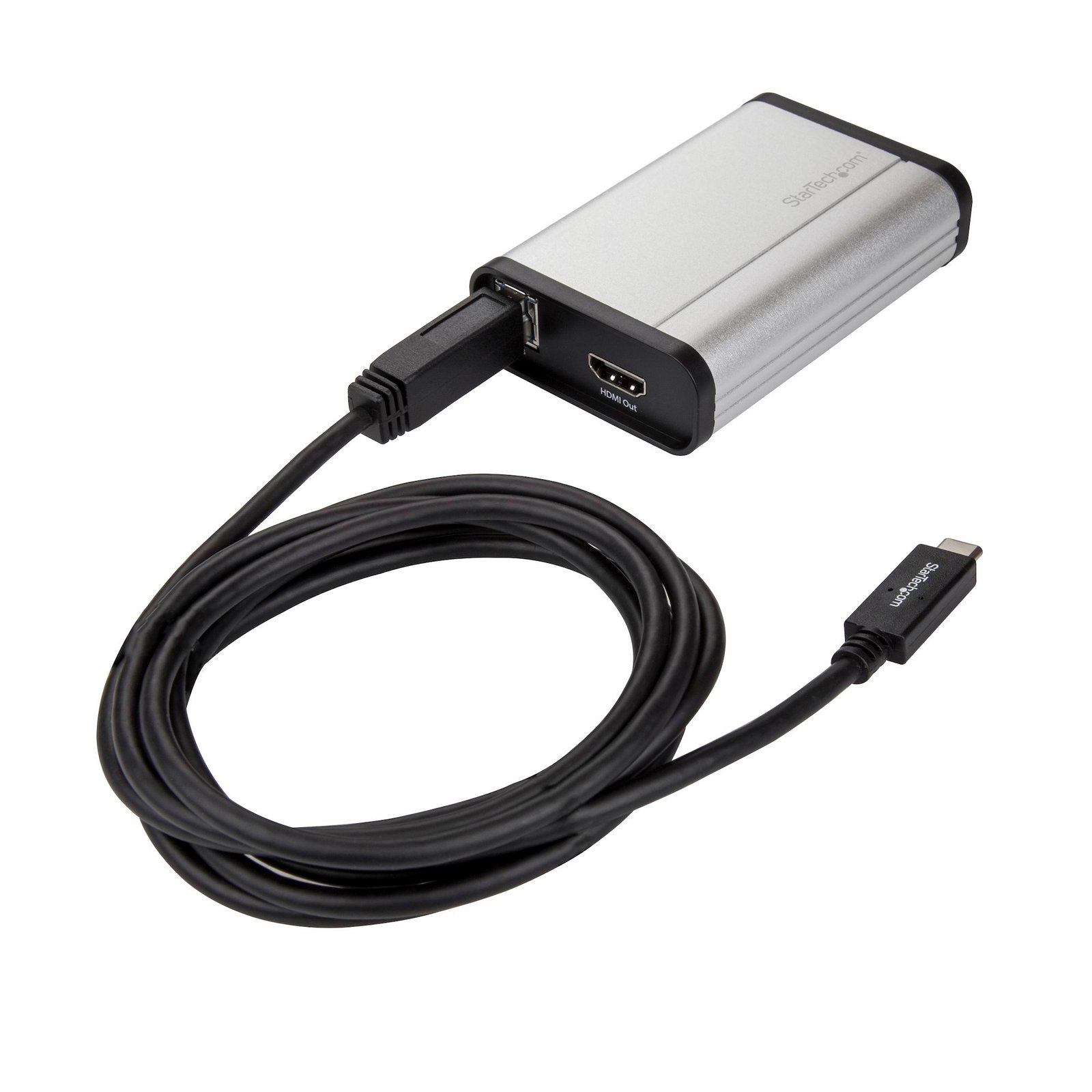
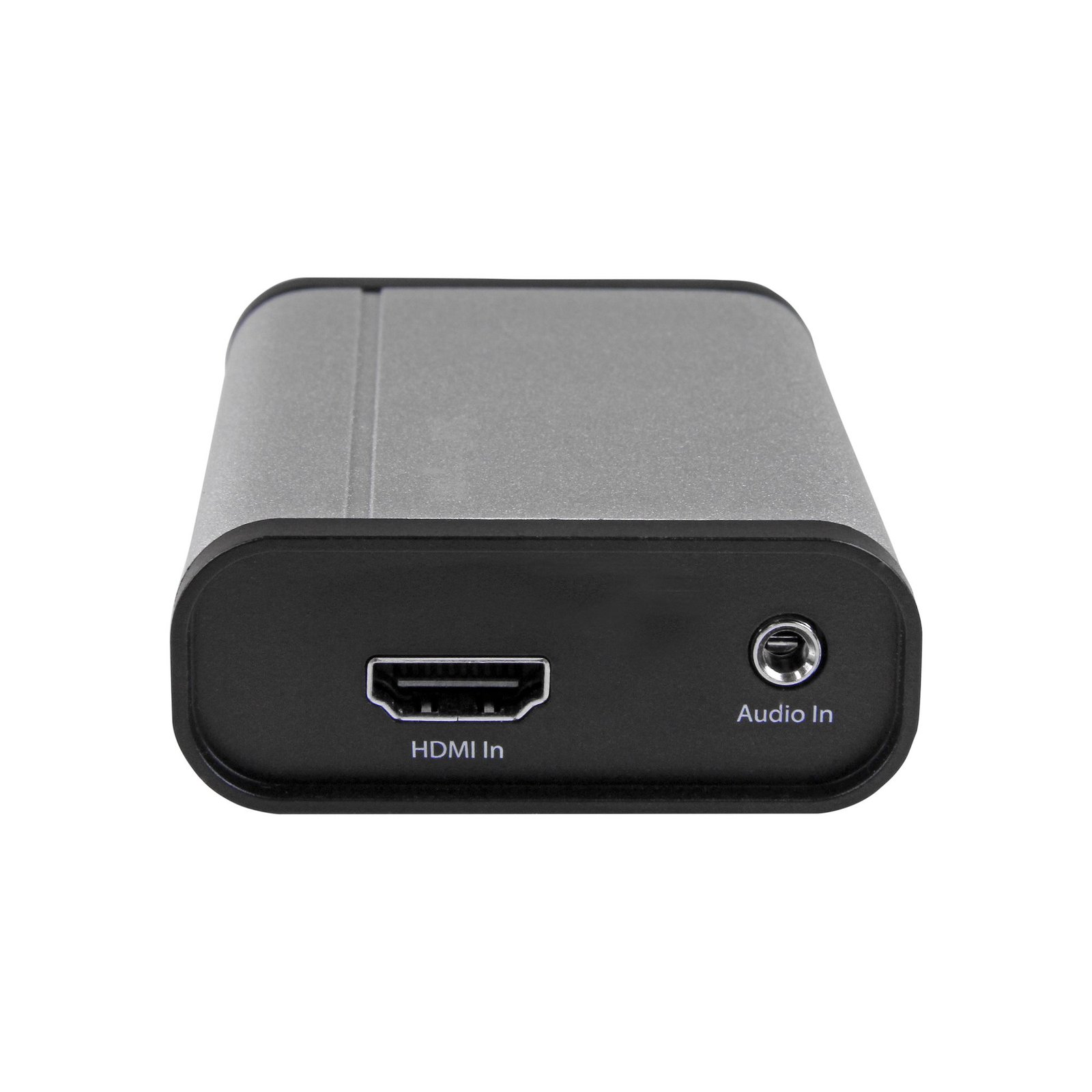
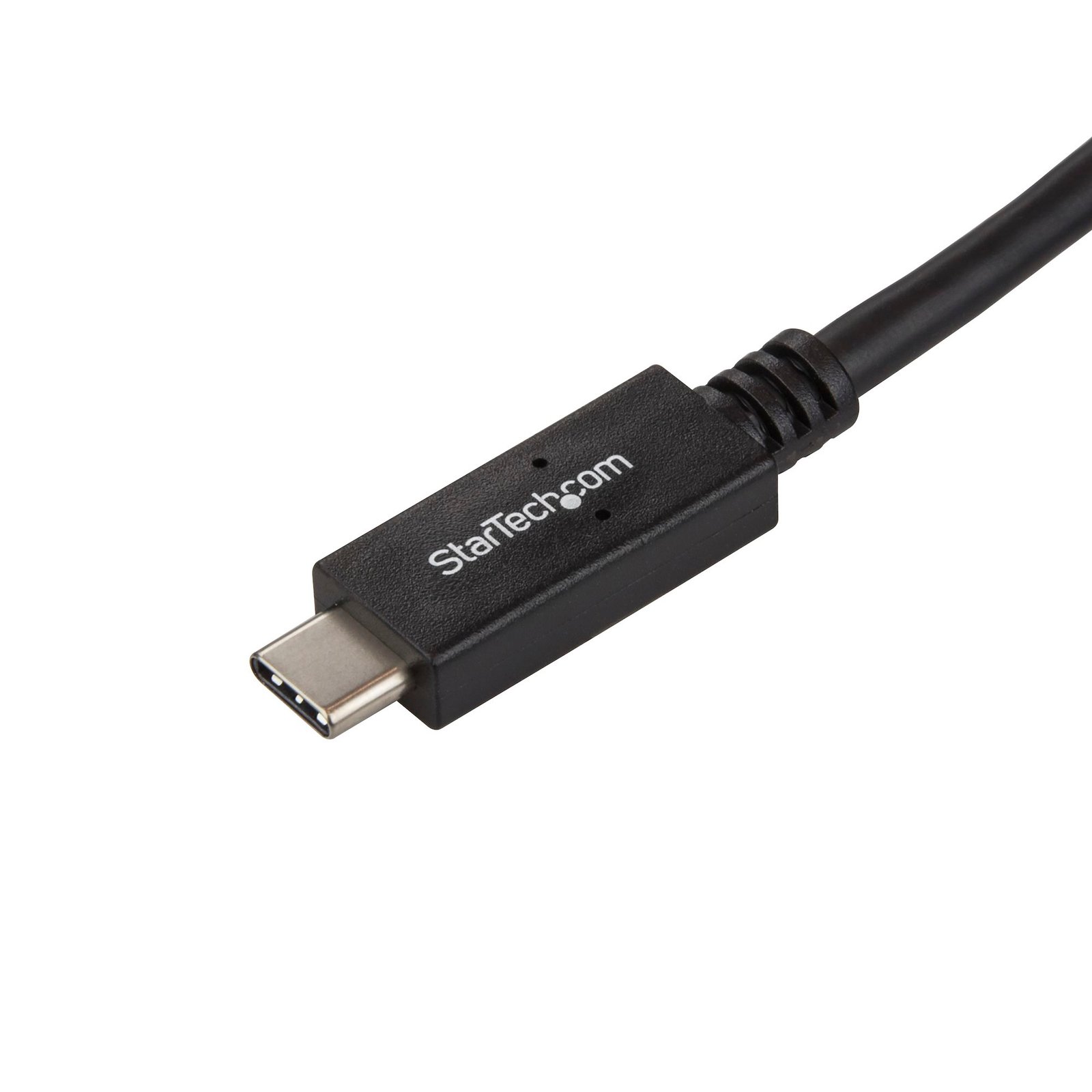
HDMI to USB-C Video Capture Device - 1080p 60fps
$305.99
HDMI Recorder | USB 3.0 | USB-A Cable Included | For Windows® and Mac
Specifications & Compliance
- UPC
- 065030878524
- Brand
- StarTech.com
- Included in Package
- 1 - USB-C capture device, 1 - 6ft [2m] USB-C to USB-B cable, 1 - 3.3 ft [1 m] USB-A to USB-B cable, 1 - 3.3 ft [1 m] HDMI cable
- Shipping (Package) Weight
- 11.8 oz [334 g]
- Weight of Product
- 3.1 oz [88 g]
- Product Length
- 3.6 in [92 mm]
- Product Width
- 2.3 in [58 mm]
- Product Height
- 1.1 in [28 mm]
- Package Depth
- 8.5 in [21.5 cm]
- Package Width
- 6.0 in [15.2 cm]
- Package Height
- 2.1 in [53 mm]
- Warranty
- 2 Years
- Connector 1
- HDMI
- Connector 1 (Quantity)
- 1
- Package Quantity
- 1
- Connector 2
- 3.5mm (3 Conductors, TRS)
- Connector 2 (Quantity)
- 1
- Operating Temperature
- 0°C to 40°C (32°F to 104°F)
- Storage Temperature
- -5°C to 40°C (23°F to 105°F)
- Humidity
- 20% to 80% (non-condensing)
- Industry Standards
- NTSC, PAL-M, PAL-60, PA, Video Encoding: MPEG4/H.264, DirectShow Compatible
- Power Source
- USB-Powered
- Chipset ID
- Mstar - MST3363CNK-170
- Special Notes
- This video capture device requires a USB 3.0 port (or higher). The video capture device does not work with USB 2.0 ports (or lower)., The capture software included for macOS does not support video streaming
- Connector 3
- USB-B (5Gbps, 4.5W)
- Connector 3 (Quantity)
- 1
- MTBF
- 3,104,896 Hours
- Maximum Digital Resolutions
- 1920 x 1080 60 FPS
- Audio
- Yes
- AV Input
- HDMI
- AV Output
- USB
- Wide Screen Supported
- Yes
- Supported Resolutions
- 1920 x 1080, 1280 x 720, 1024 x 768, 800 x 600
Questions & Answers
Why is the video capture software not working on my MacBook Pro?
There are known compatibility issues with the included capture software when using macOS versions 10.14.0 - 10.14.2. If you're experiencing issues, please update macOS to the latest version.
Why is StreamCatcher no longer working in Windows after January 12th 2021?
Adobe Flash-based applications will no longer run as of January 12, 2021. As a result, the original StreamCatcher software is not currently functional and is no longer available for download. StarTech.com has replaced the previous Flash based software with the new StreamCatcher Pro which is now available for free under the Drivers/Downloads section of all supported capture device product pages. Please uninstall the original software and download/install the new StreamCatcher Pro to continue using your StarTech.com capture devices. More information about Flash support being discontinued is available here from Adobe.
How do I use Stream Catcher to stream to YouTube Live Events?
Open a web browser and navigate to https://www.youtube.com/live_dashboard . Under Encoder setup , copy the Server URL from the bottom of the page. Add a slash mark and your stream name or key to the end of the URL (for example, rtmp://a.rtmp.youtube.com/live2/USERACCOUNT-8033.d1fj-m8d7-ds8y-41qj). Copy the RMTP link (you will need it to complete step 8). Open Stream Catcher . Click Settings > Streaming Settings . In the Streaming Protocol Type drop-down menu, click RTMP . In the Streaming Public URL field, paste the link that you copied in step 4. On the Stream Catcher home page, click the blue record icon.