
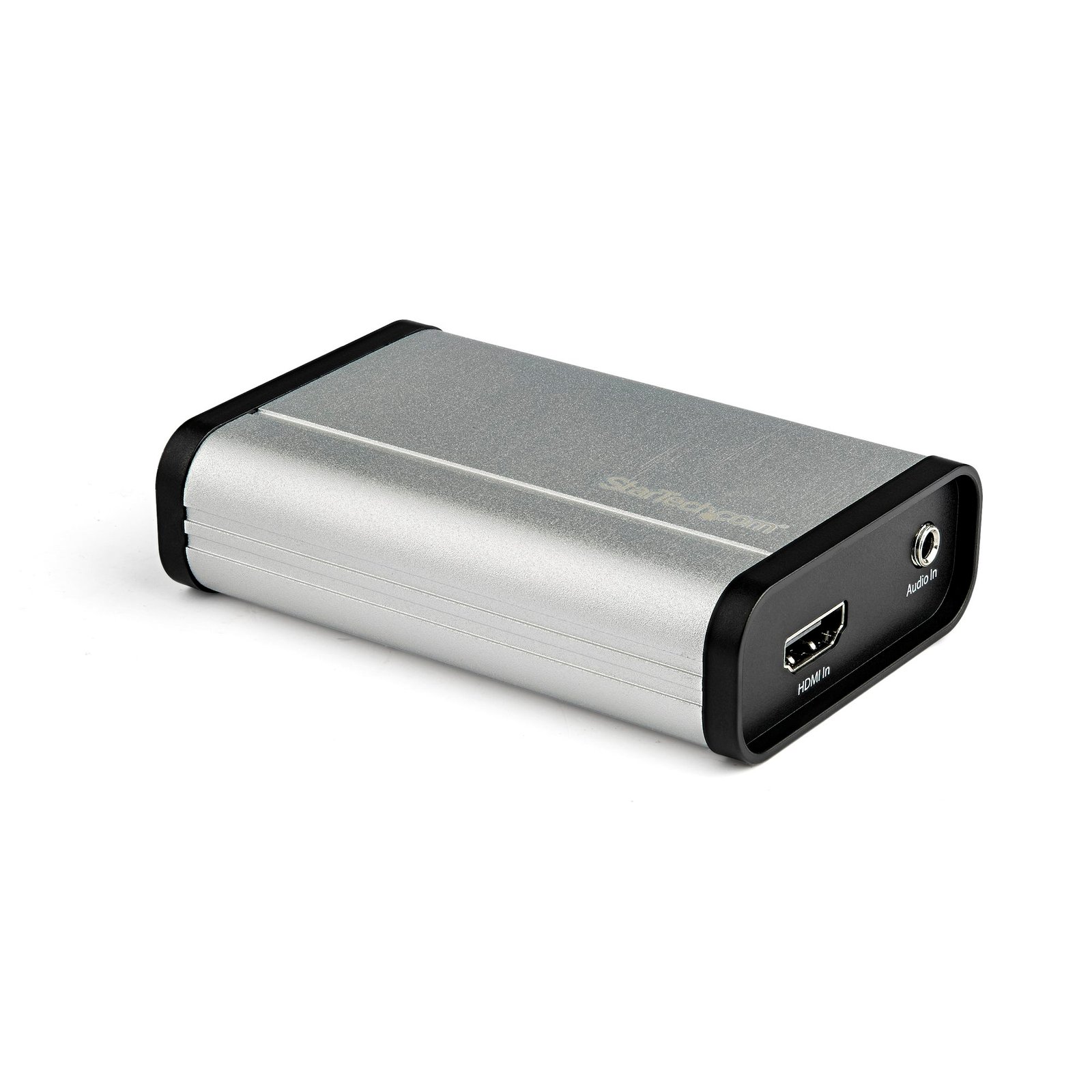
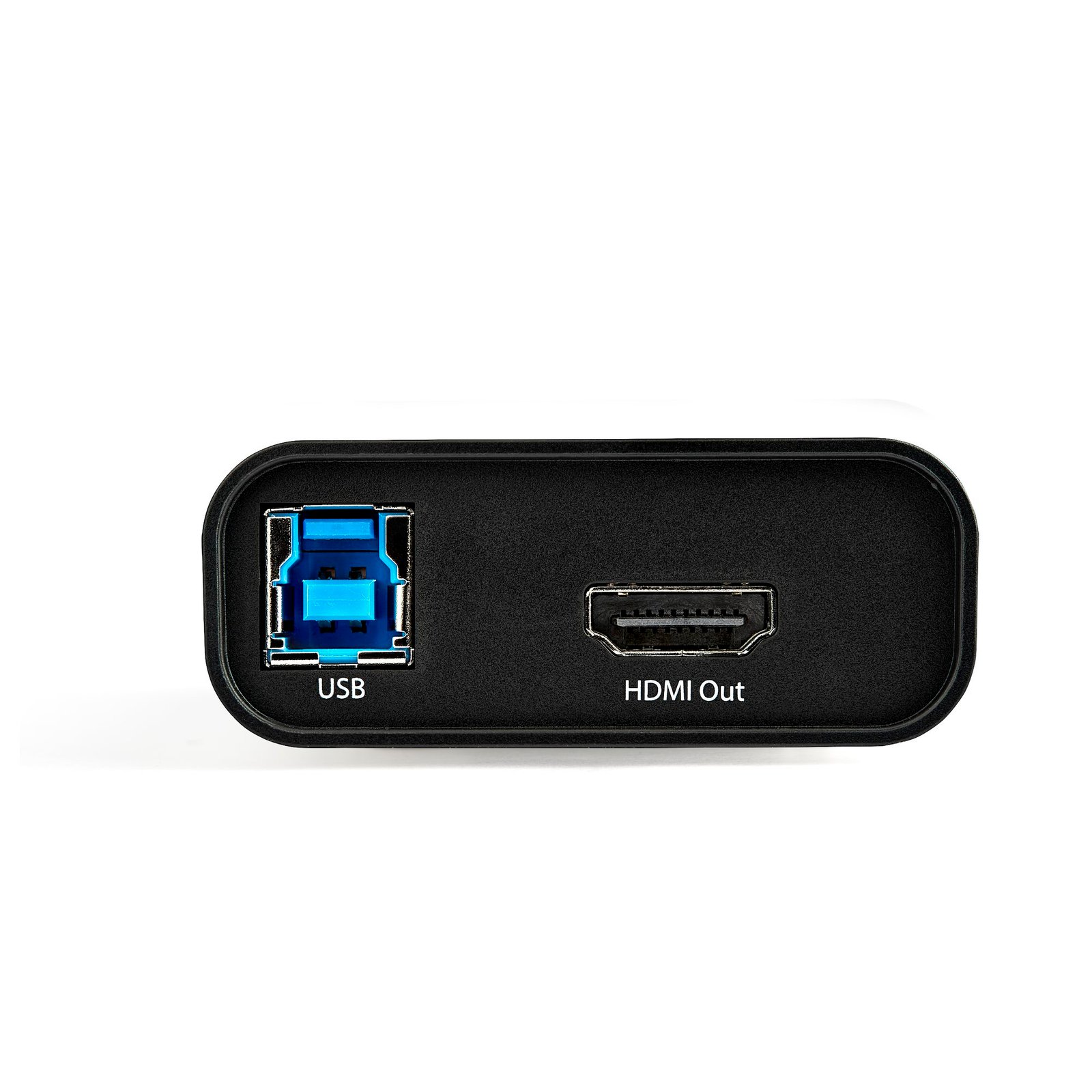
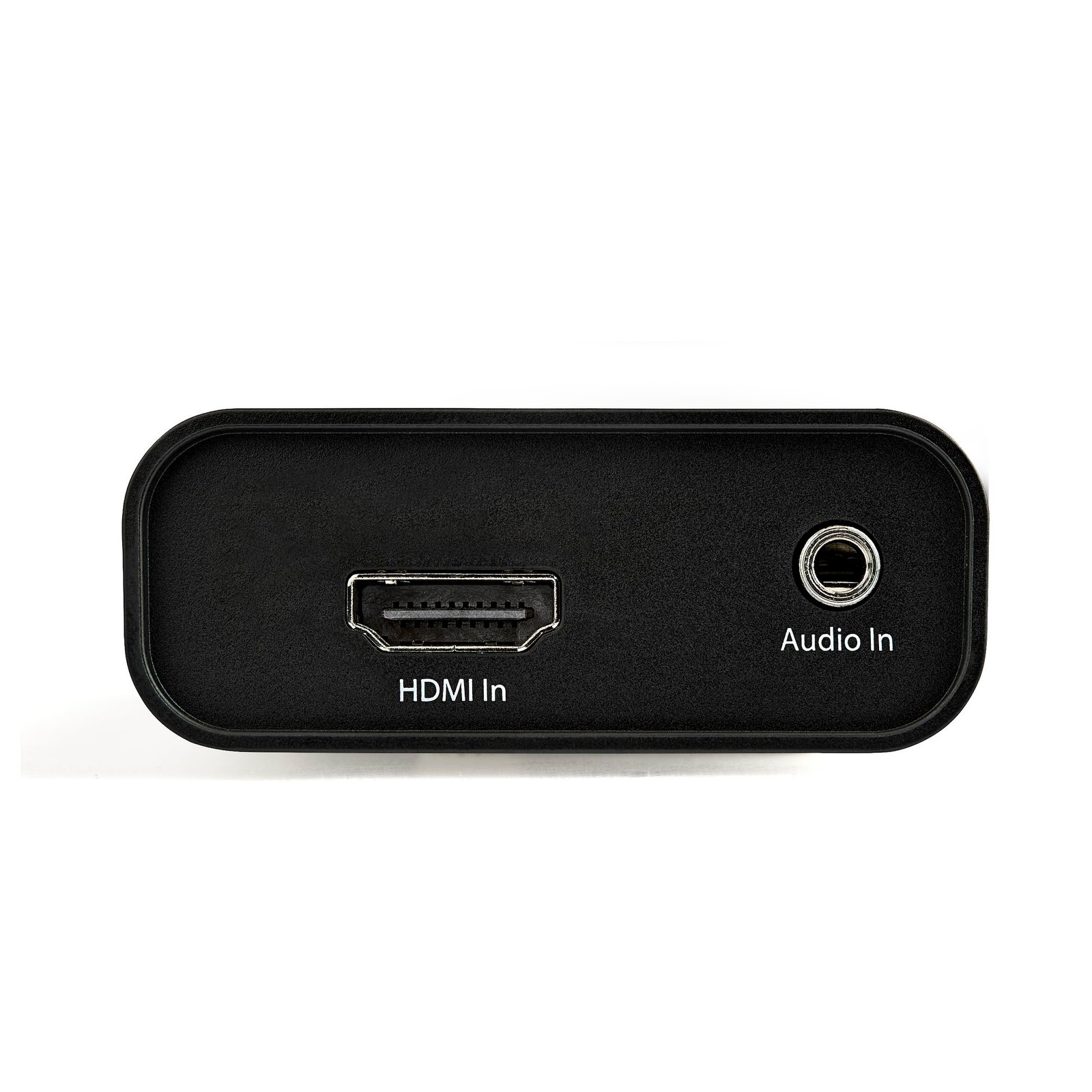
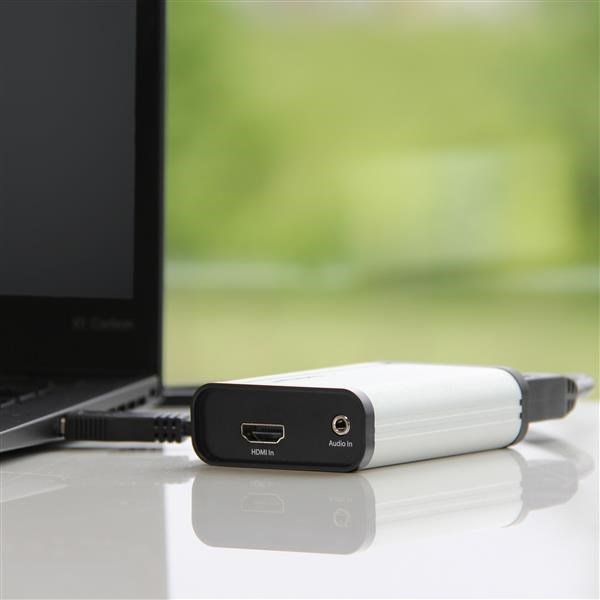
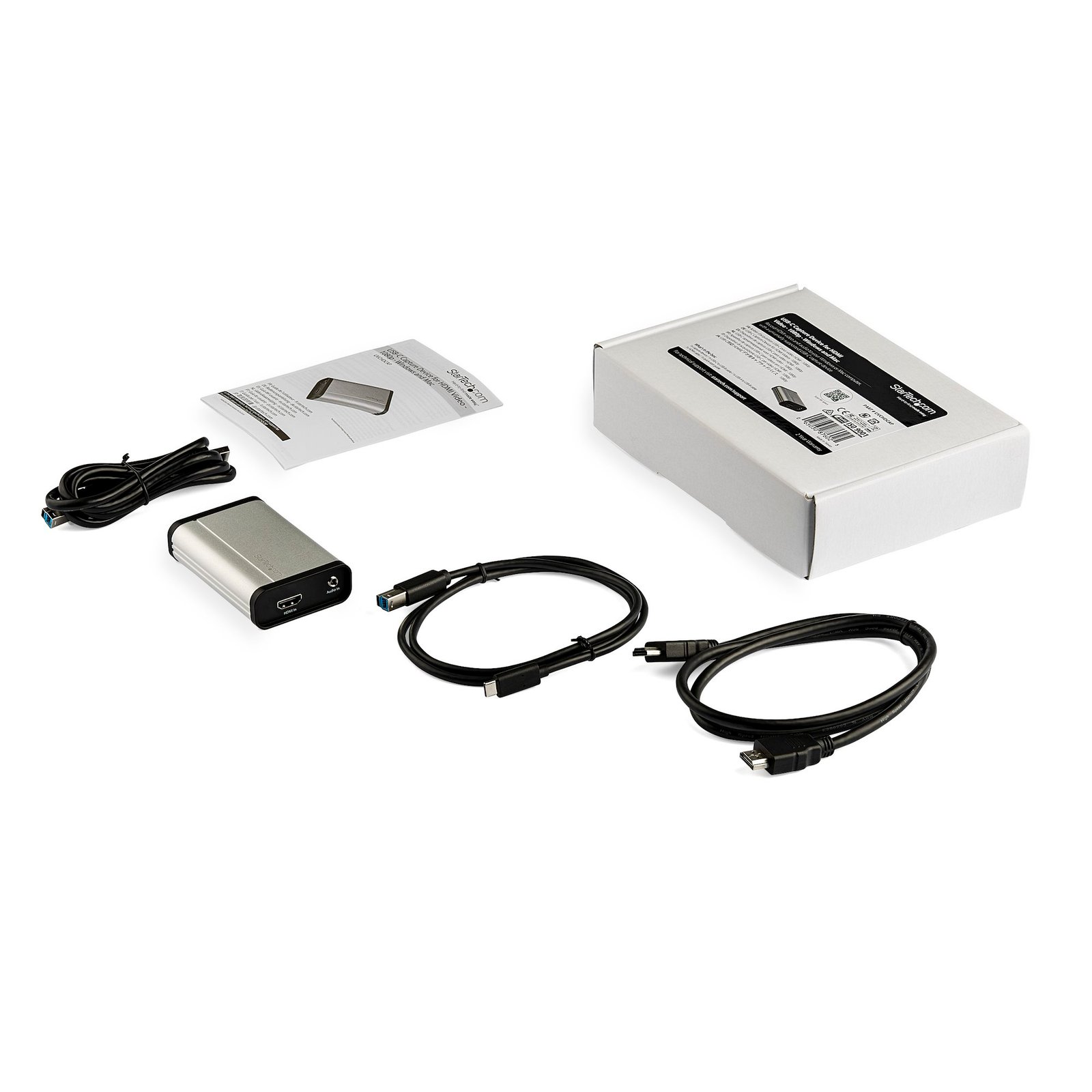
HDMI to USB C Video Capture Device 1080p 60fps - UVC - External USB 3.0 Type-C Capture/Live Streaming - HDMI Audio/Video Recorder Adapter - Works with USB-C/USB-A/Thunderbolt 3 - TAA
$140.99
HDMI® Recorder| USB 3.0 | USB Video Class | USB-A Cable Included
Specifications & Compliance
- Manufacturer #
- UVCHDCAP
- UPC
- 065030876025
- Brand
- StarTech.com
- Included in Package
- 1 - capture device, 1 - USB-C to USB-B cable (1m), 1 - USB-A to USB-B cable (1m), 1 - HDMI cable (1m), 1 - quick-start guide
- Shipping (Package) Weight
- 14.1 oz [400 g]
- Weight of Product
- 3.0 oz [86.0 g]
- Product Length
- 3.6 in [92.0 mm]
- Product Width
- 2.4 in [60.0 mm]
- Product Height
- 0.9 in [23.0 mm]
- Package Depth
- 6.0 in [15.3 cm]
- Package Width
- 8.7 in [22 cm]
- Package Height
- 2.2 in [56 mm]
- Color
- Silver & Black
- Warranty
- 2 Years
- Connector 1
- HDMI
- Connector 1 (Quantity)
- 1
- Package Quantity
- 1
- Connector 2
- 3.5mm (3 Conductors, TRS)
- Connector 2 (Quantity)
- 1
- Operating Temperature
- 0°C to 40°C
- Storage Temperature
- -5°C to 40°C
- Humidity
- 20-80% RH Non-Condensing
- Industry Standards
- MPEG4 (H.264), USB Video Class (UVC)
- Chipset ID
- Mstar - MST3363CNK-170
- Special Notes
- A computer that supports USB 3.0 or higher is required. This product will not work with USB 2.0 or 1.1 controllers.
- Input Voltage
- 5V DC
- Output Voltage
- 5 DC
- Connector 3
- USB-B (5Gbps, 4.5W)
- Connector 3 (Quantity)
- 1
- MTBF
- 2,878,791 hours
- Maximum Digital Resolutions
- 1920 x 1080 60 FPS
- Audio
- Yes
- AV Input
- HDMI
- AV Output
- USB
- Wide Screen Supported
- Yes
- Supported Resolutions
- 1920 x 1080, 1280 x 720, 1024 x 768, 800 x 600
Questions & Answers
Why is my device not detected after updating to Windows 10?
A Windows 10 update may prevent a Capture Device from being detected by your Computer. Enabling access to your Camera and Microphone will resolve this issue. To enable access to your Camera: Click the Start icon. Click the Settings icon. Click the Privacy tile. Click Camera . Locate the slider that says Let apps use my camera . Toggle this slider to the On position. To enable access to your Microphone: Click the Start icon. Click Settings icon. Click Privacy tile. Click Microphone . Locate the slider that says Let apps use my microphone . Toggle this slider to the On position.
Why is StreamCatcher no longer working in Windows after January 12th 2021?
Adobe Flash-based applications will no longer run as of January 12, 2021. As a result, the original StreamCatcher software is not currently functional and is no longer available for download. StarTech.com has replaced the previous Flash based software with the new StreamCatcher Pro which is now available for free under the Drivers/Downloads section of all supported capture device product pages. Please uninstall the original software and download/install the new StreamCatcher Pro to continue using your StarTech.com capture devices. More information about Flash support being discontinued is available here from Adobe.
How do I use Stream Catcher to stream to YouTube Live Events?
Open a web browser and navigate to https://www.youtube.com/live_dashboard . Under Encoder setup , copy the Server URL from the bottom of the page. Add a slash mark and your stream name or key to the end of the URL (for example, rtmp://a.rtmp.youtube.com/live2/USERACCOUNT-8033.d1fj-m8d7-ds8y-41qj). Copy the RMTP link (you will need it to complete step 8). Open Stream Catcher . Click Settings > Streaming Settings . In the Streaming Protocol Type drop-down menu, click RTMP . In the Streaming Public URL field, paste the link that you copied in step 4. On the Stream Catcher home page, click the blue record icon.
Will this video capture card work with video game consoles such as PlayStation, Xbox, or Nintendo Switch?
It depends. Video game console compatibility is determined by HDCP settings, video output standards, and the supported resolution and refresh rate of the capture card. Explanation: Most modern video game consoles can work with HDMI video capture cards when the console output matches the capture card specifications and HDCP-protected content is disabled or not in use. HDCP compatibility: High-bandwidth Digital Content Protection (HDCP) prevents capture cards from recording protected video content. Streaming apps, Blu-ray playback, and other protected media may display a blank screen or capture error when HDCP is enabled. PlayStation 4 and PlayStation 5: HDCP can be disabled for gameplay capture. Xbox One and Xbox Series X/S: Gameplay capture is generally supported, but protected media content may still use HDCP. Nintendo Switch: HDMI gameplay output is typically compatible with capture cards. PlayStation 3: HDMI output is protected by HDCP at all times, preventing standard HDMI gameplay capture. Resolution and refresh rate compatibility: The console output resolution and refresh rate must be supported by the capture card. Verify the maximum supported input resolution, capture resolution, and passthrough specifications in the product’s Technical Specifications. Features such as 4K, 120 Hz, Variable Refresh Rate (VRR), and HDMI 2.1 may require specific capture hardware support. Video interface compatibility: Most modern consoles use HDMI video output. The capture card must support the HDMI version and video standard used by the console. For reliable gameplay capture, confirm that the console video settings, HDCP configuration, and output resolution are compatible with the specifications of the video capture card.
Does this video capture card support the use of third party software?
It depends. Some StarTech.com video capture cards support third-party software through DirectShow compatibility. Explanation: Certain StarTech.com video capture cards are compatible with DirectShow, a Microsoft multimedia framework commonly used by video capture and streaming applications. DirectShow-compatible capture cards may work with third-party software that supports DirectShow input devices. Compatibility with third-party applications depends on the software, operating system, and capture card model. StarTech.com does not officially certify, endorse, or provide support for third-party video capture applications, even if the software recognizes the capture card. To determine whether a specific capture card supports DirectShow, refer to the following FAQ: https://www.startech.com/faq/video-capture-cards-directshow .
Will this video capture card work with DirectShow-compatible software, and how do I install the required driver?
Yes, this video capture card uses a DirectShow-compatible driver and may work with third-party video capture software after the driver is installed. Explanation: This video capture card uses a DirectShow-compatible driver, which allows it to function with many third-party video capture and streaming applications that support DirectShow input devices. Before the capture card can be used with DirectShow-compatible software, the correct StarTech.com driver must be installed. Drivers can be downloaded by searching for the product ID on the StarTech.com Support website. Compatibility with third-party applications depends on the software, operating system, and capture card configuration. StarTech.com does not officially certify, endorse, or provide technical support for third-party video capture applications. Any troubleshooting or software-specific support for third-party applications must be handled independently.
Can I use this capture card to turn my video camcorder into a webcam?
Yes, if you use this capture card with third party software, it is possible to turn your video camcorder into a webcam. Although third-party software might work with this video capture card, StarTech.com does not officially support or endorse the use of third-party applications.
Related products
-

DVI to HDMI Video Converter with Audio
$103.99 Add to cart -
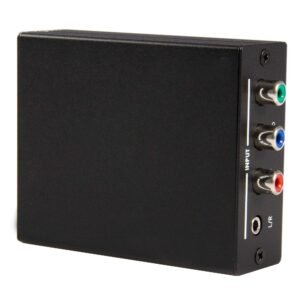
Component to HDMI Video Converter with Audio - TAA
$169.99 Add to cart -
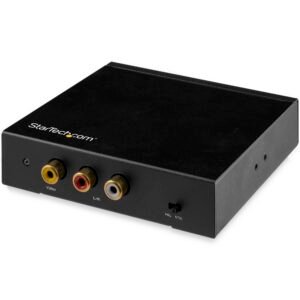
HDMI to RCA Converter Box with Audio
$124.99 Add to cart -

DVI to DisplayPort Adapter - USB Power - 1920 x 1200 - DVI to DisplayPort Converter - Video Adapter - DVI-D to DP
$76.99 Add to cart