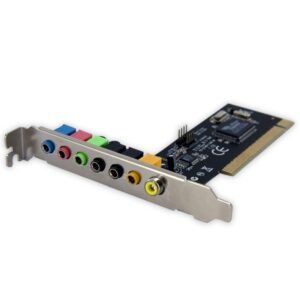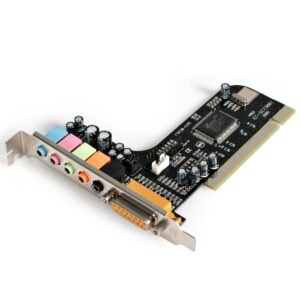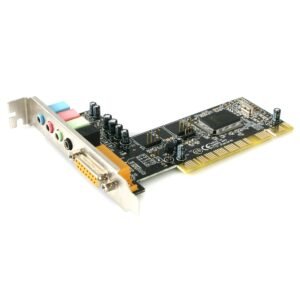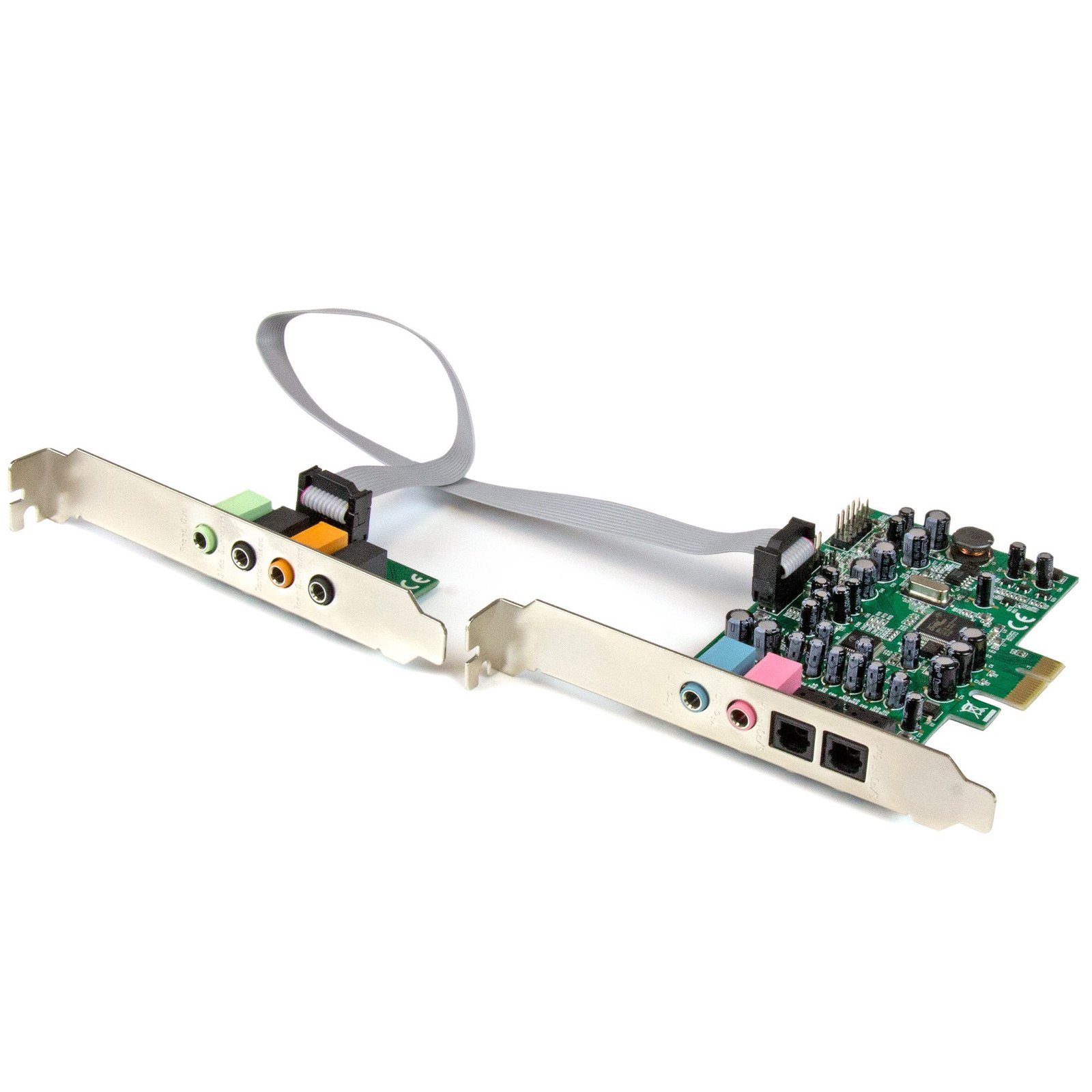
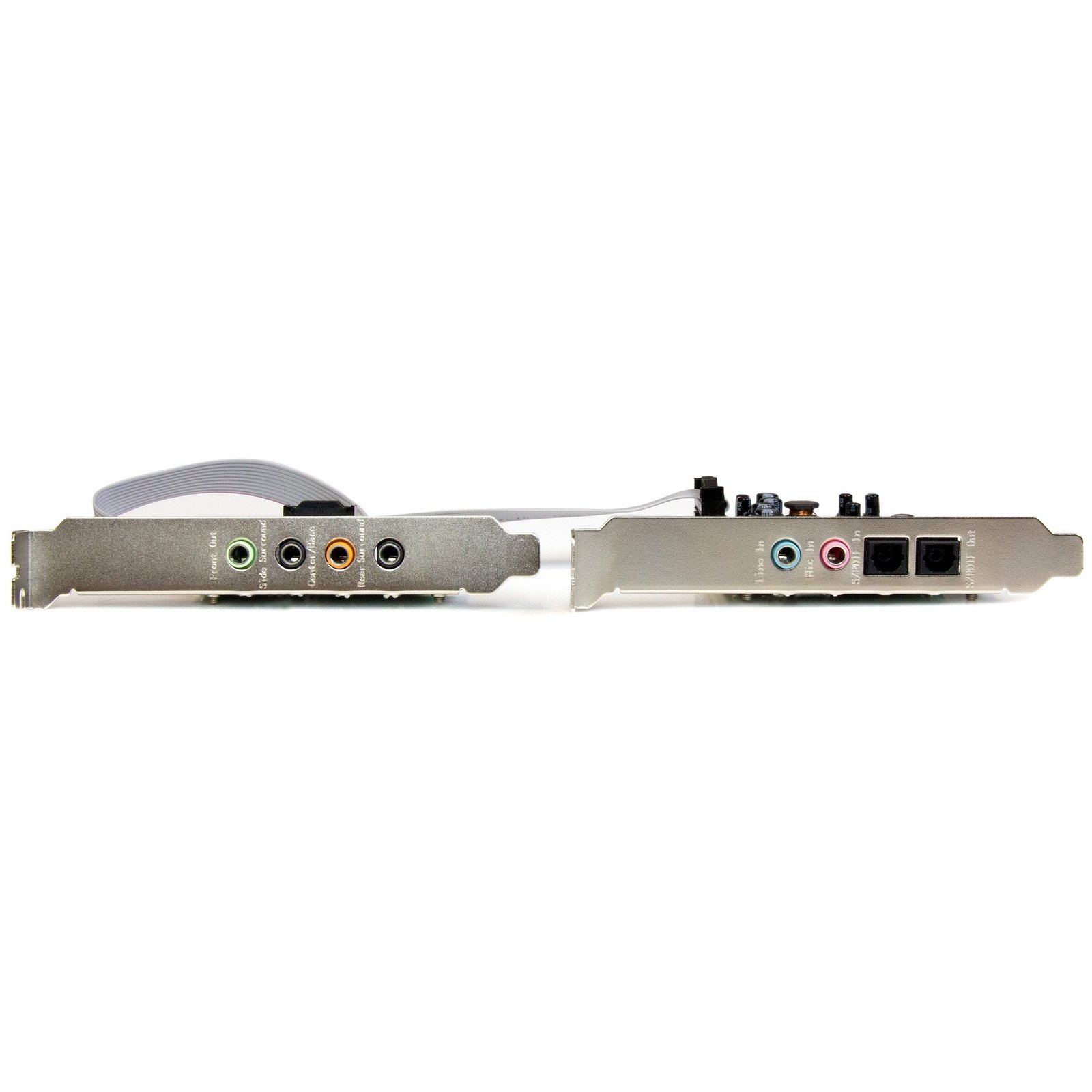


7.1 Channel Sound Card - PCI Express, 24-bit, 192KHz
$89.99
Add digital optical surround sound to your computer through PCIe
Specifications & Compliance
- UPC
- 065030860376
- Brand
- StarTech.com
- Included in Package
- 1 - 7.1 Channel PCI Express Sound Card with Header Bracket & 10-pin Cable, 2 - Low-Profile Brackets, 1 - Instruction Manual
- Shipping (Package) Weight
- 6.6 oz [186 g]
- Weight of Product
- 3.5 oz [99 g]
- Product Length
- 4.3 in [10.9 cm]
- Product Width
- 0.7 in [18 mm]
- Product Height
- 4.7 in [12 cm]
- Package Depth
- 5.6 in [14.2 cm]
- Package Width
- 6.8 in [17.3 cm]
- Package Height
- 1.4 in [35 mm]
- Color
- Green
- Warranty
- 2 Years
- Connector 1
- PCI Express x1
- Connector 1 (Quantity)
- 1
- Package Quantity
- 1
- Connector 2
- TOSLINK (Optical S/PDIF)
- Connector 2 (Quantity)
- 2
- Operating Temperature
- 0°C to 70°C (32°F to 158°F)
- Storage Temperature
- -10C to 80°C (14°F to 176°F)
- Humidity
- 10~90% RH
- Material
- Steel
- Chipset ID
- C-Media - CM8828
- Input Voltage
- 12V DC
- Output Voltage
- 12V DC
- Connector 3
- 3.5mm (3 Conductors, TRS)
- Connector 3 (Quantity)
- 6
- Bus Type
- PCI Express
- System and Cable Requirements
- PCI Express enabled computer with an available PCI Express x1 slot or higher (x4, x8, x16), Additional slot on your computer case if installing and using the header bracket
- Connector 4
- Audio Header MPC2 (4-Pin)
- Connector 4 (Quantity)
- 2
- Card Type
- Standard Profile (LP bracket incl.)
- Connector 5
- IDC (10-Pin)
- Connector 5 (Quantity)
- 2
- Full Duplex Support
- Yes
- Connector 6
- IDC (9-Pin)
- Connector 6 (Quantity)
- 1
Questions & Answers
How do I install my sound card in Windows 7, Windows 8, Windows 10, or Windows 11? (.exe method)
To install your sound card in Windows, download the latest driver package from StarTech.com, extract the files, run Setup.exe as an administrator, and restart the computer if prompted. Explanation: Before installing the sound card, ensure that Windows is fully updated with the latest service packs, security updates, and feature updates available for your operating system. To install the driver: Download the latest driver package from the StarTech.com Drivers & Downloads page. Extract the contents of the downloaded ZIP file. Open the folder for your version of Windows, if applicable. Right-click Setup.exe and select Run as administrator . Follow the on-screen instructions to install the driver. Restart the computer if prompted. After Windows restarts, the operating system will complete the driver installation and the sound card will be ready to use. Note: If Run as administrator is not available, ensure that you are launching Setup.exe from the extracted folder rather than directly from within the ZIP file.
Why is my 5.1 or 7.1 surround sound not working from the digital (S/PDIF) output?
The audio format of your source media may be uncompressed (lossless). Uncompressed surround sound audio is not supported by digital (S/PDIF) connections due to bandwidth limitations. When your lossless 5.1 or 7.1 audio content is sent through the Digital S/PDIF connection, data will be lost which can result in limited 2-channel audio playback. This issue is not an isolated limitation of this StarTech.com audio adapter, as uncompressed surround sound is universally incompatible with digital (S/PDIF) audio. Digital (S/PDIF) audio supports: 2-channel PCM audio Compressed surround sound audio (Dolby Digital, DD+, DTS, DTS-ES) Digital (S/PDIF) audio does NOT support: More than 2-channels of PCM audio Uncompressed surround sound audio (DD-TrueHD, DTS-Master Audio) Playback of digital surround sound is dependent on a variety of factors, including the audio format of your source media, your playback software, and your audio receiver. Digital (S/PDIF) channel settings are managed by the source and playback devices, and cannot be manually configured like analog audio.
Everything is hooked up but nothing is working. What should I do? (Windows)
When you troubleshoot issues with a sound card, there are some quick tests that you can complete to rule out potential problems. You can test to make sure that the following components are working correctly and are not the source of the issue: Stereo audio cables Speakers or headsets Sound card To test your setup components, try the following: Use the stereo audio cables, speakers or headsets, and sound card in another setup to see if the problem is with the components or the setup. Use a different set of stereo audio cables, speakers or headphones, and sound card in your setup to see if the problem persists. Ideally, you should test a component that you know works in another setup. When you test your cables, it is recommended that you do the following: Test each cable individually. Use short cables when you are testing. When you test the speakers or headsets and sound card, it is recommended that you do the following: Press the Windows key + R , type devmgmt.msc , and press Enter to open Device Manager . Check to see if your device is listed under Sound, video and game . If you do not see the sound card in Device Manager please see this FAQ for PCI/PCIe expansion cards: https://www.startech.com/en-us/faq/pci-pcie-cannot-boot-os-or-detect-windows or this FAQ for USB devices: https://www.startech.com/en-us/faq/usb-cannot-detect-windows . If the device is listed with an error, follow the instructions on the website to reinstall the drivers. Make sure that the default playback device in Sound is the sound card that you installed. To check the default playback device on a computer that is running a version of Windows XP, do the following: Click Start . Click Control Panel . Click Sound and Audio Devices . Click the Audio tab. In the Default device drop-down menu, click the sound card. To check the default playback device on a computer that is running a version of Windows Vista or Windows 7, do the following: Click Start . Click Control Panel . Click Hardware and Sound . Click Sound . On the Playback tab, right-click the sound card and click Set as Default Device . To check the default playback device on a computer that is running a version of Windows 8, do the following: Press the Windows key + X . Click Control Panel . Click Hardware and Sound . Click Sound . Click the Audio tab. On the Playback tab, right-click the sound card and click Set as Default Device .
How do I confirm that Windows detects my expansion card?
To confirm that Windows detects your expansion card, complete the following: Press the Windows key+ R , type devmgmt.msc , and press Enter . In Device Manager , under the appropriate heading, confirm that your expansion card is listed and that there isn't an exclamation mark next to it. For example, a USB controller card would be under Universal Serial Bus controllers . Your expansion card is listed according to the name of the chipset. To determine the name of the chipset of your expansion card, navigate to www.StarTech.com and look on the Technical Specifications tab for your product.
Windows cannot boot or cannot detect my new PCI or PCIe expansion card. What do I do?
If you install a new PCI or PCI Express expansion card and Windows will not load or Windows cannot detect your expansion card, there are some quick tests that you can perform to identify the issue. Turn off the computer, unplug the power cord, and remove the expansion card. Put the card back into the computer, making sure to apply firm pressure across the entire card. If the card is on an angle, it can cause issues and may not function properly. Note: This is a common problem with PCI Express x1 expansion cards. Move the expansion card to another PCI or PCI Express slot. Note: PCI Express expansion cards work in PCI Express slots that are longer than the cards and do not use the entire slot's capabilities. PCI Express expansion cards do not fit or work in PCI expansion slots, and PCI expansion cards do not fit or work in PCI Express expansion slots. Put a different expansion card in the slot that is experiencing the issue with the new expansion card. Put the new expansion card in another computer. If you completed the previous steps and determined that the problem is not with the card or expansion slots on the motherboard, update the motherboard's BIOS. To determine if Windows detects your expansion card, you need to check Device Manager to see if the card is listed under the appropriate heading or listed with an error. An example of an appropriate heading for a USB controller card is Universal Serial Bus controllers . The expansion card is listed in Device Manager as the name of the chipset. You can find the name of the chipset on the Technical Specifications tab for the product ID on http://www.startech.com/ . To open Device Manager, press the Windows key + R , type devmgmt.msc , and press Enter .