
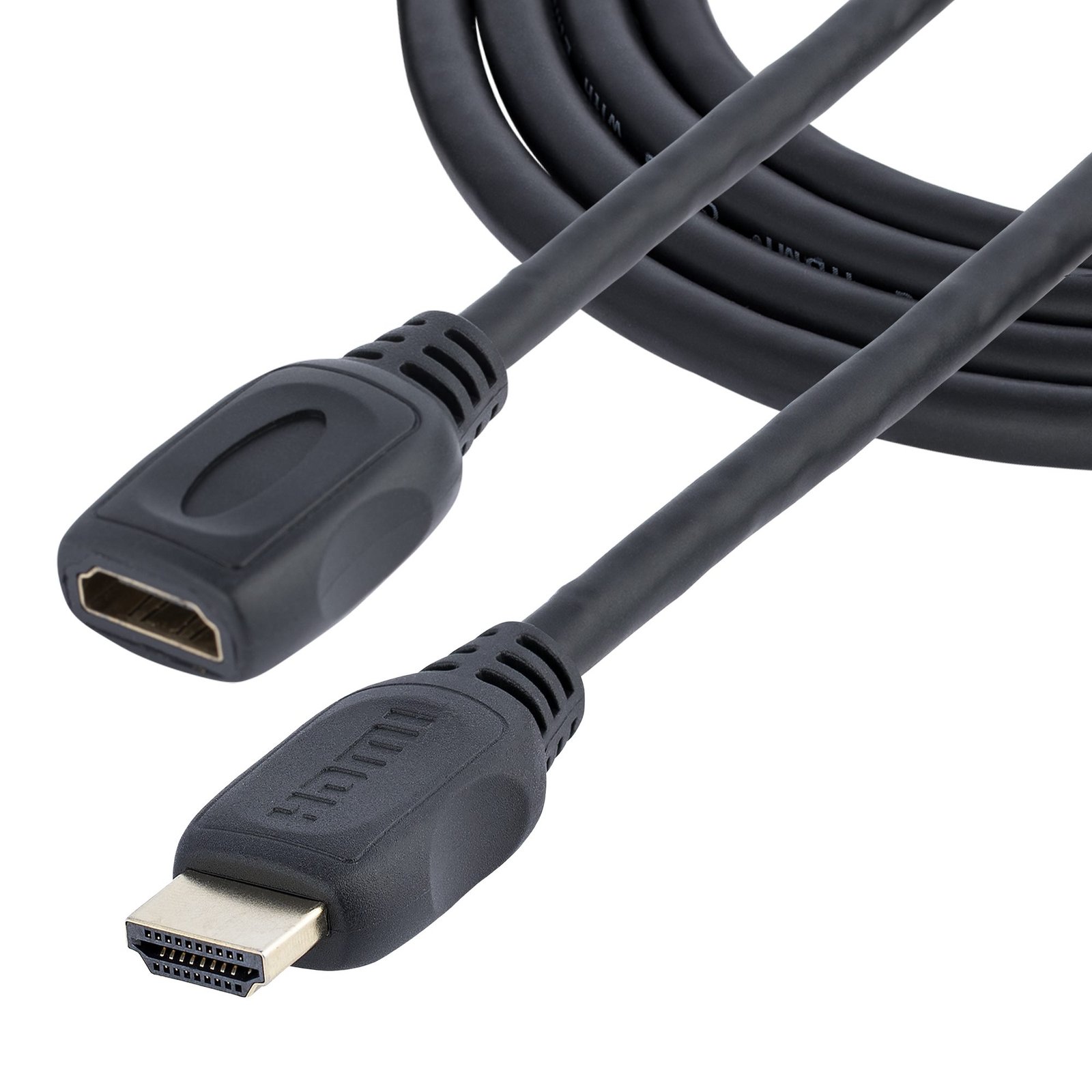
6ft (2m) HDMI Extension Cable - HDMI Male to Female Cable - 4K HDMI Cable Extender - 4K 30Hz UHD HDMI Cable with Ethernet M/F - High Speed HDMI 1.4 Cable - HDMI Cord Extender
$18.44
Extend the connection distance between your HDMI®-enabled devices by 2 meters
Specifications & Compliance
- UPC
- 065030847964
- Brand
- StarTech.com
- Included in Package
- 1 - 2 m HDMI Extension Cable - M/F
- Shipping (Package) Weight
- 4.0 oz [112 g]
- Weight of Product
- 4.2 oz [120.0 g]
- Product Length
- 6.6 ft [2.0 m]
- Product Width
- 0.9 in [22.0 mm]
- Product Height
- 0.5 in [13.0 mm]
- Package Depth
- 5.0 in [12.6 cm]
- Package Width
- 6.3 in [16 cm]
- Package Height
- 1.3 in [34 mm]
- Color
- Black
- Cable Length
- 6.6 ft [2 m]
- Warranty
- Lifetime
- Connector 1
- HDMI
- Connector 1 (Quantity)
- 1
- Package Quantity
- 1
- Connector 2
- HDMI
- Connector 2 (Quantity)
- 1
- Cable Jacket Material
- PVC - Polyvinyl Chloride
- Wire Gauge
- 30 AWG
- Connector Plating
- Gold
- Cable Shield Material
- Aluminum-Mylar Foil with Braid
- Maximum Digital Resolutions
- 4K x 2K @ 30 Hz
Questions & Answers
Everything is hooked up but nothing is working. What should I do?
When you troubleshoot issues with an HDMI cable, there are some quick tests that you can complete to rule out potential problems. You can test to make sure that the following components are working correctly and are not the source of the issue: HDMI cable Video source Video destination To test your setup components, try the following: Use the HDMI cable, video source, and video destination in another setup to see if the problem is with the components or the setup. Use a different HDMI cable, video source, and video destination in your setup to see if the problem persists. Ideally, you should test a component that you know works in another setup. When you test the HDMI cable, video source, and video destination, it is recommended that you do the following: Verify that the source resolution matches the capabilities of the video source destination. For example, if the video destination is only capable of 720p, then the video source cannot output 1080p or 1920 x 1080, as that exceeds the capabilities of the video source destination. Test at a lower resolution, for example, 1024 x 768. If you are using 4K resolutions, test with a shorter cable. If you are experiencing issues with audio over HDMI, ensure that the following is true: The source is set up to output audio over HDMI. The destination is compatible with the source's audio format. The destination's volume was raised. Note: HDMI to DVI cables, adapters and converters do not support audio unless otherwise noted in the Technical Specifications tab on the product page on the StarTech.com website.
When should I use a longer video cable instead of a video extender?
Use a longer video cable whenever possible; use a video extender only when the required distance exceeds the reliable limits of standard or active cables. Explanation: Direct cabling is the preferred method for video connections because it maintains signal integrity and reduces complexity. Standard maximum cable lengths for common video signals are: Video standard Maximum length DisplayPort 50 ft. (15.2m) HDMI 50 ft. (15.2m) DVI 50 ft. (15.2m) VGA 200 ft. (71m) Active cables can extend these distances by incorporating built-in signal amplification and are designed to exceed standard length limits while maintaining specified performance. Video extenders are used when cable length requirements exceed what passive or active cables can reliably support. Extenders transmit the signal over longer distances by boosting and then restoring it, while maintaining the same video standard from input to output.
Related products
-
High Speed HDMI - HDMI to HDMI Mini Adapter – M/F
$10.99 Add to cart -
50ft (15.2m) HDMI 2.1 Hybrid Active Optical Cable (AOC), CMP Plenum, 8K 60Hz, 48Gbps, Certified Ultra High Speed HDMI 2.1/2.0 Cable
$189.61 Add to cart -
4ft Retractable High Speed HDMI Cable -HDMI to HDMI Mini - M/M
$12.99 Add to cart -

50ft (15m) HDMI 2.0 Cable - 4K 60Hz Active HDMI Cable - CL2 Rated for In Wall Installation - Long Durable High Speed UHD HDMI Cable - ARC, HDR, 18Gbps - Male to Male Cord - Black
$112.74 Add to cart