
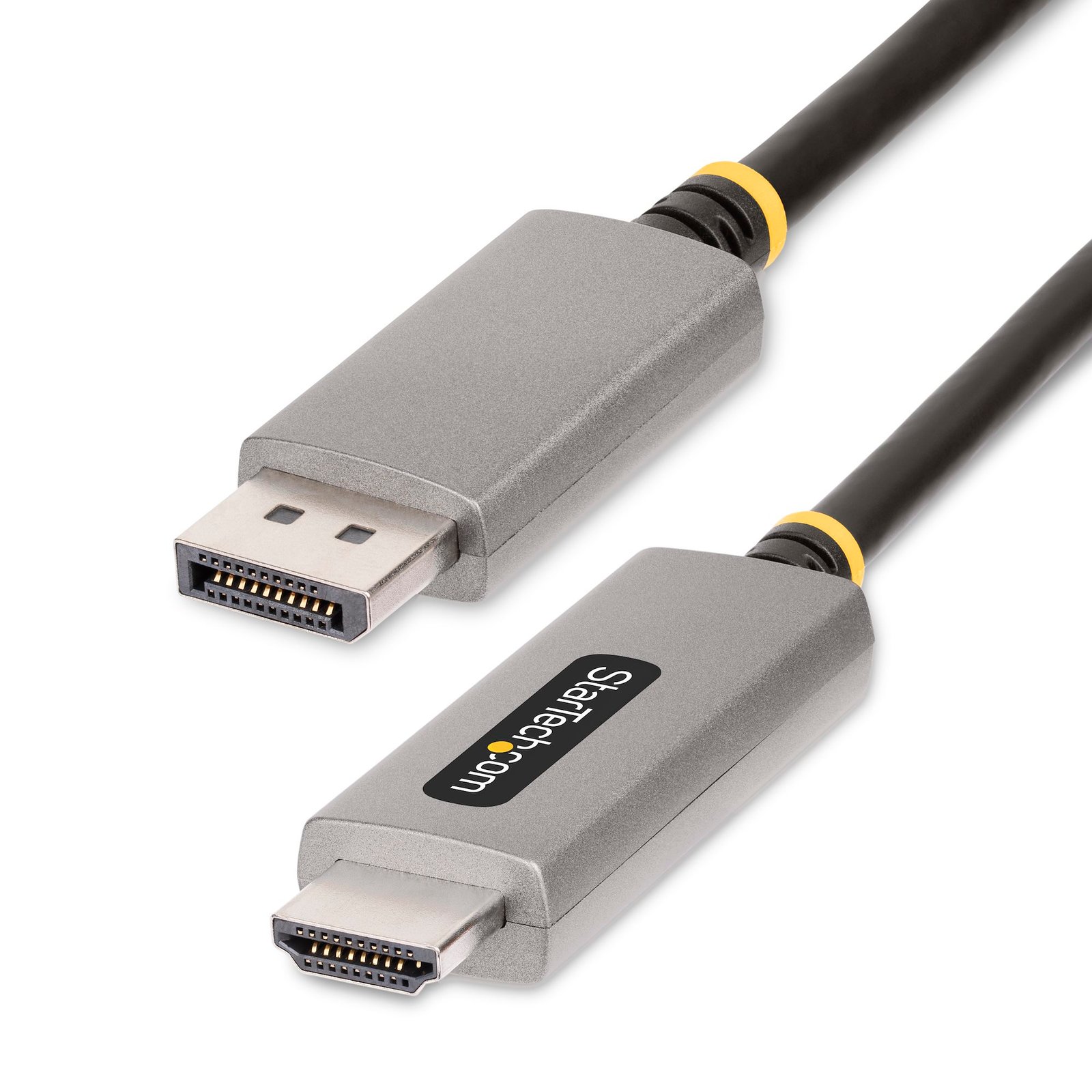


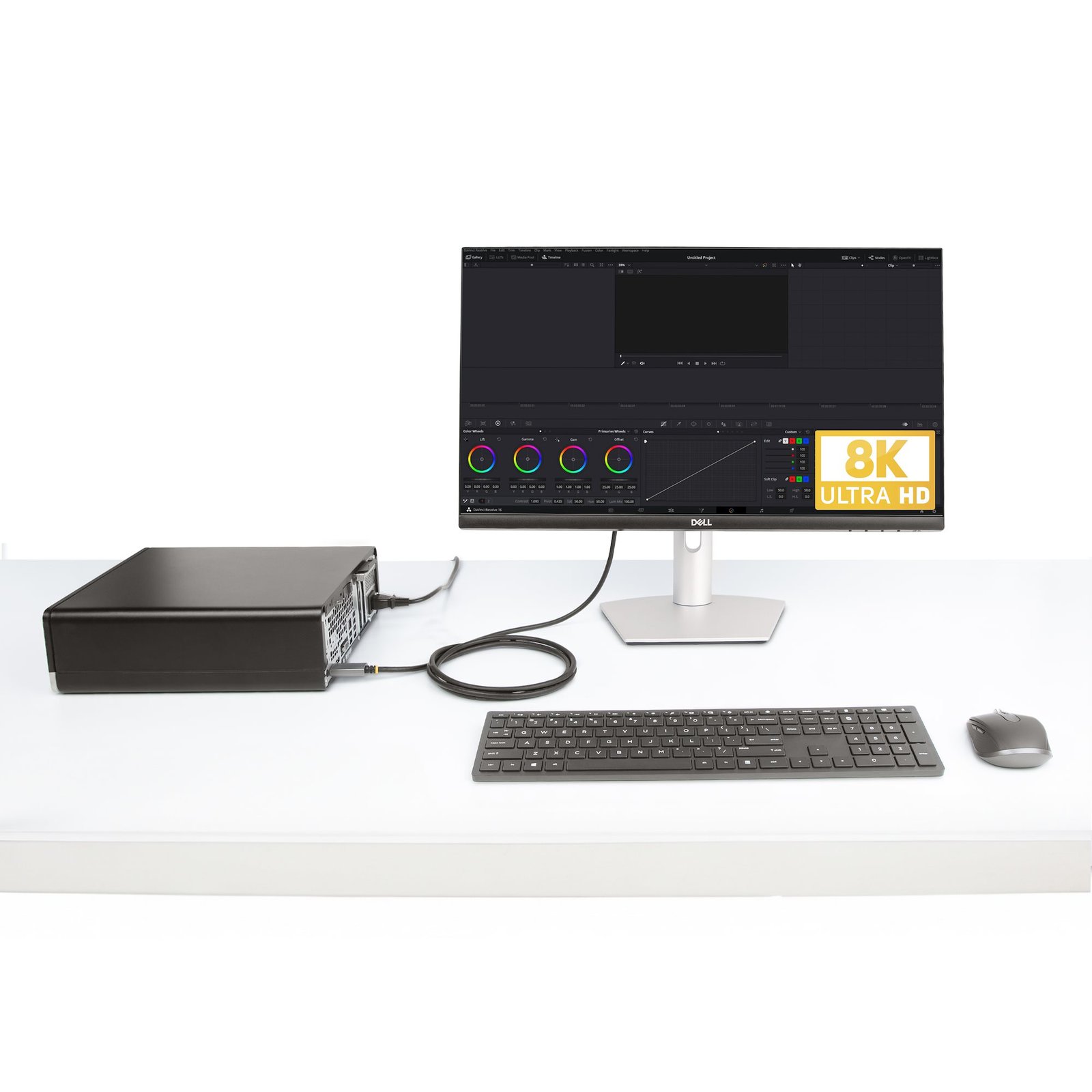
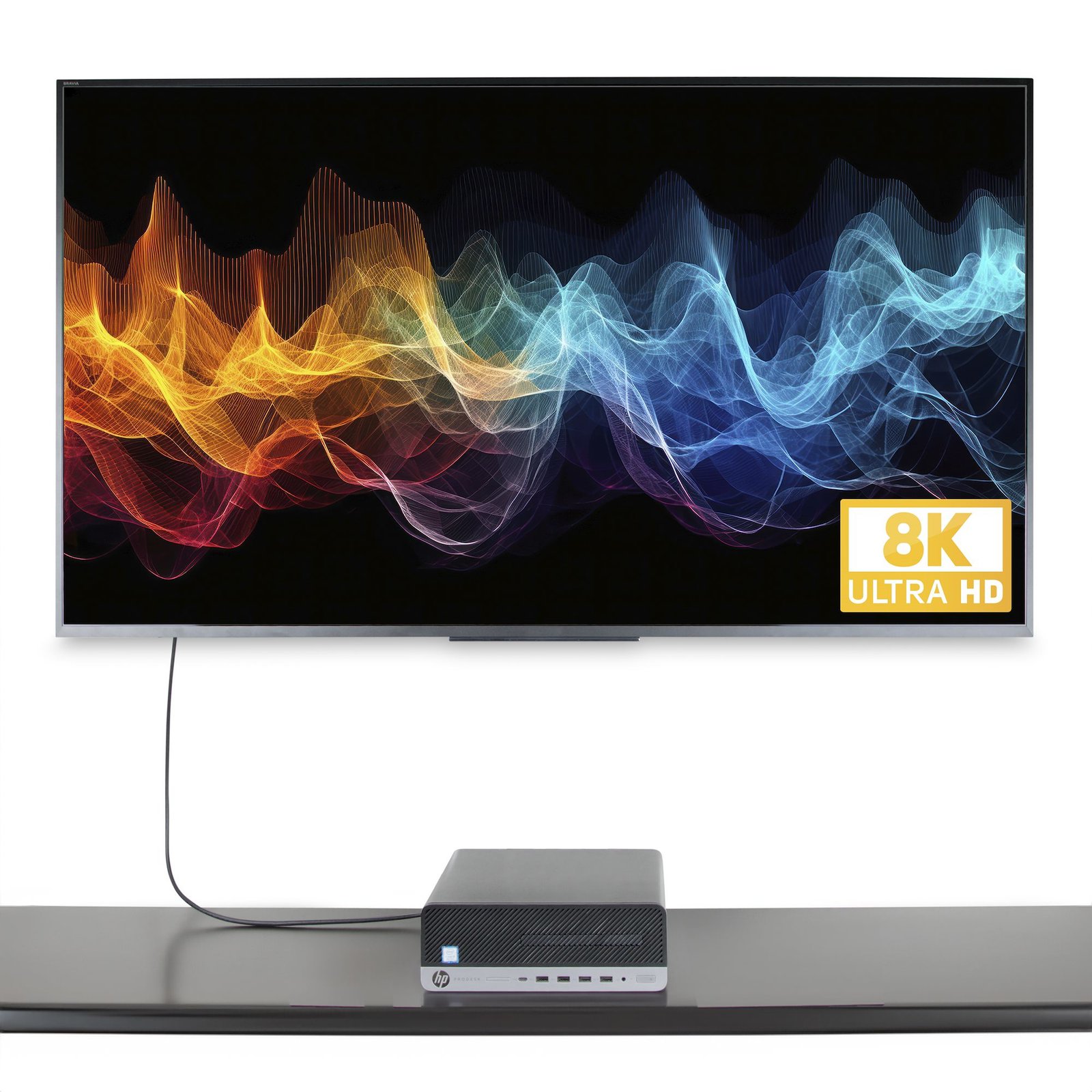
6.6ft (2m) DisplayPort to HDMI Adapter Cable, 8K 60Hz, 4K 144Hz, HDR10, DP 1.4 to HDMI 2.1 Active Video Converter, DisplayPort Desktop to HDMI Monitor, M/M - DP to HDMI Cord
$70.99
Connect a DisplayPort source to an HDMI display up to 6.6ft (2m) away, with support for up to 8K 60Hz w/HDR video
Specifications & Compliance
- UPC
- 065030897358
- Brand
- StarTech.com
- Included in Package
- 1 - DisplayPort to HDMI Adapter Cable
- Shipping (Package) Weight
- 3.6 oz [102 g]
- Weight of Product
- 3.8 oz [109.0 g]
- Product Length
- 6.6 ft [2.0 m]
- Product Width
- 0.8 in [21.0 mm]
- Product Height
- 0.4 in [11.0 mm]
- Package Depth
- 7.8 in [19.8 cm]
- Package Width
- 7.0 in [17.7 cm]
- Package Height
- 0.9 in [23 mm]
- Color
- Space Gray
- Cable Length
- 6.6 ft [2 m]
- Warranty
- 3 Years
- Connector 1
- DisplayPort
- Connector 1 (Quantity)
- 1
- Package Quantity
- 1
- Connector 2
- HDMI
- Connector 2 (Quantity)
- 1
- Operating Temperature
- 0°C to 40°C (32F° to 104F°)
- Storage Temperature
- 0°C to 75°C (32F° to 167F°)
- Humidity
- 0% - 80% RH
- Material
- Plastic, PVC
- Cable Jacket Material
- PVC
- Connector Plating
- Nickel
- Chipset ID
- VMM7100
- System and Cable Requirements
- To achieve the maximum performance of this product, the source and destination devices must support the appropriate specifications., If this product is used with other adapters or converters, it may not achieve 8K 60Hz.
- Maximum Digital Resolutions
- 8K 60Hz
- Audio
- Yes
- Number of Displays
- 1
- AV Output
- HDMI
- Wide Screen Supported
- Yes
- Active or Passive Adapter
- Active
- Supported Resolutions
- 7680x4320 60Hz <br> 5120x1440 60Hz <br> 3840x2160 144Hz <br> 3840x2160 120Hz <br> 3840x2160 60Hz <br> 2560x1440 60Hz <br> 1920x1080 60Hz <br> <i>Other resolutions and refresh rates may be available</i>
- Audio Specifications
- HDMI - 7.1 Channel Audio
- HDR Support
- Yes
- Video Revision
- HDMI 2.1 FRL, DisplayPort 1.4
Questions & Answers
No video signal is appearing on my display. How do I fix this?
Check that the device is not being used in reverse. The display does not support the resolution set within Display Settings. Adjust the resolution to be the exact resolution and refresh rate recommended by the display manufacturer.
How to Arrange Windows Monitors to Fix Mouse Issues
In order for your mouse to move properly between your monitors you must rearrange your monitors in Windows to match the physical location of your monitors on your desk. To do so, complete the following based on your operating system: Windows 11 Click on the Windows Icon in the Taskbar (or the Windows key on the keyboard) and search for Display Settings . Click on Multiple Displays. Click Identify to display the numbers on each connected monitor, showing how the operating system has assigned their positions. Click and drag the monitor icons to best match your physical setup. Click Apply to confirm the changes and close the window. Windows 10 and Windows 8 On your keyboard, press the Windows key + X and select Control Panel . Click Appearance and Personalization , then click Display . Click the Resolution or Adjust Resolution option from the left column, which will display your monitors as numbered icons. Click Identify to display the numbers on each connected monitor, showing how the operating system has assigned their positions. Click and drag the monitor icons to best match your physical setup. Click OK to apply the changes and close the window. Windows 7 and Windows Vista Click the Start button and select Control Panel . Click Appearance and Personalization, then click Display . Click the Resolution or Adjust Resolution option from the left column, which will display your monitors as numbered icons. Click Identify to display the numbers on each connected monitor, showing how the operating system has assigned their positions. Click and drag the monitor icons to best match your physical setup. Click OK to apply the changes and close the window. Windows XP Click the Start button and select Control Panel . Double-click Display . Click the Settings tab, which will display your monitors as numbered icons. Click Identify to display the numbers on each connected monitor, showing how the operating system has assigned their positions. Click and drag the monitor icons to best match your physical setup. Click OK to apply the changes and close the window. To mirror the image from your primary monitor instead of extending your desktop, refer to the following FAQ: http://www.startech.com/faq/Windows_Mirroring_Monitors
Why is my DisplayPort converter not passing audio?
If a DisplayPort converter with audio is not passing sound from the source to the destination, complete the following: Make sure that the DisplayPort connection on the video card is the default audio playback device. Make sure that the video card has the DisplayPort audio codec installed. If not, visit the video card manufacturer's website to find out how to update the video card driver.
Is this device an active or passive video converter, and what is the difference?
This device is an active video converter, which changes both the connector type and the video signal. Explanation: Active video converters modify the video signal to enable conversion between different formats, such as digital-to-analog or between incompatible digital standards. Because this process requires signal processing, active converters are typically larger and may require external power. Common examples include DVI-D to VGA, HDMI to DisplayPort, and VGA to HDMI converters. Passive video converters (also called adapters) only change the physical connector type and do not alter the video signal. They require compatible signal types on both ends and are typically smaller, simpler, and do not require external power. Examples include DVI-I to VGA, HDMI to DVI, and DisplayPort to Mini DisplayPort. For more information about DisplayPort converter types, refer to: https://www.startech.com/faq/DisplayPort_Converter_DP_Multi_Mode . For guidance on converter selection with MST hubs, refer to: https://www.startech.com/faq/mst_hubs_passive_vs_active_adapters .
What is the difference between a passive and active DisplayPort adapter?
Passive and active DisplayPort adapters are used to convert DisplayPort or Mini DisplayPort signals to other video formats such as HDMI, DVI, or VGA. The correct adapter type depends on whether the DisplayPort source supports DisplayPort Dual-Mode (DP++). Passive adapters rely on the source device to perform the conversion, while active adapters perform the conversion internally. Explanation: When connecting a DisplayPort or Mini DisplayPort source to a monitor that uses HDMI, DVI, or VGA, it is important to determine whether a passive or active adapter is required. Passive DisplayPort Adapters Passive adapters do not contain signal conversion hardware. Instead, they rely on the DisplayPort source device to output a compatible HDMI or DVI signal using DisplayPort Dual-Mode (DP++). Passive adapters can be used when: The DisplayPort source supports DP++ Converting from DisplayPort to HDMI Converting from DisplayPort to DVI Because passive adapters do not contain conversion circuitry, they are typically less expensive than active adapters. Many DP++ ports are identified by the DisplayPort Dual-Mode (DP++) logo. Refer to the device documentation to confirm DP++ support. Active DisplayPort Adapters Active adapters contain integrated conversion circuitry that converts the DisplayPort signal to another video format. Active adapters can be used when: The DisplayPort source does not support DP++ Converting from DisplayPort to VGA Connecting displays in environments that require active signal conversion Multi-monitor configurations where passive adapter limitations may apply Because active adapters perform the signal conversion internally, they generally provide broader compatibility but are typically more expensive than passive adapters. Multi-Monitor Considerations For multi-monitor installations, active adapters may be required depending on the capabilities of the graphics hardware. Some graphics cards have limits on the number of displays that can be driven through DP++ outputs simultaneously. In these situations, active adapters may be necessary to support the desired monitor configuration. Always verify the display limitations and adapter requirements specified by the graphics card manufacturer. Thunderbolt Compatibility Thunderbolt ports natively support DisplayPort technology and generally support DP++ functionality. However, multi-monitor configurations may still require active adapters depending on the system design and display setup. MST Hub Compatibility When using StarTech.com MST hubs: Passive adapters are generally recommended for HDMI and DVI displays. Active adapters are required when converting from DisplayPort to VGA. Microsoft Surface Dock Compatibility Microsoft recommends using active video adapters with certain Surface Dock models if display issues occur when using passive adapters. This recommendation applies to supported Surface Dock products but does not apply to the Surface Pro 3 Docking Station.
Related products
-

10ft (3m) USB-C to HDMI Adapter Cable, 8K 60Hz, 4K 144Hz, HDR10, USB Type-C to HDMI 2.1 Video Converter Cable, USB-C DP Alt Mode/USB4/Thunderbolt Compatible - USB-C Laptop to HDMI
$71.99 Add to cart -

6ft (1.8m) USB C to DisplayPort 1.4 Cable - 4K/5K/8K USB Type-C to DP 1.4 Alt Mode Video Adapter Converter - HBR3/HDR/DSC - 8K 60Hz DP Monitor Cable for USB-C/Thunderbolt
$41.99 Add to cart -
USB C Video Adapter, USB C to HDMI VGA Multiport Adapter, 3.5mm Audio, 4K 60Hz HDR, 100W PD Pass-Through, Thunderbolt 3/4 Compatible - USB C Display Travel Adapter
$28.99 Add to cart -
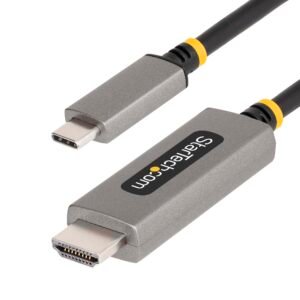
3.3ft (1m) USB-C to HDMI Adapter Cable, 8K 60Hz, 4K 144Hz, HDR10, USB Type-C to HDMI 2.1 Video Converter Cable, USB-C DP Alt Mode/USB4/Thunderbolt Compatible - USB-C Laptop to HDMI
$57.99 Add to cart