
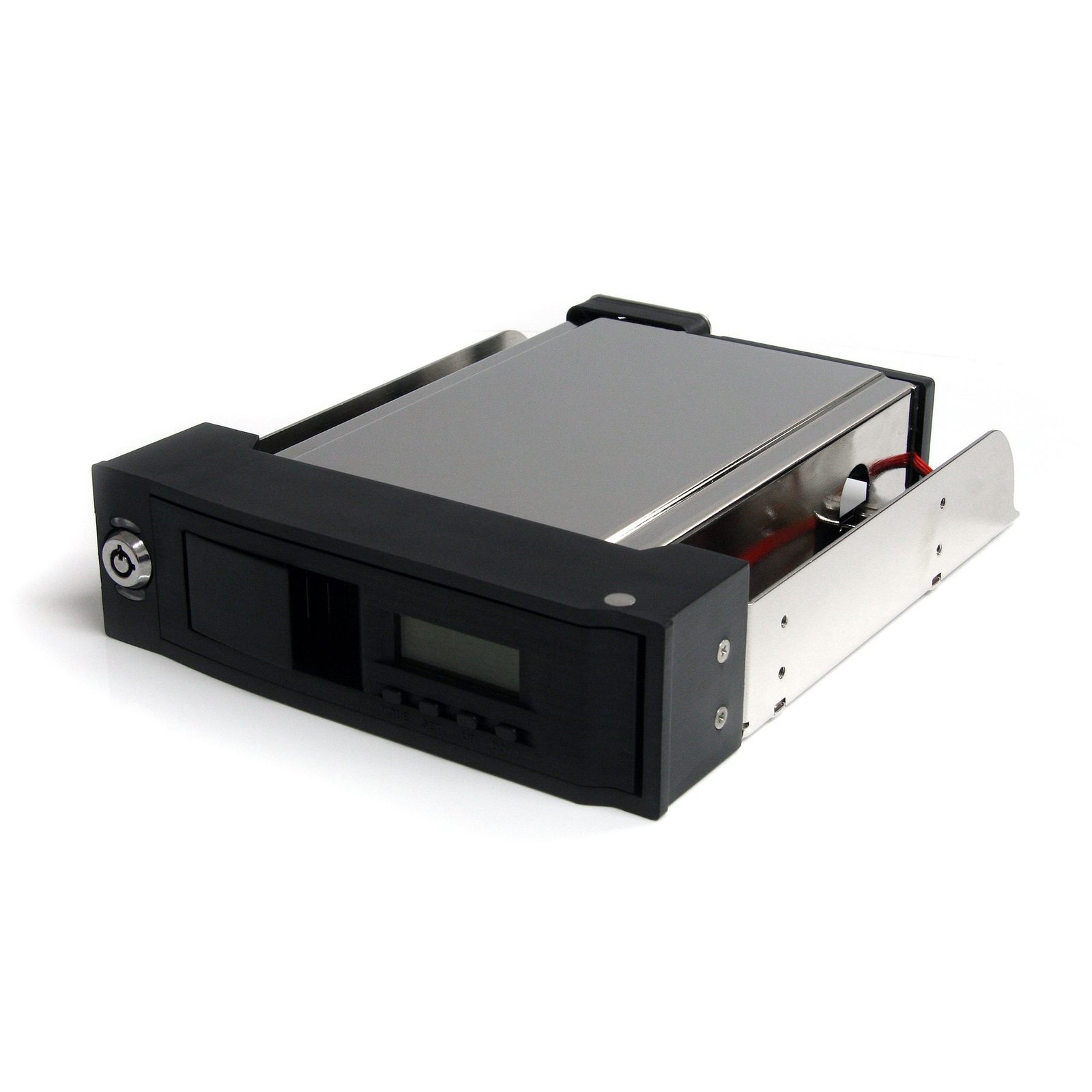
5.25in Trayless Hot Swap Mobile Rack for 3.5in SATA HDD with LCD & Fan
$64.99
Hot swap 3.5in SATA hard drives in and out of your PC, from a 5.25in bay
Specifications & Compliance
- UPC
- 065030843584
- Brand
- StarTech.com
- Included in Package
- 1 - Trayless Mobile Rack, 1 - SATA Data Cable, 1 - Set of keys, 1 - Package of mounting screws, 1 - Instruction Manual
- Shipping (Package) Weight
- 28.7 oz [812 g]
- Weight of Product
- 24.3 oz [689 g]
- Product Length
- 7.1 in [18 cm]
- Product Width
- 5.9 in [15 cm]
- Product Height
- 1.6 in [40 mm]
- Package Depth
- 6.7 in [17 cm]
- Package Width
- 8.5 in [21.5 cm]
- Package Height
- 2.2 in [55 mm]
- Color
- Black
- Warranty
- 2 Years
- Connector 1
- SATA (7-Pin + 15-Pin)
- Connector 1 (Quantity)
- 1
- Package Quantity
- 1
- Operating Temperature
- 5°C to 80°C (41°F to 176°F)
- Storage Temperature
- -40°C to 70°C (-40°F to 158°F)
- Humidity
- 8~90% RH
- Material
- Steel and Plastic
- LED Indicators
- 1 - Power (Blue), 1 - Activity (Blue)
- System and Cable Requirements
- Available 5.25 inch front bay
- Host Connector 1 (Quantity)
- 1
- Host Connector 2
- LP4 / Molex Power (4-Pin, 5V / 12V)
- Host Connector 2 (Quantity)
- 1
- Compatible Drive Types
- SATA
- Number of Drives
- 1
- Drive Size
- 3.5in
- Insertion Rating
- 15,000 Cycles
- Fans
- 1 - 40 mm
- Hot Swap Capability
- Yes
- Front Door Key Lock
- Yes
- Regulatory Approvals
- UL94 V-0 Rated Plastic
Questions & Answers
Everything is hooked up, but nothing is working. What do I do?
When you troubleshoot issues with a hard drive rack, there are some quick tests that you can complete to rule out potential problems. You can test to make sure that the following components are working correctly and are not the source of the issue: SATA and SAS cables Hard drives Hard drive rack To test your setup components, try the following: Use the cables, hard drives, and hard drive rack in another setup to see if the problem is with the components or the setup. Use a different cable, hard drive, and hard drive rack in your setup to see if the problem persists. Ideally, you should test a component that you know works in another setup. When you test the hard drive and hard drive rack, it is recommended that you do the following: To check Disk Management , press the Windows key + R , type diskmgmt.msc , and press Enter . Check to see if your hard drive is listed. If the hard drive is listed with unallocated space, it needs to be formatted. Right-click unallocated and click New Simple Volume . Follow the on-screen instructions to complete the reformatting. Note: Formatting a hard drive erases all of the data on it. Make sure that you back up all of your data before you reformat the hard drive. If the hard drive is listed as healthy but does not have a drive letter assigned to it, for example, C:, right-click healthy and click Change Drive Letter and Paths . Click Add , assign a drive letter, and click OK . Note: A formatted hard drive will not show up in Computer or My Computer until it has a drive letter assigned to it.
Related products
-
Spare Hard Drive Caddy for Beige DRW115ATA Mobile Rack
$2.99 Add to cart -
3 Bay Aluminum Trayless Hot Swap Mobile Rack Backplane for 3.5in SAS II/SATA III - 6 Gbps HDD
$118.89 Add to cart -

Black 3.5in IDE Hard Drive Mobile Rack for 5.25in Bay w/ fan
$33.99 Add to cart -
Dual-Bay M.2 NVMe SSD to PCIe x8 Removable Mobile Rack; Bifurcation Required; Tool-less Installation, PCIe Backplane w/Two Hot-Swap Drive Bays
$197.99 Add to cart