


4 Port USB C Hub with 1x USB-C & 3x USB-A Ports (SuperSpeed 5Gbps) - USB Bus Powered - Portable/Laptop USB 3.0 Adapter Hub - USB 3.2 Gen 1 Type-C Hub - White - TAA
$49.99
Turn a USB Type-C port on your laptop into three USB Type-A ports (5Gbps) and one USB Type-C port
Specifications & Compliance
- UPC
- 065030871136
- Brand
- StarTech.com
- Included in Package
- 1 - USB 3.0 hub
- Shipping (Package) Weight
- 4.1 oz [116 g]
- Weight of Product
- 1.2 oz [33 g]
- Product Length
- 3.0 in [75 mm]
- Product Width
- 1.6 in [40 mm]
- Product Height
- 0.5 in [13 mm]
- Package Depth
- 6.4 in [16.2 cm]
- Package Width
- 5.2 in [13.2 cm]
- Package Height
- 1.7 in [43 mm]
- Color
- White
- Cable Length
- 4.3 in [11 cm]
- Warranty
- 2 Years
- Connector 1
- USB-A (5Gbps, 4.5W)
- Connector 1 (Quantity)
- 3
- Package Quantity
- 1
- Connector 2
- USB-C (5Gbps, 4.5W)
- Connector 2 (Quantity)
- 1
- Operating Temperature
- 0°C to 60°C (32°F to 140°F)
- Storage Temperature
- -20°C to 60°C (-4°F to 140°F)
- Humidity
- 0%~90% RH (Non-condensing)
- Material
- Plastic
- Maximum Data Transfer Rate
- 5 Gbps (USB 3.2 Gen 1)
- Industry Standards
- USB 3.0 - Backward compatible with USB 2.0 and 1.1
- Power Source
- USB-Powered
- Chipset ID
- Genesys Logic - GL3523
- Special Notes
- All ports support USB based video adapters including the USB-C port. This hub does not support DP Alt Mode (DisplayPort™ Alt Mode) - non-USB based native video support over the USB Type-C port., The hub does not support USB Power Delivery.
- Power Delivery
- No PD Pass-Through
- Input Voltage
- 5V DC
- Output Voltage
- 5 DC
- Connector 3 (Quantity)
- 1
- LED Indicators
- 1 - Power (Blue)
- Number of Ports
- 4
- Interface
- USB 3.2 Gen 1 (5Gbps)
- Type and Rate
- USB 5Gbps
- System and Cable Requirements
- Available USB Type-C port - USB 3.0 (5Gbps)
- Fast-Charge Port(s)
- No
- Form Factor
- Compact
- USB-C Host Connection
- Yes
- USB-C Device Port(s)
- Yes
Questions & Answers
Everything is hooked up but nothing is working. What should I do?
When you troubleshoot issues with a USB hub, there are some quick tests that you can complete to rule out potential problems. You can test to make sure that the following components are working correctly and are not the source of the issue: USB A-to-B cable Computer USB port USB peripheral(s) To test your setup components, try the following: Use the USB cable and USB peripheral(s) in another setup to see if the problem is with the components or the setup. Use a different USB cable, USB port, and USB peripheral in your setup to see if the problem persists. Ideally, you should test a component that you know works in another setup. When you test your cables, it is recommended that you do the following: Test each cable individually. Use short cables when you are testing. When you test the hub, make sure that you do the following: If a power adapter is included, provide power to the USB hub. Attach a USB peripheral. The USB hub will not appear in any hardware listings on your system, but USB devices do appear when they are connected. Install the drivers for the USB peripheral. Install the latest drivers for the USB controller and motherboard chipset. Note: No drivers or software are required for the USB hub to work with your operating system. The USB hub works independently of software and works with any operating system. When testing your USB peripherals, make sure that you do the following: If required, attach external power. Confirm that the peripheral works on a standard USB port. If the USB peripheral(s) can be detected on a standard USB port and not on the hub, do the following: Use a new USB A-to-B cable. Test your setup using basic USB peripherals, such as a keyboard or mouse. Test using another USB port.
Why does my USB device stop working after my computer wakes back up from sleep mode in Windows?
If the USB device does not work after your computer has been in extended hibernation, it is likely that Windows has automatically turned off the USB Root hub to save power. The steps below outline how to configure the USB root hub to stay on during hibernation, to prevent this from happening. Windows 10 / 8 On your keyboard, press the Windows key + X and select Control Panel . Click Hardware and Sound , then click Power Options . Click Change plan settings for the plan you want to change. Click Change advanced power settings . Click the plus sign (+) next to “USB settings” and “USB selective suspend setting” to expand the options and change the setting to Disabled . Click OK to apply the setting. Note : You may need to disconnect and re-connect your USB device after applying these settings to re-establish the connection. Windows 7 / Vista Click the Start button and select Control Panel . Click Hardware and Sound , then click Power Options . Click Change plan settings for the plan you want to change. Click Change advanced power settings . Click the plus sign (+) next to “USB settings” and “USB selective suspend setting” to expand the options and change the setting to Disabled . Click OK to apply the setting. Note : You may need to disconnect and re-connect your USB device after applying these settings to re-establish the connection. Windows XP On your desktop, right-click the My Computer icon and select Properties . Click the Device Manager tab. Expand Universal Serial Bus controllers by clicking the arrow to the left of it. Right-click the first USB Root Hub device and select Properties . Click the Power Management tab. Clear the box next to Allow the computer to turn off this device to save power . Click OK to apply the setting. Repeat steps 4-7 for any remaining devices in the Universal Serial Bus Controllers section with “ Root Hub ” in the name. Note : You may need to disconnect and re-connect your USB device after applying these settings to re-establish the connection.
Can a USB hub be used without a power adapter, and how does this affect performance?
Yes, a USB hub can be used without a power adapter , but doing so reduces the available power to connected devices and may prevent high‑power devices from functioning properly. Explanation Some USB hubs can operate without an external power adapter by drawing power directly from the host computer’s USB port. In this configuration, the available power is shared across all ports on the hub, which limits the amount of power delivered to each connected device. As a result, high‑power USB devices—such as external hard drives—may not start or may function unreliably when connected to an unpowered hub. When a power adapter is connected, the USB hub can supply more power to each port than a single computer USB port can provide. This improves overall stability and compatibility with power‑intensive devices. Low‑power USB devices, such as keyboards and mice, typically function without issues on an unpowered hub. Additionally, USB devices that use their own external power adapters rely on the hub only for data transfer and do not draw power from the hub. Recommendation For consistent performance and full device compatibility, using the included power adapter is recommended whenever it is available.
What is USB-C?
USB-C is a reversible USB connector type that can support data transfer, video output, and power delivery, depending on the capabilities of the connected devices, cables, and host ports. Explanation: USB-C is a physical connector standard used by multiple USB and Thunderbolt technologies. Depending on the supported protocol and hardware, USB-C connections can support: USB data transfer speeds ranging from USB 2.0 up to USB4 performance levels USB 10Gbps, 20Gbps, 40Gbps, and higher data transfer rates, depending on the USB or Thunderbolt specification USB Power Delivery (USB PD) for bidirectional power delivery, including charging support up to 240W with supported devices and cables Alternate Modes, such as DisplayPort Alternate Mode (DP Alt Mode), for video output over USB-C Thunderbolt 3, Thunderbolt 4, and USB4 functionality on compatible systems Not all USB-C ports, cables, or devices support the same features or performance levels. For example, some USB-C connections may only support charging or basic USB data transfer, while others support video output, high-speed data transfer, or Thunderbolt functionality. To use a specific USB-C feature, such as DisplayPort video output, USB 40Gbps data transfer, or USB Power Delivery, the USB host port, cable, and connected device must all support that feature. Refer to the technical specifications provided by the manufacturer to verify compatibility. For more information about Thunderbolt capabilities over USB-C, refer to the following FAQ: https://www.startech.com/faq/thunderbolt-3-port-capabilities
Related products
-

2-Port USB-C Hub with Ethernet and RS-232, Attached USB-C to USB-A Dongle, 100W PD Pass-Through, 2x USB-A 5Gbps, Gigabit Ethernet, RS232 Serial (FTDI)
$102.99 Add to cart -

4 Port Bus Powered USB C Hub with Individual On/Off Switches, USB 3.0 (5Gbps) Expansion Hub, Desktop/Laptop USB-C to USB-A Splitter
$51.99 Add to cart -
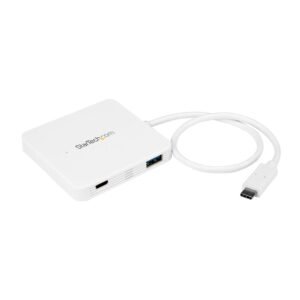
3-Port USB-C Hub with Power Delivery - USB-C to 3x USB-A - USB 3.0 Hub - White
$15.99 Add to cart -
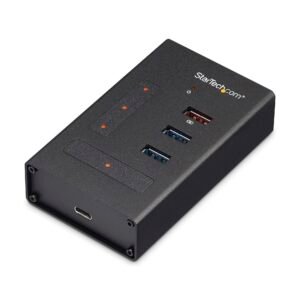
4 Port USB C Hub - USB Type-C to 1x USB-C/3x USB-A - Commercial Metal USB 3.0 Hub - SuperSpeed USB 3.2 Gen 1 (5Gbps) - Self Powered - BC1.2 Fast Charge - Mountable/Rugged
$66.99 Add to cart