
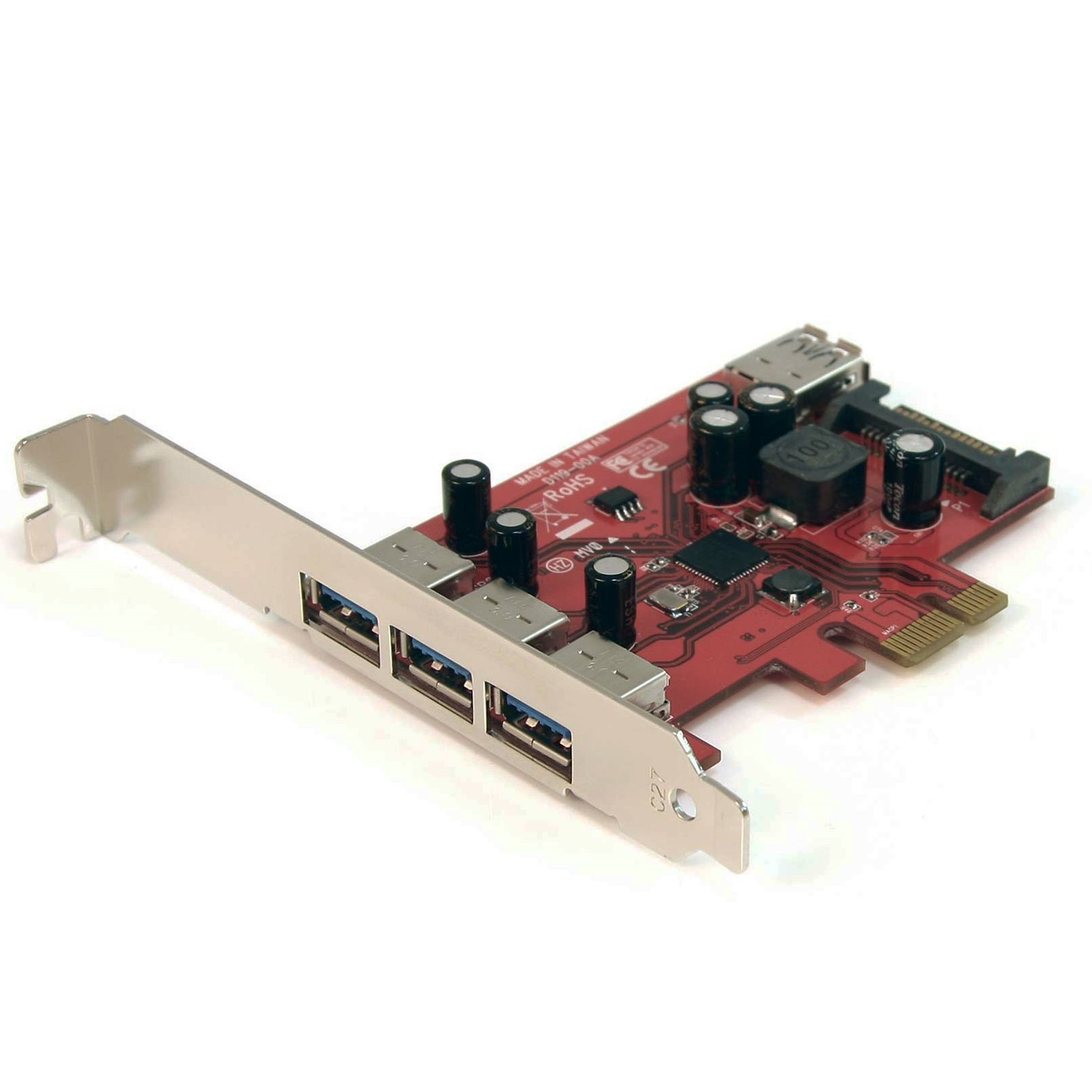
4 Port SuperSpeed USB 3.0 PCI Express Card with UASP - SATA Power
$52.99
Add 4 USB 3.0 ports to your desktop computer through a PCI Express expansion slot
Specifications & Compliance
- UPC
- 065030844444
- Brand
- StarTech.com
- Included in Package
- 1 - PCI Express USB 3.0 card, 1 - Low Profile Bracket, 1 - Driver CD, 1 - Instruction Manual
- Shipping (Package) Weight
- 6.7 oz [190 g]
- Weight of Product
- 2.1 oz [60 g]
- Product Length
- 3.5 in [90 mm]
- Product Width
- 2.8 in [70 mm]
- Product Height
- 0.9 in [22 mm]
- Package Depth
- 6.1 in [15.5 cm]
- Package Width
- 8.5 in [21.5 cm]
- Package Height
- 1.8 in [45 mm]
- Warranty
- 2 Years
- Connector 1
- PCI Express x1
- Connector 1 (Quantity)
- 1
- Package Quantity
- 1
- Connector 2
- USB-A (5Gbps, 4.5W)
- Connector 2 (Quantity)
- 3
- Operating Temperature
- 5°C to 50°C (41°F to 122°F)
- Storage Temperature
- -25°C to 70°C (-13°F to 158°F)
- Humidity
- 20% ~ 80% RH
- Maximum Data Transfer Rate
- 5 Gbps
- Chipset ID
- Texas Instruments - TUSB7340
- Special Notes
- The maximum throughput of this card is limited by the bus interface. If used with PCI Express Gen 1.0 enabled computers, the max throughput is 2.5 Gbps. If used with PCI Express Gen 2.0 enabled computers, the max throughput is 5 Gbps.
- Connector 3 (Quantity)
- 1
- Number of Ports
- 4
- Interface
- USB 3.2 Gen 1 (5Gbps)
- Bus Type
- PCI Express
- System and Cable Requirements
- Available PCI Express expansion slot
- Connector 4
- SATA (15-Pin)
- Connector 4 (Quantity)
- 1
- Card Type
- Standard Profile (LP bracket incl.)
- UASP Support
- Yes
Questions & Answers
Why does my USB device stop working after my computer wakes back up from sleep mode in Windows?
If the USB device does not work after your computer has been in extended hibernation, it is likely that Windows has automatically turned off the USB Root hub to save power. The steps below outline how to configure the USB root hub to stay on during hibernation, to prevent this from happening. Windows 10 / 8 On your keyboard, press the Windows key + X and select Control Panel . Click Hardware and Sound , then click Power Options . Click Change plan settings for the plan you want to change. Click Change advanced power settings . Click the plus sign (+) next to “USB settings” and “USB selective suspend setting” to expand the options and change the setting to Disabled . Click OK to apply the setting. Note : You may need to disconnect and re-connect your USB device after applying these settings to re-establish the connection. Windows 7 / Vista Click the Start button and select Control Panel . Click Hardware and Sound , then click Power Options . Click Change plan settings for the plan you want to change. Click Change advanced power settings . Click the plus sign (+) next to “USB settings” and “USB selective suspend setting” to expand the options and change the setting to Disabled . Click OK to apply the setting. Note : You may need to disconnect and re-connect your USB device after applying these settings to re-establish the connection. Windows XP On your desktop, right-click the My Computer icon and select Properties . Click the Device Manager tab. Expand Universal Serial Bus controllers by clicking the arrow to the left of it. Right-click the first USB Root Hub device and select Properties . Click the Power Management tab. Clear the box next to Allow the computer to turn off this device to save power . Click OK to apply the setting. Repeat steps 4-7 for any remaining devices in the Universal Serial Bus Controllers section with “ Root Hub ” in the name. Note : You may need to disconnect and re-connect your USB device after applying these settings to re-establish the connection.
Everything is hooked up but nothing is working. What should I do? (Windows)
When you troubleshoot issues with a USB controller card, there are some quick tests that you can complete to rule out potential problems. You can test to make sure that the following components are working correctly and are not the source of the issue: USB cables USB devices USB controller card To test your setup components, try the following: Use the USB cable, device, and controller card in another setup to see if the problem is with the components or the setup. Use a different USB cable, device, and controller card in your setup to see if the problem persists. Ideally, you should test a component that you know works in another setup. When you test your cables, it is recommended that you do the following: Test each cable individually. Use short cables when you are testing. When you test the USB device and controller card, it is recommended that you do the following: Press the Windows key + R , type devmgmt.msc , and press Enter to open Device Manager . Check to see if your device is listed under Universal Serial Bus controllers . If you do not see the USB controller card listed in Device Manager please see this FAQ: https://www.startech.com/en-us/faq/pci-pcie-cannot-boot-os-or-detect-windows . If the device is listed with an error, follow the instructions on the website to reinstall the drivers.
How do I confirm that Windows detects my expansion card?
To confirm that Windows detects your expansion card, complete the following: Press the Windows key+ R , type devmgmt.msc , and press Enter . In Device Manager , under the appropriate heading, confirm that your expansion card is listed and that there isn't an exclamation mark next to it. For example, a USB controller card would be under Universal Serial Bus controllers . Your expansion card is listed according to the name of the chipset. To determine the name of the chipset of your expansion card, navigate to www.StarTech.com and look on the Technical Specifications tab for your product.
Do I need to connect an additional power cable from my power supply to a StarTech.com USB expansion card?
It depends; a StarTech.com USB expansion card can be powered by the PCI or PCIe slot, but an additional power cable (such as SATA or Molex) is required if connected USB devices exceed the available slot power. Explanation: A StarTech.com USB expansion card draws power from the motherboard through the PCI or PCI Express slot, which is sufficient for many standard USB devices. However, total available power is limited by the slot. Slot-powered operation: Low-power devices such as USB keyboards, mice, and flash drives typically work without additional power. Auxiliary power requirement: High-power devices, such as external hard drives without their own power supply, may exceed slot power limits and require a direct connection to the system power supply (for example, SATA or Molex). Power-related failure symptoms: Insufficient power may cause devices to disconnect, fail to initialize, or not function simultaneously. Troubleshooting requirement: If any of these issues occur, connecting an auxiliary power cable to the USB expansion card is required for stable operation. A StarTech.com USB expansion card will not reliably power high-demand USB devices without sufficient total power from either the PCI/PCIe slot or an additional power connection.
Related products
-
Thunderbolt 3 to PCIe USB 3.1 Adapter - 10Gbps - Chassis + 4 Port Card
$457.99 Add to cart -

4 Port PCI SuperSpeed (5Gbps) USB 3.0 Adapter Card with SATA / SP4 Power - TAA
$78.91 Add to cart -
2 Port PCI SuperSpeed USB 3.0 Card Adapter
$19.99 Add to cart -

2-Port USB 3.1 (10Gbps) Card - USB-A, 1x External, 1x Internal - PCIe
$30.99 Add to cart