
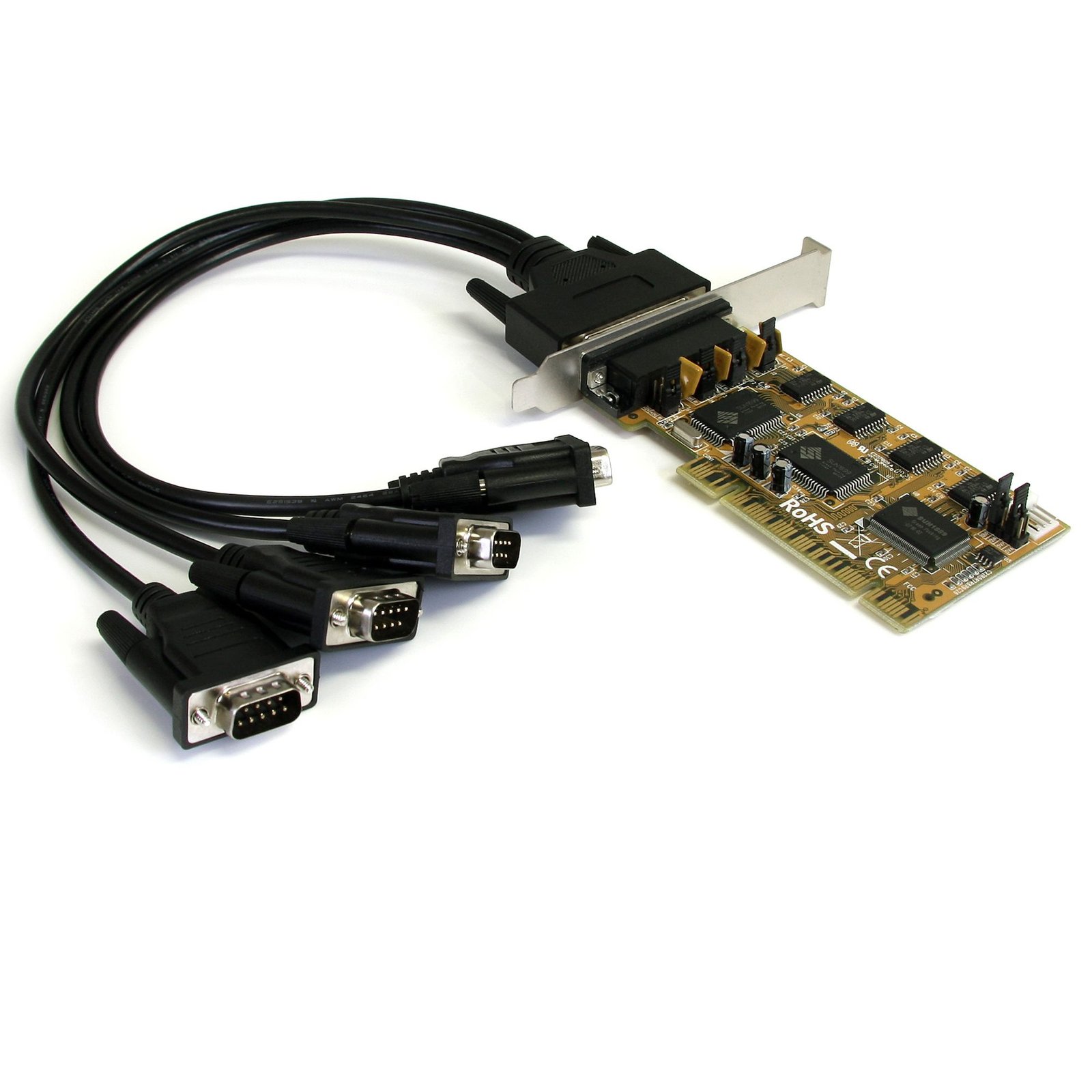
4 Port PCI Dual Profile RS232 Powered Serial Adapter Card
$39.99
Add four RS232 serial ports with 5V or 12V power output to your computer through a PCI slot
Specifications & Compliance
- UPC
- 065030812740
- Brand
- StarTech.com
- Included in Package
- 1 - PCI1S650PW Serial Card, 1 - 4 port DB9 connector dongle, 1 - Low-Profile Bracket, 1 - Installation CD, 1 - Instruction Manual
- Shipping (Package) Weight
- 11.6 oz [330 g]
- Weight of Product
- 1.8 oz [50 g]
- Product Length
- 4.7 in [12 cm]
- Product Width
- 0.7 in [17 mm]
- Product Height
- 2.0 in [50 mm]
- Package Depth
- 2.1 in [54 mm]
- Package Width
- 8.5 in [21.6 cm]
- Package Height
- 5.8 in [14.7 cm]
- Warranty
- Lifetime
- Connector 1
- PCI / PCI-X
- Connector 1 (Quantity)
- 1
- Connector 2
- DB-9 Serial
- Connector 2 (Quantity)
- 4
- Operating Temperature
- 0°C to 60°C (32°F to 140°F)
- Storage Temperature
- -20°C to 85°C (-4°F to 185°F)
- Humidity
- 5~95% RH
- Chipset ID
- Sunix - SUN1889
- MTBF
- 300,000 Hours
- Number of Ports
- 4
- Interface
- Serial
- Bus Type
- PCI / PCI-X (5 / 3.3V)
- System and Cable Requirements
- Available PCI or PCI-X slot (full size or low profile), Internal SP4 power connector when using EXT (External Power) jumper configuration
- Card Type
- Standard Profile (LP bracket incl.)
- Port Style
- Dongle (Included)
- Serial Protocol
- RS-232
- Max Baud Rate
- 115.2 Kbps
- FIFO
- 32 Bytes
- Microsoft WHQL Certified
- Yes
Questions & Answers
How do I install my serial card in Windows Vista / 7 / 8? (.exe method)
Before you install the driver, make sure that your operating system is current (for example, the most recent service pack is installed). Download the latest drivers from the StarTech.com website at http://www.startech.com/Support . The part number and product ID are on the product packaging. Note: Windows usually saves the files to the Downloads folder that is associated with your user account (for example, C:Users your_name Downloads). After the download is complete, right-click the zip folder that you downloaded, click Extract All , and complete the instructions. In the list of extracted files, right-click the Setup.exe file and click Run as Administrator . Note: If the Run as Administrator option is not available, you might be trying to run the installer from within the zipped file. Complete the instructions in step 2 to extract the files. Complete the instructions to install the device drivers, and restart your computer when prompted to. Your computer will automatically complete the driver installation and your device should be ready to use.
How do I install my serial card in Windows XP? (.exe method)
Before you install the driver, make sure that your operating system is current (for example, the most recent service pack is installed). Download the latest drivers from the StarTech.com website at http://www.startech.com/Support . The part number and product ID are on the product packaging. Note: Windows usually saves the files to the Downloads folder that is associated with your user account (for example, C:Documents and Settings your_name My DocumentsDownloads). After the download is complete, right-click the zip folder that you downloaded, click Extract All , and complete the instructions. In the list of extracted files, double-click the Setup.exe file. Complete the instructions to install the device drivers, and restart your computer when prompted to. Your computer will automatically complete the driver installation and your device should be ready to use.
Everything is hooked up but nothing is working. What should I do?
When you troubleshoot issues with a serial device, there are some quick tests that you can complete to rule out potential problems. You can test to make sure that the following components are working correctly and are not the source of the issue: Serial cables Serial ports Serial devices To test your setup components, try the following: Use the serial cable, serial port, and serial device in another setup to see if the problem is with the components or the setup. Use a different serial cable, serial port, and serial device in your setup to see if the problem persists. Ideally, you should test a component that you know works in another setup. When you test your cables, it is recommended that you do the following: Test each cable individually. Use short cables when you are testing. When you test the serial ports and serial device, it is recommended that you do the following: Press the Windows key + R , type devmgmt.msc , and press Enter to open Device Manager . Check to see if your device is listed under Ports (COM & LPT) . Make sure that the COM port number is the correct number for the serial device and that the software being used to connect the computer to the serial device uses the correct COM port number. If the device is listed with an error, follow the instructions on the website to reinstall the drivers. Note: Some serial devices work only if the COM port number is between a certain range. For example, COM1 to COM4. Perform a serial loopback test. See this FAQ on how to perform a RS-232 serial loopback test: http://www.startech.com/faq/serial_loopback_test_rs232_windows
How can I make sure my serial port is working in Windows?
To check whether or not an RS-232 serial port is working, perform an RS-232 loopback test by doing the following: If your serial port is not female, convert it by taking a female/female cable or gender changer and plugging it into the serial port. Take a metal paperclip or wire and cross pins 2 and 3. If you look closely at the female end, the pins should be numbered. Open a telnet session on the COM port number of the device that you are testing. To find out the COM port number, refer to the following FAQ: https://www.startech.com/faq/com-port-listing-windows . Note: To open a telnet session on the COM port, you need a telnet client like PuTTY or Hyper Terminal. Windows XP comes with Hyper Terminal. When the session is open, anything you type into it you should see. The loopback test fails when you cannot see what you are typing. If the loopback test fails, make sure that the serial cable or gender changer that you are using works and that the adapter is in the correct port. You can check multiple ports at the same time by opening multiple sessions, putting the loopback adapter on one port, and trying to type into each session. When you can see what you are typing, you know that the COM port is working and you can see which port number the physical serial port is. Close the window for the port that you just tested to speed up the testing of the remaining serial ports. For products related to this article, click here .
Related products
-
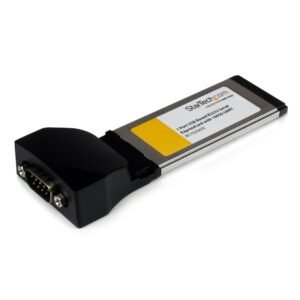
1 Port ExpressCard to RS232 DB9 Serial Adapter Card w/ 16950 - USB Based - TAA
$15.99 Add to cart -

1S1P 54mm ExpressCard Serial Parallel Combo Card with 16550 UART
$51.99 Add to cart -
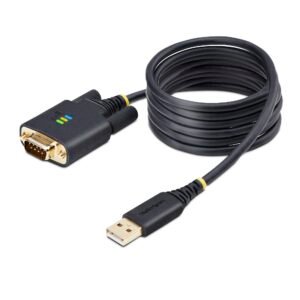
6.6ft (2m) USB to Serial Adapter Cable, COM Retention, Interchangeable Screws/Nuts, USB-A to DB9 RS232, FTDI IC, ESD Protection, Windows/macOS/Linux
$48.16 Add to cart -

2-Port PCI Express Serial Card, Dual Port PCIe to RS232 (DB9) Serial Card, 16C1050 UART, Standard or Low Profile Brackets, COM Retention, For Windows & Linux - TAA
$65.99 Add to cart