
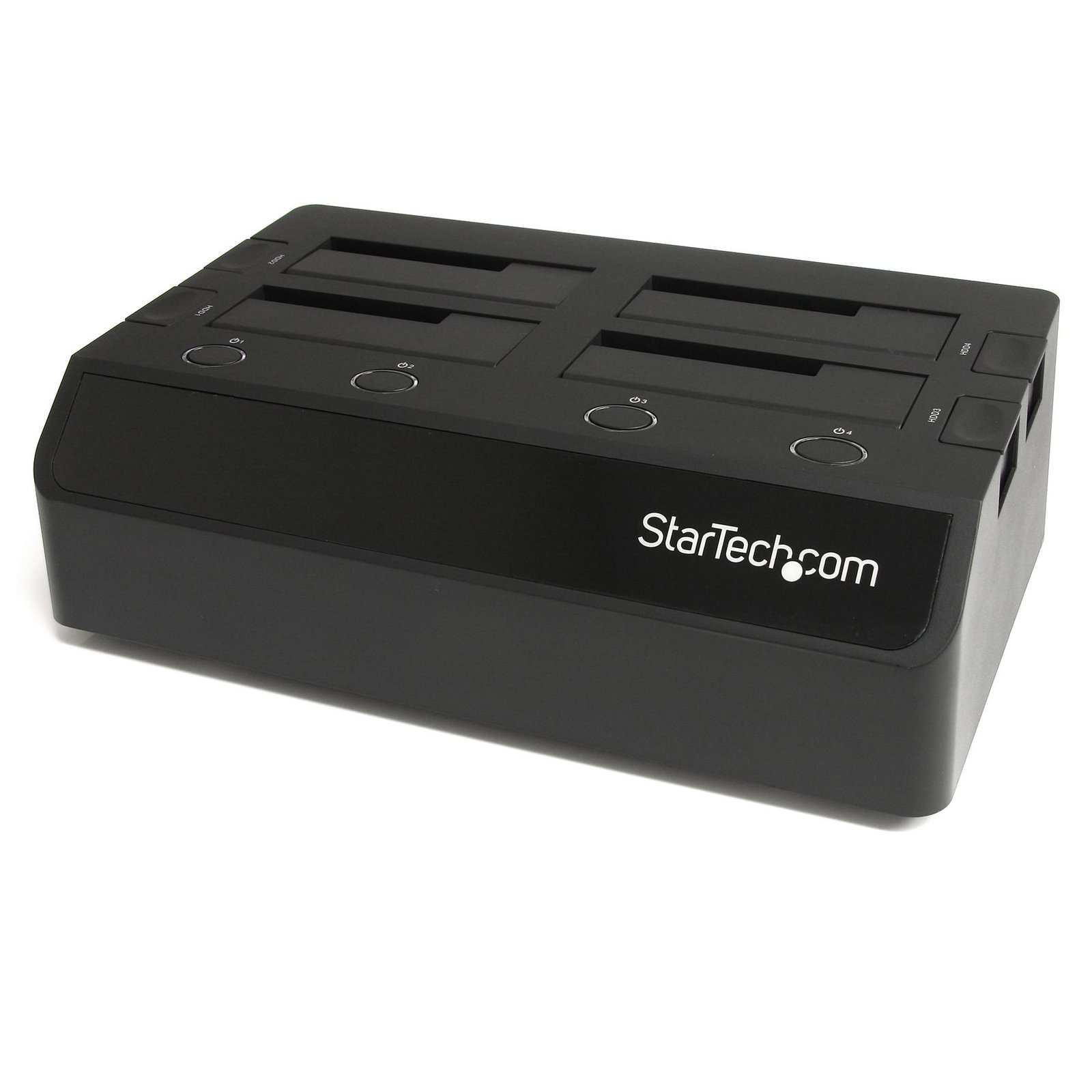
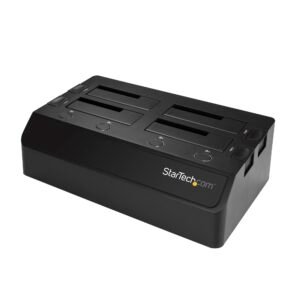
4 Bay eSATA USB 2.0 to SATA Hard Drive Docking Station for 2.5/3.5 HDD
$133.99
Enable quick access to four 2.5”/3.5” SATA HDD from multiple computers
Specifications & Compliance
- UPC
- 065030842563
- Brand
- StarTech.com
- Included in Package
- 1 - 4-Bay HDD Docking Station, 2 - USB 2.0 Cable, 4 - eSATA Cable, 3 - Power Cord (NA/UK/EU), 1 - Universal Power Adapter, 1 - Instruction Manual
- Shipping (Package) Weight
- 4.9 lb [2.2 kg]
- Weight of Product
- 2.2 lb [1.0 kg]
- Product Length
- 11.4 in [29.1 cm]
- Product Width
- 6.8 in [17.3 cm]
- Product Height
- 3.7 in [94.7 mm]
- Package Depth
- 6.6 in [16.8 cm]
- Package Width
- 13.4 in [34 cm]
- Package Height
- 8.4 in [21.3 cm]
- Color
- Black
- Warranty
- 2 Years
- Connector 1
- SATA (7-Pin + 15-Pin)
- Connector 1 (Quantity)
- 4
- Operating Temperature
- 5°C to 80°C (41°F to 176°F)
- Storage Temperature
- -40°C to 70°C (-40°F to 158°F)
- Humidity
- 8%~90% RH
- Material
- Plastic
- Power Source
- AC Adapter Included
- Chipset ID
- Initio - INIC-1610
- Input Voltage
- 110V-240V AC
- Output Voltage
- 12V DC
- LED Indicators
- 4 - Power (Blue), 4 - Activity (Red)
- Interface
- USB 2.0 & eSATA
- Input Current
- 2500mA
- Output Current
- 6.5
- Type and Rate
- USB 2.0 (480Mbps)
- System and Cable Requirements
- At least one USB or eSATA port
- Host Connector 1
- USB-B (480Mbps, 2.5W)
- Host Connector 1 (Quantity)
- 2
- Plug Type
- DIN
- UASP Support
- No
- Host Connector 2
- eSATA (7-Pin)
- Host Connector 2 (Quantity)
- 4
- SATA Type and Rate
- SATA II (3 Gbps)
- Compatible Drive Types
- SATA
- Number of Drives
- 4
- Drive Size
- 2.5in & 3.5in
- Fans Included? Yes/No
- Yes
- Insertion Rating
- 15, 000 cycles
- Max Drive Capacity
- Currently tested with up to 4TB 5400 RPM 3.5" hard drives per bay (16TB total) and 1TB 5400 RPM 2.5" hard drives (4TB total)
- Fans
- 2 - 60 mm
Questions & Answers
How do I initialize a brand new hard drive in Windows or Mac OS?
Windows 10 Before you can access a new or formatted drive in your operating system, you need to initialize it first and then create a partition on the drive. A partition defines an area of the drive to use for storing data. The partition uses a file system (for example, ex-FAT, NTFS, and so on). Initialize a drive Note: You typically only need to initialize a drive if the drive is new. If you cannot find an uninitialized drive in Disk Management, skip the following steps and try to partition your device. Press the Windows key + R , type compmgmt.msc , and click Run to open Computer Management . Navigate to Disk Management . When prompted to, initialize your disk(s). If you are running Windows ® 7 or later and are using a drive larger than 2TB, initialize the disk(s) with GPT. If you are running an earlier version of Windows, initialize the disk(s) with MBR. For more information, visit the following FAQ: https://www.startech.com/en-us/support/faqs/technical?topic=harddrives#mbr-vs-gpt . Click OK . Create a partition in a drive Note: The following steps create an NTFS partition that uses the entire drive space. To use a different file system, select a different option in step 6. Right-click Unallocated or RAW volume , and select New Simple Volume . In the New Partition Wizard , click Next . Select Primary partition . Leave the partition size set to default , and click Next . Assign a drive letter or leave it set to the default, and click Next . Enter the following settings to format the partition: In the File System field, enter NTFS . Set the Allocation unit size to Default . In the Volume label field, enter < your name/reference >. Select the Perform a quick format check box. Clear the Enable file and folder compression check box. Click Next > Finish . The new drive should appear in Windows Explorer. Mac OS Before you can access a new or formatted drive in your operating system, you need to initialize it first and then create a partition on the drive. A partition defines an area of the drive to use for storing data. The partition uses a file system (for example, HFS+, ex-FAT, NTFS, and so on). Initialize a drive Mac OSX detects a drive that needs to be initialized and automatically prompts you to initialize the drive. If you are prompted to initialize the drive, click Initialize . If you are not prompted to initialize the drive and you cannot find the drive in Finder , you will need to create a partition on the drive. Create a partition on a drive Note: The following steps create an HFS+ (Mac OS Extended (Journaled)) partition that uses the entire drive space. To create a partition on a new drive, complete the following: Open Finder . Navigate to Applications and click Utilities . Open Disk Utility . Select the new drive and click the Partition tab. Click Options and verify that it is set to GUID Partition Table . Enter a name for the partition. Click Partition . The drive should now be accessible in Finder. For products related to this article, click here .
Related products
-
USB 3.0 eSATA Hard Drive Docking Station with Cooling Fan
$69.99 Add to cart -
USB 3.0 Dual SATA Hard Drive Docking Station with integrated Fast Charge USB Hub UASP support and Fan - Black
$99.99 Add to cart -
Dual-Bay USB 3.0 / eSATA to SATA Hard Drive Docking Station, USB Hard Drive Dock, External 2.5/3.5" SATA I/II/III SSD/HDD Docking Station, Hot-Swap Hard Drive Bays, Top-Loading
$111.71 Add to cart -
4-Bay USB to SATA Hard Drive Docking Station, USB 10Gbps, External 2.5" & 3.5" SSD / HDD Dock, SATA III, Hot-Swap Hard Drive Bay, Top-Loading
$240.86 Add to cart