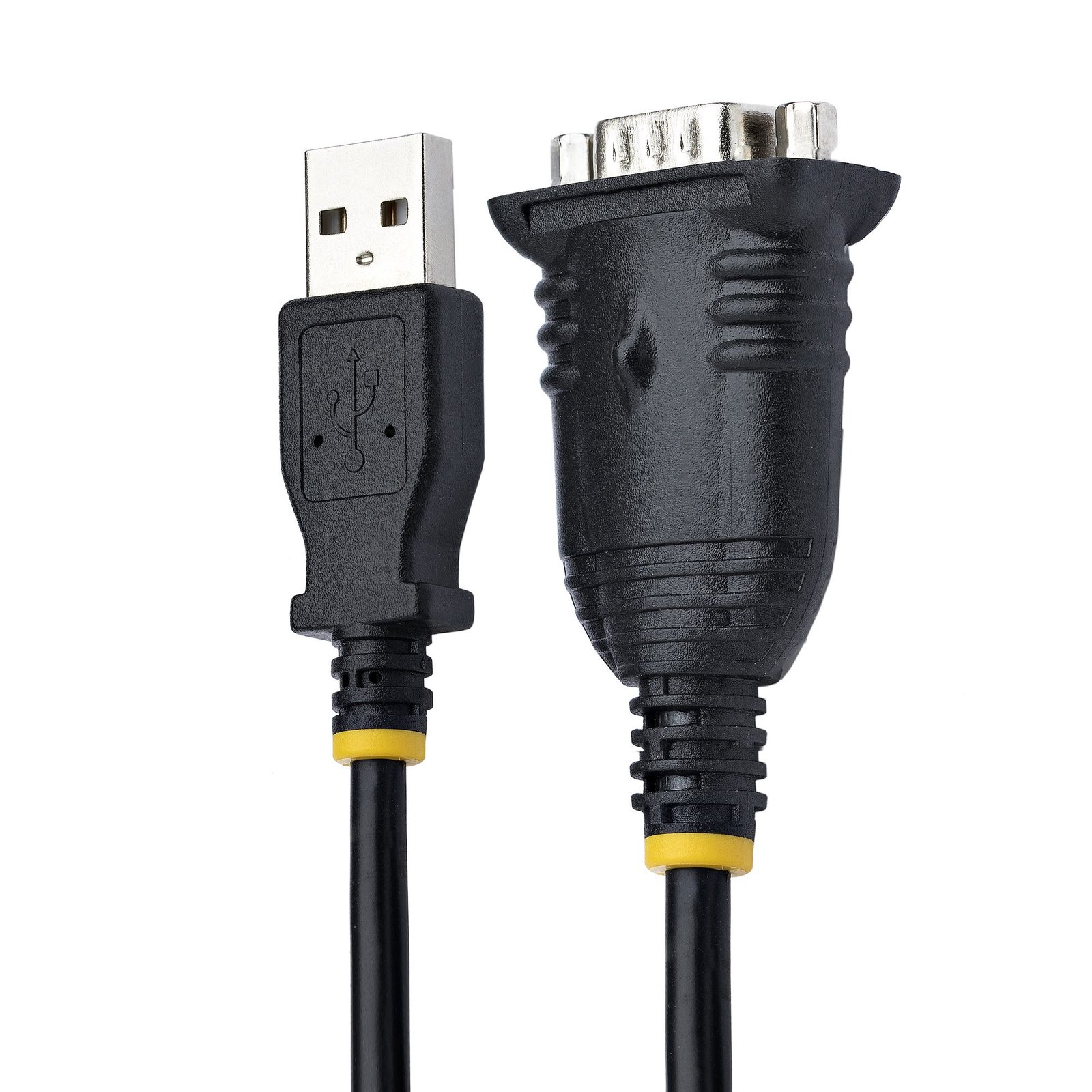
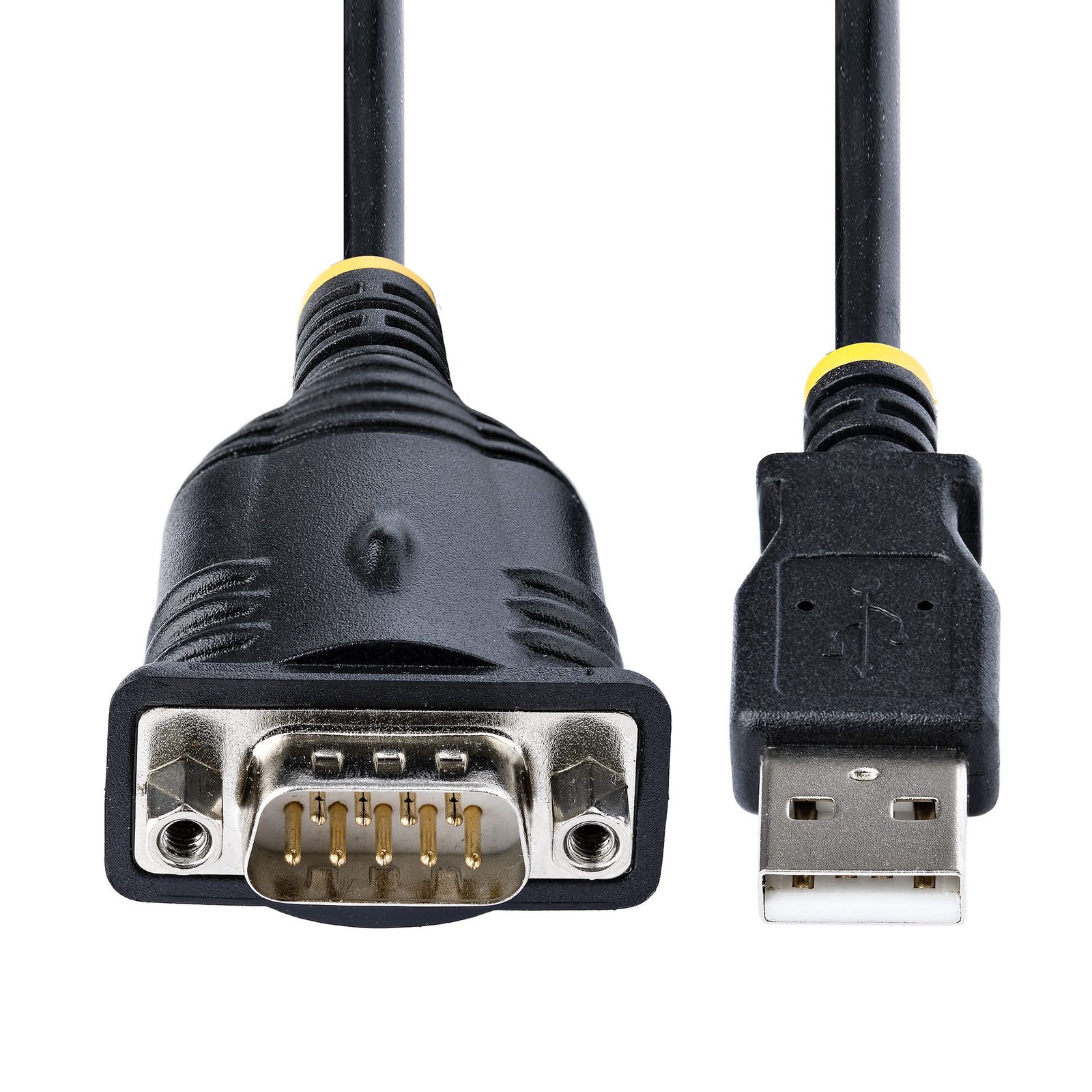
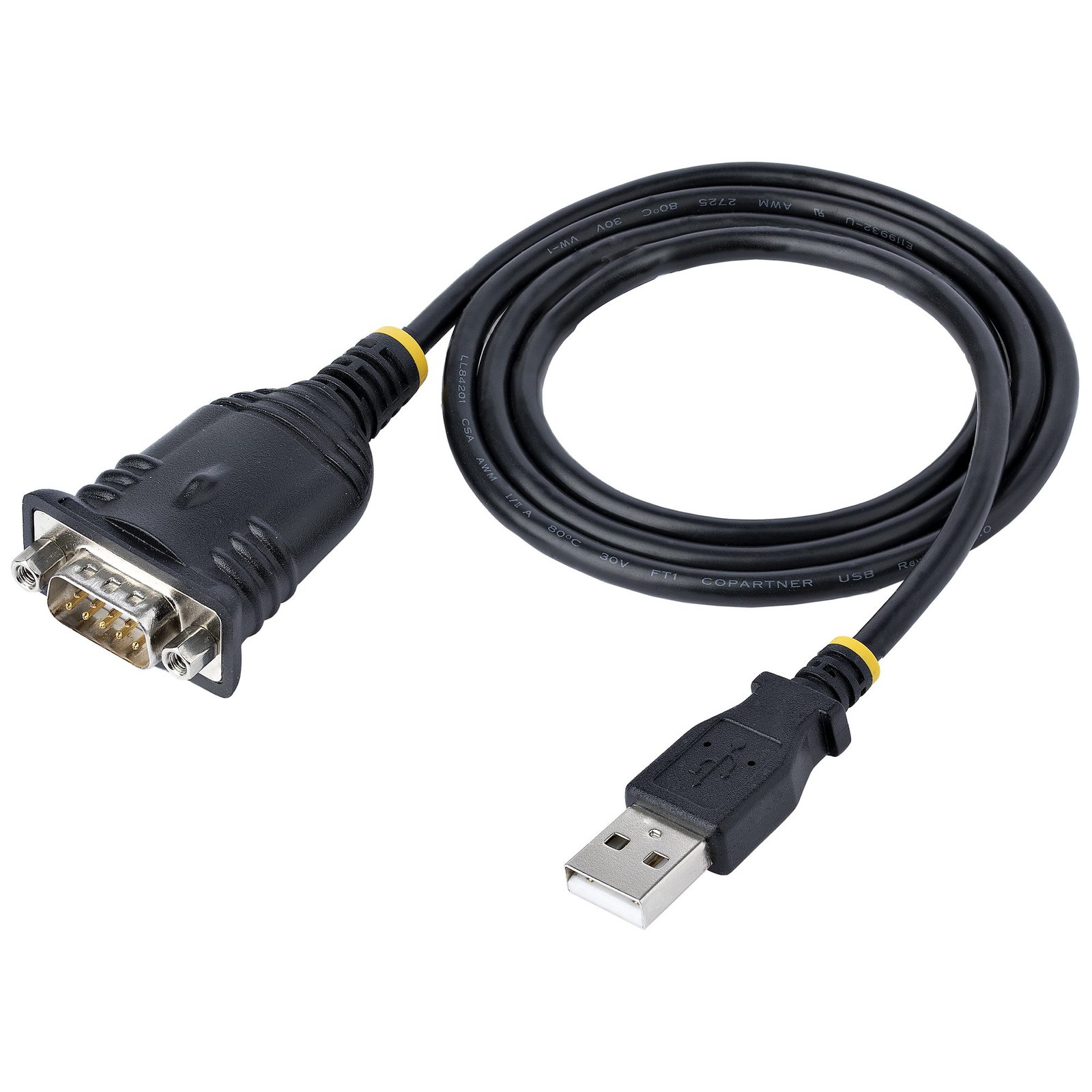
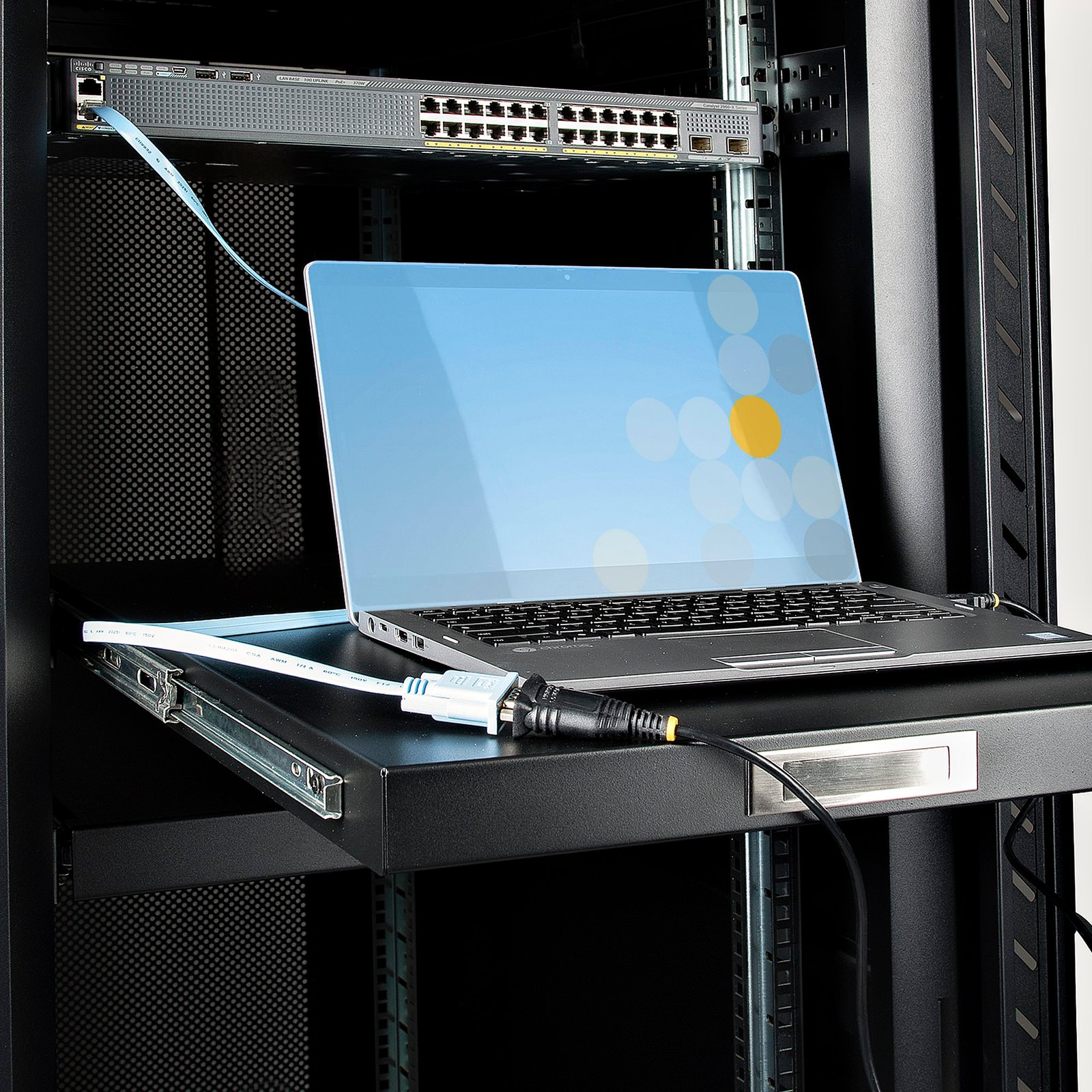
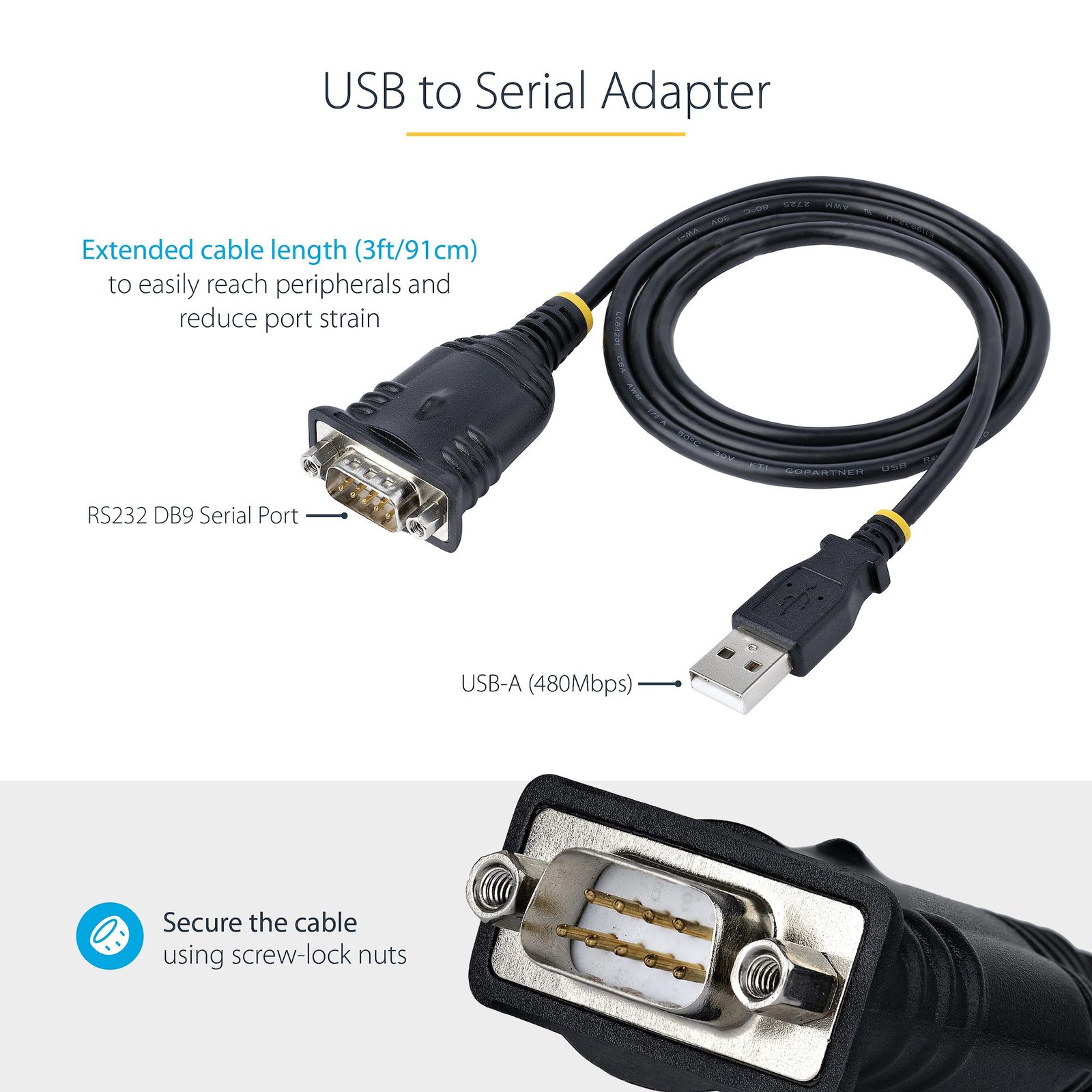
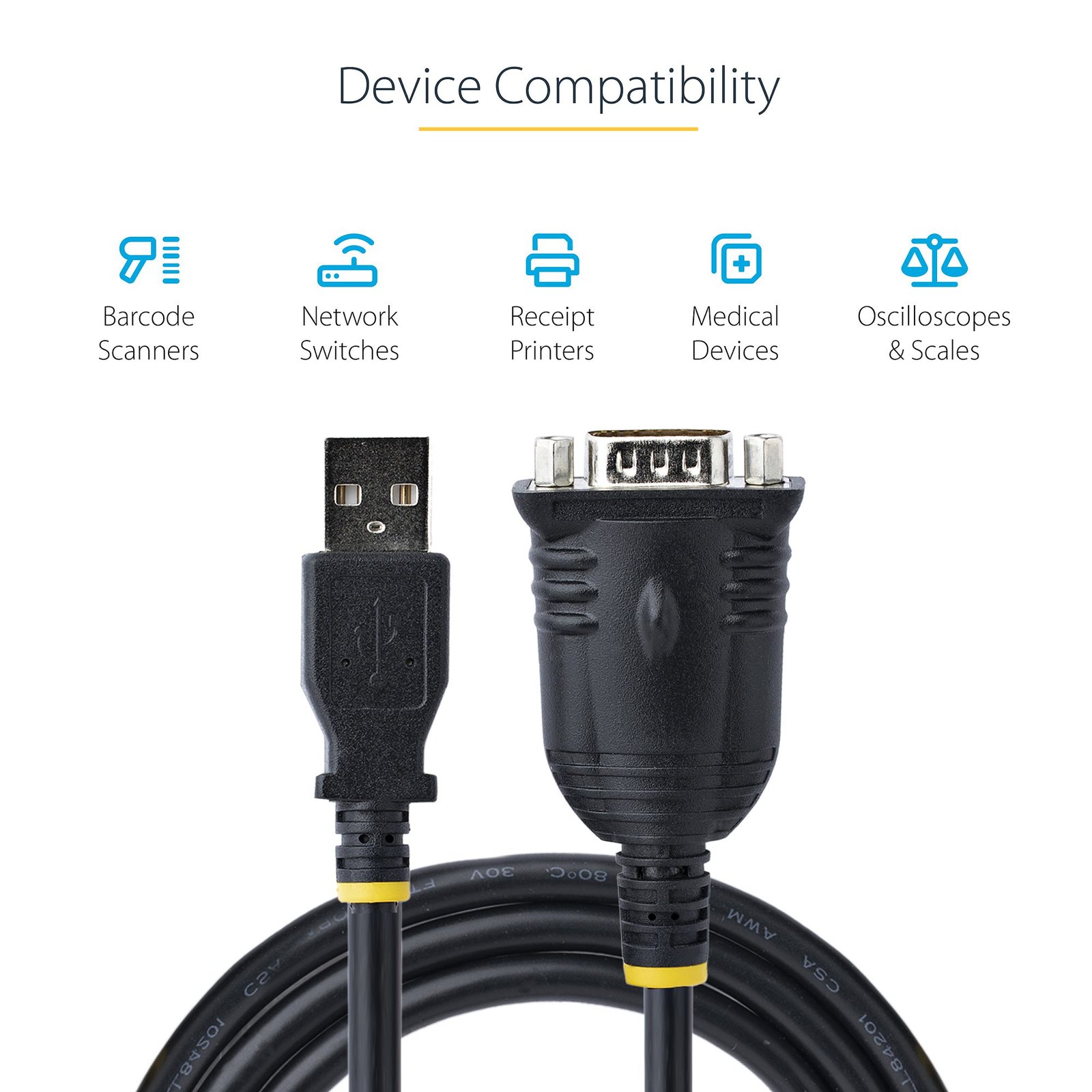
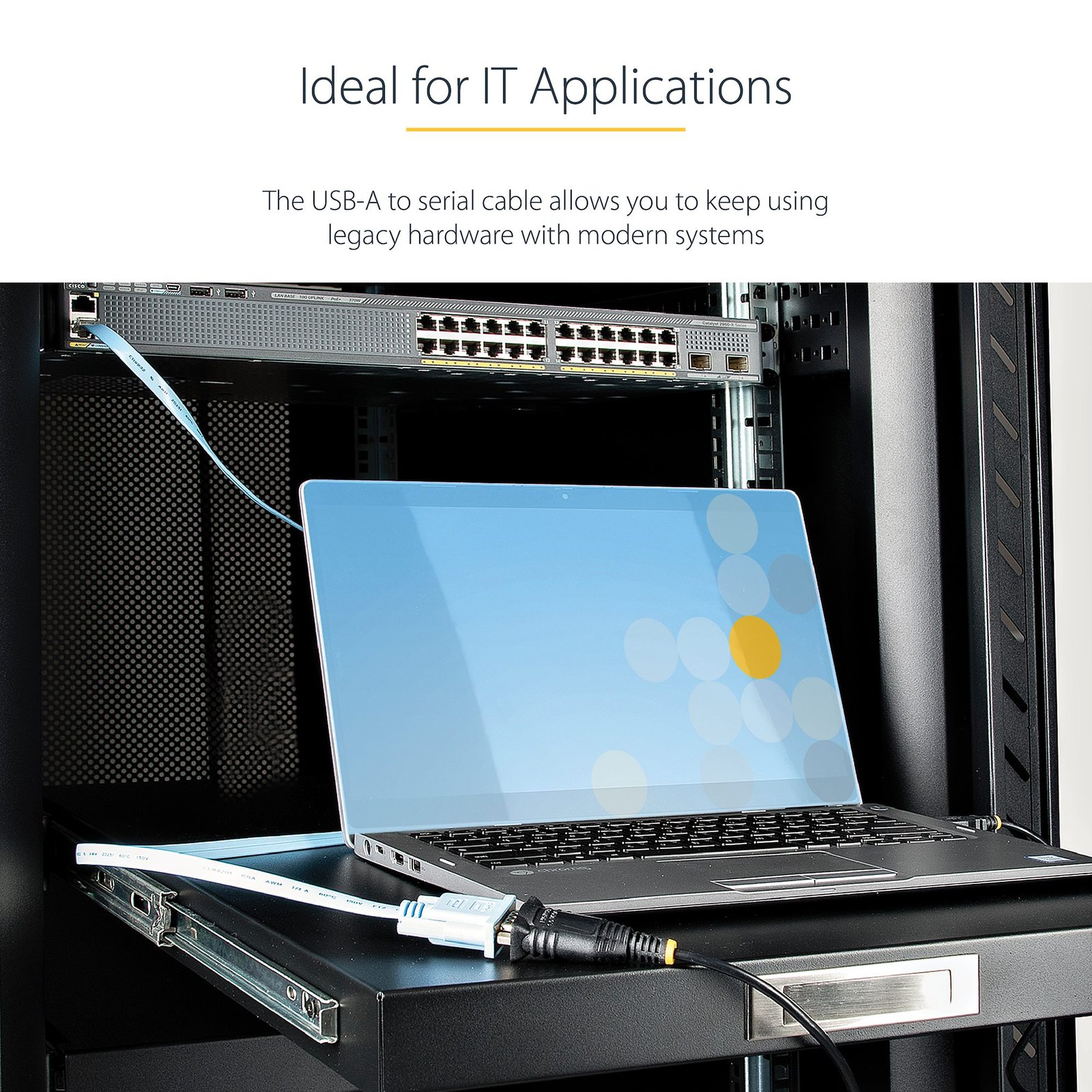
3ft (1m) USB to Serial Cable, DB9 Male RS232 to USB Converter, Prolific IC, USB to Serial Adapter for PLC/Printer/Scanner/Switch, USB to COM Port Adapter, Windows/Mac

$30.74

USB to Serial Cable | 921.6 Kbps | For Servers/Printers/Barcode Readers/AV | Prolific Chipset | Windows/Mac/Linux

SKU: 1P3FP-USB-SERIAL Category:

Specifications & Compliance

UPC
065030894586
Brand
StarTech.com
Included in Package
1 - USB to Serial Adapter
Shipping (Package) Weight
2.6 oz [74 g]
Weight of Product
2.1 oz [60.0 g]
Product Length
36.0 in [91.4 cm]
Product Width
1.8 in [45.0 mm]
Product Height
0.6 in [15.6 mm]
Package Depth
7.8 in [19.9 cm]
Package Width
5.2 in [13.3 cm]
Package Height
0.9 in [23 mm]
Color
Black
Warranty
3 Years
Connector 1
DB-9 Serial
Connector 1 (Quantity)
1
Package Quantity
1
Connector 2
USB-A (480Mbps, 2.5W)
Connector 2 (Quantity)
1
Operating Temperature
0°C to 60°C (32°F to 140°F)
Storage Temperature
-10°C to 70°C (14°F to 158°F)
Humidity
50% to 90% RH Non-Condensing
Industry Standards
USB 1.1/2.0, RS-232
Chipset ID
Prolific - PL2303GT
Number of Ports
1
Interface
Serial
Bus Type
USB 2.0
System and Cable Requirements
Computer with an available USB Type A port version 1.1 or greater
Port Style
Cable Adapters
Serial Protocol
RS-232
Max Baud Rate
921.6 Kbps
FIFO
512 Bytes
Data Bits
5, 6, 7, 8
Flow Control
None, CTS/RTS, DSR/DTR, XON/XOFF
Parity
Even, Odd, None, Space, and Mark
Stop Bits
1, 1.5, 2

Questions & Answers

Serial communication is not working. Is the problem caused by the adapter or my serial software application?
Older applications that use serial communication often use legacy hardware addresses that do not work with PCI, PCIe, or USB to Serial products. We recommend contacting the software provider/support team to check if this is the case.

How can I make sure my serial port is working in Windows?
To check whether or not an RS-232 serial port is working, perform an RS-232 loopback test by doing the following: If your serial port is not female, convert it by taking a female/female cable or gender changer and plugging it into the serial port. Take a metal paperclip or wire and cross pins 2 and 3. If you look closely at the female end, the pins should be numbered. Open a telnet session on the COM port number of the device that you are testing. To find out the COM port number, refer to the following FAQ: https://www.startech.com/faq/com-port-listing-windows . Note: To open a telnet session on the COM port, you need a telnet client like PuTTY or Hyper Terminal. Windows XP comes with Hyper Terminal. When the session is open, anything you type into it you should see. The loopback test fails when you cannot see what you are typing. If the loopback test fails, make sure that the serial cable or gender changer that you are using works and that the adapter is in the correct port. You can check multiple ports at the same time by opening multiple sessions, putting the loopback adapter on one port, and trying to type into each session. When you can see what you are typing, you know that the COM port is working and you can see which port number the physical serial port is. Close the window for the port that you just tested to speed up the testing of the remaining serial ports. For products related to this article, click here .

Why does my USB device stop working after my computer wakes back up from sleep mode in Windows?
If the USB device does not work after your computer has been in extended hibernation, it is likely that Windows has automatically turned off the USB Root hub to save power. The steps below outline how to configure the USB root hub to stay on during hibernation, to prevent this from happening. Windows 10 / 8 On your keyboard, press the Windows key + X and select Control Panel . Click Hardware and Sound , then click Power Options . Click Change plan settings for the plan you want to change. Click Change advanced power settings . Click the plus sign (+) next to “USB settings” and “USB selective suspend setting” to expand the options and change the setting to Disabled . Click OK to apply the setting. Note : You may need to disconnect and re-connect your USB device after applying these settings to re-establish the connection. Windows 7 / Vista Click the Start button and select Control Panel . Click Hardware and Sound , then click Power Options . Click Change plan settings for the plan you want to change. Click Change advanced power settings . Click the plus sign (+) next to “USB settings” and “USB selective suspend setting” to expand the options and change the setting to Disabled . Click OK to apply the setting. Note : You may need to disconnect and re-connect your USB device after applying these settings to re-establish the connection. Windows XP On your desktop, right-click the My Computer icon and select Properties . Click the Device Manager tab. Expand Universal Serial Bus controllers by clicking the arrow to the left of it. Right-click the first USB Root Hub device and select Properties . Click the Power Management tab. Clear the box next to Allow the computer to turn off this device to save power . Click OK to apply the setting. Repeat steps 4-7 for any remaining devices in the Universal Serial Bus Controllers section with “ Root Hub ” in the name. Note : You may need to disconnect and re-connect your USB device after applying these settings to re-establish the connection.