
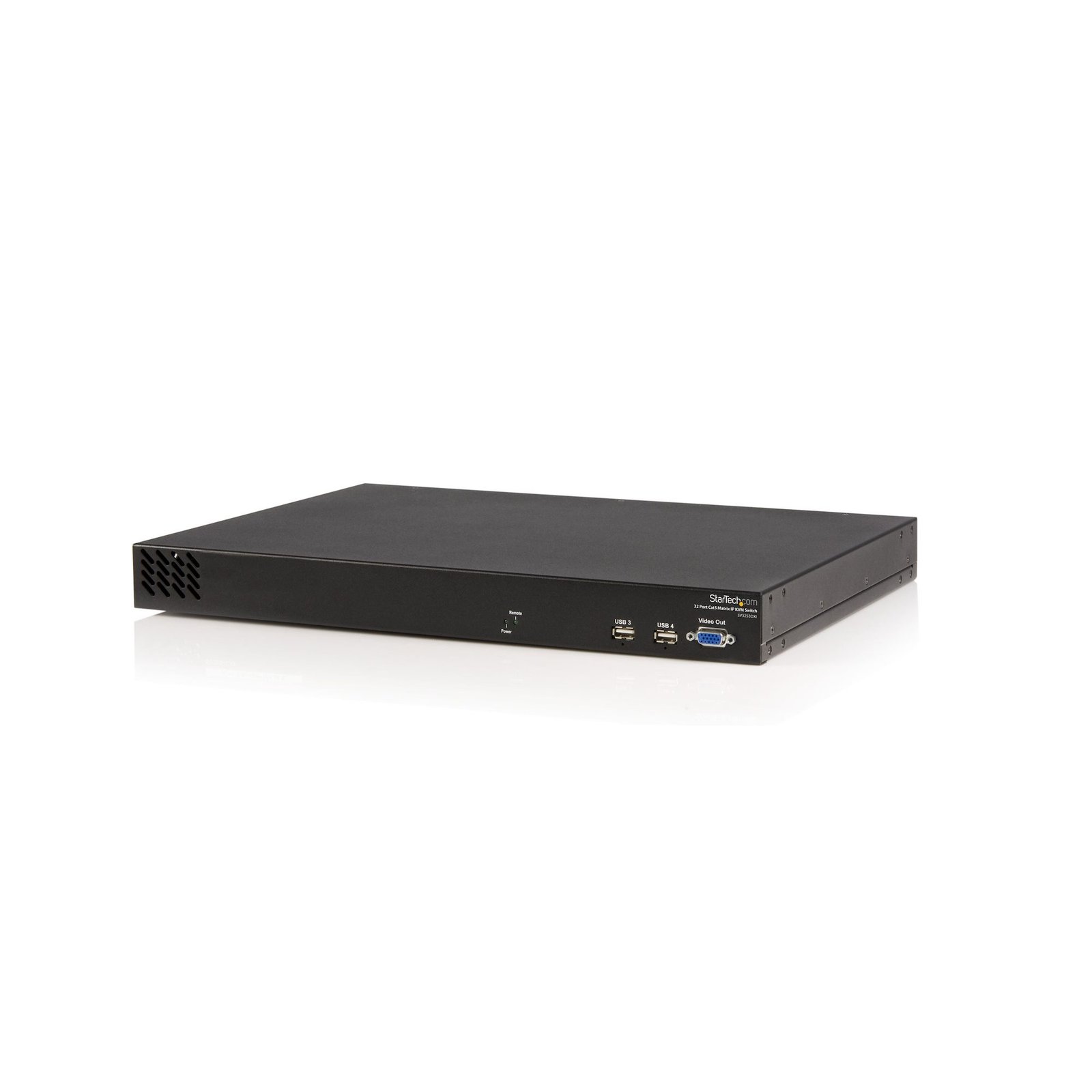
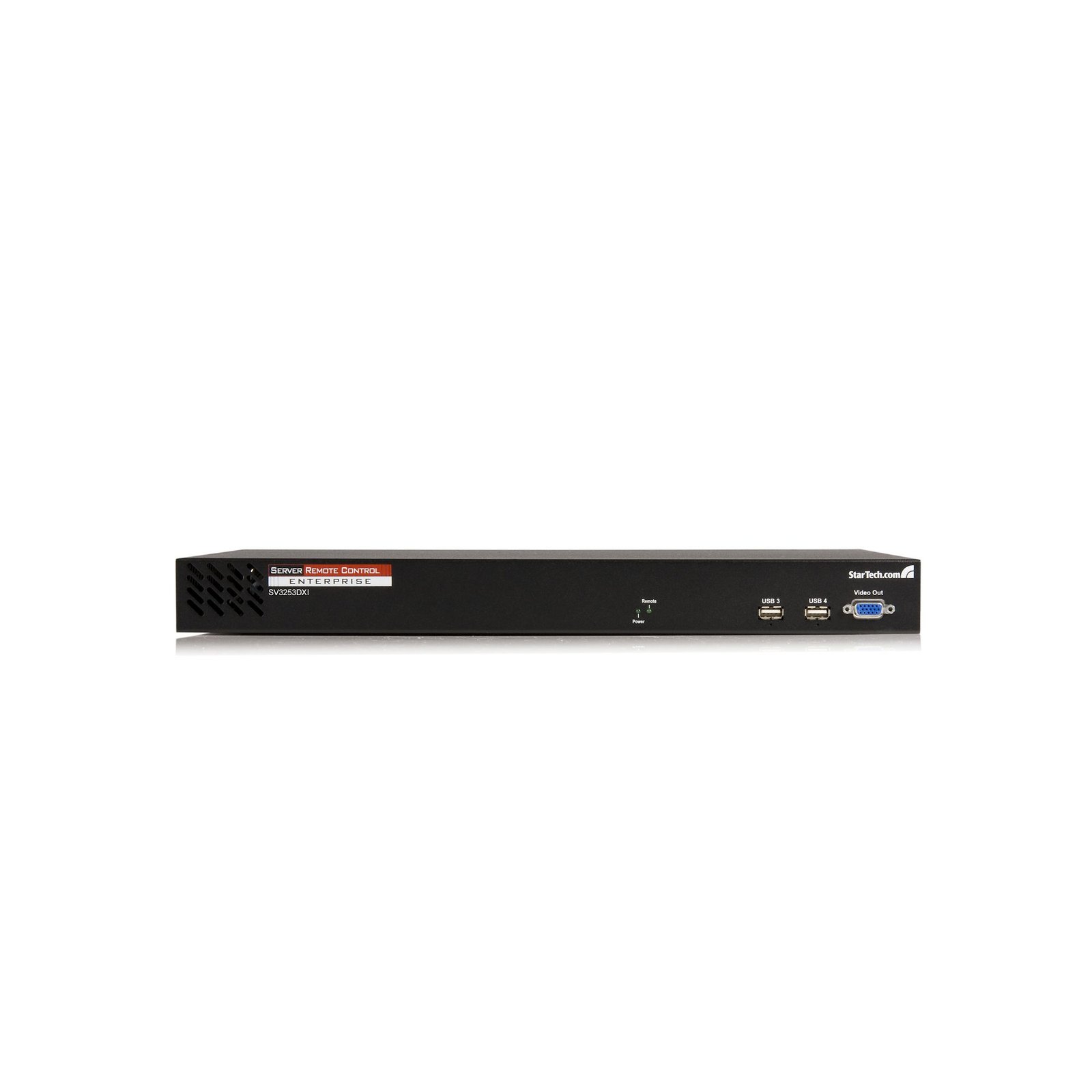
32 Port Multi-user Cat5 Matrix IP KVM Switch
$3,335.99
Simultaneous multi-user remote management and control of up to 32 PCs, servers or KVMs at the BIOS level
Specifications & Compliance
- UPC
- 065030831079
- Brand
- StarTech.com
- Included in Package
- 1 - 32 Port IP KVM Switch, 1 - Mounting Hardware, 1 - Bag, Screws, 1 - Power Cable, 1 - Instruction Manual
- Shipping (Package) Weight
- 6.6 lb [3.0 kg]
- Weight of Product
- 4.9 lb [2.2 kg]
- Product Width
- 17.3 in [44 cm]
- Product Height
- 1.7 in [44 mm]
- Package Depth
- 4.1 in [10.5 cm]
- Package Width
- 22.6 in [57.4 cm]
- Package Height
- 14.7 in [37.4 cm]
- Color
- Black
- Warranty
- 2 Years
- Connector 1
- PS/2
- Connector 1 (Quantity)
- 2
- Connector 2
- USB-A (480Mbps, 2.5W)
- Connector 2 (Quantity)
- 4
- Operating Temperature
- 0°C to 40°C (32°F to 104°F)
- Storage Temperature
- -40°C to 65°C (-40°F to 158°F)
- Humidity
- 80% RH
- Material
- Aluminum
- Power Source
- AC Adapter Included
- Special Notes
- Source code for the unit operating system is available upon request. Please contact us by phone, live chat, or email to make your request. This offer is valid for three years from the date of purchase and/or for as long as parts or customer support is offered for this product. Charges for the reasonable cost of copying and/or conveying may apply.
- Input Voltage
- 115V-230V AC
- Connector 3
- VGA
- Connector 3 (Quantity)
- 2
- LED Indicators
- 1 - Power, 1 - Link
- Host Connector 1
- RJ-45
- Host Connector 1 (Quantity)
- 32
- Audio
- No
- Connector 4
- RJ-45
- Connector 4 (Quantity)
- 2
- Maximum Analog Resolutions
- Standard(4:3) - 1600x1200 @60Hz (Recommended 1280x1024)<br> Widescreen(16:9) - 1280x960
- Cascadable
- No
- Connector 5
- RJ-45
- Connector 5 (Quantity)
- 1
- Rack-Mountable
- Yes
- Number of KVM Ports
- 32
- IP Control
- Yes
- Supported Platforms
- USB and PS/2
- PC Video Type
- VGA
- Number of Monitors Supported
- 1
- Connector 6
- RJ-45
- Connector 6 (Quantity)
- 1
- Cables Included
- No
- Port Selection Support
- Hotkeys and OSD (On Screen Display)
- Hot-Key Selection
- Yes
- Maximum Number of Users
- 1 x Local, 1 x Remote Console, 1 x IP User - Total 3
- Supported Protocols
- SSH, SSL, HTTP, SNMP, HTTPS, VNC VNCS, Radius
- Product Depth
- 12.2 in [31 cm]
- Security Features
- IP Filtering
Questions & Answers
My Monitors are flickering when connected through the KVM Switch. What do I do?
Monitors may begin flickering when they receive a signal of insufficient quality. There are a few potential fixes available that will help to improve the signal quality in order to eliminate flickering: Replace Video Cables with high-quality Video Cables (e.g. upgrade DisplayPort 1.2 Cables to DisplayPort 1.4 Cables ). Use shorter Video Cables to reduce signal attenuation. When possible, remove Video Adapters to use native Video Connection Types (e.g. go from VGA to VGA , or DisplayPort to DisplayPort ) For DisplayPort Monitors , try changing the DisplayPort Version on the Monitor . For information on how to change your Monitor Settings refer to the Manual from the Monitor Manufacturer . Update the Drivers for the Computer’s GPU to the latest available from the Monitor Manufacturer .
My keyboard keeps repeating keys when it is plugged into the KVM. What do I do?
If the keys on your keyboard are repeating, complete the following: If the KVM you are using has USB ports, you can move your keyboard to the USB hub port on the back of the KVM (the USB hubs are marked). Note: When you move the keyboard out of the keyboard port, you will not be able to access the hotkeys. You can adjust the typematic rate in your operating system’s settings. Depending on the version of Windows you are running, you can adjust the typematic rate by doing one of the following: Click Control Panel > Keyboard > Speed . Adjust the repeat delay and repeat rate until the keys no longer repeat. Click Control Panel > Hardware and Sound > Devices and Printers . Right-click Keyboard Settings . Adjust the repeat delay and repeat rate until the keys no longer repeat.
My mouse is not syncing up between the computer I am controlling and the computer I am using to control it. What do I do in Windows Vista / 7 / 8?
To resolve this issue, do the following: Click Start . Click Control Panel . Click Hardware and Sound . Click Mouse . Click Pointer Options . Clear the Enhance pointer precision check box. Click Apply and then click OK . In the KVM Bribar menu, click the Mouse Re-sync option.
My mouse is not syncing up between the computer I am controlling and the computer I am using to control it. What do I do in Windows XP?
To resolve this issue, do the following: Click Start . Click Control Panel . Click Mouse . Click Pointer Options . Clear the Enhance pointer precision check box. Click Apply and then click OK . In the KVM Bribar menu, click the Mouse Re-sync option.
My mouse is not syncing up between the computer I am controlling and the computer I am using to control it. What do I do in Linux?
Set the mouse acceleration slider to one bar left of center. Set the Sensitivity slider to the lowest possible option. Make sure that your startup script (for example, xinitrc or xsession) contains the line xset m 0/0 0 . Restart the computer. Perform a mouse and PS/2 or USB re-sync. Make sure that the screen resolution (even in text mode) is at least 1024 x 768. Resolutions that are less than that can cause the mouse to not sync, no matter what is done. In Linux text-mode, setting kernel flags in your boot loader (for example, GRUB) will help to set this.
I am using a computer running Linux in text mode and the KVM is stuck on a port. What do I do?
In order to resolve this issue, do the following: Increase the resolution on the computer to 800 x 600 or higher. To make sure that you have the latest firmware installed on the KVM switch, navigate to the web interface for the KVM switch and if necessary, update the firmware to the latest version.
I switched to a port on the KVM that does not have a computer connected to it, and now the KVM is stuck there. What do I do?
In order to resolve this issue, do the following: Move a computer connected to the KVM switch to the port that the KVM switch is stuck on. Try switching off of the port again. You should now be able to switch the KVM switch off of the port that it was stuck on.
Are all mice and keyboards compatible with this StarTech.com KVM switch?
No, not all mice and keyboards are compatible; standard HID-compliant wired devices are recommended, while advanced or high-power devices may not function correctly. Explanation: StarTech.com KVM switches are designed to support standard HID (Human Interface Device) keyboards and mice, including common wired and wireless models from major brands. However, compatibility depends on the device’s features and power requirements. Keyboards and mice with programmable keys, built-in USB or audio pass-through ports, or high power consumption (such as RGB lighting) may not work reliably through the dedicated HID ports. For consistent performance, use a basic wired keyboard and mouse. If a device does not function through the HID ports, it can be connected to the KVM switch’s USB hub ports, if available, which provide broader compatibility. However, when a keyboard is connected through the USB hub ports instead of the HID port, KVM-specific functions such as hotkey switching may not be supported.
Related products
-

RS232 Serial Remote Control Interface Module for IP KVM
$99.99 Add to cart -

2-Port Hybrid USB-C HDMI Cable KVM Switch, 4K 60Hz, Compact KVM with 6ft/1.8m USB-A/HDMI/Audio & 4ft/1.2m USB-C Integrated Host Cables, Bus Powered - Remote Push Button/Hotkey Switching
$98.99 Add to cart -
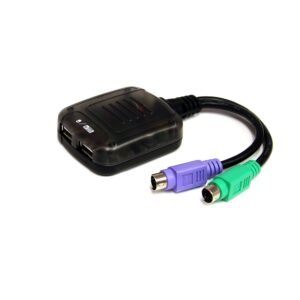
PS/2 to USB Keyboard and Mouse Adapter
$149.99 Add to cart -

2-Port Dual-Monitor DisplayPort KVM Switch with Dual View Video Matrix, 4K 60Hz, 4x USB Hub Ports, Hotkey Switching, DP 1.2 Matrix KVM, TAA Compliant
$487.99 Add to cart