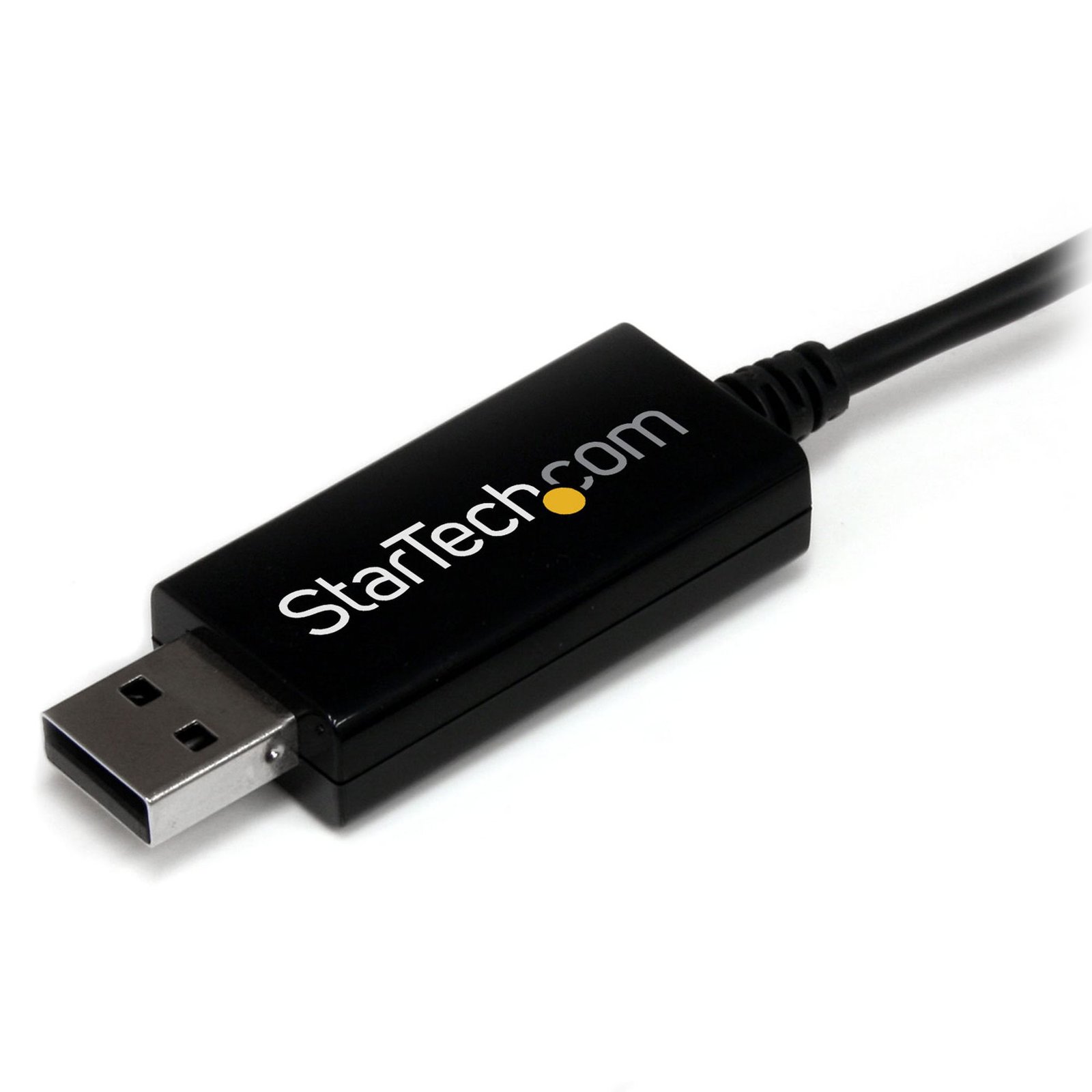
2 Port USB KM Switch - USB Keyboard and Mouse Switch with File Transfer
$53.99
Control, and transfer files between 2 USB connected computers using a single keyboard and mouse
Specifications & Compliance
- Manufacturer #
- SVKMS
- UPC
- 065030845809
- Brand
- StarTech.com
- Included in Package
- 1 - Keyboard Mouse Sharing Cable, 1 - Instruction Manual
- Shipping (Package) Weight
- 3.8 oz [108 g]
- Weight of Product
- 1.1 oz [32 g]
- Product Length
- 4.0 ft [1.2 m]
- Product Width
- 0.8 in [20.5 mm]
- Product Height
- 0.4 in [10.5 mm]
- Package Depth
- 6.7 in [17 cm]
- Package Width
- 5.6 in [14.2 cm]
- Package Height
- 1.3 in [33 mm]
- Color
- Black
- Warranty
- 2 Years
- Operating Temperature
- 0°C to 40°C (32°F to 104°F)
- Storage Temperature
- -10°C to 60°C (14°F to 140°F)
- Humidity
- 80% RH
- Material
- Plastic
- Chipset ID
- OTi - 2211
- Special Notes
- Mac OSX support is limited. Only Windows to Mac KM sharing is supported. Mac to Mac is not supported. OSX does not support file transfers or clipboard sharing.
- LED Indicators
- 2 - Connection/activity indicators
- Host Connector 1
- USB-A (480Mbps, 2.5W)
- Host Connector 1 (Quantity)
- 2
- Cascadable
- No
- Rack-Mountable
- No
- Number of KVM Ports
- 2
- IP Control
- No
- Supported Platforms
- USB
- On-Screen Display
- No
- Cables Included
- Yes
- Hot-Key Selection
- Yes
- Maximum Number of Users
- 1
- Microsoft WHQL Certified
- Yes
Questions & Answers
My Monitors are flickering when connected through the KVM Switch. What do I do?
Monitors may begin flickering when they receive a signal of insufficient quality. There are a few potential fixes available that will help to improve the signal quality in order to eliminate flickering: Replace Video Cables with high-quality Video Cables (e.g. upgrade DisplayPort 1.2 Cables to DisplayPort 1.4 Cables ). Use shorter Video Cables to reduce signal attenuation. When possible, remove Video Adapters to use native Video Connection Types (e.g. go from VGA to VGA , or DisplayPort to DisplayPort ) For DisplayPort Monitors , try changing the DisplayPort Version on the Monitor . For information on how to change your Monitor Settings refer to the Manual from the Monitor Manufacturer . Update the Drivers for the Computer’s GPU to the latest available from the Monitor Manufacturer .