
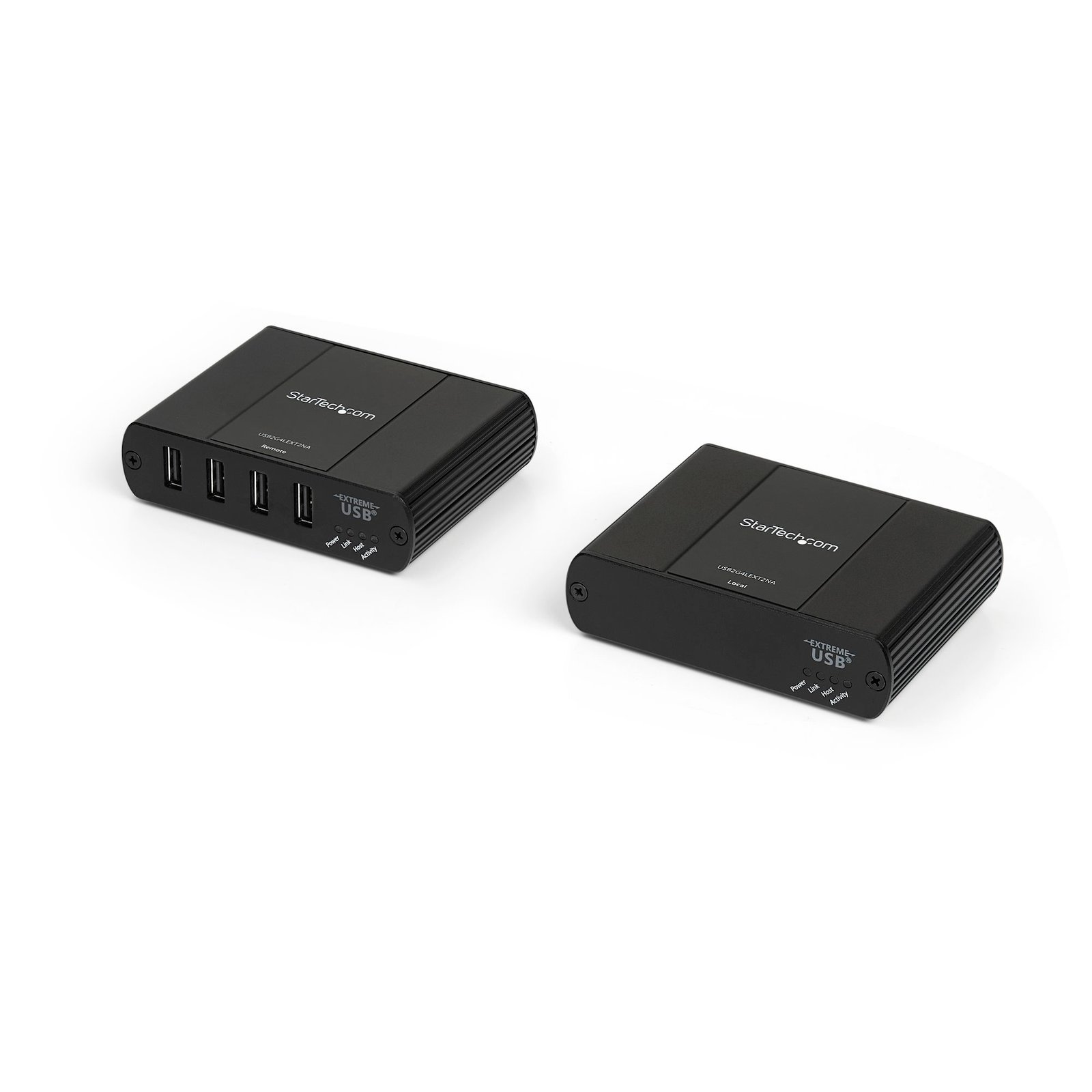
2 Port USB 2.0 over Cat5 or Cat6 Extender Kit - Locally or Remotely Powered - 330 ft (100 m) - USB Extender - USB to Ethernet
$527.99
Extend two USB 2.0 connections with power, by up to 330ft over Cat5 or Cat6 cable
Specifications & Compliance
- UPC
- 065030841566
- Brand
- StarTech.com
- Included in Package
- 1 - USB 2.0 extender local unit, 1 - USB 2.0 extender remote unit, 1 - USB cable, 1 - mounting kit, 1 - universal power adapter (NA, JP, EU, UK, ANZ), 1 - quick-start guide
- Shipping (Package) Weight
- 2.6 lb [1.2 kg]
- Weight of Product
- 21.2 oz [600.0 g]
- Product Length
- 3.9 in [100.0 mm]
- Product Width
- 3.0 in [76.0 mm]
- Product Height
- 1.0 in [26.0 mm]
- Package Depth
- 7.7 in [19.5 cm]
- Package Width
- 9.8 in [24.8 cm]
- Package Height
- 4.3 in [10.8 cm]
- Color
- Black
- Warranty
- 2 Years
- Connector 1
- USB-A (480Mbps, 2.5W)
- Connector 1 (Quantity)
- 2
- Package Quantity
- 1
- Connector 2
- RJ-45
- Connector 2 (Quantity)
- 1
- Operating Temperature
- 0°C to 50°C (32°F to 122°F)
- Storage Temperature
- -20°C to 70°C (-4°F to 158°F)
- Humidity
- 10~90% RH
- Material
- Aluminum and Plastic
- Maximum Data Transfer Rate
- 480 Mbps
- Power Source
- AC Adapter Included
- Input Voltage
- 100 - 240 AC
- Output Voltage
- 24 DC
- Power Consumption
- 24
- Number of Ports
- 2
- Input Current
- 0.6 A
- Output Current
- 1
- System and Cable Requirements
- USB enabled computer system with available USB port
- Host Connector 1
- USB-B (480Mbps, 2.5W)
- Host Connector 1 (Quantity)
- 1
- Plug Type
- M
- Center Tip Polarity
- Positive
- Host Connector 2
- RJ-45
- Host Connector 2 (Quantity)
- 1
- Max Distance
- 100m [328ft]
- Cabling
- Cat 5 UTP
Questions & Answers
Why does my USB device stop working after my computer wakes back up from sleep mode in Windows?
If the USB device does not work after your computer has been in extended hibernation, it is likely that Windows has automatically turned off the USB Root hub to save power. The steps below outline how to configure the USB root hub to stay on during hibernation, to prevent this from happening. Windows 10 / 8 On your keyboard, press the Windows key + X and select Control Panel . Click Hardware and Sound , then click Power Options . Click Change plan settings for the plan you want to change. Click Change advanced power settings . Click the plus sign (+) next to “USB settings” and “USB selective suspend setting” to expand the options and change the setting to Disabled . Click OK to apply the setting. Note : You may need to disconnect and re-connect your USB device after applying these settings to re-establish the connection. Windows 7 / Vista Click the Start button and select Control Panel . Click Hardware and Sound , then click Power Options . Click Change plan settings for the plan you want to change. Click Change advanced power settings . Click the plus sign (+) next to “USB settings” and “USB selective suspend setting” to expand the options and change the setting to Disabled . Click OK to apply the setting. Note : You may need to disconnect and re-connect your USB device after applying these settings to re-establish the connection. Windows XP On your desktop, right-click the My Computer icon and select Properties . Click the Device Manager tab. Expand Universal Serial Bus controllers by clicking the arrow to the left of it. Right-click the first USB Root Hub device and select Properties . Click the Power Management tab. Clear the box next to Allow the computer to turn off this device to save power . Click OK to apply the setting. Repeat steps 4-7 for any remaining devices in the Universal Serial Bus Controllers section with “ Root Hub ” in the name. Note : You may need to disconnect and re-connect your USB device after applying these settings to re-establish the connection.
What DC barrel connector power plug types do StarTech.com products use, and what are their dimensions?
StarTech.com DC barrel connector plug types are defined in the “Plug Type” field of the technical specifications, using a letter code that specifies the connector’s outer diameter (OD) and inner diameter (ID) in millimeters for power adapter compatibility. Explanation: In StarTech.com technical specifications, the “Plug Type” field is a standardized identifier for the exact DC barrel connector size required to power a product. Each plug type is assigned a letter code that corresponds to a specific combination of outer diameter (OD) and inner diameter (ID), measured in millimeters. Common DC barrel plug type dimensions Plug Type OD ID A 2.35 mm 0.7 mm B 4.0 mm 1.7 mm C 4.75 mm 1.7 mm H 3.4 mm 1.3 mm L 5.0 mm 2.5 mm M 5.5 mm 2.1 mm N 5.5 mm 2.5 mm The DC barrel connector plug type must match both the outer diameter and inner diameter exactly. A mismatch between the StarTech.com product requirement and the power adapter connector can prevent proper fit or stable power delivery, which may result in device startup failure or intermittent operation. The plug type defines only the physical connector size. The plug type does not define electrical power requirements such as voltage, current, or polarity. The power adapter used with a StarTech.com product must match the product’s specified electrical requirements. Using an incompatible power adapter can cause device malfunction or permanent damage. This standardized DC barrel connector plug type system enables IT professionals and procurement teams to verify connector dimensions, ensure power adapter compatibility, standardize hardware deployments, and identify the correct replacement power supply for StarTech.com products.
Related products
-

USB 2.0 Extender over Cat5e/Cat6 Cable (RJ45) - Locally or Remotely Powered Industrial Metal USB Extender Adapter Kit w/ ESD Protection - 330ft/100m - 480 Mbps
$578.09 Add to cart -
4 Port USB 2.0 over Gigabit LAN or Direct Cat5e / Cat6 Ethernet Extender System - up to 330 ft (100m) - USB 2.0 Extender
$525.99 Add to cart -
4 Port USB 2.0 Extender over Ethernet/IP Network Hub - Up to 330ft (100m) - USB over Gigabit LAN or Direct Cat5e/Cat6 Cable (RJ45) Extender Adapter - USB Extender Kit
$658.04 Add to cart -
4-Port USB 2.0 Extender Hub over Single CAT5e/CAT6 Ethernet Cable (RJ45) - 330ft (100m) - USB Extender Hub Adapter Kit - Metal Housing - Externally Powered - 480 Mbps - TAA
$400.76 Add to cart